Converting an ebook to PDF sounds like it should be a one-click miracle. Sometimes it is. Other times, your beautifully formatted ebook suddenly looks like it went through a washing machine with a dictionary, a printer, and a tiny angry gremlin. The good news is that converting an ebook to PDF on a PC or Mac is very doable when you choose the right method for the file you have.
The best overall method for most people is to use Calibre, a free ebook management tool available for Windows and macOS. It works offline, supports many ebook formats, gives you control over page size and layout, and does not require uploading your private files to a random website. However, there are cases where printing to PDF, exporting from a writing app, or using an online converter may be easier.
This guide explains how to convert an ebook to PDF on PC or Mac, when to use each method, what to avoid, and how to get a clean PDF that does not look like it was assembled during a coffee shortage.
Before You Convert: Know What Kind of Ebook You Have
Not all ebooks are built the same. The conversion method that works perfectly for one file may fail badly for another. Before you start, check the file extension at the end of your ebook filename.
Common Ebook Formats
- EPUB: One of the most common ebook formats. It is flexible, reflowable, and designed to adjust text to different screen sizes.
- MOBI: An older Kindle-related ebook format still found in many personal libraries.
- AZW or AZW3: Amazon Kindle formats. Some files may be protected by DRM.
- PDF: Already a fixed-layout document. It is usually better for printing, sharing, forms, and page-perfect viewing.
- DOCX or RTF: Word-processing formats often used before publishing an ebook.
- TXT or HTML: Simple text or web-based files that can usually be converted with minimal drama.
The big difference is this: EPUB and MOBI are often reflowable, meaning the text adapts to the reader’s screen. PDF is fixed-layout, meaning each page has a set size. When you convert a reflowable ebook to PDF, you are asking flexible content to sit still and behave like a printed page. It can do that, but it needs guidance.
Best Method: Convert an Ebook to PDF with Calibre
For most users, Calibre is the best way to convert an ebook to PDF on PC or Mac. It is free, widely used, works offline, and supports many ebook file types. It also lets you adjust margins, fonts, page size, table of contents behavior, and other layout settings before creating the PDF.
Calibre is especially useful if you are converting EPUB to PDF, MOBI to PDF, AZW3 to PDF, HTML to PDF, or DOCX to PDF. It is not a magic wand, but it is probably the closest thing ebook conversion has to a Swiss Army knife.
How to Convert an Ebook to PDF on Windows Using Calibre
- Download and install Calibre for Windows from the official Calibre website.
- Open Calibre.
- Click Add books and choose your ebook file.
- Select the book in your Calibre library.
- Click Convert books.
- In the top-right corner of the conversion window, choose PDF as the output format.
- Adjust basic settings such as title, author, page setup, margins, and font size if needed.
- Click OK to begin the conversion.
- After conversion, select the book and click Open containing folder to find the PDF.
How to Convert an Ebook to PDF on Mac Using Calibre
- Install Calibre for macOS from the official Calibre website.
- Open the app and allow macOS permissions if prompted.
- Click Add books and import your ebook file.
- Select the ebook in the library list.
- Click Convert books.
- Set the output format to PDF.
- Review the layout, page setup, and font options.
- Click OK.
- Open the book folder after conversion to access your new PDF.
Recommended Calibre Settings for Better PDF Results
If you simply click “Convert” and hope for the best, you may get a decent PDF. But a few small settings can make the final file much easier to read.
Choose the Right Page Size
If you plan to print the PDF in the United States, choose Letter size. If the PDF is mainly for screen reading, A4 or a tablet-friendly page size may also work. The goal is to avoid giant margins, awkward line breaks, and pages that feel like they were designed for a billboard.
Set Comfortable Margins
Margins that are too narrow make a PDF feel crowded. Margins that are too wide waste space. A moderate margin works best for most ebooks. For reading on laptops and tablets, keep the layout clean and simple.
Check Font Size
A font that looks fine in an ebook reader may become tiny in a PDF. If the final PDF is hard to read, increase the base font size and convert again. This is normal. Ebook conversion is partly science, partly sandwich-making: adjust, test, improve.
Preserve the Table of Contents
If your ebook has chapters, make sure the table of contents is detected properly. A clickable table of contents makes the PDF more useful, especially for guides, manuals, textbooks, and long nonfiction books.
Method 2: Use Print to PDF on Windows
Windows 10 and Windows 11 include Microsoft Print to PDF. This method is handy when you can open the ebook in a reader app but do not have a direct export option.
Steps to Print an Ebook to PDF on PC
- Open the ebook in a compatible reader app.
- Press Ctrl + P or choose File > Print.
- Select Microsoft Print to PDF as the printer.
- Choose page range, orientation, and layout settings.
- Click Print.
- Name the file and choose where to save it.
This approach works best for personal documents, public-domain ebooks, reports, and files where printing is allowed. If the ebook is protected, the print option may be disabled or limited by the publisher.
Method 3: Use Save as PDF or Print on Mac
Mac users have a built-in PDF workflow through the print dialog. If an app lets you print, macOS usually lets you save that output as a PDF.
Steps to Save an Ebook as PDF on Mac
- Open the ebook in a compatible Mac app.
- Choose File > Print.
- Look for the PDF menu in the print dialog.
- Select Save as PDF.
- Enter a filename, choose a location, and save.
This method is quick and does not require extra software. It is best for shorter ebooks, documents, notes, and files that already display well in the app. For large ebooks with chapters, footnotes, images, or complex formatting, Calibre usually gives more control.
Method 4: Convert an Ebook to PDF Online
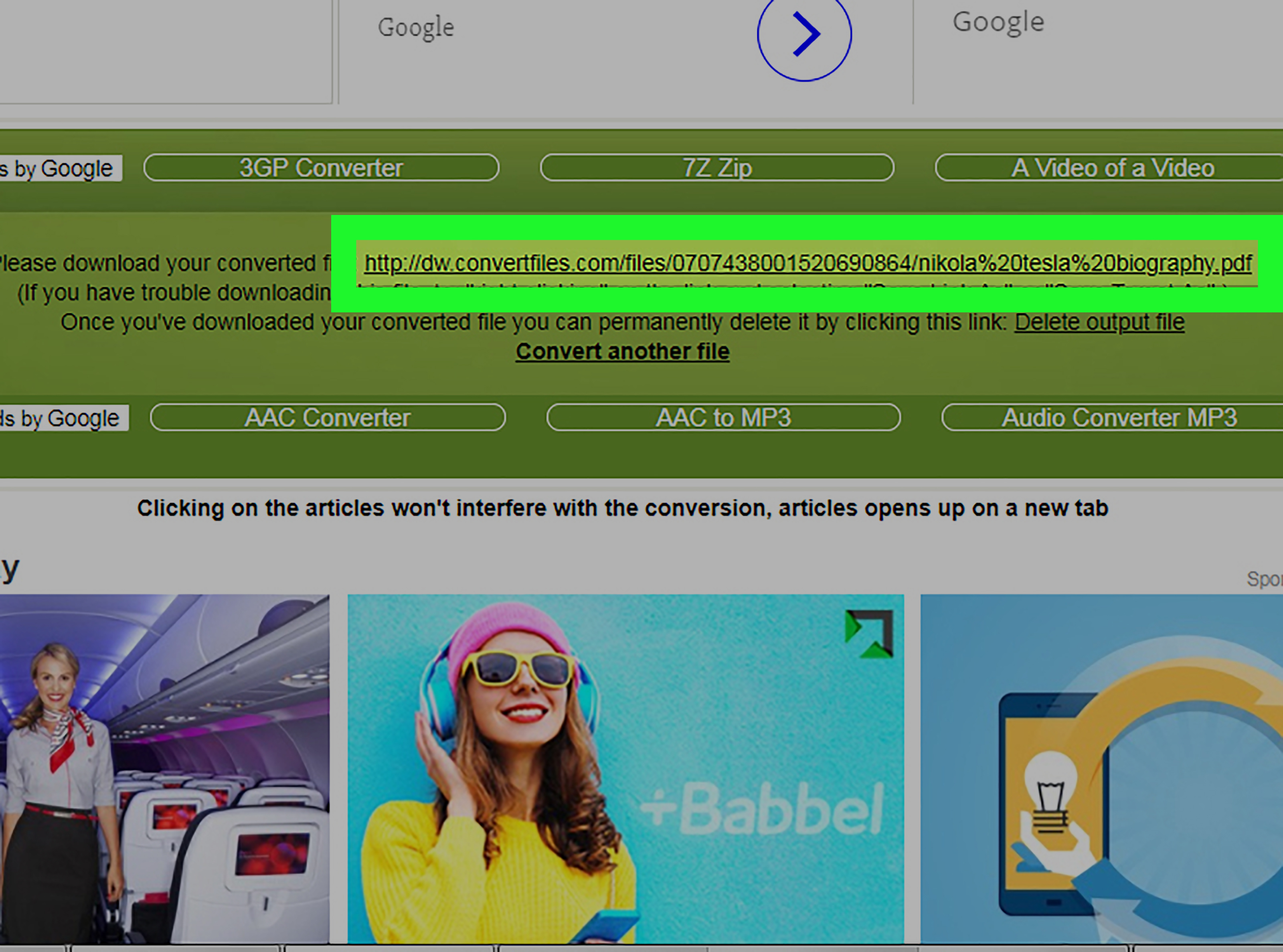
Online ebook-to-PDF converters can be convenient. You upload the ebook, choose PDF as the output, wait for the conversion, and download the finished file. This is simple, especially if you only need to convert one file and do not want to install software.
However, there are trade-offs. Online tools require you to upload your file to a third-party server. That may be fine for a public-domain novel or a draft you do not mind sharing, but it is not ideal for private manuscripts, paid ebooks, business documents, or anything confidential.
When Online Conversion Makes Sense
- You are converting a non-sensitive ebook.
- You only need a quick one-time conversion.
- The file is small enough to upload easily.
- You do not need advanced layout control.
When to Avoid Online Conversion
- The ebook contains private notes, business content, or personal data.
- The file is copyrighted and you do not have permission to convert it.
- The ebook is very large or image-heavy.
- You need precise formatting, page size, or metadata control.
For privacy and quality, offline tools are usually better. For speed and convenience, online converters can still be useful in the right situation.
Can You Convert Kindle Books to PDF?
This is where things get tricky. Some Kindle files are DRM-free personal documents, while others are purchased books protected by digital rights management. DRM controls how a file can be copied, printed, converted, or opened.
If you have a DRM-free Kindle-compatible file, such as a personal MOBI or AZW3 document, Calibre may be able to convert it to PDF. If the book is DRM-protected, conversion is generally restricted. The correct approach is to use the reading options allowed by the seller, publisher, library, or platform.
In plain English: if the ebook is locked, do not try to break the lock. That is not a “best method”; that is a legal headache wearing reading glasses.
What About Adobe Digital Editions?
Adobe Digital Editions is commonly used for EPUB, EPUB3, and PDF ebooks, especially library books and publisher-protected titles. Some books opened through Adobe Digital Editions allow printing, while others restrict it. If printing is allowed, you may be able to print to PDF using your operating system’s PDF printer. If the publisher disables printing, you will not have that option.
This matters because many people confuse an ACSM file with an ebook. An ACSM file is not the actual ebook. It is a small authorization file used to download the real protected ebook through Adobe Digital Editions. If you try to convert an ACSM file directly to PDF, you will have a bad afternoon.
EPUB to PDF vs PDF to EPUB: Do Not Mix Them Up
Converting EPUB to PDF is usually reasonable because EPUB is made of structured text and resources that can be laid out onto pages. Converting PDF back into EPUB is much harder because PDFs are fixed-page documents. The text may be broken into boxes, columns, images, headers, and footers. That is why PDF-to-ebook conversions often produce strange spacing and scrambled paragraphs.
If your goal is to create a polished PDF, start from EPUB, DOCX, HTML, or another editable source whenever possible. If all you have is a PDF, it may already be the best final format.
Best File Types to Convert to PDF
Some ebook formats convert more cleanly than others. In general, these work well:
- EPUB to PDF: Usually the best ebook conversion path.
- DOCX to PDF: Excellent if the document was created in Word, Pages, or Google Docs.
- HTML to PDF: Good for web-style ebooks and documentation.
- MOBI to PDF: Often workable, though formatting may need adjustment.
- TXT to PDF: Simple but plain; you may need to set fonts and spacing.
Image-heavy ebooks, comics, cookbooks, children’s books, and textbooks may need extra care because they often rely on fixed layouts. For these, a direct PDF from the publisher or original design file is usually better than conversion.
How to Improve the PDF After Conversion
After converting your ebook to PDF, open the file and inspect it before sharing or printing. Do not assume success just because the file exists. A PDF can exist and still be deeply confused.
Check These Details
- Are the chapters in the correct order?
- Does the table of contents work?
- Are images visible and properly placed?
- Are fonts readable?
- Are margins comfortable?
- Are page breaks clean?
- Is the file size reasonable?
If something looks wrong, return to your conversion settings and try again. Ebook conversion is rarely permanent. You can test different page sizes, font sizes, and layout settings until the PDF looks right.
Best Method by Situation
Best Overall: Calibre
Use Calibre if you want the best balance of control, privacy, and file support. It is ideal for converting EPUB, MOBI, AZW3, DOCX, HTML, and other ebook formats to PDF on PC or Mac.
Best Quick Method on Windows: Microsoft Print to PDF
Use Microsoft Print to PDF when the ebook opens correctly in a reader app and you simply need a fast PDF copy.
Best Quick Method on Mac: Save as PDF
Use the macOS print dialog when the ebook displays well and you do not need advanced conversion settings.
Best for Manuscripts: Export from Word, Pages, or Google Docs
If you wrote the ebook yourself, export directly from the original document instead of converting an already-published ebook file. This usually gives cleaner formatting.
Best for One-Time Non-Private Files: Online Converter
Use an online converter when convenience matters more than advanced control and the ebook does not contain sensitive content.
Common Problems and Fixes
The PDF Text Is Too Small
Increase the base font size in your conversion settings. You can also choose a smaller page size so the content feels more natural on screens.
The Images Are Cut Off
Try a larger page size, adjust margins, or check whether the ebook uses fixed-layout formatting. Some image-heavy ebooks do not convert cleanly without manual editing.
The Table of Contents Is Missing
Use Calibre’s table of contents settings and make sure chapter headings are properly detected. If the source file has poor structure, the PDF may need manual correction.
The File Is Huge
Large images are usually the cause. Compress images, reduce resolution, or use a PDF compression tool after conversion.
The Ebook Will Not Convert
The file may be damaged, unsupported, or DRM-protected. Try opening it in its original reader app first. If it does not open there, conversion will probably fail too.
Legal and Ethical Reminder
Converting an ebook to PDF is appropriate when you own the rights, created the ebook yourself, are working with public-domain material, or have permission to convert it for personal or professional use. It is not appropriate to bypass DRM, redistribute copyrighted books, or upload someone else’s protected ebook to a public converter.
A simple rule works well: if you would not photocopy the whole book and hand it out at a conference, do not create a PDF and distribute it online. Your future self, your lawyer, and the author’s grocery budget will appreciate it.
Experience Notes: What Actually Works Best in Real Life
After working with ebook files across Windows and Mac, the most reliable lesson is this: the best conversion method depends less on your computer and more on the source file. A clean EPUB can become a very readable PDF in Calibre within minutes. A messy file with broken headings, oversized images, or strange embedded fonts may need several test conversions before it behaves. The computer is not always the problem. Sometimes the ebook is simply wearing a digital Halloween costume.
For everyday users, Calibre tends to be the most dependable choice because it keeps the whole process local. That matters more than people think. Uploading a file to an online converter may feel easy, but if the ebook is a private draft, a company manual, a course document, or a paid download, offline conversion is safer. Calibre also makes experimentation painless. You can convert once, inspect the PDF, change the font size or margins, and convert again without starting from zero.
On Windows, Microsoft Print to PDF is excellent for quick jobs. It is especially useful when an ebook, manual, or document opens correctly in a reader but does not offer a “Save as PDF” button. The downside is that printing to PDF usually captures what is on the page rather than intelligently rebuilding the ebook. That means navigation, clickable chapter links, and metadata may not be as polished as a true conversion.
On Mac, the built-in Save as PDF option feels wonderfully simple. If the ebook displays well, the result can be perfectly acceptable. It is great for short guides, notes, receipts, and simple ebooks. However, for longer books, Calibre still wins because it gives you more control over structure and formatting.
The biggest mistake beginners make is expecting every converted PDF to look like a professionally typeset book. A PDF is a fixed-page format. An EPUB is often flexible and screen-responsive. When you convert one into the other, you are changing the reading experience. That is why page size, margins, and font choices matter. A good conversion is not just about producing a PDF file; it is about producing a PDF that someone can actually read without squinting like a detective examining a suspicious receipt.
For best results, always keep the original ebook file. Never overwrite it. Create a separate PDF copy, review it carefully, and rename it clearly. A good filename such as “Book-Title-converted-to-PDF.pdf” is much better than “final-final-real-final2.pdf,” which is how chaos enters the room wearing slippers.
If you are preparing a PDF for publishing, client delivery, or classroom use, do one final quality check on another device. Open it on a laptop, tablet, and phone if possible. This helps you catch tiny fonts, broken images, awkward page breaks, or navigation issues before your readers do. A little testing can save a lot of embarrassment.
Conclusion
The best way to convert an ebook to PDF on PC or Mac is to use Calibre for DRM-free ebooks. It offers the strongest mix of format support, privacy, customization, and reliability. Windows users can also use Microsoft Print to PDF for quick conversions, while Mac users can use the built-in Save as PDF option from the print menu. Online converters are convenient, but they are best reserved for non-sensitive files.
For the cleanest result, start with a good source file, choose the right page size, adjust margins and fonts, preserve the table of contents, and review the finished PDF before sharing it. Ebook conversion is not difficult, but it rewards patience. Treat your layout kindly, and your PDF will return the favor.