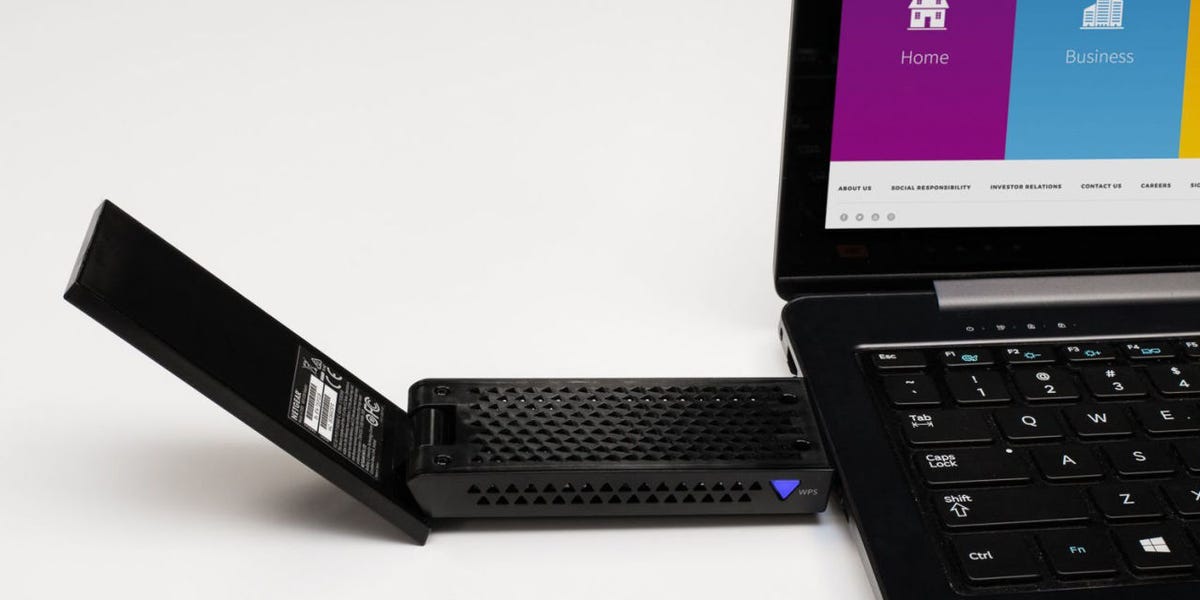
Your internet plan may be fast, your router may be shiny, and your patience may be hanging by one tiny loading wheel. But if your desktop or older laptop is still using weak built-in Wi-Fi, your connection can feel like it is being delivered by a pigeon with low battery. That is where a USB Wi-Fi adapter becomes surprisingly useful.
A USB Wi-Fi adapter is one of the easiest ways to upgrade a computer without opening the case, replacing an internal card, or pretending you enjoy crawling under a desk with a flashlight. Plug it into a USB port, install the driver if needed, connect to your network, and your machine can gain stronger wireless reception, newer Wi-Fi standards, better antennas, and smoother performance for streaming, gaming, video calls, large downloads, and everyday browsing.
However, not every adapter is the right adapter. Some are tiny and travel-friendly but limited in range. Some are large, antenna-packed beasts that look like they are trying to contact satellites. Some support Wi-Fi 6, Wi-Fi 6E, or Wi-Fi 7, while older models still offer dependable Wi-Fi 5 performance at a friendlier price. The best USB Wi-Fi adapter depends on your router, your internet speed, your room layout, your operating system, and whether your biggest enemy is distance, congestion, latency, or a desktop PC stuck in the year 2014.
Below is a practical, real-world guide to the seven best USB Wi-Fi adapters for faster internet, including premium future-ready options, budget-friendly picks, compact travel adapters, and high-gain models for desktops that need stronger signal reception.
Quick Comparison: Best USB Wi-Fi Adapters
| Rank | USB Wi-Fi Adapter | Best For | Wi-Fi Standard | Key Strength |
|---|---|---|---|---|
| 1 | TP-Link Archer TX20U Plus | Best overall for most users | Wi-Fi 6 | Strong speed, dual antennas, great value |
| 2 | NETGEAR Nighthawk A8000 | Best Wi-Fi 6E adapter | Wi-Fi 6E | Access to 6 GHz networks |
| 3 | ASUS ROG USB-BE92 | Best future-ready adapter | Wi-Fi 7 | Tri-band speed and modern features |
| 4 | ASUS USB-AX56 | Best premium Wi-Fi 6 desktop adapter | Wi-Fi 6 | Cradle, external antennas, stable placement |
| 5 | TP-Link Archer T4U Plus | Best budget desktop adapter | Wi-Fi 5 | High-gain antennas at a reasonable price |
| 6 | TP-Link Archer T3U Plus | Best compact high-gain pick | Wi-Fi 5 | Small size with an adjustable antenna |
| 7 | Linksys WUSB6300 | Best simple plug-in adapter | Wi-Fi 5 | Reliable AC1200 performance |
How to Choose the Best USB Wi-Fi Adapter
Match the Adapter to Your Router
A Wi-Fi 7 USB adapter will not magically turn an old Wi-Fi 4 router into a spaceship. To get the best performance, your adapter and router should support similar standards. If you already own a Wi-Fi 6 router, a Wi-Fi 6 USB adapter is usually the sweet spot. If you have a Wi-Fi 6E or Wi-Fi 7 router and want to use the cleaner 6 GHz band, look for a tri-band adapter that supports 6 GHz.
Look for USB 3.0 or Better
Many faster USB Wi-Fi adapters use USB 3.0 because older USB 2.0 can become a bottleneck. For AC1300, AX1800, AXE3000, and BE-class adapters, plugging into a USB 3.x port is strongly recommended. A USB 2.0 port may still work, but it can limit the adapter’s real-world speed, especially during big downloads or local file transfers.
Do Not Ignore Antennas
Tiny nano adapters are convenient, but they usually have smaller antennas and less range. If your desktop is under a desk, behind a metal case, or several rooms away from the router, a larger adapter with external antennas or a USB cradle can make a noticeable difference. Placement matters. Moving the adapter from the back of the PC to the top of the desk can sometimes improve performance more than buying a pricier model.
Check Driver and OS Support
Before buying, check compatibility with Windows 10, Windows 11, macOS, or Linux. Many newer Wi-Fi 6E and Wi-Fi 7 USB adapters focus heavily on Windows PCs. If you use a Mac or Linux machine, driver support should be your first question, not your last-minute surprise.
1. TP-Link Archer TX20U Plus: Best Overall USB Wi-Fi Adapter
The TP-Link Archer TX20U Plus is the best USB Wi-Fi adapter for most people because it balances speed, range, price, and simplicity. It supports Wi-Fi 6 with AX1800-class speeds, split between up to 1201 Mbps on 5 GHz and up to 574 Mbps on 2.4 GHz. In plain English, that means it is built for modern routers, busy homes, streaming, video meetings, online gaming, and large downloads without requiring a luxury-level budget.
Its biggest advantage is the dual high-gain antenna design. Instead of hiding a tiny radio behind your desktop tower, the Archer TX20U Plus sits on your desk, where it has a better chance of catching a clean signal. That is especially useful for desktop PCs, which are often placed in terrible Wi-Fi locations: under desks, near walls, beside power strips, or behind monitors. Basically, everywhere radio waves go to cry.
The adapter also supports modern Wi-Fi 6 features such as MU-MIMO, OFDMA, and WPA3 security. Those features are most useful when paired with a compatible router, but they help the adapter stay relevant for years. For the average home office, gaming setup, student desk, or family computer, this is the “buy it and stop overthinking” choice.
Best for:
Most Windows desktop users who want a strong Wi-Fi 6 upgrade without spending premium Wi-Fi 6E or Wi-Fi 7 money.
2. NETGEAR Nighthawk A8000: Best Wi-Fi 6E USB Adapter
The NETGEAR Nighthawk A8000 is a strong choice for users who already have a Wi-Fi 6E router or plan to upgrade soon. Its headline feature is tri-band support: 2.4 GHz, 5 GHz, and 6 GHz. That 6 GHz band is the real reason to consider it. In many homes, the 2.4 GHz and 5 GHz bands are crowded with phones, TVs, laptops, tablets, smart speakers, security cameras, and at least one mystery device nobody remembers buying. The 6 GHz band can offer a cleaner lane for compatible devices.
The A8000 is rated as an AXE3000-class adapter, offering strong theoretical speeds and lower congestion when connected to a suitable Wi-Fi 6E network. It is not the cheapest option, and it is not necessary for users with older routers. But if your router supports 6 GHz and your PC does not, this adapter can unlock a major upgrade without replacing your computer’s internal wireless card.
Its compact body and included cradle help with placement. Like most high-performance USB Wi-Fi adapters, it works best when plugged into a USB 3.0 port and positioned away from interference. For gaming, video calls, and high-speed fiber internet, the A8000 makes the most sense in homes where the router is already modern enough to take advantage of it.
Best for:
Windows PC users with Wi-Fi 6E routers who want access to the 6 GHz band for smoother performance in congested environments.
3. ASUS ROG USB-BE92: Best Future-Ready Wi-Fi 7 USB Adapter
The ASUS ROG USB-BE92 is the flashy future-ready pick, and yes, it has the kind of name that sounds like it should come with a gaming chair and dramatic RGB lighting. This tri-band Wi-Fi 7 USB adapter supports 2.4 GHz, 5 GHz, and 6 GHz networks, with BE6500-class speeds and modern Wi-Fi 7 features such as 4096-QAM and Multi-Link Operation support.
For most people, Wi-Fi 7 is still more of a future-proofing decision than a must-have upgrade. To benefit from it, you need a Wi-Fi 7 router, a fast internet plan, and a realistic expectation that walls, distance, and interference still exist. Wi-Fi 7 does not repeal physics. But for enthusiasts, gamers, early adopters, or anyone building a modern desktop setup, the ROG USB-BE92 is one of the most advanced USB Wi-Fi adapters available.
Another useful detail is flexibility. It is designed to work with USB-A and USB-C setups, making it easier to use with both desktops and newer laptops. If your PC is otherwise powerful but its wireless hardware is outdated, this adapter can extend the useful life of the machine without opening the case.
Best for:
Power users with Wi-Fi 7 routers, fast broadband, and a desire to future-proof their desktop or laptop connection.
4. ASUS USB-AX56: Best Premium Wi-Fi 6 Desktop Adapter
The ASUS USB-AX56 is an excellent Wi-Fi 6 USB adapter for users who want strong performance, a polished design, and stable placement. Like the TP-Link Archer TX20U Plus, it offers AX1800-class performance, with up to 1201 Mbps on 5 GHz and up to 574 Mbps on 2.4 GHz. It also supports WPA3, OFDMA, MU-MIMO, and other Wi-Fi 6 efficiency features.
What makes the ASUS USB-AX56 especially appealing is its external antenna and cradle-style setup. Desktop placement is a big deal. A USB adapter plugged directly into the back of a PC may be surrounded by cables, metal, and interference. Place it on a desk with a cradle, and it can breathe. Wi-Fi adapters, unlike humans, do not need coffee, but they absolutely appreciate a clear signal path.
This is a strong pick for people who want dependable Wi-Fi 6 performance and do not mind paying a bit more for a refined package. It is especially good for home offices, gaming desks, and desktop PCs located one or two rooms away from the router.
Best for:
Desktop users who want a premium Wi-Fi 6 adapter with better placement options and dependable everyday speed.
5. TP-Link Archer T4U Plus: Best Budget Desktop USB Wi-Fi Adapter
The TP-Link Archer T4U Plus proves that you do not need to buy the newest wireless standard to get a much better connection. This AC1300 Wi-Fi 5 adapter offers up to 867 Mbps on 5 GHz and up to 400 Mbps on 2.4 GHz. For many households, especially those with internet plans below gigabit speed, that is still plenty for HD streaming, browsing, schoolwork, work calls, and casual gaming.
The reason this model remains attractive is its dual high-gain antenna design. It is built more like a mini desktop receiver than a tiny dongle. That makes it a smart upgrade for older desktops that either have no Wi-Fi at all or rely on weak internal wireless hardware.
Because it uses Wi-Fi 5 rather than Wi-Fi 6, it lacks some of the newer efficiency features. Still, real-world Wi-Fi depends heavily on signal quality. A well-placed AC1300 adapter with good antennas can outperform a poorly placed adapter with newer specs. For budget buyers, the Archer T4U Plus is a practical and sensible choice.
Best for:
Budget-conscious desktop users who want better range and speed without paying for Wi-Fi 6 or Wi-Fi 6E.
6. TP-Link Archer T3U Plus: Best Compact High-Gain USB Wi-Fi Adapter
The TP-Link Archer T3U Plus is a smaller AC1300 adapter with a single adjustable high-gain antenna. It is not as desk-friendly as larger cradle-style models, but it is more portable and less bulky. It supports dual-band Wi-Fi, with up to 867 Mbps on 5 GHz and up to 400 Mbps on 2.4 GHz.
This adapter is ideal when you want a middle ground between tiny nano dongles and large desktop units. The adjustable antenna gives it better reception potential than many ultra-small adapters, while the compact body makes it easy to use with laptops or small desktop setups.
For travel, dorm rooms, small apartments, and older laptops, the Archer T3U Plus is a smart low-cost upgrade. It will not beat Wi-Fi 6E or Wi-Fi 7 adapters in ideal conditions, but it can rescue a device with poor built-in Wi-Fi. Sometimes that is exactly what you need: not a race car, just a reliable ride that does not stall during a Zoom call.
Best for:
Users who want a compact, affordable adapter with better reception than a nano-sized dongle.
7. Linksys WUSB6300: Best Simple Plug-In Adapter
The Linksys WUSB6300 is an older but still useful AC1200 USB Wi-Fi adapter. It supports dual-band Wi-Fi, including up to 867 Mbps on the 5 GHz band and up to 300 Mbps on 2.4 GHz. It also uses USB 3.0, which helps it avoid the limitations of slower USB 2.0 connections.
This is not the adapter for someone chasing the newest Wi-Fi 7 features or maximum benchmark numbers. Its appeal is simplicity. It is a straightforward plug-in upgrade for desktops and laptops that need better Wireless-AC performance. For ordinary browsing, video streaming, and work tasks, it can still do the job well when paired with a compatible router.
The main downside is age. Driver support and availability may vary depending on the exact version and operating system. Before buying, confirm that it supports your computer. If it does, the WUSB6300 remains a solid option for users who want a familiar brand and dependable AC1200 performance.
Best for:
Users who want a simple Wireless-AC adapter for everyday internet use and do not need the newest Wi-Fi standard.
USB Wi-Fi Adapter Buying Tips That Actually Matter
Speed Ratings Are Not Real-World Speeds
AC1300, AX1800, AXE3000, and BE6500 are theoretical class ratings. They combine bands and ideal lab conditions. Your actual speed will depend on your router, internet plan, walls, distance, interference, USB port, drivers, and network traffic. Do not buy based only on the biggest number printed on the box.
5 GHz Is Fast, 2.4 GHz Reaches Farther
The 5 GHz band is usually faster and better for streaming, downloads, and gaming when you are close enough to the router. The 2.4 GHz band travels farther and handles walls better, but it is often more crowded. The 6 GHz band can be even cleaner and faster, but it has shorter range and requires Wi-Fi 6E or Wi-Fi 7 hardware.
Placement Can Beat Specs
A $40 adapter placed well can outperform a $100 adapter buried behind a desktop tower. Use the included cradle or extension cable when possible. Keep the adapter away from the back of the PC, thick walls, metal objects, and crowded power strips. Small changes in placement can create surprisingly big differences.
Do Not Forget the Router
If every device in your house has poor Wi-Fi, the adapter may not be the main problem. Your router placement, router age, internet plan, or mesh coverage may need attention. A USB Wi-Fi adapter improves one computer. It does not fix a weak home network by itself.
Real-World Experience: What It Is Like to Use a USB Wi-Fi Adapter
In everyday use, the biggest improvement from a USB Wi-Fi adapter is often not the dramatic “speed test screenshot” moment. It is the boring stuff getting better. Pages load without hesitation. Video calls stop freezing at the exact moment your face looks weird. Game downloads finish before you forget why you started them. Streaming apps stop dropping from crisp HD into potato mode.
The most noticeable upgrade usually happens on older desktop PCs. Many desktops either have no built-in Wi-Fi or use basic internal antennas hidden behind a metal case. A high-gain USB adapter placed on top of the desk can instantly improve signal strength. This is especially true if the router is in another room. Instead of forcing your PC to listen through a wall, a desk-mounted adapter gives it a better position, almost like letting it stand up and look around.
Laptops can benefit too, but the difference depends on the laptop. A newer premium laptop may already have excellent Wi-Fi hardware, so a USB adapter might not help much unless you need Wi-Fi 6E or Wi-Fi 7 support. An older laptop, however, can feel completely refreshed with a modern adapter. It is one of the cheapest ways to extend the useful life of a machine that still runs fine but connects like it is afraid of the internet.
One practical lesson: install drivers before you judge performance. Many adapters work best with the latest driver from the manufacturer, not the random driver Windows chooses while shrugging digitally. After installing, restart the computer, connect to the correct band, and test again. If your router has separate network names for 2.4 GHz and 5 GHz, choose 5 GHz when you are nearby and 2.4 GHz when you need range. If you have Wi-Fi 6E or Wi-Fi 7, test the 6 GHz band in the same room or nearby rooms first.
Another real-world tip is to avoid plugging a large adapter directly into a crowded USB area. Desktop rear panels can be noisy places, full of cables, heat, and interference. A USB extension cable or cradle can turn a frustrating adapter into a great one. Place it higher, rotate the antenna, and run a speed test after each adjustment. It sounds silly, but Wi-Fi signals are moody. Sometimes moving an adapter six inches is the difference between “Why is this slow?” and “Oh, that fixed it.”
For gaming, a USB Wi-Fi adapter can reduce lag if your old Wi-Fi was weak, but wired Ethernet is still the gold standard. If you cannot run Ethernet, choose a strong Wi-Fi 6, Wi-Fi 6E, or Wi-Fi 7 adapter and place it carefully. For streaming and video calls, prioritize stability over headline speed. A steady 200 Mbps connection feels much better than a connection that jumps from 600 Mbps to 20 Mbps every few minutes.
For travel, small adapters are convenient, but they are not always the fastest or strongest. A compact high-gain model like the Archer T3U Plus is a good compromise. For a permanent desktop setup, bigger adapters with cradles and external antennas are usually worth the extra desk space. Your desk may look slightly more like a command center, but your connection will thank you.
Final Verdict: Which USB Wi-Fi Adapter Should You Buy?
For most people, the TP-Link Archer TX20U Plus is the best USB Wi-Fi adapter because it delivers Wi-Fi 6 performance, strong antennas, modern security, and good value. If you have a Wi-Fi 6E router, the NETGEAR Nighthawk A8000 is the better premium pick because it opens the door to the cleaner 6 GHz band. If you are building a future-ready setup with Wi-Fi 7, the ASUS ROG USB-BE92 is the most advanced option on this list.
Budget buyers should look closely at the TP-Link Archer T4U Plus or Archer T3U Plus. They are Wi-Fi 5 adapters, but they remain practical upgrades for older desktops and laptops. The ASUS USB-AX56 is ideal for users who want a polished Wi-Fi 6 desktop solution, while the Linksys WUSB6300 remains a simple Wireless-AC option for everyday use.
The key is to buy for your actual setup, not just the biggest number on the box. Match your router, use a USB 3.x port, place the adapter well, and keep your drivers updated. Do that, and a small USB Wi-Fi adapter can make your computer feel faster, steadier, and far less likely to turn your streaming night into a buffering documentary.
Note: Product availability, pricing, and driver support can change over time. Always confirm compatibility with your operating system and router before purchasing.