Spam in Yahoo Mail has a special talent: it shows up uninvited, overstays its welcome, and acts like it pays rent. One minute you are checking a shipping update, and the next minute you are staring at an email promising a miracle refund, a suspicious crypto opportunity, or a “final notice” from a company you have never met in your life. If your inbox feels like a digital yard sale run by scammers, take a breath. You are not powerless, and you definitely do not need to live like this.
The good news is that blocking spam on Yahoo Mail does not require a computer science degree, a black belt in cybersecurity, or a ceremonial shouting match with your inbox. In most cases, you need a smarter routine. Yahoo already has built-in tools for spam management, blocked senders, filters, and account protection. The trick is knowing which tool to use and when. That is where many people get tripped up: they delete spam, but do not report it; they unsubscribe from shady emails that should have been treated like phishing; or they block one sender while ten nearly identical messages keep sneaking in through the side door.
In this guide, you will learn three practical, sanity-saving tricks to reduce spam in Yahoo Mail without turning your day into a full-time cleanup job. We will cover how to train Yahoo’s spam filter, when to block senders, how to use filters more strategically, and what to do when spam starts looking less like junk and more like a real security risk. Think of it as inbox housecleaning, but with fewer dust bunnies and more suspicious “urgent payment required” messages.
Why Yahoo Mail Spam Keeps Coming Back Like a Bad Sequel
Before we get into the fixes, it helps to understand the enemy. Not every unwanted email is the same. Some messages are plain old marketing clutter. Others are deceptive phishing attempts designed to trick you into clicking a malicious link, opening an infected attachment, or handing over personal information. Those two types of email may look equally annoying, but they should not always be handled the same way.
Legitimate promotional mail usually comes from a real sender, often with an actual unsubscribe option. Phishing emails, on the other hand, thrive on urgency, confusion, and impersonation. They may look like messages from banks, delivery companies, streaming services, or even Yahoo itself. Their goal is not to sell you socks. Their goal is to get you to act before you think.
That is why the smartest Yahoo Mail spam strategy is layered. You want to use Yahoo’s reporting tools to improve filtering, blocking tools for repeat offenders, filters for inbox control, and account security habits to stop bigger problems before they start. One tool alone is helpful. A system is better.
Trick #1: Train Yahoo’s Spam Filter Instead of Playing Delete-and-Pray
If you only remember one thing from this article, make it this: do not just delete spam when it lands in your inbox. Mark it as spam. That small action matters because Yahoo’s filtering system uses those signals to get better at catching future junk.
A lot of people handle spam the same way they handle mystery leftovers in the fridge: remove quickly, ask no questions, never speak of it again. But when you delete a spam message without reporting it, you are cleaning up the symptom, not helping the system identify the problem. Marking a message as spam tells Yahoo, “This belongs in the bad-email penalty box.” Over time, that improves how similar messages are treated.
How to use this trick well
Open Yahoo Mail, select the suspicious or unwanted message, and use the Mark as spam option. If you are on the app, the process is similar. This is especially useful for junk that slipped past Yahoo’s spam filter and landed directly in your inbox.
There is one nuance here that saves headaches: not every unwanted message should be marked the same way. If the email is from a real mailing list you recognize, Yahoo may offer an Unsubscribe option. That can be a perfectly good choice when the sender is legitimate and you simply do not want the emails anymore. Think store promotions, newsletters you forgot you joined, or that productivity blog you were excited about for exactly eleven minutes.
But if the message looks suspicious, weirdly urgent, or too good to be true, skip the unsubscribe link and treat it like potential phishing. Clicking “unsubscribe” in a scam message can confirm to spammers that your email address is active. In other words, it can be the digital equivalent of answering the door and yelling, “Yes, hello, I do live here, and yes, I read my junk mail.” Not ideal.
When to unsubscribe and when to run away
Use Unsubscribe when the email comes from a business or publication you actually recognize, the branding and sender information look normal, and the message feels like standard marketing. Use Mark as spam or report phishing when the sender is unfamiliar, the wording is alarming, the grammar is sketchy, the URL looks off, or the email asks you to verify credentials, payment details, or account access.
This one distinction alone can dramatically improve how you handle Yahoo Mail spam. You stop treating every message like generic clutter and start sorting it by risk. That is not just cleaner inbox behavior. That is smarter digital self-defense.
Trick #2: Block Repeat Offenders and Use Filters Like a Calm, Organized Genius
Now let’s talk about the most satisfying tool in the box: blocking. Blocking a sender in Yahoo Mail is a great move when the same address keeps bothering you. It is direct. It is simple. It has strong “I am no longer accepting nonsense at this time” energy.
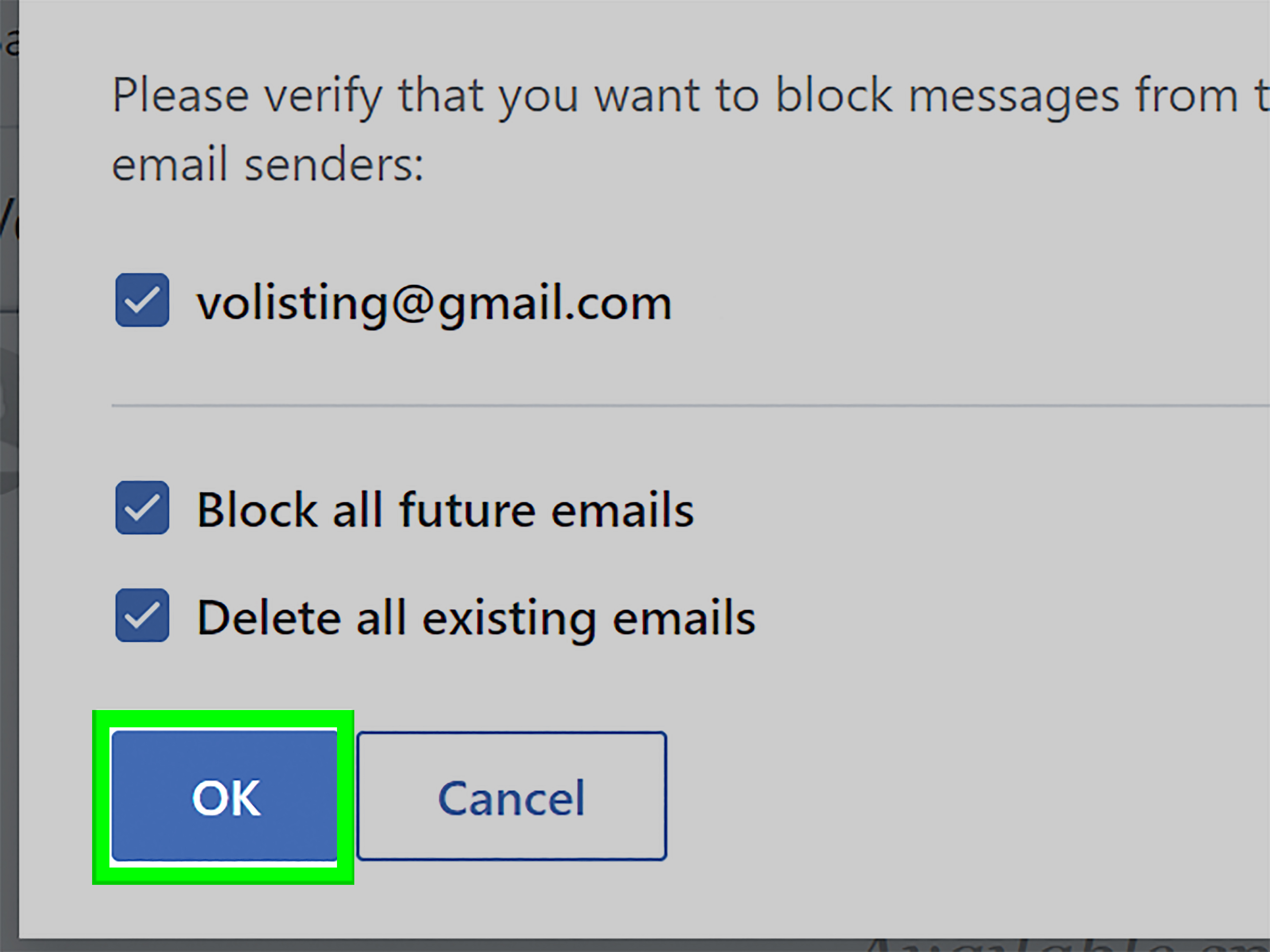
Yahoo Mail allows you to add senders to your blocked list, which can be useful for persistent spam from the same address. If one sender keeps showing up like a clingy ghost, blocking is a smart next step. But here is the catch: many spam campaigns rotate addresses constantly. So while blocking is helpful, it is not always enough by itself.
That is why the real power move is combining blocked senders with filters. Filters are less dramatic than blocking, but often more useful. Instead of reacting to one annoying email address at a time, you can create rules that automatically organize certain messages before they clutter your inbox.
What filters can do in Yahoo Mail
Yahoo Mail lets you create filters based on criteria like sender name, subject line, or keywords. You can then route matching messages into a folder instead of leaving them in your main inbox. This is ideal for borderline nuisance mail that is not dangerous enough to panic over, but annoying enough to deserve exile.
For example, maybe you keep getting messages with subject lines like “Limited Time Offer,” “Act Now,” or “Final Reminder,” from senders tied to old shopping lists or sweepstakes signups from your more reckless internet era. Instead of manually clearing them every day, you can build a filter and funnel them into a folder you check only when you feel emotionally prepared.
A simple way to set up smart filtering
Create a folder with a clear name, such as “Promotions to Ignore,” “Review Later,” or, for emotional honesty, “Inbox Nonsense.” Then build filters for repeat patterns:
- Emails from a specific sender you do not fully trust but do not want to lose entirely
- Messages with recurring promotional phrases in the subject line
- Mail from old subscriptions, contests, or bulk senders that flood your inbox
This keeps your main inbox more useful without making you gamble on whether every message deserves permanent deletion. It also gives you a safer review process. If a filter ever catches something important by mistake, you can still recover it from the designated folder.
One more important detail: in Yahoo Mail, the spam filter runs before your personal filters. So if something has already been identified as spam, your custom filter is not going to rescue it first. That means filters are best used for organizing nuisance mail, while spam reporting remains the better tool for actual junk and phishing.
Blocking vs. filtering: which should you choose?
Use blocking for a specific sender that repeatedly sends unwanted mail. Use filters when the problem is broader and more pattern-based. Use both when you want less chaos and more control. That combination helps you stop treating your inbox like a bucket catching rainwater and start treating it like a room with a lock, a door, and basic standards.
Trick #3: Stop Spam at the Source by Tightening Your Yahoo Account Security
If your spam problem suddenly gets much worse, or you start seeing strange emails related to logins, password resets, account alerts, or purchases you did not make, the issue may not just be annoying email. It could be a sign that your address has been exposed, reused in breaches, or targeted in phishing campaigns. In some cases, it can even point to account compromise.
This is where inbox cleanup turns into account protection. Yahoo recommends stronger security steps, and honestly, this is the part many people skip until something goes sideways. Do not wait for drama to become a lifestyle.
Security upgrades that help reduce damage
Start with a strong, unique password for Yahoo Mail. If your Yahoo password is also your password for shopping sites, old forums, or that one streaming account your cousin still uses, change it. Reused passwords are basically a group project for cybercriminals.
Next, enable two-step verification. This adds another layer when someone tries to sign in from a new browser or device. Even if a password gets exposed, the extra verification step makes unauthorized access harder.
Also review your recovery options and recent account activity. Make sure the backup phone number and recovery email still belong to you. If Yahoo prompts extra verification after sign-in, that may be a protective signal, not just an inconvenience.
How to spot dangerous email before it fools you
Many phishing messages follow the same tired playbook. They try to rush you, scare you, or tempt you. Watch for:
- Unexpected messages asking you to verify your account, payment info, or password
- Links that look odd, shortened, or slightly misspelled
- Attachments you were not expecting
- Threatening language like “act now,” “final warning,” or “account suspended”
- Sender names that look familiar but use suspicious email addresses
When in doubt, do not click. Visit the company’s official website directly in your browser instead of using the email link. If the message pretends to be from Yahoo, go to Yahoo the normal way and check your account there. Scammers hate it when you refuse to use their little trap door.
What to do with phishing email
Mark it as spam or phishing when appropriate, avoid opening attachments, and report serious phishing attempts through recognized channels if needed. If you accidentally clicked something or entered information, change your password immediately, enable stronger login protection, and review financial or shopping accounts for suspicious activity.
Common Mistakes That Make Yahoo Mail Spam Worse
Sometimes spam gets worse not because the internet is cruel, though it often is, but because small habits accidentally invite more trouble. Here are the most common mistakes:
1. Deleting spam instead of reporting it
This removes the mess but does not help Yahoo learn from it.
2. Unsubscribing from obvious scam email
That is like replying to a stranger who just yelled through your window. Best avoided.
3. Using blocking as the only solution
Blocking works best for repeat senders, but many spam operations switch addresses constantly.
4. Ignoring account security
An inbox full of weird account alerts is not always “just spam.” Sometimes it is a warning sign.
5. Clicking before thinking
Urgency is one of the oldest tricks in phishing. If an email is trying to rush you, slow down on purpose.
A Simple Yahoo Mail Anti-Spam Routine You Can Actually Stick To
If you want a practical routine instead of a one-time cleanup marathon, use this:
- Mark suspicious inbox junk as spam instead of deleting it.
- Unsubscribe only from recognized, legitimate mailing lists.
- Block repeat offenders that keep using the same address.
- Create filters for recurring low-value promotional mail.
- Review account security settings and enable two-step verification.
- Never click links or attachments in suspicious email.
- Check your spam folder occasionally for false positives and mark safe mail as “Not spam.”
That routine is manageable, effective, and much healthier than rage-refreshing your inbox while whispering, “Why are there twelve fake invoices here?”
Experience-Based Advice: What Blocking Spam on Yahoo Mail Feels Like in Real Life
For many Yahoo Mail users, the most frustrating part of spam is not the existence of junk mail itself. It is the feeling that it never ends. People often start with good intentions. They clean the inbox, delete a few weird messages, maybe block one sender, and assume the problem is solved. Then the next morning, the inbox looks like it hosted a convention for fake delivery notices, suspicious “security alerts,” and newsletters they do not remember signing up for in any lifetime.
A common experience is the “I blocked one sender, so why am I still getting the same garbage?” moment. That happens because many spam campaigns rotate addresses or slightly change the sender details. To a human, the messages look identical. To a mail system, they may appear different enough to slip through until the spam filter learns the pattern. This is why reporting messages as spam consistently feels slow at first but pays off later. It is less dramatic than a giant “banish all nonsense forever” button, but it works better over time.
Another familiar experience is confusion around unsubscribe links. People want relief, so they click the first visible escape hatch. Sometimes that works beautifully with legitimate retailers and newsletters. Other times it creates anxiety because the email was never trustworthy to begin with. That uneasy “Did I just make it worse?” feeling is exactly why it helps to pause and ask one question before clicking: do I actually know this sender? If the answer is no, your safest move is usually to report the message, not negotiate with it.
There is also the mental fatigue factor. An inbox full of spam is not just messy; it trains you to distrust everything. Important messages start to blend in with junk. Real order confirmations look suspicious. Legitimate account notices get ignored. People miss actual emails because their attention has been sandblasted by endless low-quality noise. That is why filters can feel surprisingly therapeutic. Even when a filter does not eliminate messages completely, moving repeat clutter out of the main inbox restores breathing room. Suddenly the inbox becomes a place to work, not a place to dodge nonsense.
Users who tighten their Yahoo security settings often describe a second kind of relief: the fear level drops. Once you switch to a strong password, enable two-step verification, and stop clicking random email links, spam becomes less personal and less intimidating. It is still annoying, sure, but it starts to feel more like background static and less like an active threat camping on your screen.
In real life, blocking spam on Yahoo Mail is rarely one single fix. It is usually a combination of better habits, smarter tools, and a little patience. The upside is real, though. After a week or two of consistently marking spam, using unsubscribe only for legitimate senders, blocking repeat offenders, and filtering recurring junk, most people notice something important: they stop dreading their inbox. And that, frankly, is a beautiful thing.
Conclusion
If your Yahoo inbox has been acting like a magnet for spam, you do not need magic. You need method. The three best tricks are simple: train Yahoo’s spam filter by reporting junk properly, block repeat offenders while using filters to organize recurring clutter, and lock down your account so phishing attempts have fewer chances to do real damage.
Spam probably will not disappear forever, because the internet has never met a bad idea it could not mass-email. But with the right setup, Yahoo Mail can become far more manageable. And once your inbox stops screaming for help every morning, you may experience a rare modern luxury: opening email without flinching.