AirPods are famous for music, podcasts, phone calls, and pretending you did not hear someone ask you to unload the dishwasher. But tucked inside Apple’s accessibility tools is a genuinely useful feature called Live Listen. When enabled, Live Listen turns your iPhone or iPad into a remote microphone and sends nearby sound directly into your AirPods. In the right situation, that can make conversations clearer, especially when the room is noisy, the speaker is across the table, or your ears are doing that charming thing where every sentence sounds like it was wrapped in a blanket.
Before we sprint into settings, here is the honest headline: Live Listen can help you hear better in certain moments, but it is not the same as a professionally fitted hearing aid. Apple also offers a separate regulated Hearing Aid feature for compatible AirPods Pro models in supported regions, but Live Listen is the simpler tool most people mean when they ask how to use AirPods as hearing aids. Think of it as a pocket-sized listening assistant, not a tiny audiologist wearing a lab coat.
What Is Live Listen on AirPods?
Live Listen is an Apple accessibility feature that uses the microphone on your iPhone or iPad to pick up sound and stream it to supported AirPods or Beats headphones. Instead of relying only on the microphones built into the earbuds, you place your iPhone closer to the person or sound you want to hear. Your device becomes the “ears in the room,” and your AirPods become the receiver.
This can be surprisingly helpful in everyday situations. At a restaurant, you can place your iPhone on the table near the person speaking. In a classroom, meeting, or family gathering, you can set your device closer to the main speaker. During a quiet conversation across a room, Live Listen may make the voice sound more direct and less swallowed by background noise.
Can AirPods Really Work Like Hearing Aids?
The answer is: sometimes, in limited ways. AirPods with Live Listen can amplify and deliver nearby sound to your ears, which may help if you occasionally struggle to hear speech in certain environments. However, traditional hearing aids are medical devices designed to match your specific hearing profile. They are often programmed by hearing professionals and can be adjusted for different frequencies, environments, and types of hearing loss.
Over-the-counter hearing aids are intended for adults with perceived mild to moderate hearing loss. Prescription hearing aids may be needed for more significant or complicated hearing loss. If you are under 18, hearing concerns should be handled with a doctor, an audiologist, and a parent or guardian. Ears are not the place for “eh, probably fine” energy.
If you have sudden hearing loss, ear pain, fluid or blood from the ear, dizziness with hearing changes, hearing loss in only one ear, or rapidly worsening symptoms, do not rely on AirPods as a workaround. Get medical help. Live Listen is useful tech, but it is not a substitute for proper care.
What You Need Before You Enable Live Listen
To use Live Listen with AirPods, you need a compatible iPhone or iPad, updated software, Bluetooth turned on, and supported headphones. Apple supports Live Listen on AirPods, AirPods Pro, AirPods Max, and select Beats models. Your earbuds also need enough battery, because nothing ruins a helpful accessibility feature faster than one AirPod dramatically dying mid-sentence.
Basic checklist
- AirPods, AirPods Pro, AirPods Max, or compatible Beats headphones
- An iPhone or iPad with current iOS or iPadOS software
- Bluetooth enabled
- AirPods connected to your device
- The Hearing control added to Control Center, if it is not already there
How to Enable Live Listen on AirPods
The setup is quick once you know where Apple hid the button. It is not buried too deeply, but it is just hidden enough to feel like a tiny digital scavenger hunt.
Step 1: Connect your AirPods
Put your AirPods in your ears and make sure they are connected to your iPhone or iPad. You can check this by opening Control Center, looking at your audio output, or playing a short sound. If audio comes through the AirPods, you are ready.
Step 2: Add Hearing to Control Center
Open Control Center. If you see the ear-shaped Hearing icon, you can move to the next step. If not, add it by opening Control Center, choosing the option to add a control, and selecting Hearing. On some iOS versions, you may also find this through Settings under Control Center.
Step 3: Turn on Live Listen
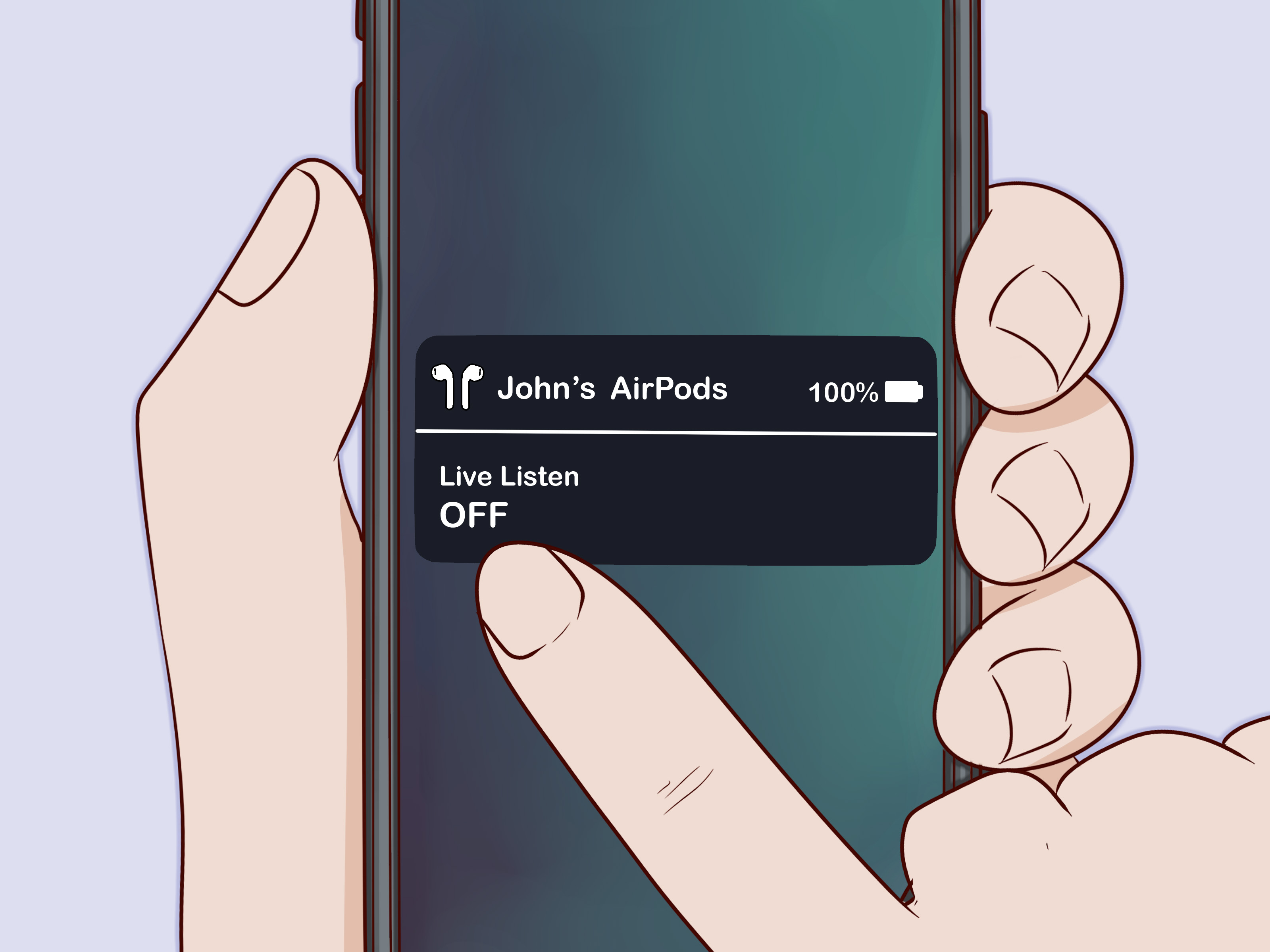
With your AirPods connected, open Control Center and tap the Hearing button. Select your AirPods if needed, then tap Live Listen. Once it is active, your iPhone or iPad microphone will begin sending sound directly to your AirPods.
Step 4: Place your iPhone near the sound source
Put your iPhone or iPad close to the person or sound you want to hear. For conversation, place it on the table with the microphone facing the speaker. Keep it stable, avoid covering the microphone, and try not to slide it around like a tiny hockey puck.
Step 5: Adjust the volume
Use your device volume buttons to raise or lower the sound. Start low and increase gradually. Louder is not always better. Too much amplification can make background noise, clinking dishes, paper rustling, or your cousin’s aggressive chip chewing sound like a blockbuster action scene.
Best Situations for Using Live Listen
Live Listen works best when your iPhone can be placed closer to the speaker than your ears are. This improves the signal-to-noise ratio, which is a fancy way of saying the voice you want becomes easier to separate from the noise you do not want.
Restaurants and coffee shops
Background noise can make conversation difficult, even for people with normal hearing. Place your iPhone near the person speaking, keep your AirPods in, and lower the volume until the voice sounds natural. You may still hear noise, but the conversation can become easier to follow.
Classrooms and meetings
If allowed, place your device closer to the teacher, presenter, or meeting leader. Always ask permission first. Live Listen is for hearing assistance, not secret recording or sneaky eavesdropping. Good manners remain undefeated.
Watching TV with others
You can place your iPhone closer to the TV speaker and listen through AirPods while others hear the room audio normally. This can help if you need a little extra clarity without turning the volume up to “the neighbors now know the plot.”
One-on-one conversations
Live Listen can be especially useful when speaking with someone who talks softly. Place the iPhone between you and the speaker, not hidden in a pocket or buried under a napkin. Microphones enjoy breathing room.
Live Listen vs. AirPods Pro Hearing Aid Feature
This is where people often get confused. Live Listen and Apple’s Hearing Aid feature are not the same thing.
Live Listen uses your iPhone or iPad as a microphone and streams that sound to your AirPods. It is useful for specific listening situations. Apple’s Hearing Aid feature, available on compatible AirPods Pro models in supported countries and regions, uses hearing test or audiogram information to personalize sound for perceived mild to moderate hearing loss. That feature is more advanced, more regulated, and more device-specific.
If your goal is occasional help in noisy places, Live Listen may be enough to try. If you believe you have ongoing hearing loss, especially if it affects work, school, relationships, or safety, consider a professional hearing evaluation.
How to Make AirPods Sound Clearer for Conversation
Live Listen is only one tool. AirPods Pro users may also benefit from Transparency mode, Conversation Boost, and Headphone Accommodations, depending on model and software support. These settings can help tune environmental sound and make speech easier to notice.
Try Transparency mode
Transparency mode lets outside sound pass through the AirPods Pro microphones so you can hear the world around you. It is helpful when you want awareness without removing your earbuds. For some users, it feels more natural than Live Listen because the sound comes through the AirPods rather than from the iPhone microphone.
Use Conversation Boost if available
Conversation Boost is designed to help focus on voices in front of you. It can be useful in crowded spaces where the person speaking is directly ahead. If Live Listen feels too dependent on where your iPhone is sitting, Conversation Boost may feel more convenient.
Adjust Headphone Accommodations
Headphone Accommodations can tune audio for supported Apple and Beats headphones. You may be able to adjust tone, boost softer sounds, and apply settings to phone calls or media. Keep changes moderate. The goal is clarity, not turning every whisper into a weather alert.
Troubleshooting: Live Listen Not Working?
If Live Listen will not turn on, start with the simple fixes. Make sure Bluetooth is enabled, your AirPods are charged, and your headphones are connected to the correct device. If your AirPods are connected to a Mac, Apple TV, or another iPhone, your current device may not control them.
Check the Hearing button
If you do not see the Hearing icon in Control Center, add it again. Software updates can sometimes move settings around, and different iOS versions may display controls slightly differently.
Reconnect your AirPods
Put the AirPods back in the case, close the lid, wait a few seconds, then reconnect. If that does not work, turn Bluetooth off and back on. The classic “turn it off and on again” is not glamorous, but it has saved more technology than motivational posters ever will.
Clean the microphones carefully
If sound is muffled, check whether the AirPods microphone openings or iPhone microphone area are blocked by dirt, a case, lint, or your hand. Clean gently with a dry, soft brush or cloth. Do not poke sharp objects into microphone openings.
Update your software
Keep your iPhone, iPad, and AirPods firmware current. Accessibility and hearing features can depend on software versions, and updates may improve compatibility or add options.
Privacy and Etiquette: Use Live Listen Respectfully
Live Listen is meant to help you hear conversations you are part of, not to monitor people from across the room. Do not leave your iPhone near others to listen secretly. In classrooms, meetings, workplaces, or public settings, ask permission before placing your device near a speaker. Accessibility tools work best when they are used with common sense and respect.
A simple explanation is usually enough: “I sometimes have trouble hearing in noisy rooms. Is it okay if I place my phone here so my AirPods can pick up your voice better?” Most people will understand, and the ones who do not probably also clap when airplanes land.
When AirPods Are Not Enough
AirPods can be useful, but they have limits. They may not provide enough amplification for moderate to severe hearing loss. They may not fit comfortably for all-day use. Battery life can also be a problem if you need consistent hearing support throughout work or school. Traditional hearing aids are built for long wear, specialized tuning, and daily hearing assistance.
If you frequently ask people to repeat themselves, struggle with phone calls, turn the TV louder than others prefer, miss speech in groups, or avoid social events because listening feels exhausting, it may be time for a hearing test. Hearing care is not just about volume. It is about communication, confidence, safety, and quality of life.
Safety Tips for Using AirPods for Hearing Assistance
- Start with low volume and raise it gradually.
- Do not use Live Listen to make loud environments louder.
- Take breaks if your ears feel tired.
- Do not ignore pain, ringing, dizziness, or sudden hearing changes.
- Ask a hearing professional if hearing problems happen often.
- Use hearing protection in very loud places instead of relying on amplification.
Noise exposure can damage hearing, especially when loud sound is repeated or prolonged. AirPods can help you listen, but they should not encourage you to stay in unsafe noise longer. If a place is so loud that you need to shout to be heard, your ears are probably not having a cute little wellness moment.
Real-World Experiences: What Using AirPods This Way Actually Feels Like
The first time many people try Live Listen, the reaction is usually a mix of “Oh, that is clever” and “Wow, I can hear every fork in this restaurant forming a percussion band.” That is because Live Listen does not magically remove all background noise. It simply changes where the microphone is. When the iPhone is close to the person speaking, the voice becomes more direct. When the iPhone is near a noisy plate, a laptop fan, or someone tapping a pen like they are auditioning for a drumline, those sounds also become more direct.
In a quiet living room, Live Listen can feel almost effortless. Place the iPhone near the person talking, turn the volume up slightly, and speech may become easier to follow. This is especially useful for soft-spoken relatives, movie nights, or small conversations where you do not want to keep saying, “Sorry, what?” until everyone involved slowly loses the will to finish the story.
In a restaurant, the experience depends heavily on placement. If the iPhone is in the middle of the table, it may pick up everyone equally, including the waiter, the espresso machine, and the person three tables away explaining their fantasy football disaster. If you move the phone closer to your conversation partner, the feature becomes more useful. The trick is to treat the iPhone like a microphone, not like a decoration. Aim it toward what matters.
In meetings or classrooms, Live Listen can be genuinely helpful when permission is given and the speaker is in one place. It is less helpful when people are scattered around the room, because the microphone cannot chase every voice. For group discussions, you may need to move the phone or switch to another AirPods feature such as Transparency mode or Conversation Boost. Live Listen is good, but it is not a tiny sound engineer with a clipboard.
Battery life is another real-world detail. If you plan to use AirPods for hearing support during a long event, charge them first and bring the case. AirPods are convenient, but they are still earbuds with batteries. A dedicated hearing aid is designed for long daily use; AirPods are designed for flexible listening. That difference matters.
Comfort also varies. Some people can wear AirPods for hours. Others feel pressure after a short time. If you are using AirPods Pro, try different ear tip sizes. A better fit can improve sound quality, reduce feedback-like weirdness, and keep the earbuds from slowly escaping your ears like they have somewhere better to be.
The best experience comes from realistic expectations. Live Listen can make certain conversations clearer. It can help in specific noisy situations. It can be a low-cost way to experiment with hearing assistance if you already own AirPods. But if hearing difficulty is regular, stressful, or getting worse, the smartest move is a hearing evaluation. AirPods are a helpful tool; your hearing deserves the full toolbox.
Conclusion
Learning how to use AirPods as hearing aids with Live Listen is simple: connect your AirPods, add the Hearing control, turn on Live Listen, and place your iPhone near the sound you want to hear. Used well, it can make conversations easier in restaurants, meetings, classrooms, and living rooms. Used poorly, it can mostly help you hear napkins, silverware, and background chaos in high definition.
The key is understanding what Live Listen can and cannot do. It is an accessibility feature that can improve listening in certain situations, not a complete replacement for hearing aids or professional care. If hearing trouble is ongoing, sudden, painful, one-sided, or affecting daily life, get help from a qualified hearing professional. Your ears do a lot for you. The least you can do is not make them solve everything with a pair of earbuds and wishful thinking.