There are few modern tragedies more annoying than discovering an ink stain on a touch screen. One minute, your phone, tablet, laptop, or car display is living its best glossy life. The next, it looks like a pen exploded during a tiny office rebellion.
The good news is that most ink marks on a touch screen are removable without turning your device into a science experiment. The less-good news is that touch screens are not ordinary glass. Many have fingerprint-resistant, anti-glare, matte, or specialty coatings that can be damaged by harsh cleaners, rough towels, or enthusiastic scrubbing worthy of a kitchen-floor emergency.
This guide explains how to remove an ink stain from a touch screen safely, using a simple nine-step process. It works for many smartphones, tablets, touch-screen laptops, smart displays, and similar devices. The golden rule is simple: start gently, use as little moisture as possible, and do not let a stubborn ink spot convince you that nail polish remover is suddenly a good idea.
Before You Start: Know What Kind of “Ink Stain” You Have
First, make sure the mark is actually on the surface of the screen. A ballpoint pen streak, permanent-marker smudge, or ink transfer from a notebook is usually removable. But a dark spot beneath the glass, a rainbow-colored patch, a spreading blotch, or a mark that appears inside the display is probably not surface ink. That may indicate screen damage, trapped moisture, or a damaged LCD or OLED layer.
If the stain is under the glass, cleaning will not fix it. In that situation, stop rubbing and contact the device manufacturer, a qualified repair shop, or your warranty provider. Scrubbing an internal display problem is like arguing with a printer: emotionally understandable, but rarely productive.
What You Will Need
- A clean, soft microfiber cloth
- Distilled water, if available
- A second dry microfiber cloth
- A cotton swab for small edges or corners
- 70% isopropyl alcohol only if your device manufacturer allows it
Major device makers generally recommend soft, lint-free microfiber cloths, minimal moisture, and avoiding direct sprays. Some phones and tablets allow 70% isopropyl alcohol wipes, while certain coated displays may require gentler, manufacturer-specific care. Check your device manual when possible, especially for matte, anti-glare, OLED, nano-texture, or specialty screens.
How to Remove an Ink Stain from a Touch Screen: 9 Steps
Step 1: Turn Off the Device and Unplug It
Power down the device before cleaning. If it is a phone or tablet, turn it off and disconnect the charging cable. If it is a laptop, monitor, smart display, or touchscreen computer, shut it down and unplug it from power.
A dark screen makes ink easier to see, which is helpful when you are trying to determine whether the stain is fading. Turning off the device also reduces the chance of accidental taps, unwanted app launches, or a surprise emergency call to your cousin while you are cleaning.
For laptops and larger displays, give the screen a few minutes to cool if it has been running for a long time. A cool screen is generally easier to inspect and less likely to streak while being cleaned.
Step 2: Remove Any Case, Cover, or Screen Accessory
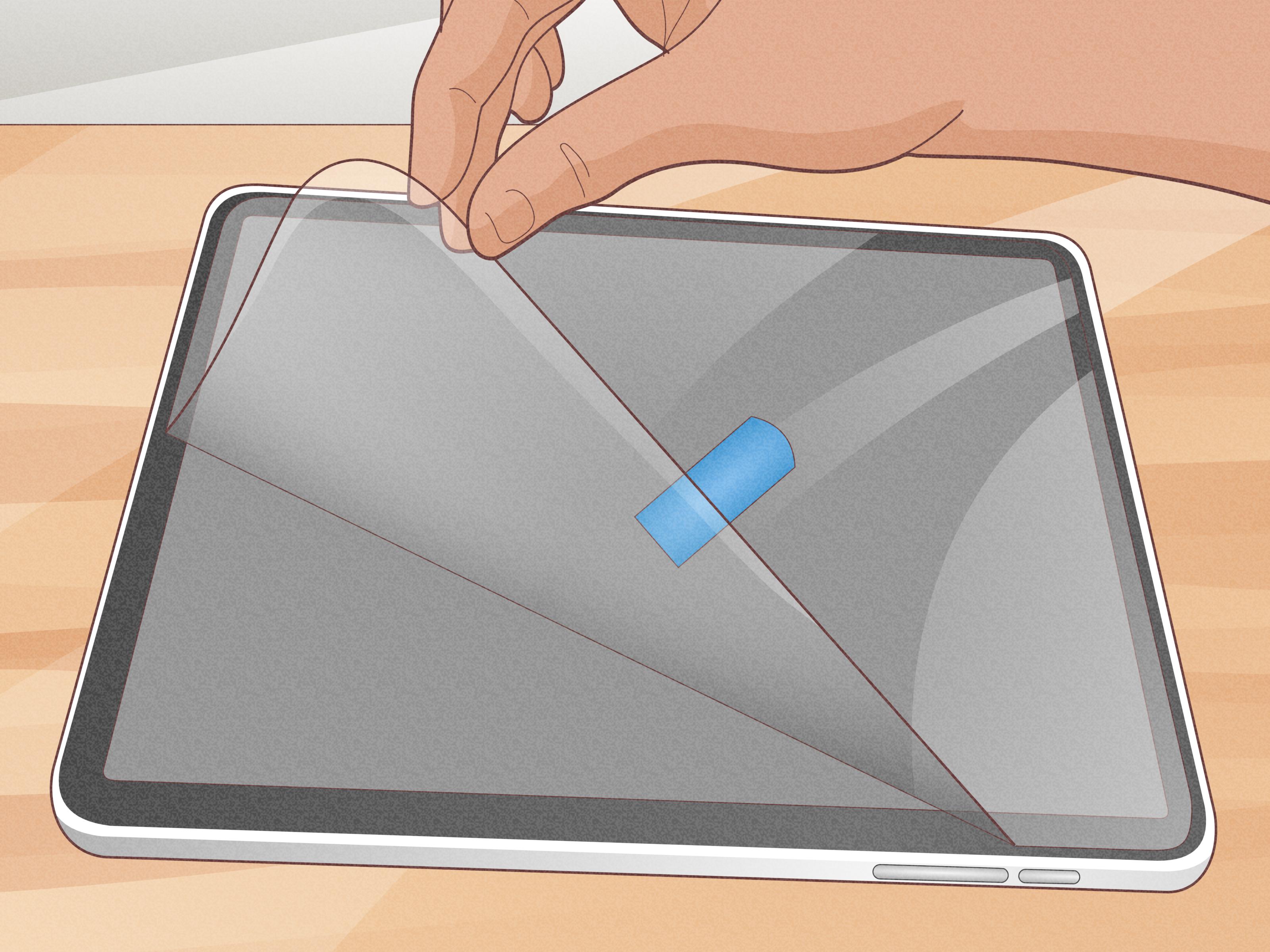
Take off phone cases, keyboard covers, folio covers, stylus loops, and detachable screen protectors if they interfere with the stained area. Ink can hide around the edge of a case or along the border of a screen protector, making it appear as though the display itself is stained.
If the ink is on a removable screen protector, that is actually a small victory. Clean the protector gently first. If the stain will not come off and the protector is inexpensive, replacing it may be safer than experimenting with increasingly dramatic cleaning chemistry.
Step 3: Start with a Dry Microfiber Cloth
Before adding any liquid, lightly wipe the screen with a clean, dry microfiber cloth. Use long, gentle strokes from one side of the display to the other. This removes dust, loose debris, fingerprints, and tiny particles that could drag across the screen while you clean.
Do not use paper towels, tissues, napkins, rough dishcloths, facial wipes, or the corner of your shirt. Paper products can leave lint behind, and rough fibers may create fine scratches over time. Your T-shirt may feel soft enough for a nap, but it is not automatically qualified for screen-cleaning duty.
Step 4: Dampen One Corner of the Cloth with Distilled Water
If the ink remains, lightly dampen one corner of the microfiber cloth with distilled water. The cloth should be barely damp, not wet. You should never be able to squeeze drops from it.
Distilled water is useful because it contains fewer minerals than tap water, reducing the chance of residue or streaking. Apply water to the cloth, never directly to the touch screen. Spraying liquid onto a display can allow moisture to travel into ports, speaker openings, seams, hinges, or the edge of the screen.
Step 5: Gently Wipe the Ink Mark in Small Motions
Use the damp corner of the cloth to wipe the ink stain with very light pressure. Work in small, controlled circles or short strokes. Avoid pressing hard on the center of the screen, especially on laptops, monitors, TVs, and tablets with delicate display layers.
Pause after a few passes and inspect the stain. If it is getting lighter, continue slowly. If nothing is happening, do not immediately double the pressure. Ink removal is usually a patience contest, not a strength competition.
For a thin pen line near the bezel or around the front camera, lightly use a damp cotton swab. Keep it away from ports, speaker grilles, buttons, and seams. The goal is to lift the ink, not to send moisture on a sightseeing tour inside your device.
Step 6: Dry the Area with a Clean Cloth
After wiping the stain with a damp cloth, use a second dry microfiber cloth to remove any remaining moisture. Buff gently in one direction until the display looks dry and streak-free.
This step matters because leftover moisture can leave marks, especially on glossy displays. It also gives you a clearer view of whether the ink has actually faded or whether you are simply staring at a damp smudge with hope in your heart.
Step 7: Use 70% Isopropyl Alcohol Only When Appropriate
If water does not remove the ink and your device manufacturer permits it, use a small amount of 70% isopropyl alcohol on a microfiber cloth or a screen-safe alcohol wipe. Do not pour alcohol onto the display. Do not use stronger alcohol, acetone, paint thinner, gasoline, nail polish remover, or any other substance that sounds like it belongs in a garage or a chemistry lab.
Lightly dampen one corner of the cloth, then test the method on a small, less noticeable area near the edge of the screen. If the coating looks normal after a moment, gently wipe the ink mark. Use minimal pressure and no more liquid than necessary.
Many current phone and tablet care instructions permit 70% isopropyl alcohol wipes for exterior surfaces, but some display types and special coatings have stricter rules. A manufacturer’s instructions should always win over a generic cleaning trick from the internet.
Step 8: Wipe Again with Water, Then Dry Thoroughly
After using isopropyl alcohol, lightly wipe the area with a separate microfiber cloth dampened with water. This helps remove any remaining residue. Then dry the screen with a clean, dry microfiber cloth.
Do not rush to turn the device back on if moisture is visible around the edges, ports, buttons, camera openings, or hinges. Let the display air-dry fully. Most light screen cleaning dries quickly, but waiting a few extra minutes is cheaper than discovering how expensive a moisture-related repair can be.
Step 9: Inspect the Screen and Test Touch Response
Once the screen is dry, turn the device back on and test touch response in several areas. Swipe across the display, open an app, type a short message, and check that the screen reacts normally.
If the ink stain is gone, congratulations: your device has survived its tiny stationery disaster. If a faint shadow remains, repeat only the gentle microfiber-and-water process once more. Avoid repeated aggressive cleaning sessions, because excessive rubbing can wear down protective coatings over time.
What Not to Use on a Touch Screen
Some products may remove ink quickly, but they can also damage the display coating, leave haze, cause discoloration, or create permanent streaks. Avoid the following unless your device manufacturer specifically approves them:
- Window cleaner or ammonia-based glass cleaner
- Bleach or hydrogen peroxide cleaners
- Acetone or nail polish remover
- Vinegar mixtures
- Hand sanitizer gel
- Dish soap or household all-purpose cleaner
- Magic erasers, scouring pads, or abrasive sponges
- Paper towels, tissues, or rough towels
- Compressed air sprayed directly at the screen edge
Touch screens may look like ordinary glass, but many include coatings designed to reduce fingerprints, reflections, or glare. Harsh cleaners can compromise those layers. That is why a soft microfiber cloth and minimal moisture remain the safest starting point for nearly every device type.
What to Do If the Ink Will Not Come Off
Some inks are more stubborn than others. Permanent marker, old ballpoint ink, oily pen ink, and ink that has baked in the sun for several days may not disappear instantly. Before escalating your cleaning method, consider these possibilities:
- The mark may be on a screen protector rather than the actual display.
- The mark may be beneath the glass, which requires repair rather than cleaning.
- The screen may have a matte or anti-glare coating that should not be treated with alcohol.
- The stain may have already damaged the protective coating rather than simply sitting on top of it.
When in doubt, stop. Search for the official cleaning instructions for your exact device model or contact the manufacturer. Replacing a screen protector is inconvenient. Replacing a whole display because of an overly ambitious cleaning experiment is a much less fun weekend activity.
How to Prevent Ink Stains on Touch Screens
The easiest ink stain to remove is the one that never lands on the screen. Keep pens capped or retracted when they are near your phone, tablet, or laptop. Avoid placing devices on top of open notebooks, sticky notes, receipts, or sketchpads. Store styluses separately from leaking pens, and avoid tossing everything into one bag pocket like a tiny stationery demolition derby.
A quality screen protector can also help. It adds a sacrificial layer between the display and everyday accidents. If ink, scratches, or stubborn grime become too difficult to remove, you can replace the protector instead of risking the original screen.
Real-World Lessons from Cleaning Ink Off Touch Screens
Experience teaches an important lesson about touch-screen cleaning: the smallest tools often do the best work. People often assume a stubborn ink mark needs a powerful cleaner, but the most successful approach is usually a clean microfiber cloth, a tiny amount of moisture, and a refusal to panic. Ink looks dramatic on a glossy screen because it contrasts sharply with the glass, but most surface marks are thinner and less permanent than they first appear.
One common situation involves a phone placed face-down on a notebook. A ballpoint pen line transfers to the screen, and the owner immediately reaches for the nearest household cleaner. That is where trouble begins. Window cleaner may make the screen look temporarily shiny, but it can leave residue or affect protective coatings. A slow pass with a lightly damp microfiber cloth is less exciting, but it is far safer. In device cleaning, boring is often beautiful.
Another frequent scenario happens with children, students, artists, and anyone who regularly works around pens and markers. Tablets used for homework, drawing, note-taking, and video calls are especially likely to collect mystery streaks. The key is to identify whether the mark came from washable ink, ballpoint ink, permanent marker, or a damaged screen protector. A washable ink stain may disappear quickly with water. Ballpoint ink may need careful spot cleaning. Permanent marker may require an approved alcohol wipe. A stained screen protector may simply need replacement.
Touch-screen laptops create a different challenge because the display is larger and usually more delicate than a phone screen. Pressing too hard on a laptop display can create temporary pressure marks or uneven-looking patches. This is why broad, gentle strokes work better than scrubbing one small point as if you are polishing a shoe. Support the laptop lid from behind if necessary, use almost no pressure, and let the cloth do the work.
People also learn the hard way that “water-resistant” does not mean “clean it like a dinner plate.” Water resistance helps a device survive accidents, but it does not make ports, hinges, speakers, microphones, or screen edges eager to receive cleaning liquid. The safest habit is always to apply moisture to the cloth first. A cloth should be damp enough to clean, not wet enough to have its own weather forecast.
Finally, the best cleaning experience is the one that ends before the device is damaged. If the mark does not improve after gentle cleaning, stop before trying stronger solvents or abrasive tools. A faint ink mark is annoying, but a cloudy display coating, scratched panel, or moisture-damaged touchscreen is worse. Patience is not just a virtue here; it is part of the cleaning kit.
Conclusion
Removing an ink stain from a touch screen does not require brute force, harsh chemicals, or a dramatic apology to your electronics. Start with a dry microfiber cloth, move to minimal distilled water, and use 70% isopropyl alcohol only when your device manufacturer says it is safe. Keep liquids away from openings, avoid abrasive materials, and remember that a mark beneath the glass is a repair issue, not a cleaning issue.
With a little patience, your screen can go from “mysterious office accident” back to clean, clear, and ready for whatever your fingers, stylus, kids, pets, or runaway pens throw at it next.