The Google Play Store is the front door to apps, games, books, updates, subscriptions, and the occasional “I only downloaded this calculator app for work” moment. Whether you are setting up a new Android phone, helping a family member find the mysterious triangle icon, or troubleshooting a Play Store app that has apparently gone into witness protection, this guide walks you through every practical way to open the Play Store on Android.
The good news: on most Android phones and tablets, the Play Store is already installed. You usually do not need to download it, summon it with ancient chants, or ask your phone nicely three times. You just need to know where Android keeps it, how your phone’s home screen works, and what to do if the icon is hidden, disabled, or refusing to open.
What Is the Google Play Store?
The Google Play Store is Google’s official app marketplace for Android devices. It lets you search for apps, download games, update installed apps, manage subscriptions, check app ratings, read reviews, and review privacy or safety information before installing something new.
On a typical certified Android phone from brands like Google Pixel, Samsung Galaxy, Motorola, OnePlus, Sony, or many carrier-sold Android devices in the United States, the Play Store app comes preinstalled. The icon usually looks like a colorful sideways triangle. Once opened, the Play Store lets you browse apps, games, books, kids’ content, offers, and device-compatible downloads.
However, Android can look slightly different depending on the phone brand, Android version, launcher, and carrier. That is why one person may find the Play Store on the home screen, while another needs to swipe up into the app drawer. Android is flexible, which is wonderfuluntil you are trying to find one tiny icon while your phone acts like it is hosting a scavenger hunt.
Quick Answer: How to Open the Play Store on Android
The fastest method is simple:
- Unlock your Android phone or tablet.
- Swipe up from the bottom of the home screen to open the app drawer.
- Look for the Google Play Store app.
- Tap the Play Store icon.
If the Play Store icon is already on your home screen, you can skip the app drawer and tap it directly. If you cannot see it, use the search bar in your app drawer and type Play Store.
Method 1: Open the Play Store from the Home Screen
Many Android phones place the Google Play Store icon directly on the home screen during setup. This is the easiest route.
Steps
- Unlock your Android device.
- Look across your home screen pages for the colorful triangle icon labeled Play Store.
- Tap the icon once.
- Wait for the Play Store to load.
If you have multiple home screen pages, swipe left or right to check each page. Some people accidentally move the Play Store icon into a folder named “Google,” “Tools,” “Apps,” or “Stuff I’ll Organize Later.” That last folder is not official, but emotionally, many of us have one.
Tip: Check Folders on the Home Screen
If you see a folder labeled Google, tap it. Many Android devices group Google apps together, including Gmail, Maps, YouTube, Drive, Photos, and the Play Store. If you find the Play Store there, tap it to open it.
Method 2: Open the Play Store from the App Drawer
The app drawer is the full list of installed and enabled apps on your Android device. Even if an app is not on your home screen, it may still be in the app drawer.
Steps on Most Android Phones
- Go to your home screen.
- Swipe up from the bottom of the screen.
- Scroll through the list of apps.
- Find Play Store.
- Tap the icon to open it.
On many phones, apps appear alphabetically. That means you may need to scroll to the letter “P.” On some Samsung Galaxy devices, you may swipe up to open the Apps screen, then use the search field at the top to find the Play Store faster.
What If Your Phone Has an Apps Button?
Some older Android layouts or customized launchers include an Apps button on the home screen. It may look like a grid of dots or squares. Tap that button, then look for Play Store.
Method 3: Use App Search to Find the Play Store
If you do not want to scroll through dozens or hundreds of apps, use search. This is the Android equivalent of asking a librarian instead of wandering through every aisle.
Steps
- Swipe up from the home screen to open the app drawer.
- Tap the search bar at the top.
- Type Play Store.
- Tap the Google Play Store result.
On Samsung phones, the search bar may appear at the top of the Apps screen. On Pixel phones and many other Android devices, app search may appear when you swipe up. The exact design can vary, but the idea is the same: search for “Play Store,” then tap the result.
Method 4: Open the Play Store with Google Assistant or Gemini
If voice controls are enabled on your device, you may be able to open the Play Store hands-free. This is useful when your hands are full, your screen is cluttered, or you simply enjoy making your phone do errands.
Steps
- Activate your assistant by saying “Hey Google” or pressing the assistant shortcut on your device.
- Say “Open Play Store”.
- Wait for the Play Store app to launch.
If your assistant does not respond, check whether voice activation is enabled, whether your microphone is working, and whether your device is connected to the internet.
Method 5: Open the Play Store from a Browser Link
Another way to reach Google Play is through a web browser. If you search for an app on Google and tap a Google Play result, Android may ask whether you want to open the link in the Play Store app or in your browser.
Steps
- Open Chrome or another browser on your Android device.
- Search for the app you want, followed by Google Play.
- Tap the official Google Play result.
- If prompted, choose Open with Play Store.
This method is helpful when you are looking for a specific app and cannot find the Play Store icon quickly. Just make sure you are opening the official Google Play listing, not a random download site wearing a fake mustache.
How to Add the Play Store Icon to Your Home Screen
If you use the Play Store often, adding it to your home screen saves time. You do not need to hunt through the app drawer every time you want to update apps or install something new.
Steps
- Swipe up from the home screen to open the app drawer.
- Find Play Store.
- Touch and hold the Play Store icon.
- Drag it to an empty space on your home screen.
- Lift your finger to place it.
On Samsung Galaxy devices, you may also see an Add to Home option after touching and holding the app icon. Tap that, and Android will place a shortcut on the home screen for you.
How to Open the Play Store on Samsung Galaxy Phones
Samsung phones use One UI, which gives Android a Samsung-flavored layout. It is still Android, but the menus and screens may look different from a Pixel or Motorola device.
Steps for Samsung Galaxy
- Unlock your Samsung Galaxy phone.
- Swipe up from the home screen to open the Apps screen.
- Look for the Play Store icon.
- If you do not see it, tap the search bar and type Play Store.
- Tap Play Store to open it.
Samsung devices may also include the Galaxy Store. That is Samsung’s app store, not the same as Google Play. Both can exist on the same phone. If you want Android apps from Google’s official marketplace, open Play Store, not Galaxy Store.
How to Open the Play Store on Google Pixel Phones
Pixel phones run Google’s version of Android, so the Play Store is usually easy to find.
Steps for Pixel
- Unlock your Pixel phone.
- Swipe up from the bottom of the home screen.
- Use the search bar or scroll through the app list.
- Tap Play Store.
Pixel phones often place Google apps front and center, but if you customized your home screen or switched launchers, the icon may have moved. The app drawer search is usually the fastest solution.
What to Do If the Play Store Icon Is Missing
If you cannot find the Play Store, do not panic. It may be hidden, disabled, inside a folder, restricted by a work profile, or unavailable on the device.
1. Search the App Drawer
Swipe up, tap the search bar, and type Play Store. If it appears, open it. If it does not appear, continue troubleshooting.
2. Check Home Screen Folders
Look inside folders such as Google, Tools, Utilities, or Apps. The icon may have been dragged there accidentally.
3. Check Whether the App Is Disabled
The Play Store usually cannot be fully uninstalled from certified Android devices, but it may be disabled on some phones.
- Open Settings.
- Tap Apps.
- Tap See all apps if needed.
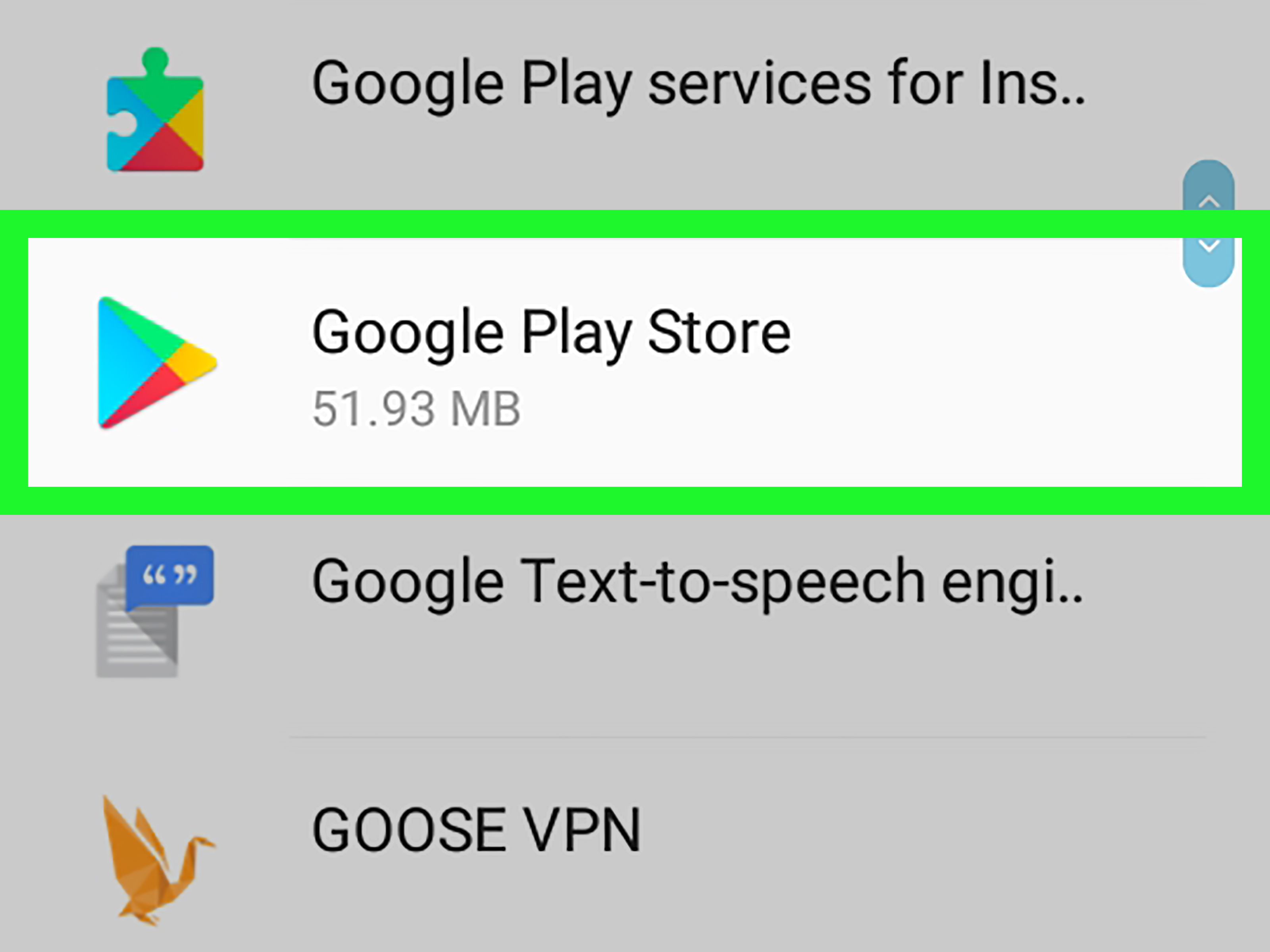
- Search for Google Play Store.
- If you see an Enable button, tap it.
4. Check Work, School, or Parental Restrictions
If the device is managed by a workplace, school, or parental control app, the Play Store may be limited. In that case, you may need permission from the administrator, parent account, or organization that manages the device.
5. Confirm the Device Supports Google Play
Some Android-based devices do not include Google Play services or the Play Store by default. This can include certain tablets, imported phones, or devices made for markets where Google apps are not preinstalled. Amazon Fire tablets, for example, use Amazon’s app store by default rather than Google Play.
What to Do If the Play Store Will Not Open
Sometimes the icon is right there, but tapping it does nothingor the app opens, flashes, crashes, and disappears like a magician with poor customer service. Try these fixes in order.
1. Restart Your Device
Hold the power button and choose Restart. If your phone does not show a restart option, power it off and turn it back on. This simple step fixes more problems than anyone wants to admit.
2. Check Your Internet Connection
The Play Store needs a working connection. Try switching between Wi-Fi and mobile data. You can also open a browser and visit a website to confirm your connection is active.
3. Clear the Play Store Cache
Clearing cache removes temporary files. It does not remove your Google account or installed apps.
- Open Settings.
- Tap Apps.
- Select Google Play Store.
- Tap Storage & cache.
- Tap Clear cache.
4. Clear Play Store Storage
If clearing cache does not help, clear storage. This resets the Play Store app’s local settings, but your purchased apps and downloads remain tied to your Google account.
- Go to Settings.
- Tap Apps.
- Choose Google Play Store.
- Tap Storage & cache.
- Tap Clear storage or Clear data.
- Confirm the action.
5. Update the Play Store
If you can open the Play Store but it behaves strangely, update it:
- Open the Play Store.
- Tap your profile picture or initial in the top-right corner.
- Tap Settings.
- Tap About.
- Tap Update Play Store.
6. Update Google Play Services
Google Play services runs in the background and helps Android apps work properly. If it is outdated or glitchy, the Play Store may misbehave. Open Settings, go to Apps, find Google Play services, and check available update or storage options.
7. Remove and Re-Add Your Google Account
If sign-in problems continue, removing and re-adding your Google account may help. Before doing this, make sure you know your Google password and have recovery options available.
- Open Settings.
- Tap Passwords & accounts or Accounts.
- Select your Google account.
- Remove the account.
- Restart the device.
- Add the Google account again.
How to Use the Play Store After Opening It
Once the Google Play Store is open, you can do much more than install the first flashlight app you see. Here are the main areas to know.
Search for Apps
Tap the search bar at the top and type the app name, category, or keyword. For example, you can search for “budget planner,” “photo editor,” “weather app,” or the exact name of an app like “Google Maps.”
Install an App
Tap an app listing, review the app name, developer, rating, screenshots, privacy details, and permissions, then tap Install. After installation, you can open the app from the Play Store or from your app drawer.
Update Apps
Tap your profile picture, choose Manage apps & device, and look for available updates. You can update apps one at a time or tap Update all.
Manage Subscriptions
Tap your profile picture and choose Payments & subscriptions. From there, you can view subscriptions connected to your Google account.
Check Play Protect
Tap your profile picture and choose Play Protect. Google Play Protect helps scan apps for harmful behavior and warns you about potentially unsafe apps. It is a useful safety layer, especially if you download many apps or occasionally install apps from outside the Play Store.
Safety Tips Before Downloading Apps
Opening the Play Store is easy. Choosing safe, useful apps is where your inner detective gets a tiny badge.
Check the Developer Name
Before installing an app, look at the developer name. If you are downloading your bank’s app, make sure it is published by the actual bank. Fake apps sometimes use similar names, icons, or descriptions to trick users.
Read Recent Reviews
Reviews can reveal bugs, excessive ads, login problems, or suspicious behavior. Focus on recent reviews because apps change over time.
Look at Permissions
If a wallpaper app asks for access to your microphone, contacts, location, and calendar, raise an eyebrow. Some permissions are necessary, but unnecessary access is a red flag.
Use Official Sources
Avoid downloading “Play Store APK” files from random websites unless you fully understand the security risk. For most users, opening the preinstalled Play Store app is safer than installing unknown files from the web.
Common Questions About Opening the Play Store on Android
Why can’t I find the Play Store on my Android phone?
It may be inside a folder, hidden from the home screen, disabled in Settings, restricted by device management, or unavailable on your device. Start by searching the app drawer for “Play Store.”
Can I uninstall the Play Store?
On most certified Android devices, the Play Store is a system app. You usually cannot fully uninstall it, but you may be able to disable it. If disabled, you can often re-enable it from Settings > Apps > Google Play Store.
Is Google Play the same as the Play Store?
Google Play is the broader digital marketplace and service. The Play Store is the Android app you open to browse and download content from Google Play.
Is the Galaxy Store the same as the Play Store?
No. Galaxy Store is Samsung’s app store. Play Store is Google’s app store. Samsung Galaxy phones may include both.
Do I need a Google account to use the Play Store?
You can open the Play Store app, but to download apps, buy content, manage subscriptions, and sync purchases, you generally need to sign in with a Google account.
Conclusion: Opening the Play Store Is Easy Once You Know Where to Look
To open the Play Store on Android, start with the basics: check your home screen, swipe up to open the app drawer, search for “Play Store,” and tap the colorful triangle icon. On Samsung, Pixel, Motorola, and most Android devices, that is all it takes.
If the Play Store is missing, check folders, search all apps, re-enable it in Settings, and confirm that your device supports Google Play. If it will not open, restart your phone, check your connection, clear cache, update the Play Store, and make sure Google Play services is working properly.
Once you are inside the Play Store, you can search for apps, update installed apps, manage subscriptions, and use Play Protect to help keep your device safer. In other words, the Play Store is not just an app shop. It is the control room for much of your Android app lifeminus the dramatic blinking lights, unless your wallpaper app is trying too hard.
Experience Notes: Real-Life Lessons from Opening the Play Store on Android
In everyday use, the most common Play Store problem is not that the app is broken. It is that the icon is not where the user expects it to be. Many Android users think an app is “gone” when it has simply been removed from the home screen. This happens often after someone cleans up icons, changes launchers, switches phones, or lets a helpful relative “organize” the device. The Play Store can still be installed and working perfectly, but the shortcut is missing from the front page.
A practical habit is to teach users the difference between the home screen and the app drawer. The home screen is like a desk: it shows the things you choose to keep nearby. The app drawer is like the full filing cabinet: it contains nearly everything installed and enabled. Once people understand that difference, finding the Play Store becomes much less stressful. Instead of saying, “My Play Store disappeared,” they can say, “The shortcut disappeared, but I can search for it in all apps.” That is a small change, but it saves a lot of tapping, sighing, and suspicious looks at the phone.
Another common experience is confusion between the Play Store and other stores. Samsung users may see Galaxy Store. Amazon tablet users may see the Amazon Appstore. Some carrier-branded devices may include extra app recommendation tools. These stores may be useful, but they are not the same as Google Play. When following a guide or installing an app mentioned by a school, workplace, bank, or service provider, users should confirm that they are opening the correct store. The Google Play Store icon is the colorful triangle, and the app name is usually “Play Store.”
For beginners, the search method is often the easiest. Instead of explaining every possible icon location, simply say: “Swipe up and search Play Store.” This works across many modern Android phones and avoids brand-specific confusion. It is especially helpful for older adults, new Android users, or anyone switching from iPhone, where the App Store icon is usually expected to sit visibly on the home screen.
Troubleshooting also becomes easier when users follow a calm order. Restart first. Check internet second. Clear cache third. Re-enable the app only if it is disabled. Avoid downloading replacement Play Store files from random websites. That last point matters because people searching “Play Store missing” may find unofficial APK downloads. For most users, that route creates more risk than reward. The safer approach is to use device settings, official updates, and account checks before considering anything advanced.
Finally, once the Play Store opens successfully, it is worth adding the icon back to the home screen. Touch and hold the Play Store icon from the app drawer, drag it to a visible spot, and place it somewhere obvious. A good location is the bottom row or a folder labeled “Google.” The goal is simple: make the Play Store easy to find next time, so future app updates do not require a miniature detective novel.
Note: Menu names can vary slightly by Android version, phone brand, launcher, carrier settings, and device management rules. If your phone uses different wording, look for similar options such as Apps, All apps, App info, Storage & cache, Enable, or Manage apps & device.