If Microsoft Word has ever opened your document with the words Compatibility Mode sitting in the title bar like an uninvited guest at a meeting, you are not alone. It is one of those small Word mysteries that can make a perfectly normal document feel suspicious. One minute you are editing a resume, report, contract, school paper, or office template. The next minute, Word is quietly telling you that your file is living in the past.
The good news is that Compatibility Mode is usually not an error. It is Microsoft Word’s way of protecting an older document format so the file can still be opened and edited by people using earlier versions of Word. The even better news is that getting out of Compatibility Mode is usually simple. In most cases, you only need to convert the file to the modern Word format, save it correctly, and check that your document still looks the way it should.
This guide explains exactly how to get out of Compatibility Mode in Microsoft Word, why it happens, what changes after conversion, and how to avoid the same issue in the future. Think of it as helping your document move out of its vintage apartment and into a modern condo with better lighting, stronger formatting support, and fewer mysterious limitations.
What Is Compatibility Mode in Microsoft Word?
Compatibility Mode in Microsoft Word is a document mode that allows newer versions of Word to open, edit, and preserve files created in older versions of the program. You may see it when you open an old .doc file or a .docx file that was saved using settings from an earlier Word version.
When Compatibility Mode is active, Word temporarily disables certain newer features so the document remains usable in older versions. This helps prevent formatting surprises when a file moves between different computers, offices, schools, or clients. In other words, Word is trying to be polite. It does not want to add shiny new features that someone else’s older Word installation cannot understand.
For example, if a document was originally created in Word 2003, opened in Word 2021, and then sent back to someone using older software, Compatibility Mode helps reduce the risk of broken formatting. Tables, margins, fonts, headers, footers, shapes, and layout elements may stay closer to their original appearance.
However, that helpful protection can also become annoying. You may lose access to newer formatting tools, modern collaboration features, improved layout options, updated graphics handling, or advanced design capabilities. That is why many users eventually want to turn off Compatibility Mode and convert the file to the current Word format.
Why Does Word Open in Compatibility Mode?
Microsoft Word usually opens in Compatibility Mode for one of several reasons. The most common reason is that the document was created in an older version of Word. Another common reason is that the file was saved as a legacy .doc document instead of the newer .docx format.
1. The document is saved as a .doc file
The .doc format was used by older versions of Microsoft Word, especially Word 97 through Word 2003. Newer versions of Word can still open many .doc files, but they often do so in Compatibility Mode. This allows the document to behave more like it did in the older software.
2. The document was created with an older Word version
Even if the file extension says .docx, the document may still contain compatibility settings from an older version. This can happen with templates, office forms, long-running business documents, and files that have been copied, edited, renamed, and recycled for years. Some documents have more history than a family photo album.
3. The file came from another person, system, or template
If you received the file by email, downloaded it from a company portal, pulled it from an archive, or opened it from a school or government template, it may have been saved in an older format on purpose. Organizations often keep older formats because they need documents to work across many computers.
4. Word is preserving the original layout
Compatibility Mode is not only about file extensions. It also helps preserve layout. That means Word may avoid applying newer rendering behavior that could shift tables, change spacing, move graphics, or alter page breaks. This is helpful for official forms, legal documents, brochures, and anything where one moved line can cause a tiny office earthquake.
How to Tell If a Document Is in Compatibility Mode
The easiest way to tell is to look at the title bar at the top of Microsoft Word. If the document is in Compatibility Mode, you will usually see something like this:
Document Name.doc [Compatibility Mode] – Word
You can also check through Word’s file information area. Open the document, click File, then select Info. If the file is in Compatibility Mode, Word may show a message explaining that some newer features are unavailable and may display a Convert button.
If you do not see Compatibility Mode in the title bar, the document may already be in the current format. However, if certain features are still missing, the issue may be related to file permissions, Protected View, restricted editing, a damaged template, or a document stored in a location with limited access.
How to Get Out of Compatibility Mode in Microsoft Word
The main way to get out of Compatibility Mode is to convert the document to the latest Word format. Before doing that, it is smart to save a backup copy, especially if the document has complex formatting, tables, forms, images, columns, footnotes, citations, or tracked changes.
Method 1: Use the Convert Button
This is the fastest and most direct method for most users.
- Open the document in Microsoft Word.
- Click the File tab in the upper-left corner.
- Select Info.
- Look for the Convert button.
- Click Convert.
- If Word shows a warning message, read it and click OK if you want to continue.
- Press Ctrl + S or click Save.
After conversion, the Compatibility Mode label should disappear from the title bar. Your document will now use the newer Word format, allowing access to modern Word features.
Method 2: Save the File as a New .docx Document
If the Convert button does not appear, or if you prefer to create a fresh copy, use Save As.
- Open the document in Word.
- Click File.
- Select Save As.
- Choose a folder location.
- In the Save as type menu, choose Word Document (*.docx).
- Rename the file if you want to keep the original.
- Click Save.
This method is especially useful when working with old .doc files. Instead of overwriting the original file, you create a modern copy. For example, you might save Client Contract 2008.doc as Client Contract Updated.docx. That way, the original remains untouched, just in case the new version needs a formatting check.
Method 3: Convert a Document from Word for the Web
If you are using Word for the web, you may not be able to fully convert a Compatibility Mode document directly in the browser. In many cases, you need to open it in the desktop version of Microsoft Word.
- Open the document in Word for the web.
- Select Editing.
- Choose Open in Desktop App or Open in Desktop.
- In the desktop version of Word, click File.
- Select Info.
- Click Convert.
- Save the document.
This is useful when your file is stored in OneDrive, SharePoint, Microsoft Teams, or another cloud-connected workspace. Once converted and saved, the updated version should sync back to the cloud location.
What Happens When You Convert a Word Document?
When you convert a document, Word updates it to the newer file format. This can unlock features that were not available in Compatibility Mode. You may gain access to newer formatting behavior, updated themes, improved SmartArt, modern charts, better text effects, enhanced collaboration tools, and improved media support.
However, conversion can also slightly change layout. Most simple documents convert without drama. A two-page letter, a basic resume, or a plain report usually survives the process beautifully. Complex documents deserve more attention. If your file includes tables, section breaks, custom margins, embedded objects, old WordArt, macros, form fields, or unusual fonts, check it carefully after conversion.
Page breaks are one of the most common areas to review. A line that once fit at the bottom of page three may move to page four. A table may widen. A header may shift. A picture may decide to behave like it has discovered free will. These changes are usually fixable, but they are easier to catch immediately after conversion.
Should You Always Turn Off Compatibility Mode?
Not always. Getting out of Compatibility Mode is usually a good idea when you are the main editor, when the document will be used in current versions of Word, or when you need modern Word features. It is also helpful for long-term storage because the .docx format is the standard Word document format for modern Microsoft Office and Microsoft 365 environments.
However, you may want to keep Compatibility Mode if you must share the file with people using very old versions of Word. You may also keep it if the file is an official form that must preserve exact formatting. Some businesses, courts, schools, and government offices use old templates that should not be casually converted without testing.
A practical rule is this: if the document is simple and used by modern Word users, convert it. If the document is complex, legally sensitive, heavily formatted, or shared with people using old software, make a backup first and test the converted version before replacing the original.
How to Check Compatibility Before Sharing a Word File
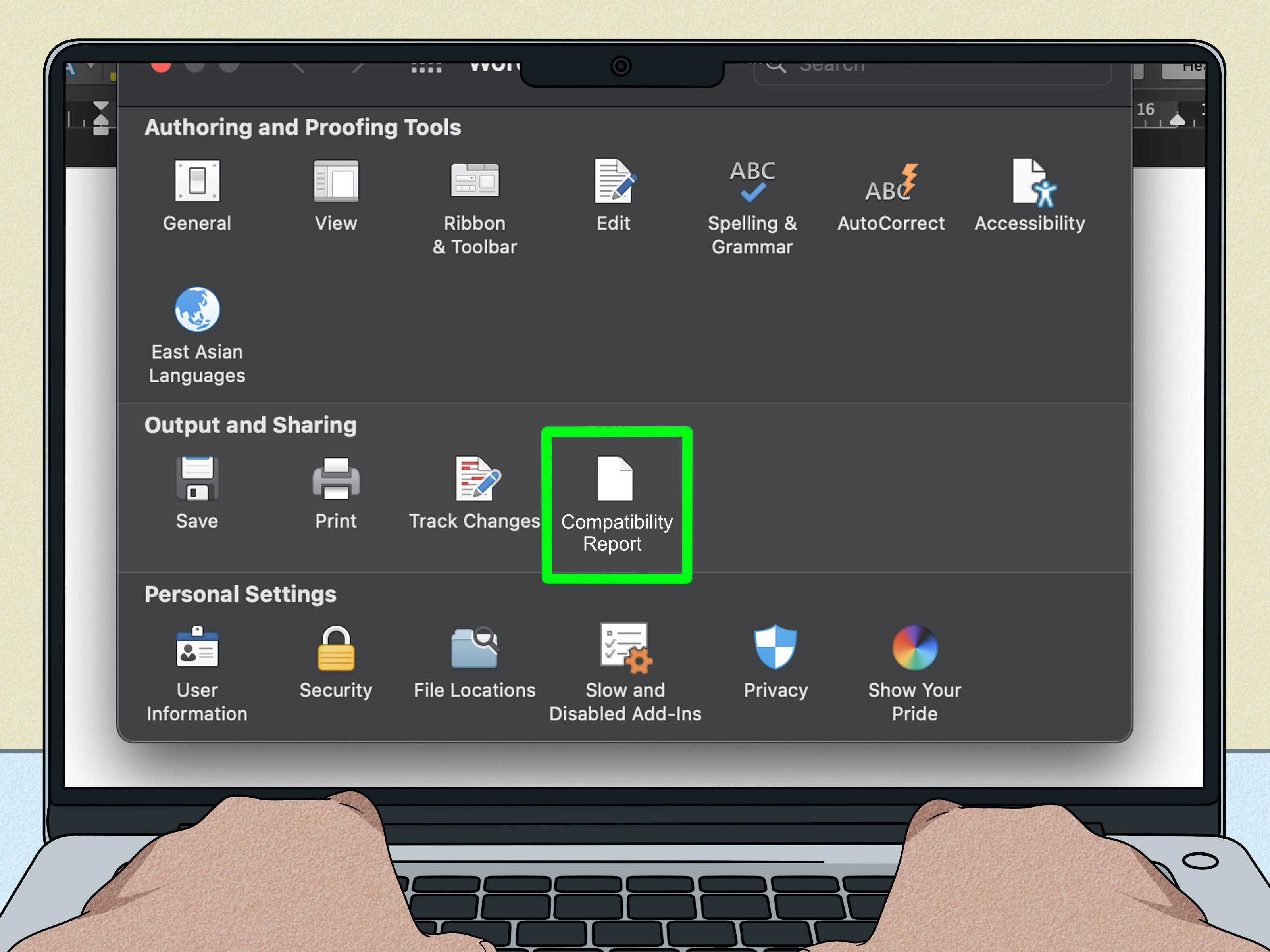
If you need to send a document to someone using an older version of Word, use the Compatibility Checker. This tool scans your document and identifies features that may not work correctly in earlier versions.
- Open your document in Word.
- Click File.
- Select Info.
- Click Check for Issues.
- Select Check Compatibility.
- Review the summary of potential issues.
This step is helpful when you are preparing reports, proposals, classroom files, manuals, or business documents for a group with mixed software versions. It can save you from the classic problem where a document looks perfect on your computer but arrives on someone else’s machine looking like it fell down a staircase.
How to Stop New Documents from Opening in Compatibility Mode
If every new document opens in Compatibility Mode, the problem may not be the document itself. It could be your default save settings or an old template.
Check the default save format
Go to File > Options > Save. Look for the setting called Save files in this format. Make sure it is set to Word Document (*.docx), not an older format such as Word 97-2003 Document (*.doc).
Check your templates
If your organization uses custom templates, those templates may have been created in an older Word format. Open the template, convert it, save it as a modern .dotx or .dotm template if appropriate, and then create new documents from the updated template.
Check file extensions carefully
Sometimes users think a file is modern because it opens in a new version of Word, but the file extension is still .doc. To avoid confusion, turn on file name extensions in Windows File Explorer. This makes it easier to see whether you are working with .doc, .docx, .docm, or another format.
Common Problems After Leaving Compatibility Mode
Most conversions are smooth, but a few issues can appear. Here are the most common ones and how to handle them.
Formatting looks different
If formatting changes after conversion, compare the new file with the backup copy. Check margins, spacing, fonts, headers, footers, tables, bullets, numbering, images, and page breaks. Small layout changes are normal when an old document is updated to a newer format.
The Convert button is missing
If you do not see the Convert button, try using Save As and choose Word Document (*.docx). If the file is already a .docx document but still behaves oddly, save a new copy under a different name and restart Word.
The document is read-only
If the file is read-only, you may not be able to convert or save it. Save a copy to your computer, check file permissions, or ask the file owner for editing access. If the document opened from an email attachment, save it to a folder before editing.
Protected View is blocking editing
Protected View is different from Compatibility Mode. If a document came from the internet, email, or an unsafe location, Word may open it in Protected View. You may need to click Enable Editing before you can convert or save the file. Only do this if you trust the source.
Macros or forms behave differently
If the document contains macros, do not blindly save it as a standard .docx file because .docx files do not store VBA macro code. Use a macro-enabled format such as .docm when macros are required. For forms, test fields and controls after conversion.
Best Practices Before Converting Important Word Documents
Before converting a serious document, follow a few simple best practices. First, make a backup. Second, rename the converted file so you know which version is new. Third, review the layout page by page. Fourth, check tables, footnotes, citations, images, headers, and footers. Fifth, send a test copy to a colleague if the document will be shared widely.
For business users, it may also be smart to create a short conversion checklist. This is especially helpful for teams converting old policy manuals, employee handbooks, legal forms, client templates, or training documents. One careless conversion can turn a beautifully formatted document into a puzzle, and nobody wants to spend Friday afternoon wrestling a table border that has chosen chaos.
Quick Example: Converting an Old Resume
Imagine you have an old file named Resume_Final_ReallyFinal_2012.doc. You open it in Microsoft Word 2024 and see Compatibility Mode in the title bar. You want to modernize the document and use newer formatting tools.
You click File > Save As, choose Word Document (*.docx), and save it as Resume_Updated_2026.docx. Then you review the spacing, check the bullet points, confirm the page count, and make sure the font looks right. Compatibility Mode disappears, and you can now use the current Word features.
That is the ideal workflow: preserve the old file, create a modern copy, review the layout, and continue editing with fewer limitations.
Experience-Based Notes: What Users Usually Learn the Hard Way
After helping people troubleshoot Microsoft Word documents over the years, one pattern becomes clear: Compatibility Mode is rarely the real villain. The real problem is usually document history. A file may have started as a simple memo in Word 2003, then been copied into a company template, emailed to twenty people, edited on five laptops, uploaded to a shared drive, downloaded again, renamed, and finally opened in Microsoft 365. By that point, the document is not just a file. It is an archaeological site with fonts.
The first experience-based lesson is to never convert the only copy of an important document. This sounds obvious until someone converts a twenty-page contract, saves it, closes Word, and then notices the signature table has shifted onto a new page. A backup copy is not paranoia. It is a seat belt. You hope you do not need it, but you will be very glad it exists when formatting decides to perform gymnastics.
The second lesson is that old tables are often the most dramatic part of the conversion process. Tables created in older Word versions may use spacing, wrapping, or width settings that behave differently after conversion. If the document includes forms, invoices, schedules, checklists, or government-style boxes, review every table. Do not just glance at page one and declare victory. Tables love hiding their problems on page seven.
The third lesson is that fonts matter more than people expect. If an old document used a font that is not installed on your current computer, Word may substitute another font. That replacement can change line spacing, page breaks, and overall layout. Before blaming Compatibility Mode, check whether the original font is available. A missing font can make a document look slightly wrong even after a perfect conversion.
The fourth lesson is that cloud storage can confuse people. A file opened from OneDrive, SharePoint, Teams, or email may not behave exactly like a file saved directly on your desktop. Sometimes users convert a document but do not save it properly, or they create a local copy while the shared version remains unchanged. After converting a cloud file, confirm that the updated file synced and that other collaborators are opening the new version, not the old one.
The fifth lesson is to understand the difference between Compatibility Mode, Protected View, and restricted editing. Compatibility Mode is about older document formats. Protected View is about safety and trust. Restricted editing is about permissions. These three can appear in similar situations, but they are not the same problem. If the file says Enable Editing, that is usually Protected View. If the title bar says Compatibility Mode, that is the older-format issue. If Word will not let you change certain sections, restricted editing may be involved.
The sixth lesson is that templates deserve special attention. Many people convert individual documents again and again without realizing the real source of the problem is an old template. If every new document from a certain template opens in Compatibility Mode, update the template itself. Otherwise, you are not solving the cause; you are just sweeping up the same crumbs every morning.
The seventh lesson is that not every document needs to be converted immediately. If a file is an archive copy, a historical record, or something that must remain exactly as originally created, it may be better to leave it alone and create a converted working copy. Compatibility Mode can be useful when preserving the look of an older document matters more than using the newest Word tools.
The best practical approach is simple: identify the file type, make a backup, convert or save as .docx, review the layout, and keep the original until you are confident the new version works. This process may take an extra minute, but it prevents the kind of formatting surprise that makes people whisper things at their computer that should not be printed in a professional tutorial.
Conclusion
Getting out of Compatibility Mode in Microsoft Word is usually straightforward. Open the document, go to File > Info > Convert, or use Save As to save the file as a modern .docx document. Once converted, Word can use newer features that may be unavailable in older document modes.
The smart move is to treat conversion as a small but important document upgrade. Make a backup, check your layout, review important formatting, and keep the original file until the new version is confirmed. For simple documents, the process is quick. For complex documents, a careful review can save time, stress, and the emotional damage of a table that suddenly refuses to stay on one page.
In the end, Compatibility Mode is not a disaster. It is just Word being cautious. Once you understand why it appears and how to convert your files properly, you can work with modern Word documents confidently and keep your formatting under control.