Need to start a WeChat group chat without poking random buttons and hoping for the best? Good news: creating one is pretty simple once you know where Tencent hid the door. Whether you are organizing a family chat, a study group, a travel crew, a work thread, or that wonderfully chaotic friend group that sends 47 stickers before breakfast, WeChat gives you a few easy ways to get everyone in one place.
This guide walks through exactly how to create a group chat on WeChat on mobile and desktop, how to customize it, how to add people later, and what to do when the app acts like it suddenly forgot how groups work. We will keep it practical, clear, and just funny enough to make the settings menu feel less like a tax form.
What You Need Before You Start
Before you create a WeChat group chat, make sure you have the basics covered. First, you need an active WeChat account on your phone. Even if you plan to use WeChat on desktop, mobile still does a lot of the heavy lifting, especially for sign-in and account verification. In many cases, desktop use is tied to your mobile session, so your phone is not just invited to the party. It is basically the bouncer.
You should also make sure the people you want to add are already in your contacts, or at least easy to add. Depending on your version of WeChat, you may invite people directly from your contact list, share a group QR code, or use other in-app invite options. Menu names can vary slightly between iPhone, Android, Windows, and Mac, but the overall flow is very similar.
How to Create a Group Chat on WeChat on Mobile
Steps for iPhone and Android
If you are using the WeChat mobile app, this is the fastest and most common way to start a group chat. The exact button labels may differ a bit, but the path is usually very close to this:
- Open WeChat on your iPhone or Android device.
- Go to the Chats tab.
- Tap the + icon in the top-right corner.
- Choose New Chat, Group Chat, or the closest equivalent shown in your app version.
- Select the contacts you want to include.
- Tap Done, OK, or Start Chat.
That is it. Your WeChat group chat is live.
Once the chat is created, send a quick opening message so nobody mistakes it for an accidental pocket-tap masterpiece. Something simple like, “Welcome to the group,” works fine. Something like, “Congratulations, you have all been selected for my highly classified lasagna project,” also works, but that depends on the crowd.
What if You Do Not See “Group Chat”?
Do not panic. Some versions of WeChat do not label the option as “Group Chat” right away. Instead, you may tap New Chat first, then select multiple contacts. If you choose more than one person, WeChat will usually create a group conversation automatically. In other words, the group may begin its life disguised as a normal new message screen.
How to Create a Group Chat on WeChat on Desktop
Steps for Windows and Mac
Creating a WeChat group on desktop is handy when you want a full keyboard, a larger screen, and fewer typos that transform “meeting at 6” into “melting at 6.” It is especially useful for work, planning, and long messages that deserve better than thumb gymnastics.
Before anything else, sign in to WeChat on your computer. In most cases, this requires opening the desktop app and scanning the login QR code with your phone. Once you are in, follow these general steps:
- Open the WeChat desktop app on Windows or Mac.
- Sign in by scanning the QR code with your phone if prompted.
- Look for the + icon, new chat option, or similar button near the chat list or search area.
- Choose the contacts you want to include in the conversation.
- Confirm your selection to create the group.
- Send the first message so the group officially feels like a group and not an empty digital room.
Some desktop versions may not spell out “Create Group” in a dramatic way. Instead, the feature may begin as a new chat flow where selecting multiple contacts creates the group automatically. If the wording looks different from what you expected, that does not necessarily mean the feature is gone. It usually means the app is being mysterious for no good reason.
Desktop Is Convenient, but Mobile Still Matters
Even if you love using WeChat on desktop, do not treat your phone like an optional sidekick. Your mobile app often remains central for login approval, scanning QR codes, certain group settings, and account checks. Think of desktop WeChat as the spacious office and mobile WeChat as the keycard that gets you into the building.
How to Name and Customize Your WeChat Group
Once your group exists, take thirty seconds to make it look intentional. A default group made of random names is technically functional, but it has the energy of a group project nobody wanted.
To customize your group:
- Open the group chat.
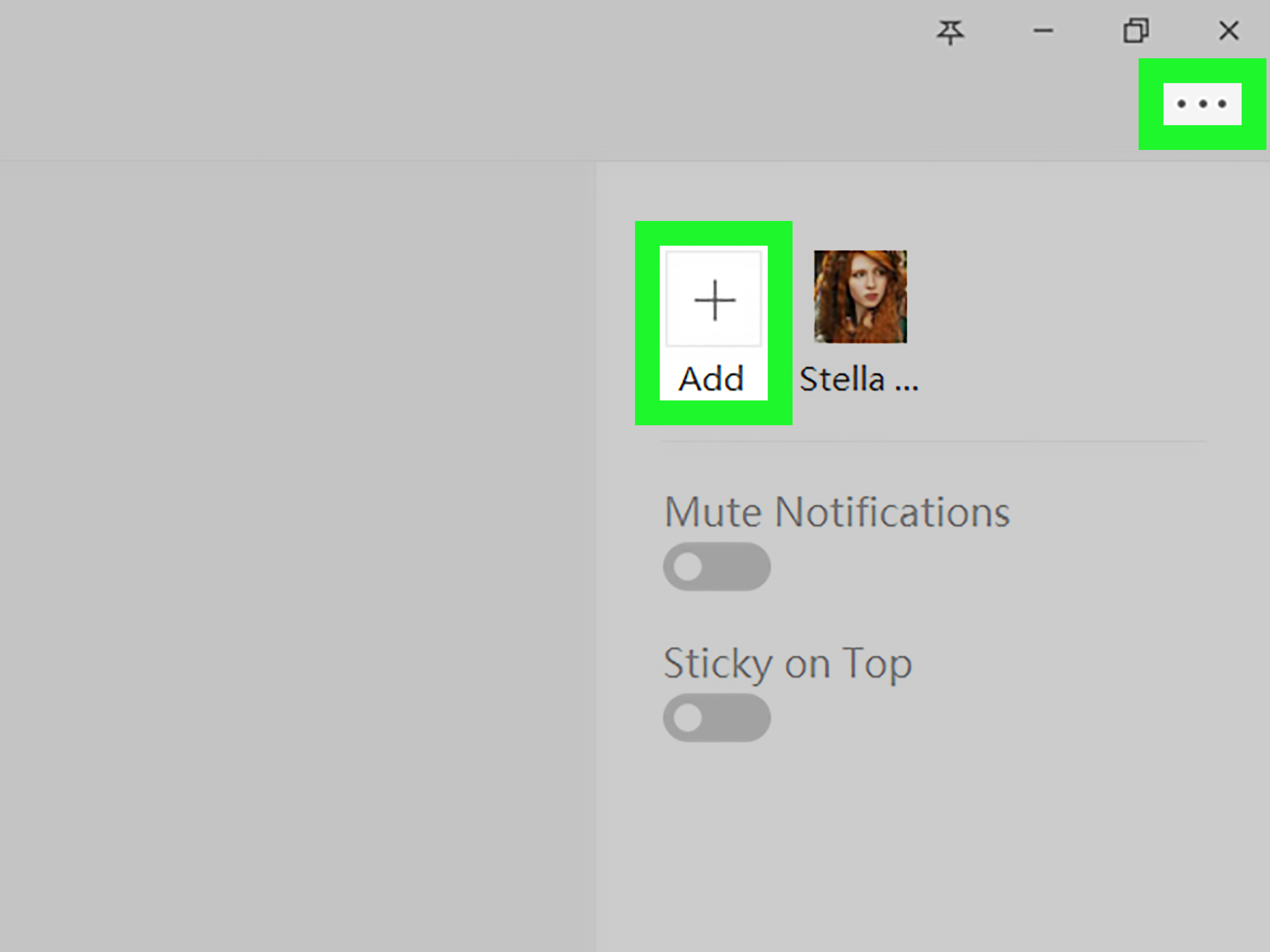
- Tap or click the group info, three-dot menu, or group icon.
- Change the group name.
- Add or update the group photo if that option appears.
- Review settings such as notifications, notices, or member controls.
A clear name matters more than people think. “Family Reunion July 2026” is better than “Group Chat.” “Marketing Launch Team” is better than “Hey.” “Apartment Search Crew” is better than “AAAAAAAA.” A good name helps people find the chat later and reduces the chance that someone sends vacation photos to the quarterly budget group. That is not a theoretical risk. That is modern life.
How to Add More People Later
Invite from Your Contacts
After creating the group, you can usually add more members from the group info screen. Open the chat, go into the group settings, tap the add member icon, then select more contacts. This is often the cleanest option because it keeps everything inside the app and avoids the awkward, “Wait, which QR code am I scanning?” phase.
Use a Group QR Code When Available
Many WeChat users also add people by sharing a group QR code. If your app version shows a Group QR Code option in the group settings, you can save or share it with invited members. This can be especially useful for clubs, classes, event planning, or temporary project groups.
Just remember that QR-based joining can behave differently depending on the group setup, app version, or size. If the QR route feels limited or unavailable, direct invites from your contacts are usually the safer fallback.
What You Can Manage Inside a WeChat Group
Creating the group is only the beginning. Once the chat is active, WeChat gives you a few useful controls to keep the conversation from turning into total sticker-fueled anarchy.
Mute Notifications
If the group is active enough to qualify as a weather system, mute it. Open the group settings and look for Mute Notifications or a similar toggle. This lets you stay in the group without hearing your phone vibrate every eight seconds because someone discovered a new frog meme.
Post a Group Notice
Many versions of WeChat include a Group Notice feature. This is helpful for rules, schedules, links, meeting details, or reminders such as “Please do not send 200 photos individually.” It is one of the easiest ways to keep important information from getting buried under stickers, voice messages, and someone typing “???” with Olympic-level commitment.
Owner and Admin Controls
In many cases, the person who creates the group becomes the owner or main manager. That person may have more control over settings, notices, or member removal than regular participants. So yes, if you created the group, congratulations: you are now the unpaid mayor.
Troubleshooting: Why You Cannot Create a WeChat Group
If group creation is not working, the issue is usually something small, annoying, and fixable. Here are the most common reasons:
1. Your Desktop Session Is Not Fully Signed In
If you are on Windows or Mac, confirm that your desktop session is active and properly linked to your phone. A failed QR sign-in can block desktop features before you even get started.
2. Your Account Is New or Still Being Verified
Some newer accounts go through extra verification during sign-up or early use. If your account feels limited, complete any prompts that appear in the mobile app first. This is one reason mobile setup matters even if your end goal is desktop chatting.
3. The Contacts Are Not Added Correctly
If you cannot select someone, check whether they are already in your WeChat contacts. In some cases, adding the person first makes group creation smoother.
4. Your App Version Is Outdated
If the buttons in every tutorial seem to live in another dimension, update WeChat. Newer versions may move features around, but older versions can cause missing tools, weird bugs, or sign-in problems.
5. You Are Looking in the Wrong Menu
Honestly, this happens a lot. On mobile, the group option is usually tied to the + menu or new chat flow. On desktop, it may sit near the search area or inside the new chat process. If you are digging through unrelated menus like a digital raccoon, back out and start from the chat screen.
Desktop vs. Mobile: Which One Is Better for WeChat Group Chats?
The honest answer is: both, but for different reasons.
Mobile WeChat is best for quick setup, scanning QR codes, managing notifications on the go, and dealing with account prompts. It is the version most users rely on daily, and it is usually where WeChat rolls out the most natural workflow first.
Desktop WeChat is better for typing long messages, sharing files while you work, copying and pasting links, and managing chats during your day without switching constantly between computer and phone. If you are coordinating a project, class, or travel plan, desktop feels a lot less cramped.
The sweet spot is using both: create and manage the essentials from mobile, then handle heavier conversation from desktop. It is the digital equivalent of using a phone for directions and a laptop for actual planning.
Best Practices for a WeChat Group That Does Not Become a Mess
Creating a WeChat group is easy. Creating one that stays useful is the real trick. Here are a few habits that help:
- Name the group clearly. Future you will be grateful.
- Post a group notice early. Especially for deadlines, addresses, or rules.
- Mute the group if needed. Peace is not selfish.
- Add people with purpose. Nobody likes being dragged into a chat that has nothing to do with them.
- Keep important info in one place. Repeating the same details 14 times is a tradition, not a necessity.
- Use desktop for longer updates. Your thumbs deserve workers’ compensation.
Is WeChat a Good Choice for Group Communication?
For many users, yes. WeChat group chats are practical, familiar, and flexible enough for everyday coordination. They work well for social groups, event planning, study sessions, and many casual business conversations. The app is especially useful if the people you need to reach already use WeChat regularly.
That said, convenience should not turn into oversharing. For sensitive information, use common sense. Keep private data to a minimum, review your group settings, and avoid treating any busy group chat like a vault. A little caution goes a long way in any messaging app, especially when dozens or hundreds of people are involved.
Final Thoughts
If you have been wondering how to create a group chat on WeChat on desktop and mobile, the process is refreshingly straightforward once you know where to tap or click. On mobile, start from the Chats tab and use the + menu. On desktop, sign in with your phone, open a new chat, and select multiple contacts. From there, you can name the group, add more members, post notices, and manage settings without much drama.
And that is really the goal: less drama, more useful chatting. Because every good group chat should help you organize your life, not become a part-time job with stickers.
Real-World Experience: What It Feels Like to Use WeChat Groups on Desktop and Mobile
In real life, using a WeChat group on mobile feels fast, casual, and slightly dangerous in the way all group chats are dangerous. You open the app to check one message, and suddenly you are 63 messages deep into a debate about dinner, train times, presentation slides, and whether the group photo should be “professional” or “fun.” It is efficient, but it can also turn into a digital food fight very quickly.
On mobile, the biggest advantage is speed. You can create a group in seconds while standing in line for coffee, sitting in a cab, or trying to gather your family at an airport where nobody is at the same gate and somehow everybody is confused. The phone version also feels more natural for quick invites, QR scanning, and one-tap updates. If you need a group right now, mobile is usually the best place to start.
Desktop is where WeChat starts feeling less like a chat app and more like an actual productivity tool. If you are planning an event, coordinating with coworkers, organizing class notes, or sharing links and files, the bigger screen helps a lot. Typing a long update on desktop is easier, faster, and far less likely to produce a typo so dramatic it changes the meaning of your sentence completely. “Please bring snacks” should not become “Please bring sharks.” Desktop reduces that risk nicely.
Another thing people notice pretty quickly is that group behavior changes depending on the device. On mobile, people send more voice notes, stickers, emojis, and ultra-short replies like “ok,” “coming,” or the mysterious thumbs-up that can mean anything from full agreement to mild annoyance. On desktop, people tend to write fuller messages, paste documents, and act at least 14% more professional. It is the same group, but the keyboard seems to put everybody in business mode.
The best experience usually comes from mixing both versions. Create the group on your phone, approve logins, scan what needs scanning, and handle quick updates while you are out. Then switch to desktop when you need to write something detailed, sort through shared information, or catch up on a busy conversation without squinting at your screen like a Victorian detective reading clues by candlelight.
There is also a social side to all this. A well-run WeChat group can genuinely make coordination easier. Travel groups stop losing people. Study groups stop missing deadlines. Friend groups actually pick a restaurant instead of discussing 19 options until everyone gets old. But a badly managed group can become a swamp of duplicate questions, random forwards, and notifications that arrive with the confidence of a marching band.
That is why the little setup details matter so much in practice. A good group name, a clear notice, sensible member additions, and the occasional mute button can turn WeChat from noisy chaos into something genuinely useful. In other words, the app gives you the tools. The group still needs one adult in the room. Hopefully, that adult is you. Or at least someone more organized than the person who named the chat “New Group.”