Your iPhone charging port not working can turn an ordinary afternoon into a tiny modern crisis. One minute you are casually scrolling, and the next minute your battery is at 3%, your charger is plugged in, and your phone is acting like electricity is a rumor. Before you panic, order a new iPhone, or start wiggling the cable like you are trying to unlock a secret level, take a breath.
In many cases, an iPhone that will not charge through the port is not actually “dead.” The issue may be a dirty charging port, a damaged cable, a weak power adapter, moisture in the connector, a software glitch, overheating, or normal battery wear. The good news: several fixes are simple, safe, and do not require a repair bench, a microscope, or a dramatic soundtrack.
This guide explains how to fix an iPhone charging port that is not working, how to clean it safely, how to test your charger, when to use wireless charging as a backup, and when it is time to stop DIY troubleshooting and visit a professional repair provider.
First, Make Sure It Is Really the Charging Port
When an iPhone refuses to charge, the charging port is easy to blame because it is the most visible suspect. But the real problem may be somewhere else in the charging chain. Think of charging like a relay race: wall outlet, power adapter, cable, port, battery, and software all have to pass the baton. If one runner trips, your iPhone stays at 12% and judges you silently.
Common signs of a charging port problem
Your iPhone charging port may be dirty, loose, or damaged if the cable does not click in firmly, charging starts and stops, the phone charges only when the cable is held at a certain angle, or the connector feels wobbly. You may also notice that CarPlay or wired syncing fails, even though wireless charging still works.
Common signs the port may not be the problem
If your iPhone charges normally with another cable, the cable was probably the villain. If it charges from a wall adapter but not a laptop, the computer’s USB port may be underpowered or disabled. If it charges wirelessly but never by cable, the port deserves closer inspection. If it does not charge by cable or wirelessly, you may be dealing with a battery, software, temperature, or internal hardware issue.
1. Check the Charging Cable and Power Adapter
Start with the easiest fix: inspect your charging accessories. Look for frayed insulation, bent tips, dark marks, exposed wires, loose connectors, or adapter prongs that look bent or damaged. Do not use damaged accessories. A cable that looks like it survived a raccoon attack is not a trustworthy cable.
Try a different charging cable and a different power adapter. For Lightning iPhones, use a trusted Lightning cable. For USB-C iPhones, use a reliable USB-C cable. If you are using older, cheap, or uncertified accessories, switch to Apple-certified or reputable third-party equipment. Counterfeit or poor-quality cables may charge slowly, disconnect randomly, or cause accessory warnings.
Also test the power source. Plug into a wall outlet instead of a laptop. Try another outlet. If the phone begins charging immediately with a different cable, adapter, or outlet, your iPhone charging port is probably fine. Congratulations: your port has been falsely accused.
2. Restart Your iPhone
A restart can clear temporary software problems that interfere with charging detection. It sounds too basic, but “turn it off and on again” remains undefeated for a reason.
For most modern iPhones, press and hold the side button and either volume button until the power-off slider appears. Drag the slider, wait about 30 seconds, then turn the iPhone back on. After it restarts, connect the charger again and watch for the charging icon.
If your iPhone is frozen or unresponsive, use a force restart. On many newer iPhone models, press and quickly release Volume Up, press and quickly release Volume Down, then hold the side button until the Apple logo appears. This does not erase your data; it simply forces the device to reboot.
3. Inspect the Charging Port With a Light
Lint is the tiny villain of the smartphone world. It hides in pockets, bags, hoodies, backpacks, and anywhere else your iPhone travels. Over time, lint and dust can compact inside the charging port. Each time you plug in the cable, the debris may get pushed deeper until the connector no longer seats properly.
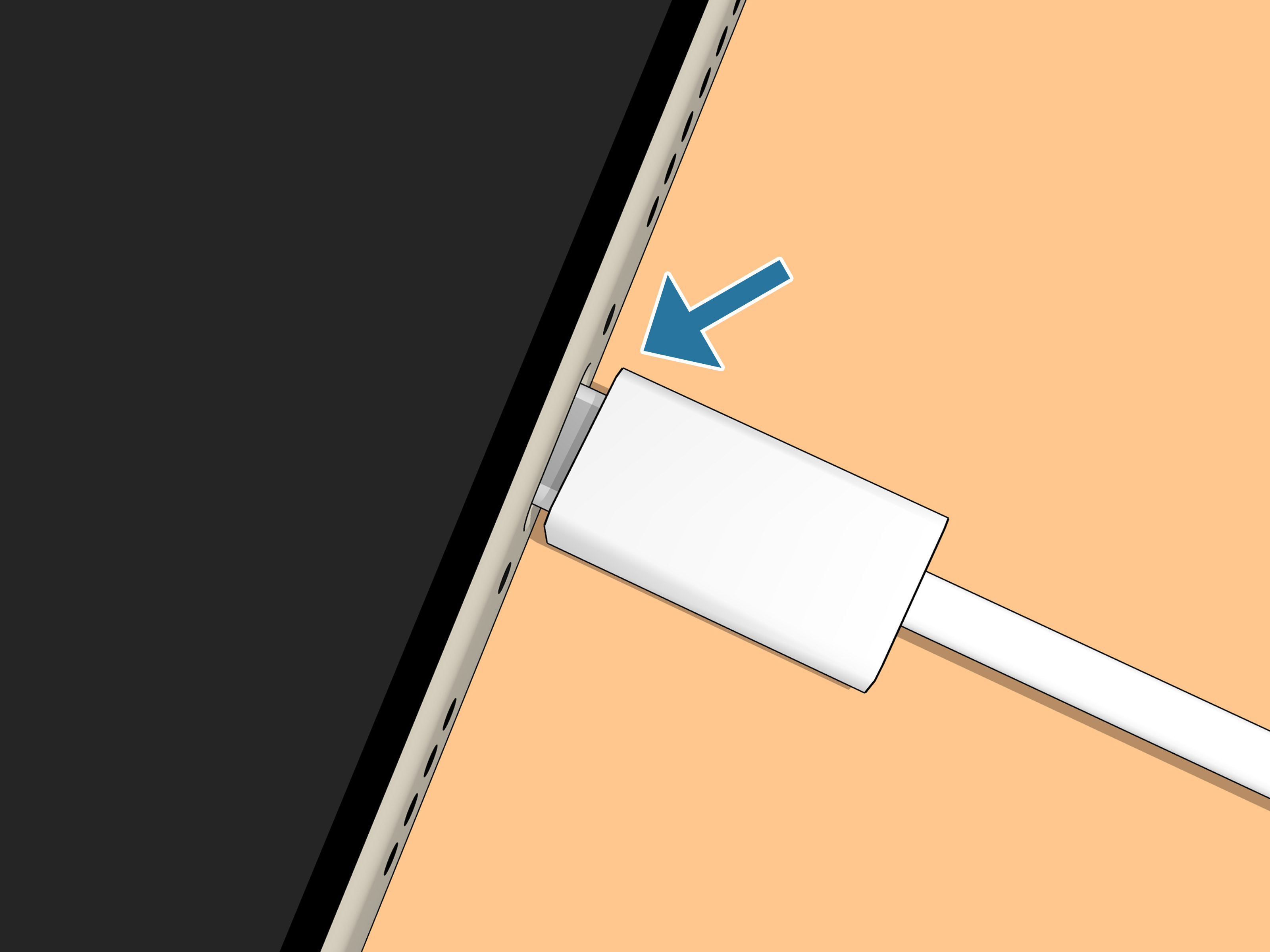
Use a flashlight and look inside the port. Do you see lint, dust, sand, corrosion, a bent pin, or anything that looks out of place? If the cable does not insert fully or does not feel like it clicks in, debris may be blocking the connection.
Do not force the cable. Forcing it can compact debris further or damage the port. A charger should connect firmly without needing gym-level pressure.
4. Clean the iPhone Charging Port Safely
Before cleaning, turn off your iPhone. Unplug the charging cable from both the phone and the power source. Work in a bright area, preferably over a clean table where tiny debris can fall without disappearing into another dimension.
For safe cleaning, use a soft, dry, lint-free brush or another gentle, non-metal tool designed for electronics. Move slowly. The goal is to loosen dust and lint, not excavate the port like an archaeological site.
What not to use
Avoid liquids, household cleaners, alcohol, metal pins, paper clips, sewing needles, and aggressive scraping. Metal tools can bend contacts or cause damage. Cotton swabs can leave more lint behind. Blowing with your mouth may add moisture, which is the exact opposite of helpful.
After gently cleaning, plug the cable in again. If the connector now seats fully and charging begins, you have solved the problem. Feel free to celebrate quietly; the lint does not deserve to know it almost won.
5. Check for Moisture or a Liquid Detection Alert
If your iPhone shows a liquid-detection warning, unplug it immediately. Do not try to charge through a wet Lightning or USB-C port. Charging while moisture is present can lead to corrosion or damage to the connector.
Hold the iPhone with the connector facing down and gently tap it against your hand to help remove excess liquid. Then leave it in a dry area with airflow. Do not use a hair dryer, heater, oven, or compressed air to force-dry the port. Also skip the famous bowl of rice trick. Rice belongs in dinner, not in your charging port.
After the phone has had time to dry, try charging again. If the alert continues, wait longer and avoid cable charging until the warning is gone. Wireless charging may be an option on compatible iPhones, as long as the back of the phone and charger are dry.
6. Let the iPhone Cool Down or Warm Up
Temperature can stop or slow charging. If your iPhone gets too hot, charging may pause until the battery returns to a safer temperature. This can happen if the phone is sitting in direct sunlight, charging under a pillow, running games while plugged in, or trapped in a thick case during charging.
Move the iPhone to a cooler, shaded place. Remove the case if it feels warm. Stop using demanding apps while charging. Once the device returns to a normal temperature, charging should resume automatically.
Very cold conditions can also slow or interrupt charging. If your iPhone has been in a cold car or outside in winter, let it warm up naturally at room temperature before plugging it in again.
7. Try Wireless Charging as a Temporary Workaround
If your iPhone supports wireless charging, place it on a Qi or MagSafe-compatible charger. This can help you confirm whether the issue is limited to the charging port. If wireless charging works but cable charging does not, the port, cable, or connector is likely the problem.
For MagSafe charging, place the charger face up on a flat surface and keep metal objects, cards, and foreign material away from the charger. Remove thick cases or cases with metal parts if charging is inconsistent. Alignment matters, especially with standard Qi chargers; if the phone is slightly off-center, it may charge slowly or not at all.
Wireless charging is useful when your port is unreliable, but it should not be treated as a permanent fix if you also need wired CarPlay, data transfer, or fast cable charging. A failing port usually gets worse, not better.
8. Update iOS
Software bugs can occasionally affect charging behavior, accessory detection, battery reporting, or performance. Go to Settings, tap General, then tap Software Update. If an update is available, install it when your phone has enough battery and a stable connection.
If your iPhone cannot charge enough to update, use a working wireless charger if available. You can also update through a trusted computer if your cable connection works long enough for the device to be recognized. Do not interrupt an update once it starts.
9. Check Battery Health
A worn battery can make charging problems feel worse. Open Settings, tap Battery, then Battery Health & Charging. Look at the maximum capacity and any service messages. Rechargeable batteries naturally age, and after enough charge cycles, they hold less power and may behave unpredictably.
If the battery is significantly degraded, replacing the charging port alone may not solve your problem. A weak battery can drain quickly, charge slowly, shut down unexpectedly, or make you think the charger is failing when the battery is simply tired of life.
10. Reset Settings Only as a Later Step
If your accessories, port, temperature, moisture, and battery health all seem fine, but charging is still unreliable, you can try resetting settings. This does not erase your photos, messages, or apps, but it resets system settings such as Wi-Fi networks, privacy settings, and other preferences.
Go to Settings, tap General, choose Transfer or Reset iPhone, then tap Reset and select Reset All Settings. Use this after simpler steps, not as your first move. A factory reset should be a last resort because it erases the device and requires a full backup and restore.
When to Stop Troubleshooting and Get Repair Help
DIY fixes have limits. Stop troubleshooting and seek professional repair if the cable wiggles badly, you see corrosion, the port looks bent, the phone was exposed to liquid, the device heats unusually while charging, or several known-good cables fail. Also get help if the iPhone does not charge by cable or wirelessly, because that may point to a battery, charging circuit, or internal board issue.
A technician can inspect the port with proper tools, remove compacted debris safely, test charging current, check the battery, and determine whether the charging port assembly needs replacement. Professional help is especially smart if the phone is still under warranty or covered by a protection plan.
How to Prevent iPhone Charging Port Problems
Prevention is much cheaper than repair. Keep your iPhone away from sand, dust, and moisture. Avoid charging in the bathroom after a hot shower, at the beach without protection, or in a bag full of crumbs. Your phone does not want to share space with cookie dust.
Use quality cables that fit properly. Pull the cable out by the connector, not by yanking the cord. Avoid bending the cable sharply while it is plugged in. If you carry your phone in a pocket, place it with the port facing upward when possible so lint is less likely to pack into the connector.
A case with port protection can help, but make sure it does not block the cable from fully seating. If the case makes the connector sit at an angle, it can create the same symptoms as a bad port.
Real-World Experience: What Usually Works First
In real life, most iPhone charging port problems start with something boring: lint. Not dramatic water damage. Not a mysterious chip failure. Not your phone deciding to become a decorative rectangle. Just lint. The classic situation looks like this: the user plugs in the cable, the charging symbol flashes for half a second, then disappears. They try another angle. It works if the cable is pushed upward. Then it stops again. At that point, many people assume the port is broken, but the cable may simply be unable to reach the contacts because a compacted layer of debris is sitting at the back of the port.
The best first experience-based tip is to test with a known-good cable before touching the port. Borrow a charger from someone whose iPhone charges normally, or use a cable that you know is reliable. If your iPhone charges perfectly, do not overthink it. Replace the cable and move on with your day. Many charging “port” problems are really cable problems wearing a fake mustache.
The second useful habit is to inspect before cleaning. People often skip this step and start poking around blindly. That is how small problems become expensive ones. Use a flashlight. Look carefully. If you see a soft gray or black pad of lint, gentle cleaning may help. If you see greenish residue, dark corrosion, broken plastic, bent contacts, or signs of liquid damage, stop and get a professional opinion. Corrosion is not a DIY spa day; it is a warning sign.
Another practical lesson: do not keep using a cable that only works at a weird angle. That temporary trick can strain the port and worsen a loose connection. If you have to prop the cable against a book, tape it to the table, or balance your phone like a circus act, the problem needs attention. The longer you force a bad connection, the higher the chance of damaging the connector or cable.
Wireless charging can be a lifesaver while you troubleshoot. For example, if you need to back up photos before repair, place the iPhone on a wireless charger and let it gain enough power. Then back up to iCloud or a computer as soon as possible. Do not wait until the battery dies completely, especially if the cable port is unreliable. A backup turns a repair visit from stressful to manageable.
From everyday use, one of the biggest prevention tips is boring but effective: keep the charging area clean. A nightstand full of dust, pet hair, makeup powder, snack crumbs, and mystery particles is not a charging station; it is a tiny obstacle course. Put the cable somewhere clean, avoid charging on fabric that sheds lint, and keep your phone away from wet counters.
Finally, know when not to be heroic. Cleaning a lightly dusty port is reasonable. Digging aggressively into a delicate connector is not. If simple steps do not work after testing cables, adapters, outlets, restart, cleaning, moisture, temperature, and wireless charging, the smart move is professional repair. Your iPhone is expensive; your charging port is tiny. Let the tiny part win this one.
Final Thoughts
An iPhone charging port not working can be annoying, but it is often fixable with calm troubleshooting. Start with the basics: test the cable, adapter, and outlet. Restart the iPhone. Inspect the port with a flashlight. Clean gently only if you see debris. Check for moisture warnings, temperature issues, iOS updates, and battery health. Use wireless charging as a temporary backup if your model supports it.
If the cable still feels loose, charging only works at an angle, or the port shows signs of damage or corrosion, do not force it. A professional inspection can save your iPhone from a bigger repair. The easiest fix is sometimes a clean port; the smartest fix is knowing when to stop poking the tiny metal cave at the bottom of your phone.