Note: Spotify’s music video feature is still in beta, so availability can vary by country, device, account type, app settings, and even the specific song you play. In other words, if the button is missing, your phone is not necessarily haunted.
Spotify used to be the place where you pressed play, stared at album art, and pretended you absolutely knew every lyric. Now, in many markets, it also lets you watch official music videos right inside the app. That means you can jump from audio to video without leaving your playlist, breaking your mood, or wandering into the wild jungles of another app where one music video somehow becomes three cat clips and a documentary about kitchen knives.
If you have been wondering how to watch a music video on Spotify, the good news is that the process is pretty simple. The slightly less good news is that the feature is still rolling out in beta, which means some people see it immediately while others get the digital equivalent of a shrug. This guide walks you through exactly how it works, what you need, why the option may not appear, and how to make the experience smoother on mobile, desktop, and TV.
Below, you will find 12 clear steps, plus practical tips, troubleshooting help, and a longer experience-based section at the end for readers who want the full Spotify music video survival kit.
What You Need Before You Start
Before diving into the steps, here is the big picture. Spotify music videos are not available for every song in the catalog. The feature works only on supported tracks that have an official music video available on Spotify. In most markets, it is tied to Spotify Premium, though a few places have broader access. It also works only on supported apps and devices, which generally include mobile, desktop, and TV versions of Spotify.
That means your goal is not just to open Spotify and hope for a miracle. Your goal is to line up the right account, region, device, settings, and song. Once those pieces are in place, the experience is refreshingly easy. Almost suspiciously easy. Like “Why did I spend ten minutes looking in the settings when the button was right there?” easy.
Simple Ways to Watch a Music Video on Spotify: 12 Steps
Step 1: Update the Spotify App First
Start with the least glamorous step: update Spotify. Yes, this is the software version of being told to drink water and get more sleep, but it matters. Beta features often arrive through app updates, and older versions may not show the video option correctly. Open the App Store, Google Play, Microsoft Store, or your device’s app manager and make sure Spotify is running the latest version available to you.
If you skip this step, you may spend time hunting for a button that your app simply does not know exists yet. That is not a fun treasure hunt.
Step 2: Check Whether Music Videos Are Available in Your Market
Spotify’s music video feature is not universal in the same way regular song playback is. It is still a beta feature that depends on country availability. So before assuming something is broken, confirm that your region is supported. If you are in the United States, Canada, the United Kingdom, much of Europe, parts of Asia, Latin America, Africa, and Oceania, there is a good chance you can access it. If you are elsewhere, rollout may still be pending.
This is the part where many people blame their phone, their Wi-Fi, or the moon. Sometimes the real answer is simply geographic availability.
Step 3: Make Sure Your Account Type Qualifies
For most supported markets, Spotify music videos are for Premium subscribers. In a small number of places, free listeners may also get access, but most readers should assume Premium is the safe bet. If you are using a free plan and the feature is not showing up, your account tier may be the reason.
Open your account details if needed and confirm what plan you are on. If you share a Family plan, remember that a plan manager may also have content settings in place that affect video access.
Step 4: Use a Supported Device
Spotify has made music videos available on iPhone, Android, desktop, and TV apps in supported regions. So if you are using one of those platforms, you are in good shape. If you are using a device or interface with limited feature support, you may not see the same video controls.
Mobile is often the easiest place to test the feature first because Spotify places the video option directly in the Now Playing view. Desktop is also convenient if you want a larger screen without committing your entire living room TV to one song you are only mildly obsessed with.
Step 5: Pick a Song That Actually Has a Music Video
This sounds obvious, but it is one of the biggest reasons people get stuck. Not every track on Spotify has a corresponding official music video inside the app. The catalog is still limited, which means you need to choose a song that supports the feature. Popular mainstream releases, newer singles, and tracks by artists with strong official video releases are usually your best bet.
If you try this with an obscure demo, a local file, or a random deep cut from 2007, Spotify may simply look back at you with polite silence.
Step 6: Open the Now Playing Screen
Once your song is playing, go to the Now Playing view. On mobile, this usually means tapping the mini-player at the bottom of the screen. On desktop or TV, open the full player view for the track. This is important because the video option typically appears there, not buried in a secret menu designed by gremlins.
The Now Playing area is where Spotify places the magic button. If you never open that screen, you may never see the feature.
Step 7: Tap or Click “Switch to Video”
Here comes the main event. If the track supports video and your account qualifies, you should see a Switch to video option in the Now Playing view. Tap or click it, and Spotify should move from audio playback to the official music video for that song.
In the current experience, switching between audio and video is designed to feel seamless. On newer versions of the rollout, the video usually picks up from your current point in the song instead of punting you back to the intro like it is introducing itself for the first time.
Step 8: Rotate Your Phone for Full-Screen Viewing
If you are watching on mobile, rotate your phone to landscape mode for full-screen playback. This gives the video room to breathe and makes the whole thing feel less like you are peeking through a keyhole. It is also the best option if you actually want to notice costumes, choreography, set design, or the fact that your favorite indie singer apparently filmed their video inside a fog machine.
On a TV or desktop, you already have a larger display, so you may not need to do much beyond sitting down and embracing your temporary music-critic era.
Step 9: Switch Back to Audio When You Want Background Listening
Music videos are fun, but sometimes you just want the song back in audio mode so you can answer messages, cook dinner, or pretend to clean your room while actually reorganizing one shelf and calling it progress. Spotify makes that easy with a Switch to audio option.
This is one of the nicest parts of the feature. You do not need to leave the track or open another app. You can move between video and audio based on what you are doing, which makes Spotify feel more flexible than the old “one format only” experience.
Step 10: Look for Related Music Videos
On some versions of the feature, Spotify shows a Related Music Videos section while you are in video mode. This can help you keep watching artist-created video content without manually searching every time. It is not an endless rabbit hole in quite the same way as other video platforms, but it is useful if you want to stay in the same artist lane for a while.
If you are the kind of person who says, “I will just watch one song,” this section may gently expose that lie.
Step 11: Check Spotify’s Video Settings If the Option Is Missing
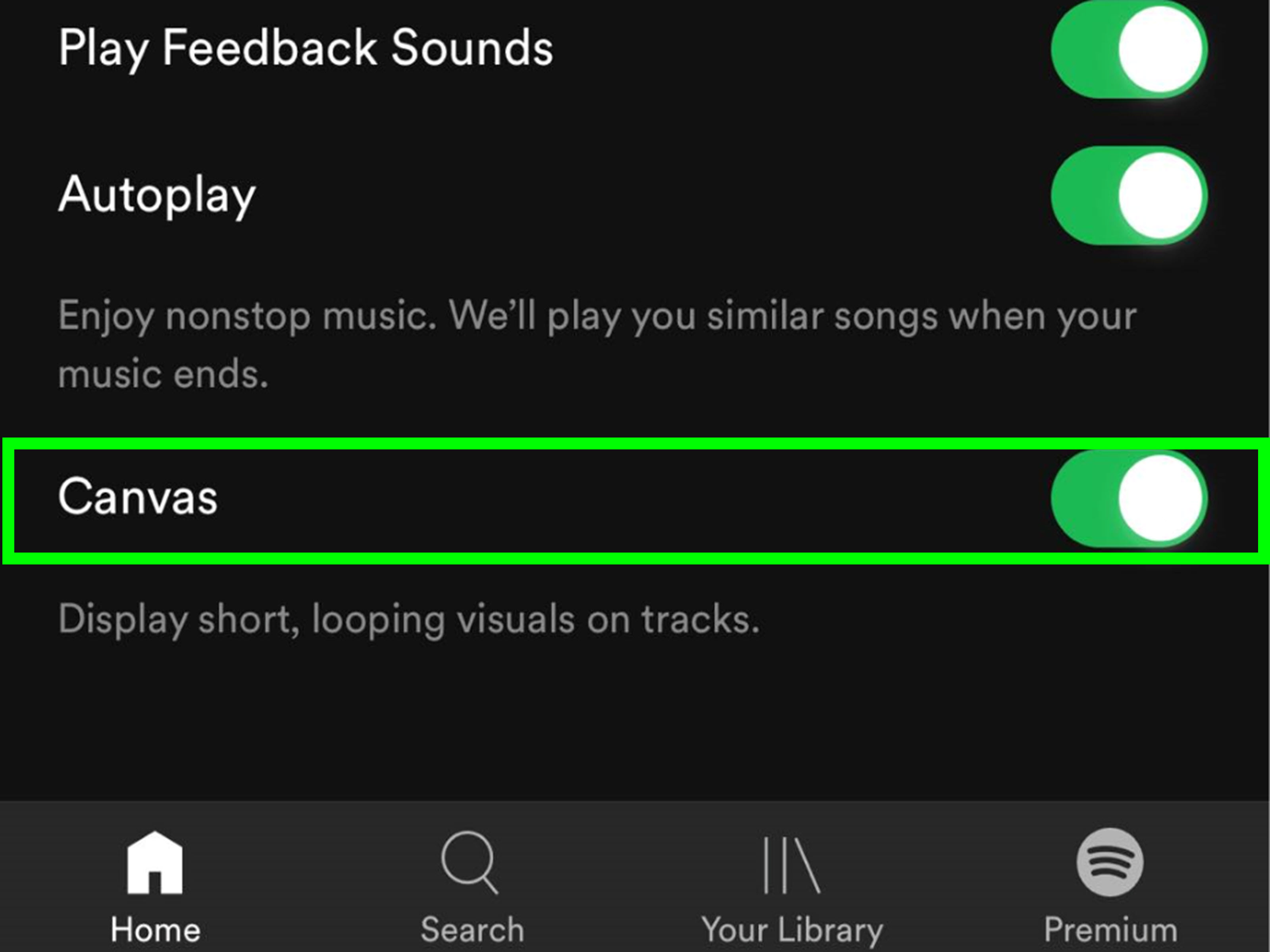
If you know your account should have access but you still do not see the button, check your settings. Spotify now offers broader video controls that let users turn music videos on or off. On mobile, look under Settings > Content and display. On desktop, look under Display. If music videos have been disabled, Spotify will not show the option to switch to video.
This is especially important for Family plans, where account managers may control video access for certain members. So yes, it is possible that the feature is not missing. It is just grounded.
Step 12: Try Another Song, Another Device, or Wait for the Rollout
If you have updated the app, confirmed your market, verified your plan, checked your settings, and opened a supported song on a supported device, but still no luck, try another track. Then try another device. If the button still refuses to appear, the feature may still be rolling out to your account or that song may not have video support yet.
Beta features can be annoyingly inconsistent. That does not mean you are doing anything wrong. It just means Spotify is still expanding the catalog and availability. In tech terms, that is called progress. In human terms, that is called “Well, that is mildly irritating.”
Why People Like Watching Music Videos on Spotify
Watching music videos on Spotify is convenient because it keeps the entire experience in one place. You do not need to stop the song, open a second app, search for the video, ignore three unrelated recommendations, and try to remember what you were listening to in the first place. Spotify lets you stay inside the listening session you already started.
It also changes how some songs land emotionally. A track you casually liked can suddenly become a full visual event. A great performance video can make a familiar song feel new again. And if you are discovering artists for the first time, the visual element can strengthen that connection fast. A good music video is still one of the fastest ways to turn “This song is nice” into “Excuse me, I now need their whole discography.”
Common Problems and Easy Fixes
The “Switch to video” button is not there
Usually, this means one of five things: your market is unsupported, your plan does not qualify, the song does not have a supported video, your app is outdated, or your music-video setting is turned off.
The video does not play smoothly
Try a stronger internet connection, close other heavy apps, and restart Spotify. Video playback needs more from your connection than standard audio streaming, so weak Wi-Fi may cause hiccups.
You only want audio, not video distractions
Spotify now gives you more control. Turn music videos off in the settings if you prefer an audio-first experience. That way the app behaves more like classic Spotify and less like a streaming service that had one too many energy drinks.
Extra Experience Section: What It Actually Feels Like to Use Spotify Music Videos
Using music videos on Spotify feels a little different from watching them on a traditional video platform. The biggest change is psychological. You are not entering “video mode” first. You are already in “music mode,” and the video simply joins the party. That changes your expectations. You are less likely to treat the video like a standalone event and more likely to treat it as an extension of the song you are already enjoying.
For casual listeners, that is a huge advantage. Imagine you are listening to a playlist during a lazy Saturday afternoon. A song comes on that you love, and suddenly you notice the video toggle. One tap later, the track becomes more immersive without pulling you into a separate app. It feels smooth, almost accidental, in a good way. The music remains the center of attention, while the visuals add flavor rather than hijacking the entire experience.
For longtime music fans, the feature can feel surprisingly nostalgic. Music videos used to be events. You waited for them, talked about them, and remembered where you first saw them. Spotify does not fully recreate that old-school magic, but it does bring back a bit of the “Oh, right, this song has a whole visual identity” feeling. That can be fun when revisiting favorite artists whose videos added meaning to the tracks in the first place.
There is also a practical side. Some users like lyrics, some like liner-note style details, and some want visuals. Spotify’s recent updates suggest it is trying to let listeners choose how deep they want to go. On one day, you might want lyrics and pure audio. On another, you may want a full-screen video with zero distractions. That flexibility is the real appeal.
Of course, the experience is not perfect. Because the feature is still in beta, it can feel a little uneven. One song has video, the next one does not. One account sees the option instantly, another has to wait. Some users love that Spotify is becoming more visual, while others would rather keep it audio-only. Honestly, both reactions make sense. The nice part is that Spotify now gives users more control, so you can lean into the video side or shut it off and continue your peaceful, album-art-only existence.
If you are new to the feature, the best approach is to stay curious and keep your expectations realistic. Do not assume every song will have a video. Do not assume every device will behave the same way. And definitely do not assume you have done something wrong if the button disappears on one track and reappears on another. That is just the current reality of a growing beta catalog.
Still, when it works, it works well. The moment you tap into a great official video for a song you already love, Spotify suddenly feels more dynamic. It becomes a place not just to hear the soundtrack of your day, but to see it too.
Final Thoughts
If you want a simple answer to how to watch a music video on Spotify, here it is: use a supported device, make sure your market and plan qualify, play a supported song, open the Now Playing screen, and hit Switch to video. That is the core process. Everything else is just troubleshooting and fine-tuning.
As Spotify continues expanding music videos, the feature will likely become easier to find and more widely available. For now, the smartest move is to treat it like a useful bonus rather than a guarantee on every song. When the option appears, enjoy it. When it does not, try another track and keep your dramatic sighs to a tasteful minimum.