There are two kinds of iPad users: people who use Split Screen like a tiny mobile command center, and people who accidentally open two apps side by side and immediately feel betrayed by technology. The good news is that iPad multitasking is powerful once you understand it. The even better news is that you can turn much of it off when your iPad starts acting like it has too many browser tabs open in its soul.
This guide explains how to use iPad multitasking, how to open apps side by side, how to close Split Screen, how to work with Slide Over and windowed apps, and how to disable multitasking features when you want a peaceful full-screen experience. Because Apple has changed multitasking over different iPadOS versions, we will cover both classic Split View behavior and the newer iPadOS 26-style Windowed Apps system.
What Is Multitasking on an iPad?
Multitasking on an iPad means using more than one app or window at the same time. Depending on your iPad model and iPadOS version, this may include Split View, Slide Over, Picture in Picture, Stage Manager, or Windowed Apps. In simple terms, your iPad can behave less like a giant phone and more like a compact laptopminus the fan noise and the keyboard crumbs.
The most familiar version is Split Screen, often called Split View. It lets two apps sit side by side. For example, you can keep Safari open on the left while writing notes on the right, or watch a lecture while checking a PDF. This is especially useful for students, writers, remote workers, travelers, and anyone who has ever copied a tracking number from Mail into a shopping app while muttering, “Why is this five steps?”
Split View vs. Slide Over vs. Stage Manager vs. Windowed Apps
Before tapping buttons like a caffeinated woodpecker, it helps to know the difference between iPad multitasking modes.
Split View
Split View places two apps side by side. You can usually adjust the divider between them to give one app more room. It is best for reading and writing, comparing two pages, referencing research, or dragging content between apps.
Slide Over
Slide Over keeps one app in a small floating panel on top of another app. Think of it as the “quick peek” mode. You might keep Messages, Calculator, Music, or Notes in Slide Over while your main app stays visible behind it.
Stage Manager
Stage Manager gives supported iPads a more desktop-like layout with overlapping windows and app groups. It is handy when you use a keyboard, trackpad, or external display. It can also feel like your iPad suddenly enrolled in business school.
Windowed Apps on iPadOS 26
In iPadOS 26, Apple focuses more on Windowed Apps. Instead of only using the older Split View layout, you can resize, move, minimize, close, and arrange app windows more freely. You can still place two windows side by side, but the workflow feels more like arranging windows on a computer.
How to Check Your iPadOS Version First
Because the exact multitasking menu can vary, check your iPadOS version before following instructions.
- Open Settings.
- Tap General.
- Tap About.
- Look for iPadOS Version.
If your iPad runs iPadOS 18 or earlier, you may see the classic Split View and Slide Over behavior. If your iPad runs iPadOS 26, you may see options such as Full Screen Apps, Windowed Apps, and Stage Manager under Multitasking & Gestures.
How to Use Split Screen on an iPad
The easiest way to use Split Screen is to start with one app open, then bring in a second app from the Dock, App Library, or Spotlight. The steps may differ slightly by iPadOS version, but the idea is the same: open one app, choose another, and place it beside the first.
Method 1: Use the Multitasking Button
On many iPadOS versions, supported apps show a small three-dot multitasking button at the top of the screen.
- Open the first app, such as Safari.
- Tap the three-dot button near the top of the screen.
- Choose the Split View option.
- Select the second app from the Home Screen, Dock, or App Library.
- The two apps should appear side by side.
For example, you can open Safari first, tap the multitasking button, choose Split View, and then open Notes. Now you can research on one side and write on the other. Congratulations: your iPad is now pretending to be a productivity guru.
Method 2: Drag an App from the Dock
This classic method is fast once your fingers learn the choreography.
- Open the first app.
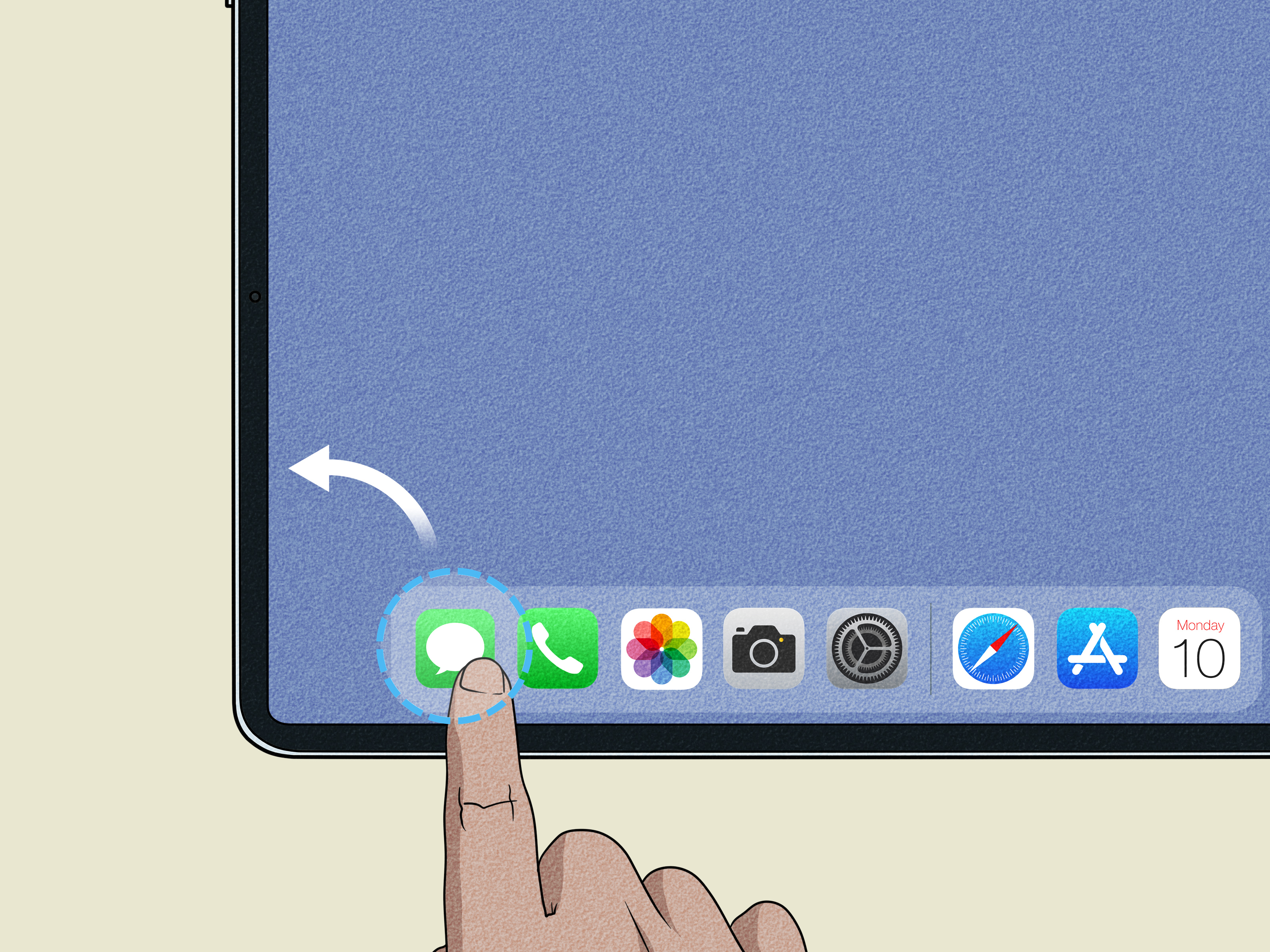
- Swipe up slightly from the bottom edge to reveal the Dock.
- Touch and hold the second app icon.
- Drag it to the left or right edge of the screen.
- Release when the screen makes space for the second app.
This works best when your favorite multitasking apps are already in the Dock. Add apps like Safari, Notes, Files, Mail, Calendar, Messages, and Google Docs to the Dock if you use them often.
Method 3: Use Spotlight or App Library
On newer iPadOS versions, you can drag apps from Spotlight or App Library into a multitasking layout.
- Open your first app.
- Open Spotlight Search or App Library.
- Find the app you want to add.
- Drag it toward the left or right edge of the screen.
- Release it when the side-by-side preview appears.
This is useful when the second app is not in your Dock. It also saves you from turning your Dock into a crowded digital parking lot.
How to Adjust Split Screen Size
Once two apps are open side by side, you can adjust how much space each app uses.
- Look for the divider between the two apps.
- Touch and hold the divider.
- Drag it left or right.
- Release when the apps are sized the way you want.
Some apps support multiple width options, while others are more limited. If an app refuses to resize nicely, do not take it personally. Some apps are simply stubborn little rectangles.
How to Replace One App in Split Screen
You do not always need to close Split Screen and start over. In many cases, you can replace one app with another.
- Open Split Screen with two apps.
- Bring up the Dock or App Library.
- Drag a new app over the app you want to replace.
- Release it when the preview shows that it will take that side.
Example: If you are using Safari and Notes but want to replace Notes with Files, drag Files over the Notes side. Safari stays open, and Files takes over the second pane.
How to Close Split Screen on an iPad
If you accidentally opened Split Screen, closing it is simple once you know the secret handshake.
- Find the divider between the two apps.
- Touch and hold the divider.
- Drag it all the way to the left or right edge.
- Release when the app you want to close disappears.
Drag the divider toward the app you want to remove. If you want to keep the right app, drag the divider left. If you want to keep the left app, drag the divider right.
How to Use Slide Over on an iPad
Slide Over is ideal for apps you need briefly. It works well for checking messages, using a calculator, referencing a note, changing music, or glancing at a calendar.
- Open your main app.
- Swipe up slightly to show the Dock.
- Touch and hold another app icon.
- Drag it toward the middle of the screen instead of the far edge.
- Release it when it appears as a floating panel.
To move the Slide Over window, drag the top edge of the floating panel. To hide it, swipe it toward the side of the screen. To bring it back, swipe inward from the edge where you hid it.
How to Exit Slide Over
If a floating app keeps popping up like an overly enthusiastic assistant, you can remove it.
- Tap and hold the top area of the Slide Over window.
- Drag it toward the center or side, depending on your iPadOS version.
- Use the app controls to close it, or convert it into a side-by-side window and then close it with the divider.
On iPadOS 26.2 or later, you may also be able to use the window controls at the top of the app to exit Slide Over directly.
How to Use Windowed Apps on iPadOS 26
If your iPad supports iPadOS 26 Windowed Apps, multitasking becomes more flexible. Instead of thinking only in terms of two fixed panels, you can open, move, resize, minimize, and close windows.
Turn On Windowed Apps
- Open Settings.
- Tap Multitasking & Gestures.
- Select Windowed Apps.
You can also open Control Center by swiping down from the top-right corner and use the multitasking control to switch between Windowed Apps and Stage Manager on supported models.
Use Two Windows Side by Side
- Open one app.
- Drag another app from the Dock, App Library, or Spotlight to the left or right edge.
- Release when it snaps beside the first window.
- Drag the middle divider to adjust the size.
This gives you a modern version of Split Screen. It is less rigid than older Split View and more comfortable if you like arranging workspaces manually.
Resize and Move Windows
- Drag a window from its top edge to move it.
- Drag a corner or the bottom-right handle to resize it.
- Use the window controls to close, minimize, zoom, or rearrange windows.
This works especially well with a keyboard and trackpad. Without one, it is still useful, but you may occasionally feel like you are teaching your fingers ballet.
How to Turn Off Multitasking on an iPad
If you want your iPad to stop opening multiple apps at once, you can change the multitasking setting. The exact wording depends on your iPadOS version.
On iPadOS 26
- Open Settings.
- Tap Multitasking & Gestures.
- Select Full Screen Apps to use apps one at a time.
If Stage Manager is on, you can turn it off from the same area by choosing Full Screen Apps or another multitasking mode. This is the cleanest choice for users who want the old-fashioned “one app, one screen, no surprises” setup.
On Older iPadOS Versions
- Open Settings.
- Tap Home Screen & Dock or Multitasking & Gestures, depending on your version.
- Open Multitasking.
- Turn off options such as Allow Multiple Apps, if available.
Some versions do not allow you to disable every multitasking behavior completely. In that case, you can still avoid most accidental Split Screen moments by using full-screen apps and being careful when dragging apps from the Dock.
Why Split Screen May Not Work
Sometimes Split Screen refuses to cooperate. Here are the most common reasons.
The App Does Not Support Multitasking
Not every app supports Split View, Slide Over, or resizable windows. Some games, video apps, banking apps, and older apps may only run full screen.
Your iPadOS Version Works Differently
Apple has changed multitasking several times. If an online tutorial says to tap a button that you do not see, your iPad may be using a newer or older interface.
The Feature Is Turned Off
Check Settings > Multitasking & Gestures. If your iPad is set to Full Screen Apps, multitasking behavior may be limited.
Your iPad Model Has Limits
Most modern iPads support some form of multitasking, but advanced features such as Stage Manager and external display workflows may require newer hardware.
Best Ways to Use iPad Split Screen in Real Life
Split Screen is not just a fancy demo feature. It can genuinely save time if you use it for the right jobs.
Research and Writing
Open Safari on one side and Notes, Pages, Microsoft Word, or Google Docs on the other. This setup is excellent for school assignments, blog drafts, meeting notes, and travel planning.
Email and Calendar
Use Mail beside Calendar to schedule appointments without switching back and forth. This is perfect when someone says, “Are you free next Thursday?” and you want to answer like a competent adult.
Files and Messages
Open Files beside Messages or Mail so you can drag documents, images, or PDFs into a conversation. It is faster than hunting through menus.
Video and Notes
Use a video app beside Notes when watching tutorials or lectures. If the video app supports Picture in Picture, you can also keep a smaller floating video window while writing.
Shopping and Comparison
Compare two product pages, check reviews while viewing a store page, or keep a calculator open while comparing prices. Split Screen turns your iPad into a tiny bargain-hunting laboratory.
Tips to Make iPad Multitasking Easier
Keep Useful Apps in the Dock
The Dock is the fastest place to grab apps for multitasking. Keep your most-used apps there: Safari, Notes, Files, Mail, Calendar, Messages, and your favorite writing app.
Use a Keyboard and Trackpad
A keyboard and trackpad make multitasking feel more natural. You can switch apps faster, move windows with more control, and reduce finger gymnastics.
Learn the App Switcher Gesture
Swipe up from the bottom of the screen and pause in the middle to open the App Switcher. This lets you jump between apps and windows quickly.
Use Full Screen for Focus
Multitasking is useful, but it can also become digital confetti. Use full screen when reading, drawing, gaming, or writing something that requires concentration.
Should You Disable Split Screen on Your iPad?
You should disable or avoid Split Screen if it gets in your way more than it helps. Some people love multitasking. Others prefer one clean app at a time. Neither group is morally superior, although the Split Screen people may have stronger opinions about keyboard shortcuts.
For kids, casual users, seniors, or anyone who frequently opens Split Screen by accident, Full Screen Apps mode may be the better choice. For students, writers, designers, project managers, and business users, multitasking can make the iPad much more useful.
Personal Experience: What Using iPad Split Screen Feels Like Day to Day
The first time many people discover iPad Split Screen, it does not feel like a productivity breakthrough. It feels like the iPad suddenly grew a second app and nobody left instructions. You are reading a webpage, your finger slips, another app slides in from the side, and now your screen looks like it is hosting a very small office meeting. That confusion is normal. iPad multitasking is powerful, but Apple’s gestures can be subtle enough to feel like secret magic.
In everyday use, Split Screen becomes most helpful when the task has two clear parts. Research plus writing is the obvious example. Safari on the left and Notes on the right feels natural after a few minutes. You read, copy a detail, type your own summary, and keep moving. This is much better than opening Safari, memorizing a sentence, switching to Notes, forgetting the sentence, switching back to Safari, and repeating the process until your brain files a complaint.
Another excellent setup is Mail beside Calendar. This is one of those small workflows that makes the iPad feel surprisingly professional. When someone sends a meeting request, you can check your schedule without leaving the email. It sounds minor, but after doing it a few times, switching apps the old way feels like walking across the house to turn off a lamp.
Split Screen is also useful for students. A PDF textbook beside a note-taking app can replace a desk covered in paper. Add an Apple Pencil, and the iPad becomes a tidy study station. The main challenge is screen size. On an 11-inch iPad, two apps can feel a bit cramped. On a 12.9-inch or 13-inch iPad, Split Screen feels much more comfortable, especially in landscape mode.
However, multitasking is not always the hero. For creative work such as drawing, photo editing, or focused writing, full screen is often better. A drawing app squeezed beside Safari may technically work, but the canvas can feel too small. For long reading sessions, Split Screen can also become distracting. Your eyes keep noticing the other app, and suddenly you are not reading anymoreyou are managing a tiny command center.
Windowed Apps in newer iPadOS versions make the experience more flexible, but they also add more decisions. You can resize windows, move them around, and arrange them like a desktop. This is great when connected to a keyboard, trackpad, or external display. On the touchscreen alone, it can sometimes feel a little busy. The best approach is to keep layouts simple: two windows side by side, or one main window with a small Slide Over panel when needed.
My practical rule is simple: use Split Screen when two apps are part of the same task, and turn it off mentallyor literallywhen they are not. Safari plus Notes? Great. Mail plus Calendar? Excellent. YouTube plus a game plus Messages plus Files? That is no longer multitasking. That is a digital circus, and the elephant has your attention span.
If you often trigger Split Screen accidentally, do not feel bad about disabling multitasking or choosing Full Screen Apps. Technology should fit your habits, not force you into a productivity costume. The iPad is at its best when it feels simple. For some users, that means multiple apps on screen. For others, it means one app, full screen, peaceful silence, and no surprise floating windows trying to join the party.
Conclusion
Learning how to use or disable multitasking on an iPad gives you control over how your device behaves. If you want more productivity, Split Screen, Slide Over, Stage Manager, and Windowed Apps can help you work across multiple apps without constant switching. If you prefer simplicity, Full Screen Apps mode keeps your iPad calm and predictable.
The best setting depends on how you use your iPad. Students and professionals may love side-by-side apps for research, writing, scheduling, and file management. Casual users may prefer turning multitasking off so every app stays full screen. Either way, your iPad should work like a helpful toolnot like a magician pulling random windows out of a hat.