Note: This guide explains legitimate ways to recover access to your own SIM card or eSIM. A PUK code is a carrier-issued security code, so there is no safe, universal “secret bypass.” The good news? You still have several easy options before your phone becomes a very expensive calculator.
Introduction: First, Don’t PanicYour SIM Is Not Dead Yet
You pick up your phone, ready to send a text, check a map, or order tacos like a responsible adult, and suddenly the screen says something terrifying: “Enter PUK code.” Or maybe it says “SIM locked,” “PUK required,” or “PUK exhausted.” That tiny plastic cardor invisible eSIM profilehas just slammed the door and asked for a code you probably do not remember ever receiving.
So, can you unlock a SIM card without a PUK code? The honest answer is: not directly, not safely, and not by guessing. A PUK, short for Personal Unblocking Key, is designed to unlock a SIM after the SIM PIN has been entered incorrectly too many times. It is not the same as your phone passcode, Apple ID password, Google password, carrier account PIN, or device unlock code. The PUK belongs to the SIM itself and is controlled by your mobile carrier.
However, “without a PUK code” does not mean “without hope.” You may be able to find the PUK through your carrier account, recover it through customer support, use the original SIM packaging, activate a replacement SIM, switch to an eSIM, or fix a different lock that only looks like a PUK problem. This easy guide walks through the safest, fastest, and most realistic ways to unlock a SIM card, avoid permanent SIM damage, and get your service working again.
What Is a PUK Code?
A PUK code is an 8-digit security code used to reset a blocked SIM PIN. Most phones let you enter a SIM PIN to protect the SIM card from unauthorized use. If someone steals your SIM and puts it into another phone, the SIM PIN can stop them from using your number for calls, texts, or mobile data.
The problem begins when the wrong SIM PIN is entered several times. After too many incorrect attempts, the SIM locks itself and asks for the PUK code. Think of the SIM PIN as the front door key and the PUK as the emergency locksmith. Unfortunately, this locksmith does not live in your phone settings. It lives with your carrier.
PUK Code vs. SIM PIN vs. Phone Unlock Code
These terms are often mixed up, so let’s separate them before your phone starts looking like a puzzle box from a spy movie:
- SIM PIN: A 4- to 8-digit code that locks the SIM card when the device restarts or the SIM is moved.
- PUK code: An 8-digit carrier-issued code used when the SIM PIN has been entered incorrectly too many times.
- Phone passcode: The code, pattern, Face ID, fingerprint, or password used to unlock the screen.
- Network unlock code: A code used to unlock a phone from one carrier so it can work with another compatible carrier.
- Account PIN: A carrier account security PIN used for customer service, porting, or account changes.
If your screen says PUK, you are dealing with the SIM card or eSIMnot the phone’s lock screen and not necessarily a carrier-locked device.
Can You Unlock a SIM Card Without a PUK Code?
The direct answer is no: once a SIM card is truly PUK-locked, the correct PUK code or a carrier replacement is required. There is no reliable button combination, magic Android menu, iPhone setting, “universal PUK,” or heroic rice-bag ritual that unlocks every SIM.
That may sound annoying, but it is actually the point. The PUK protects your phone number from being misused. Your mobile number can receive bank verification codes, account recovery texts, delivery alerts, and private messages. If anyone could bypass the PUK, SIM security would be about as useful as a screen door on a submarine.
Still, you can solve the problem without already knowing the PUK. The key is to retrieve the PUK from the right place or replace the SIM safely. The following methods are legitimate, practical, and commonly supported by U.S. carriers.
Before You Try Anything: Stop Guessing
This is the most important step in the entire guide: do not guess the PUK code. Entering the wrong SIM PIN too many times causes the PUK prompt. Entering the wrong PUK too many times can permanently block the SIM card. Many carriers and device makers warn that after repeated incorrect PUK attemptsoften 10the SIM may need to be replaced.
If you have already tried random numbers like 00000000, 12345678, your birthday, your ZIP code, your dog’s birthday, or “the number that felt lucky,” stop now. The SIM is not impressed by confidence. Every wrong attempt can move you closer to permanent lockout.
Method 1: Check Your Carrier Account Online
The fastest way to unlock a SIM card without already knowing the PUK code is to log in to your carrier account. Major carriers often provide SIM PIN or PUK information through their website, app, or support portal after you verify your identity.
How This Usually Works
- Connect your phone to Wi-Fi or use another device.
- Go to your carrier’s website or mobile app.
- Sign in to the account that owns the locked line.
- Look for sections such as Device settings, Line settings, SIM settings, Security, or Troubleshooting.
- Search for SIM PIN, PUK, PIN Unlock Key, or blocked SIM.
- Follow the instructions to retrieve or request the PUK code.
For example, Verizon directs customers to locate the SIM PIN or PUK through My Verizon, while AT&T provides PUK support through its troubleshooting tools. T-Mobile generally asks customers to contact support if the device requests a PUK. The exact path changes over time, but the principle is the same: the PUK comes from the carrier that issued the SIM.
Method 2: Look at the Original SIM Card Packaging
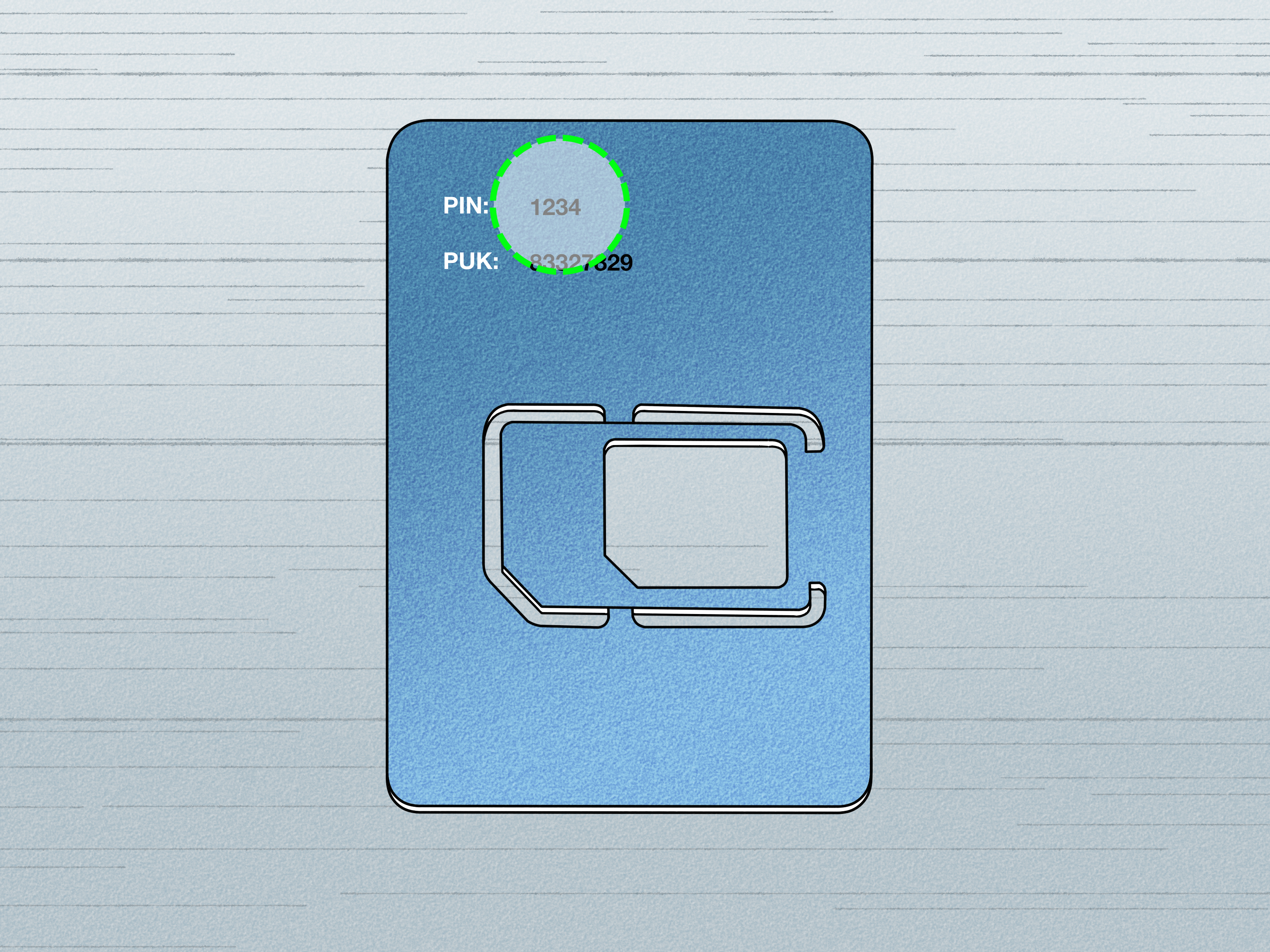
If you still have the cardholder or plastic sleeve that came with your physical SIM, check it carefully. Some carriers print the PUK code or related SIM security information on the original SIM packaging. It may be near the ICCID, barcode, activation number, or scratch-off area.
This method is especially useful for prepaid SIM cards, travel SIMs, and smaller mobile providers. The downside is obvious: most people keep the packaging for approximately seven minutes before it disappears into the same mysterious dimension as missing socks and phone chargers.
If you find the packaging, make sure you are reading the correct number. The ICCID is usually a long SIM identification number, often 19 or 20 digits. The PUK is usually shorter, commonly 8 digits. Do not enter a long SIM serial number into the PUK field unless your carrier specifically tells you to do so.
Method 3: Contact Customer Support From Another Phone
If you cannot access your carrier account or find the SIM packaging, contact your carrier directly. This is one of the safest and most reliable ways to recover a PUK code.
What You May Need to Verify
Carriers will usually ask for proof that you own the account. Be prepared with:
- The phone number linked to the locked SIM
- Your carrier account PIN or passcode
- Your billing ZIP code
- Your name and account information
- The IMEI of the phone, if requested
- The SIM card number or ICCID, if available
Use another phone, online chat, or the carrier’s app over Wi-Fi. Do not worry if the locked phone cannot make regular calls. Many phones still allow emergency calls, but customer support should be contacted through normal channels using another device whenever possible.
Method 4: Visit a Carrier Store
If online recovery is not working, a carrier store can often help. Bring a government-issued ID, the locked phone, and any account details you have. Store employees may be able to verify your account, retrieve the PUK, replace the SIM, or activate an eSIM.
This is a good option when you are locked out of both the SIM and the carrier account. It is also helpful if the phone belongs to a family plan, business account, or prepaid plan where online access is confusing.
Method 5: Replace the SIM Card
If the SIM is permanently blocked, the PUK attempts are exhausted, or customer support cannot recover the code, replacing the SIM may be the quickest fix. A replacement SIM keeps your phone number and plan, but it uses a new SIM card or eSIM profile.
Replacement SIM options may include:
- Picking up a new physical SIM at a carrier store
- Ordering a replacement SIM online
- Activating an eSIM on a compatible phone
- Using the carrier app to transfer service to a new SIM
On many modern phones, especially newer iPhones and high-end Android devices, eSIM activation can be faster than waiting for a physical card. However, the process depends on your carrier, phone model, account status, and whether your device supports eSIM.
Method 6: Check Whether It Is Actually a Network Unlock Problem
Sometimes people search for “unlock SIM card without PUK code” when the real issue is a carrier-locked phone. These are different problems.
If your phone says something like “SIM not supported,” “SIM network unlock PIN,” “Network locked,” or “Carrier lock,” the device may be locked to a specific carrier. In that case, a PUK code will not solve the problem. You need to request a device unlock from the carrier that sold the phone.
How to Tell the Difference
- PUK required: The SIM PIN was entered incorrectly too many times.
- SIM not supported: The phone may be locked to another carrier.
- No SIM or invalid SIM: The SIM may be damaged, dirty, inactive, or not seated correctly.
- Activation required: The SIM or eSIM may need carrier activation.
On iPhone, you can often check Settings > General > About > Carrier Lock. If it says No SIM restrictions, the phone itself is generally unlocked. On Android, the wording varies by manufacturer, but testing with another active SIM or contacting the carrier can confirm the status.
Method 7: Try the Default SIM PIN Only If It Still Asks for a PIN
If your phone is asking for a SIM PIN rather than a PUK, you may not be fully locked yet. Some carriers use default SIM PINs such as 1111, 1234, or 0000, but this varies by carrier and SIM type.
Be careful: only try a default SIM PIN if your carrier documentation says it is correct or support confirms it. If the phone already asks for PUK, do not try default PINs in the PUK field. That is like putting ketchup in a coffee machine: wrong input, worse morning.
How to Enter a PUK Code Correctly
Once you receive the correct PUK from your carrier, follow the prompt on your phone. The usual process looks like this:
- Enter the 8-digit PUK code exactly as provided.
- Create a new SIM PIN, usually 4 to 8 digits.
- Confirm the new SIM PIN by entering it again.
- Restart the phone if service does not return immediately.
Some Android phones may allow a dialer command such as a PUK reset code format, but you should only use that if your carrier gives you the exact instructions. The safer path is to follow the on-screen prompt.
What If You Have an eSIM?
An eSIM can also use a SIM PIN and may also require carrier help if locked. Because there is no physical card to remove and inspect, your best options are your carrier account, the carrier app, customer support, or a new eSIM activation.
On iPhone, Apple advises users not to guess the SIM PIN or PUK and to contact the carrier that provided the SIM or eSIM. On Android, the process depends on the phone maker and carrier, but the rule is the same: the PUK is carrier-controlled.
What Not to Do When Your SIM Is PUK-Locked
When people panic, search engines become a carnival of questionable advice. Avoid these mistakes:
- Do not pay random “PUK unlock” websites. They usually cannot generate your carrier’s real PUK.
- Do not install suspicious unlock apps. A SIM PUK is not something a random app can magically retrieve.
- Do not keep guessing. Too many wrong PUK attempts can permanently block the SIM.
- Do not confuse PUK with device unlock. A carrier-locked phone requires a different process.
- Do not share your account PIN publicly. Customer support should verify you securely.
Quick Troubleshooting Checklist
Use this checklist when your phone asks for a PUK code:
- Stop entering random numbers immediately.
- Check whether the screen says SIM PIN, PUK, PUK2, network unlock, or SIM not supported.
- Connect to Wi-Fi.
- Log in to your carrier account from the phone, computer, or another device.
- Look for SIM PIN or PUK tools under device or line settings.
- Check the original SIM card packaging if you still have it.
- Contact your carrier through phone, chat, app, or store.
- Ask for a replacement SIM or eSIM if the SIM is permanently blocked.
How to Prevent SIM Lock Problems in the Future
Once your SIM is working again, take a few minutes to prevent a repeat performance. A SIM lock can be useful, especially for travelers, business users, or anyone worried about SIM theft. But it only works well if you store the code safely.
Smart Prevention Tips
- Save your SIM PIN in a secure password manager.
- Do not use obvious PINs like 1234, 0000, or your birth year.
- Keep the original SIM packaging in a safe place.
- Know your carrier account login before an emergency happens.
- Enable number lock, port-out protection, or account takeover protection if your carrier offers it.
- Update your recovery email and phone number with your carrier.
If you do not need SIM PIN protection, you can turn it off after the SIM is unlocked. On iPhone, go to Settings > Cellular > SIM PIN. On Android, the setting is often under Security, Biometrics and security, SIM card lock, or More security settings. Menu names vary, because apparently every phone manufacturer attended a different meeting.
Common Questions About Unlocking a SIM Without a PUK
Is There a Universal PUK Code?
No. There is no universal PUK code that works for all SIM cards. The PUK is tied to the SIM and carrier. Anyone promising a universal PUK code is probably selling digital snake oil.
Can Apple or Samsung Give Me My PUK Code?
Usually, no. Apple, Samsung, Google, and other device makers can explain where the SIM PIN settings are, but the PUK comes from the mobile carrier that issued the SIM or eSIM.
Will Factory Resetting My Phone Remove the PUK Lock?
No. A factory reset erases phone data and settings, but it does not remove a carrier-level SIM PUK lock. You could lose your data and still have a locked SIM, which is the tech equivalent of cleaning the kitchen while the house is on fire.
Can I Put the SIM in Another Phone to Unlock It?
Sometimes another phone may show the PUK prompt more clearly, but it will still require the correct PUK code. Moving the SIM does not erase the lock.
What Happens If PUK Is Exhausted?
If the phone says PUK exhausted or the SIM has been permanently blocked, contact your carrier for a replacement SIM or eSIM. Your phone number can usually be moved to the replacement after account verification.
Real-World Experiences: What It Feels Like to Fix a PUK-Locked SIM
Most people do not think about SIM security until the exact moment their phone refuses to cooperate. The experience usually starts innocently. Maybe you were exploring settings and saw “SIM PIN.” Maybe a child tapped random numbers. Maybe you switched phones, restarted your device, and suddenly the phone asked for a code you never remembered creating. The first reaction is usually disbelief: “How can I be locked out of my own phone number?” The second reaction is usually typing increasingly desperate searches into Google while connected to coffee shop Wi-Fi.
One common experience is confusing the SIM PIN with the phone passcode. A person enters their iPhone passcode, then their bank card PIN, then their birthday, then the last four digits of their phone number. None of them work because the SIM is asking for a completely different security code. After three wrong SIM PIN entries, the phone asks for the PUK. At that point, the problem has moved from “try the right PIN” to “contact the carrier or find the original PUK.” It feels dramatic, but it is fixable if you stop guessing.
Another common scenario happens during travel. Someone lands in another city, swaps SIM cards, restarts the phone, and sees a locked SIM message. Because travel already includes enough chaosboarding passes, hotel check-ins, and the eternal mystery of airport sandwich pricesthe PUK prompt feels like betrayal. In many cases, the traveler needs Wi-Fi, the carrier app, or online support chat. If the original SIM packaging is in the suitcase, great. If it is in a drawer 2,000 miles away, carrier support becomes the hero of the story.
Family plans can add another layer of comedy. The person holding the locked phone may not be the account owner. Customer support asks for the account PIN, but only Dad knows it, and Dad is mowing the lawn, ignoring calls, and somehow unavailable at the most technologically dramatic moment of the week. This is why it helps to keep account recovery information updated and make sure trusted family members know how to reach the account owner.
There are also cases where the SIM is not PUK-locked at all. A user inserts a SIM from another carrier and sees “SIM not supported.” They search for PUK fixes, but the real issue is a carrier-locked phone. Once they request a device unlock from the original carrier, the problem becomes clearer. The lesson: read the exact message on the screen. “PUK required” and “network unlock” are cousins, not twins.
The best experience is the boring one: the user logs in to the carrier account, finds the PUK, enters it once, creates a new SIM PIN, and service returns. No drama, no replacement SIM, no emotional support snack required. The worst experience is repeated guessing until the SIM is permanently blocked. Even then, all is usually not lost. A replacement SIM or eSIM can often restore the same number after verification.
The biggest takeaway from real-life PUK adventures is simple: your carrier is not being difficult just for fun. The PUK protects your phone number, and your phone number protects a lot of your digital life. Treat the code like a spare house key. Store it securely, do not share it casually, and do not wait until your phone says “PUK exhausted” to become interested in SIM security.
Conclusion: The Safe Way to Unlock a SIM Card Without Already Having the PUK
To unlock a SIM card without a PUK code, you do not bypass the codeyou recover it or replace the SIM through legitimate carrier channels. Start by stopping all guesses, checking your carrier account, looking for the original SIM packaging, contacting customer support, or visiting a store. If the SIM is permanently blocked, ask for a replacement SIM or eSIM. If the problem is actually a carrier-locked phone, request a device unlock instead.
The process may feel inconvenient, but it exists for a reason. Your SIM card connects to your phone number, and your phone number can unlock large parts of your digital life. A little friction is better than letting strangers stroll into your texts like they own the place. Handle the PUK carefully, store your new SIM PIN safely, and your phone should go back to being a helpful device instead of a pocket-sized riddle.