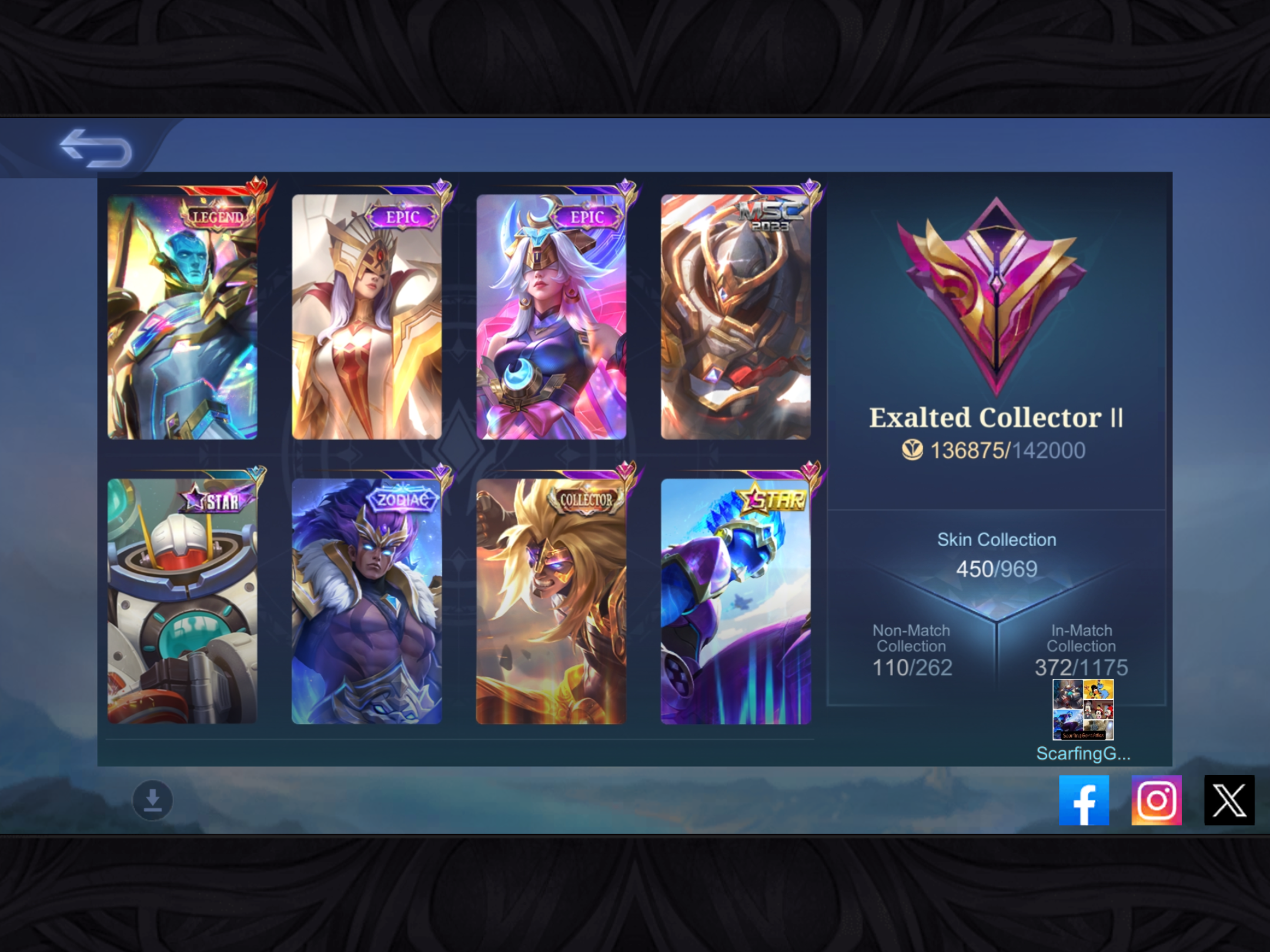
Owning an impressive skin in Mobile Legends: Bang Bang is only half the fun. The other half is displaying it where friends, squadmates, profile visitors, and occasionally confused opponents can admire it. After all, a rare Collector or collaboration skin deserves more than a quiet retirement in a forgotten menu.
Mobile Legends offers several ways to showcase skins. You can feature selected cosmetics on your profile, organize your Collection page, equip skins before matches, coordinate profile decorations, and capture screenshots or gameplay clips for social media. The best presentation does not necessarily require the most expensive collection. A carefully arranged group of meaningful skins can look more memorable than a random wall of premium cosmetics.
This guide explains how to showcase your skins in Mobile Legends in 11 practical steps. Menu names may vary slightly after regional updates, but the overall process remains similar.
Why Showcase Your Mobile Legends Skins?
Skins are visual upgrades that change a hero’s appearance and may also include new animations, skill effects, entrance scenes, sound effects, voice lines, recall effects, or themed interface elements. They do not replace good positioning, map awareness, or the revolutionary strategy known as “not fighting five enemies alone,” but they do add personality to your account.
A skin showcase can communicate several things about you:
- Your favorite heroes and roles
- Your history with limited-time events
- Your preferred visual style
- Your dedication to a particular hero
- Your progress as a collector
- Your involvement in esports or collaboration events
It can also make your profile look more intentional. Instead of showing whichever hero happened to be selected months ago, you can turn the page into a small gallery representing your MLBB identity.
How to Showcase Your Skins in Mobile Legends: 11 Steps
-
Step 1: Update Mobile Legends and Download All Resources
Begin by updating Mobile Legends through the official app store for your device. Profile customization and Collection features have changed over time, so an outdated version may display different buttons or prevent certain cosmetic assets from loading.
After launching the game, allow it to download the required resource packages. This is especially important if you want to preview detailed character models, entrance animations, skill effects, or background art. Without complete resources, your legendary warrior may appear as a blurry silhouette wearing the graphical equivalent of pajamas.
Use a stable Wi-Fi connection when possible. Once the files are downloaded, restart the game if skin thumbnails or animations still appear incomplete.
-
Step 2: Open Your Player Profile
From the main lobby, tap your profile picture in the upper-left area of the screen. This opens your player profile, where visitors can usually see information such as your name, current rank, achievements, favorite heroes, album, name card, and selected profile cosmetics.
Before changing anything, look at the profile as if it belonged to another player. Ask yourself what draws attention first. Is your featured skin visible immediately? Does the background complement it? Does the page communicate a recognizable style, or does it look like five different events collided in a parking lot?
This quick review helps you decide what needs to be changed rather than randomly tapping every glowing button.
-
Step 3: Tap the Edit or Customization Button
On your profile page, find the Edit button, usually positioned toward the right side or upper-right portion of the interface. Depending on the current version, related controls may appear under a customization, display, or settings icon.
Opening the editor should reveal the heroes, skins, backgrounds, cards, or other profile elements available to your account. Only cosmetics you own or currently have permission to use will normally be available for permanent selection.
If the editor does not appear, confirm that the game is fully updated and that all essential resources have finished downloading. You can also exit the profile, return to the lobby, and reopen it after a few seconds.
-
Step 4: Choose the Skin Display Section
Inside the profile editor, navigate to the section that displays owned heroes and skins. Select the skin option rather than the default hero model when both choices are available.
Scroll through the cosmetics attached to your heroes. Filters may help you locate skins by hero, category, ownership status, or release series. If there is no search bar, start with the heroes you play most often instead of scrolling through your entire account like an archaeologist examining ancient event rewards.
Tap a skin to preview how it looks in the available display position. Some designs look magnificent in full-screen artwork but become visually crowded when placed against a detailed profile background. Previewing prevents an expensive skin from disappearing into decorative chaos.
-
Step 5: Select Skins That Tell a Story
Do not choose skins based only on rarity. A strong showcase usually has a theme or personal meaning. You might feature skins associated with your main role, your favorite hero, a memorable collaboration, a world championship series, or the first event you completed with friends.
Several approaches work well:
- Main-hero showcase: Display multiple skins for the hero you use most.
- Role showcase: Feature cosmetics for your favorite tanks, assassins, mages, or marksmen.
- Rarity showcase: Prioritize Legend, Collector, limited, or collaboration skins.
- Event showcase: Group cosmetics from one franchise or seasonal event.
- Color showcase: Choose skins with matching gold, red, blue, dark, or pastel designs.
- Memory showcase: Display skins connected to important matches, gifts, or milestones.
A coherent group appears curated. A random group merely announces that you successfully found the Select button several times.
-
Step 6: Put Your Best Skin in the Most Visible Position
If your profile supports multiple display slots, place your strongest or most meaningful skin in the first position. This is the cosmetic visitors are most likely to notice before scrolling or opening additional Collection pages.
“Best” does not have to mean “most expensive.” Consider visual impact, rarity, hero mastery, sentimental value, and how well the artwork fits your profile layout. A limited skin for your signature hero may say more about your account than a premium skin for a character you have played twice, both times accidentally.
Use secondary positions to provide variety. Pair a dramatic centerpiece with simpler designs rather than filling every slot with competing effects. This creates visual hierarchy and makes the featured skin feel special.
-
Step 7: Coordinate the Background, Name Card, and Album
A skin showcase looks better when the surrounding profile elements support it. Open the profile settings or customization menu and review any backgrounds, name cards, avatar borders, titles, badges, or album images available to your account.
Try to match colors or themes. A futuristic skin works naturally with a neon or technological background. A celestial skin benefits from stars, moonlight, or deep blue artwork. A dark demonic design may look less convincing beside a cheerful beach imageunless the story is that the demon finally took a vacation.
Avoid placing bright text, badges, or album images directly over important areas of the skin artwork. The profile should guide attention toward your featured cosmetics, not create a competition between fourteen decorative objects.
-
Step 8: Review Collection Visibility and Privacy Settings
Mobile Legends may provide settings that control whether other players can view parts of your Collection information. Open the game settings and inspect the privacy, profile, or Collection-related options available in your version.
Enable the relevant visibility setting when you want friends and profile visitors to browse your owned skins or Collection progress. Keep it restricted when you prefer a more private account. You can still feature selected cosmetics on your main profile without necessarily revealing every item you own.
Before sharing screenshots publicly, check for information you may not want exposed, including account identifiers, linked social accounts, location clues, private messages, or purchase notifications. Showing off a skin is fun. Accidentally creating an account-security scavenger hunt is considerably less fun.
-
Step 9: Equip the Skin Before Entering a Match
Your profile is not the only place to showcase a skin. Enter a suitable game mode, select the corresponding hero during hero selection, and tap the skin menu before confirming your choice.
Equip the desired cosmetic and wait for its model or splash artwork to load. Other players may see the selected design during hero selection, on the loading screen, and throughout the match. Depending on the skin, additional visual elements may appear through skill effects, entrance animations, voice lines, recalls, elimination effects, or themed actions.
Use the hero responsibly. A beautiful skin attracts attention, but repeated tower dives attract a different kind of attention. The most convincing showcase combines attractive cosmetics with competent gameplay.
-
Step 10: Capture Clean Screenshots or Gameplay Clips
To showcase your MLBB skins outside the game, capture screenshots or screen recordings. On many Android devices, pressing the power and volume-down buttons together takes a screenshot. Android’s Quick Settings panel may also include a screen-recording control. On recent iPhones, a screenshot can usually be captured with the side and volume-up buttons, while screen recording is available through Control Center.
Prepare the scene before recording. Close unrelated notifications, increase graphics quality if your device can handle it, and select a location where the skin contrasts clearly with the battlefield. Practice Mode is useful because it lets you trigger skills without ruining a ranked match while you search for the perfect camera moment.
For videos, record a short sequence containing the entrance animation, basic attacks, major abilities, ultimate skill, recall animation, and any special idle movement. Trim loading screens and silent pauses. Viewers came to see the skin, not a documentary about your network connection.
-
Step 11: Share the Showcase and Rotate It Regularly
Once your profile or media is ready, share it with your squad, gaming community, or social followers. Vertical clips work well for short-form platforms, while horizontal footage preserves more of the battlefield and is suitable for conventional gameplay videos.
Use a descriptive caption that identifies the hero, skin name, event series, and the feature you enjoy most. A question can encourage engagement, such as asking viewers which skin should be displayed next or which effect looks best.
Rotate your featured cosmetics when you obtain a new skin, change your main hero, reach a Collection milestone, or enter a seasonal event. Regular updates keep your profile fresh and allow lesser-used skins to escape the digital closet for a weekend.
How to Make an MLBB Skin Showcase Look Better
Use Quality Over Quantity
A carefully selected lineup of four skins can be more impressive than eight unrelated cosmetics. Choose items with a visible connection and let each one occupy enough visual space to be appreciated.
Show the Most Distinctive Effects
When recording gameplay, focus on what makes the skin different from the default hero. Capture transformation sequences, unique ultimate animations, special voice lines, recall effects, altered projectiles, or collaboration references.
Include the Skin Name
Do not assume every viewer recognizes every cosmetic. Add the hero and skin name to your caption or video text. This also helps your post appear in searches for that specific Mobile Legends skin.
Avoid Excessive Editing
Color filters, transitions, and sound effects can make a showcase more energetic, but heavy editing may hide the actual visual quality of the skin. Let the original animations remain the main attraction.
Protect Your Account
Players with valuable cosmetics can attract scammers and account thieves. Never publish passwords, verification codes, recovery information, purchase receipts, or full login details. Bind the account to secure services, use strong passwords, and ignore messages promising free diamonds in exchange for “temporary account access.” Temporary access has an impressive habit of becoming permanent theft.
Common Problems When Showcasing Skins
The Skin Does Not Appear in the Profile Editor
Confirm that you permanently own the skin and are not viewing an expired trial item. Restart the game, update the app, and complete all resource downloads. Some cosmetics or display features may also vary by server, event, account progress, or interface version.
The Skin Model Looks Blurry
Check whether HD graphics and character resources have been downloaded. Increase graphics settings only when your phone can maintain stable performance. A sharp screenshot is not worth turning the device into a hand warmer with ambitions.
Friends Cannot See the Collection
Review your privacy and Collection visibility settings. Save your changes, reopen the profile, and ask a friend to check again. Some updates may reset or reorganize customization controls.
The Profile Looks Too Busy
Remove decorations that compete with the main skin. Select a simpler background, reduce conflicting colors, and feature fewer cosmetics. Empty space is not wasted space; it helps the important artwork stand out.
Experience-Based Lessons for Showcasing Mobile Legends Skins
After experimenting with different profile arrangements and skin showcase formats, one lesson becomes obvious: rarity attracts attention, but personality keeps it. Players may initially notice a Legend or Collector label, yet the most memorable profiles are usually the ones that reveal something about the person behind the account.
For example, a player who features several skins for the same tank hero immediately communicates loyalty to that character and role. Visitors can guess that this is probably the teammate who checks bushes, starts team fights, and quietly wonders why the marksman is farming a jungle monster during the final Lord battle. A collection built around one hero tells a clearer story than an assortment chosen only by price.
Color coordination also makes a surprisingly large difference. When a dark purple skin is placed against a similarly dark background, important details disappear. Switching to a lighter or contrasting background can make the model look more expensive without changing the skin itself. The same principle applies to screenshots: the battlefield area, interface brightness, and skill animation timing can determine whether a cosmetic looks spectacular or resembles a colorful explosion behind several health bars.
Another useful approach is to separate profile showcasing from gameplay showcasing. The profile is ideal for presenting splash art, rarity, Collection progress, and overall style. Gameplay clips are better for showing movement, sound design, projectiles, transformations, and ultimate effects. Trying to show everything in one screenshot usually results in tiny details and an interface crowded enough to require traffic control.
Short recordings generally work best when they begin with action. Instead of showing ten seconds of menu navigation, start with the hero’s entrance, transformation, or ultimate animation. The skin name can appear as brief text at the beginning. After that, show two or three distinctive effects and finish with a recall animation or victory pose. A focused 20-second clip is often more satisfying than a two-minute video containing every basic attack since the dawn of time.
It is also worth rotating skins based on current events. During an esports tournament, feature an M-Series or championship cosmetic. During a collaboration rerun, display the related franchise skins. Around holidays, seasonal designs can make the profile feel timely. This does not require buying something new each month; it simply gives existing cosmetics another opportunity to look relevant.
Finally, do not let showcasing become a spending contest. A skin can be valuable because it was earned during an old event, received from a friend, purchased after reaching a personal goal, or attached to the hero that carried you into a new rank. Those stories give the collection character. The best profile is not necessarily the one containing the highest diamond total. It is the one that makes another player stop, look, and understand what kind of MLBB fan created it.
Conclusion
Learning how to showcase your skins in Mobile Legends is mainly about thoughtful presentation. Open your profile, enter the editor, select your strongest cosmetics, coordinate the surrounding decorations, review Collection visibility, and equip the skins during matches. For an external showcase, capture clear screenshots or concise gameplay clips that highlight the most distinctive animations and effects.
You do not need every premium cosmetic in the game to build an impressive display. Choose skins that represent your favorite heroes, achievements, memories, and visual style. A well-organized profile gives your collection a storyand gives profile visitors something more interesting to see than another mysterious player named “ProKiller123.”
Note: Mobile Legends menus, feature names, display slots, and privacy controls may change after game updates or differ by region. Update the app and download all resources if your interface does not exactly match the steps above.