Editorial note: This guide is based on current Shazam, iPhone, Android, and Google music-recognition features as of 2026. Menu names can vary slightly by device, app version, and region.
You know the moment. You are scrolling through TikTok, watching an Instagram Reel, replaying a saved video, or digging through an old voice memo when a song sneaks into your ears and refuses to leave. It is catchy. It is dramatic. It has exactly the right amount of bass. Naturally, the uploader did not mention the title, because apparently we live in a society.
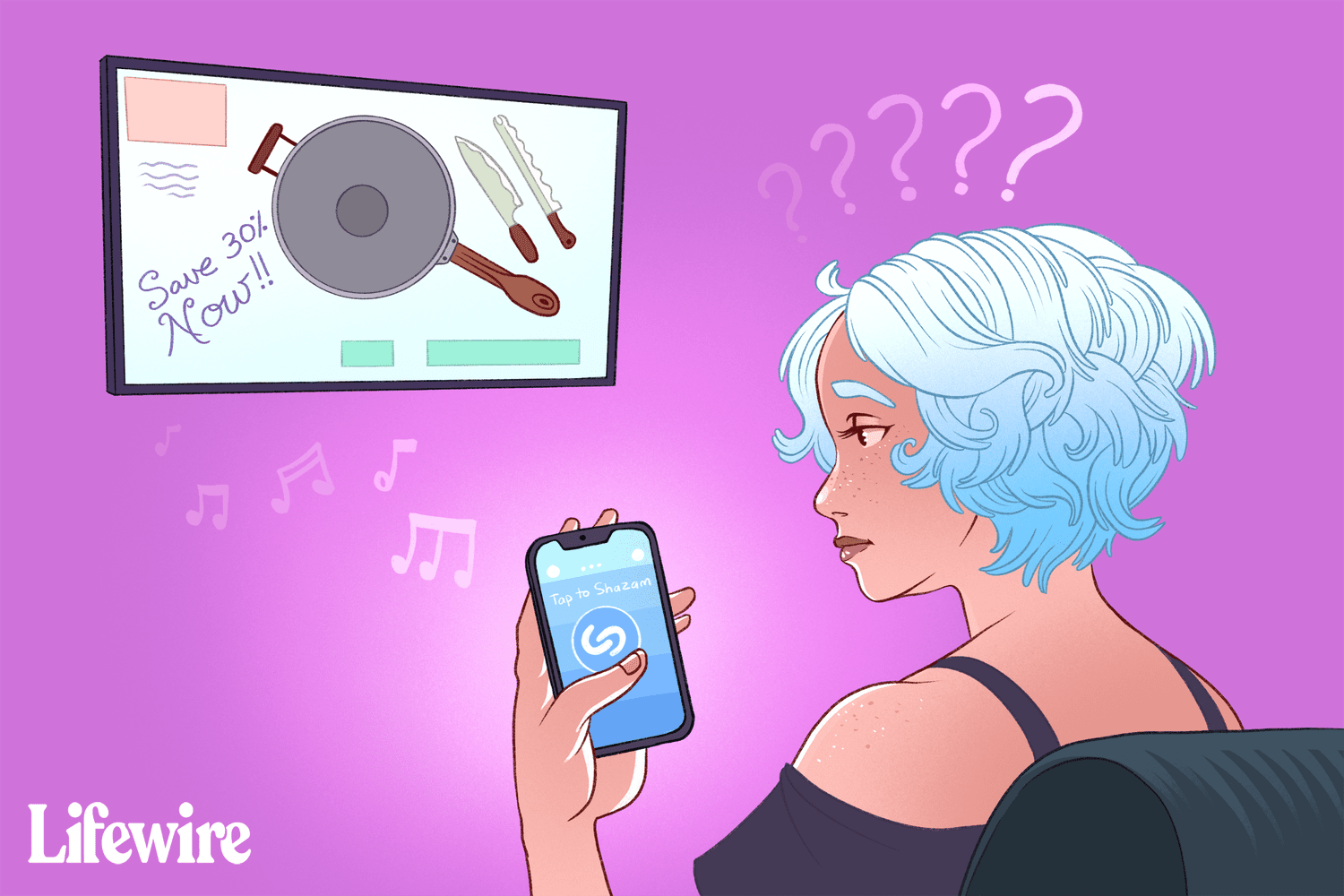
Good news: you do not need a second phone, a laptop, or a friend willing to hold your device near your device like a tiny DJ booth. You can Shazam a song that is already playing on your phone. Whether the audio is coming from YouTube, Instagram, TikTok, Snapchat, your Photos app, a browser tab, a downloaded video, or even headphones, Shazam can usually identify it with a few taps.
This guide explains exactly how to Shazam a song on your phone, including the best methods for iPhone and Android, how to use Shazam with headphones, what to do when it fails, and how to save your discoveries so you do not lose that perfect song again. Because nothing hurts quite like remembering the vibe but forgetting the title.
Can You Shazam Music Playing on the Same Phone?
Yes, you can. Shazam is no longer only for identifying songs playing from a speaker across the room. Modern Shazam features can recognize music playing inside other apps on the same device. That means you can identify songs from social media videos, streaming apps, saved clips, browser videos, and other audio sources on your phone.
The exact method depends on your device. On iPhone, the fastest option is usually Shazam Music Recognition in Control Center. On Android, the best tools are often Pop-Up Shazam, Shazam from the notification bar, or Auto Shazam. If you are wearing headphones, Shazam can still identify many songs, depending on your device and app setup.
Think of Shazam as a very polite music detective. It listens briefly, compares the audio fingerprint to its database, and returns the song title, artist, album art, lyrics, and streaming links when it finds a match. It is not perfect, but when it works, it feels suspiciously close to magic.
How to Shazam a Song Already Playing on iPhone
Method 1: Use Shazam Music Recognition in Control Center
The easiest way to identify a song playing on your iPhone is through the built-in Music Recognition control. You do not always need to open the Shazam app first. Apple has integrated Shazam into iPhone, which makes the process fast and beginner-friendly.
- Open the app that contains the song, such as TikTok, Instagram, YouTube, Safari, Photos, or another media app.
- Start playing the video or audio clip.
- Open Control Center. On most newer iPhones, swipe down from the top-right corner. On iPhones with a Home button, swipe up from the bottom.
- Tap the Music Recognition or Shazam button.
- Return to the app if needed and let the song play for several seconds.
- Wait for the notification showing the song title and artist.
If you do not see the Shazam button in Control Center, add it first. Open Settings, go to Control Center, and add Music Recognition. On newer iOS versions, you may also be able to customize Control Center directly and add the Recognize Music control from there.
This method is perfect when you are watching a Reel, Short, or saved video and the song is buried under captions, voiceovers, or dramatic slow-motion footage of someone making iced coffee.
Method 2: Use the Shazam App
You can also use the Shazam app itself. This is useful if you want your identified songs saved neatly in your Shazam library.
- Install or open the Shazam app on your iPhone.
- Tap the large Shazam button so the app starts listening.
- Switch back to the app where the song is playing.
- Play the audio clearly for a few seconds.
- Check the Shazam result when it appears.
For best results, turn up the phone volume slightly and avoid scrubbing through the clip while Shazam is listening. Shazam needs a clean enough sample to match the track. If the video has someone talking loudly over the music, wait for a section where the song is more exposed.
Method 3: Ask Siri
Siri can also identify music using Shazam. While the song is playing, activate Siri and say, “What song is this?” or “Name that tune.” Siri will listen and show the result if it finds a match.
This can be convenient, but it may interrupt playback depending on the app. For songs already playing inside another app, Control Center is usually smoother and less dramatic. Siri is great, but sometimes you just want the song title without inviting the whole room into your business.
How to Shazam a Song Already Playing on Android
Method 1: Use Pop-Up Shazam
On Android, Pop-Up Shazam is one of the best ways to identify music playing in another app. It creates a floating Shazam button that can sit on top of other apps, similar to a chat bubble.
- Open the Shazam app.
- Go to your Library or app settings.
- Turn on Shazam from Pop-Up or Pop-Up Shazam.
- Allow Shazam to display over other apps when Android asks for permission.
- Open the app that contains the song.
- Play the video or audio.
- Tap the floating Shazam button to identify the song.
This works especially well for TikTok, Instagram, YouTube, Snapchat, Facebook, and browser videos. It is also great when you are wearing headphones, because Shazam can identify audio from the device instead of relying only on sound coming out of your phone speaker.
Method 2: Use Shazam from the Notification Bar
Another Android option is Shazam from the notification bar. Once enabled, you can swipe down from the top of the screen and tap Shazam while you are in another app.
- Open Shazam and go to settings.
- Enable Shazam from notification bar.
- Open the app with the music you want to identify.
- Swipe down to open notifications.
- Tap the Shazam notification to start identifying.
This method is clean and quick. It is also less visually distracting than a floating button, which is helpful if you do not want a tiny blue bubble hovering around like it pays rent.
Method 3: Use Auto Shazam
Auto Shazam keeps listening and identifies songs automatically until you turn it off. It is useful when you are watching a long video, listening to a mix, or trying to identify multiple songs in a row.
- Open the Shazam app.
- Press and hold the Shazam button.
- Turn on Auto Shazam.
- Play the audio from another app.
- Check your Shazam library for identified songs.
Auto Shazam is helpful, but do not forget to turn it off when you are done. Otherwise, it may keep trying to identify every song, jingle, and questionable background track you encounter. Your phone does not need to document the entire soundtrack of your grocery run.
How to Shazam Songs Playing Through Headphones
Many people assume Shazam only works if the song is blasting through speakers. Thankfully, that is no longer true in many situations. Shazam can identify songs playing through headphones on supported iPhone, iPad, and Android setups.
On iPhone, use Music Recognition in Control Center while your headphones or earbuds are connected. Start the music in the app, tap the Shazam control, and let the track play. On Android, Pop-Up Shazam is often the strongest choice for headphone audio because it is designed to work while other apps are playing sound.
If Shazam does not recognize the song through headphones, try these quick fixes:
- Raise the media volume slightly.
- Replay the part of the song with vocals or a clear beat.
- Pause other audio sources, such as background podcasts or game sounds.
- Try Pop-Up Shazam on Android or Control Center Music Recognition on iPhone.
- If all else fails, play the clip through your phone speaker and Shazam it again.
Best Apps to Identify Music Already on Your Phone
Shazam
Shazam is the obvious first choice. It is fast, free, widely available, and deeply integrated into Apple devices. It can identify songs in apps like TikTok, Instagram, YouTube, and Snapchat, and it can save your discoveries so you can return to them later.
Google Song Search
Google can identify songs through the Google app. On Android or iPhone, open the Google app, tap the microphone, choose Search a song, and play, hum, whistle, or sing the melody. This is especially useful when you do not have the original audio clip anymore but can still hum the tune. Your humming may not win a Grammy, but Google is surprisingly forgiving.
Google Pixel Now Playing
Pixel phones have a feature called Now Playing, which can automatically identify music nearby and show results on the lock screen. It is more focused on ambient music than audio inside apps, but it is still a powerful backup for music discovery. Newer Pixel updates have also made Now Playing easier to access as a dedicated app experience on compatible devices.
SoundHound
SoundHound is another well-known music recognition app. Its biggest advantage is humming and singing recognition. If Shazam cannot identify a song because you only remember the melody, SoundHound or Google Song Search may help you track it down.
Why Shazam Sometimes Cannot Identify a Song
Shazam is impressive, but it is not a wizard living rent-free in your phone. It needs enough recognizable audio to create a match. If the song is distorted, too quiet, too short, or buried under speech, Shazam may fail.
Common reasons Shazam does not work include:
- The clip is too short. A one-second sample may not be enough.
- There is too much talking. Voiceovers can cover the musical fingerprint.
- The song is remixed or slowed down. TikTok edits, sped-up versions, and mashups can confuse recognition.
- The track is unreleased or obscure. Shazam can only match songs in its database.
- The audio quality is poor. Heavy compression, echoes, or background noise reduce accuracy.
- Your microphone or app permissions are blocked. Shazam needs permission to listen.
If Shazam fails, do not immediately assume the song is lost forever. Try replaying a clearer section, raising the volume, turning off other audio, or using another recognition tool like Google Song Search. Sometimes the chorus works better than the intro. Sometimes the instrumental break is useless. Sometimes the uploader has turned the original track into a chipmunk-speed remix called “summer sadness edit 3,” and we all simply have to do our best.
How to Find Your Shazam History
Once you identify a song, save it. Future you will be grateful. On iPhone, songs identified through Shazam or Music Recognition can appear in the Shazam app library when syncing is enabled. You can also press and hold the Music Recognition control in Control Center to view recent results on many iPhone setups.
In the Shazam app, look for your Library or My Music section. This is where your previous Shazams are stored. From there, you can preview songs, open them in Apple Music or Spotify, view lyrics, or add them to playlists.
On Android, open Shazam and go to your Library. If you sign in with an email or Google account, your discoveries are easier to recover if you switch devices. This is a tiny step that can prevent a very specific kind of heartbreak: losing a song you found at 1:17 a.m. and never finding it again.
Pro Tips for Better Song Recognition
To get better Shazam results, treat the song like a witness in a detective movie: give it a quiet room and a few seconds to talk.
- Use the clearest part of the song. Choruses and verses usually work better than intros or outros.
- Let the audio play for at least five to ten seconds. More sample time gives Shazam a better chance.
- Turn off other sounds. Pause games, voice chats, podcasts, and background music.
- Use headphones support when available. This can help when you do not want to play audio out loud.
- Try the original platform. If a downloaded repost sounds compressed, open the original TikTok, Reel, or YouTube Short when possible.
- Check comments and captions. Sometimes the answer is hiding in the comments between “song?” and “crop?”
- Use Google if you only remember the melody. Shazam is best with recorded audio; Google and SoundHound are better when you need to hum.
Specific Examples: Where This Works Best
Shazam a Song from TikTok
Play the TikTok video, open Control Center on iPhone or use Pop-Up Shazam on Android, then let the track play. If the creator used an official TikTok sound, you can also tap the spinning audio icon in TikTok to view the sound page.
Shazam a Song from Instagram Reels
Start the Reel, tap the Shazam control, and wait for the result. If there is a loud voiceover, replay the part where the music is loudest. Instagram often shows audio information at the bottom of a Reel, so check there too.
Shazam a Song from YouTube or YouTube Shorts
Use Music Recognition on iPhone or Pop-Up Shazam on Android while the video plays. If it fails, open the video description or comments and search for phrases like “music,” “song,” or “track.” YouTube creators sometimes list music credits, though not always where logic would place them.
Shazam a Song from a Saved Video
Open the video in Photos, Gallery, Files, or your preferred media player. Start playback, then trigger Shazam from Control Center, the app, notification bar, or Pop-Up Shazam. Saved videos can be compressed, so use the loudest and cleanest section.
Personal Experience: What It Feels Like to Shazam Songs Already on Your Phone
The first time you realize you can Shazam a song already playing on your phone, it feels like discovering a hidden door in your own kitchen. Most people learn Shazam as a “hold your phone up in a café” app. You hear a song in a store, panic like the track is about to escape, open Shazam, and pray the barista does not start grinding beans at the exact wrong moment. But using Shazam inside your phone is a different kind of convenience. It solves the modern music mystery: the song is not across the room. It is trapped inside a 12-second video with captions, emojis, and someone pointing at invisible text.
In real life, the best use case is social media. TikTok, Instagram Reels, and YouTube Shorts are basically song discovery machines wearing fake mustaches. A track can become popular because of a dance, a recipe, a travel montage, a gym edit, or a dog looking emotionally complicated in slow motion. The problem is that the audio title is not always the real song title. Sometimes it is a remix. Sometimes it is a sped-up version. Sometimes it is labeled “original audio,” which is the internet’s way of saying, “Good luck, detective.” Shazam gives you a shortcut. Instead of scrolling through hundreds of comments asking “song name???” you can identify the track directly.
Another surprisingly useful situation is old videos in your camera roll. Maybe you recorded a street musician, a party, a road trip, or a restaurant playlist months ago. You forgot about the song until you found the clip again. With Shazam Music Recognition or Pop-Up Shazam, you can play the saved video and identify the background track without needing another device. This is especially satisfying because it turns your camera roll into a time machine with a search function.
Headphones make the experience even better. Nobody wants to blast a random song in public just to identify it. With supported Shazam features, you can keep listening privately and still find the title. That is great on a bus, in an office, at school, or anywhere else where suddenly playing a dramatic breakup anthem at full volume would raise questions.
The trick is patience. Do not Shazam the quiet intro if the chorus is coming. Do not try to identify a song while three people are talking over it in a vlog. Replay the cleanest section, give Shazam a few seconds, and try again if it misses. In my experience, most failures happen because the audio sample is messy, not because the tool is bad. When it works, though, it is ridiculously satisfying. One tap, a few seconds, and the mystery song gets a name, an artist, lyrics, and a place in your playlist. Tiny problem solved. Small dopamine unlocked.
Conclusion: The Fastest Way to Shazam a Song on Your Phone
The fastest way to Shazam a song that is already on your phone is to use Music Recognition in Control Center on iPhone or Pop-Up Shazam on Android. Both options let you identify music playing in other apps without needing a second device. For longer listening sessions, Auto Shazam can capture multiple songs. For songs you can only hum, Google Song Search or SoundHound may be better backups.
In short, you do not have to lose a great song just because it appeared in a random video, a saved clip, or a social media post with no credits. Your phone can listen to itself. Which sounds weird, yes, but also wonderfully useful.
So the next time a song grabs your attention from inside TikTok, Instagram, YouTube, Photos, or a browser tab, do not panic-scroll through the comments. Open Shazam, tap the right shortcut, and let the little blue music detective do its job.