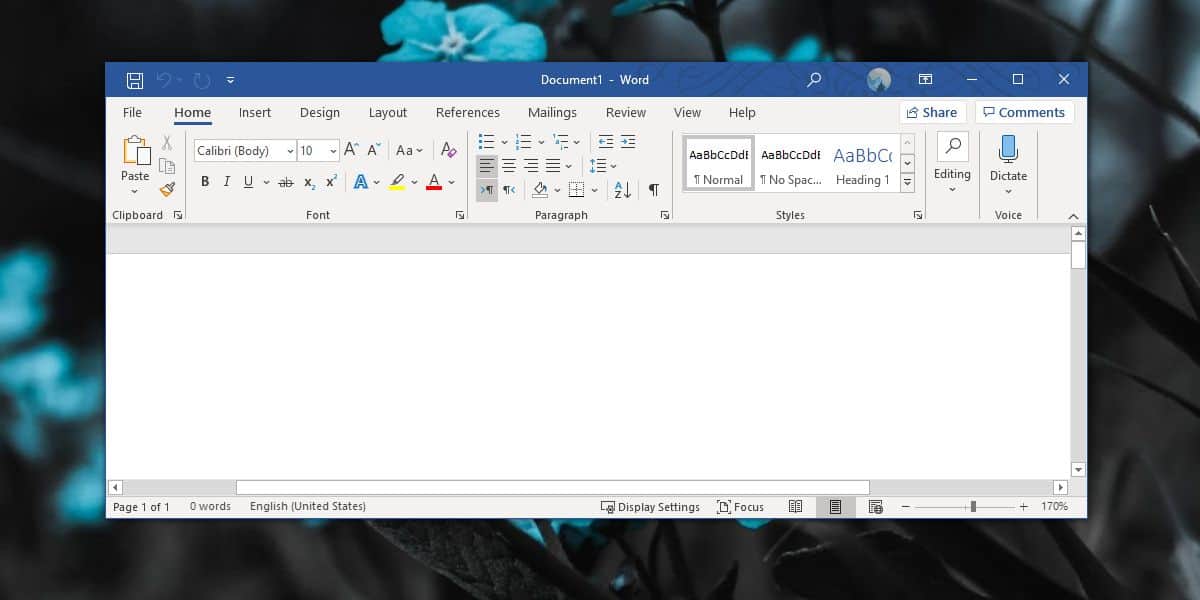
If your name is hogging precious space in the Office 365 title bar like it pays rent, you are not alone. A lot of people open Word, Excel, or PowerPoint and think the same thing: “Why is my name up there, and how do I evict it?” The confusing part is that Microsoft 365 can show your identity in more than one place. Sometimes it is your Office user name. Sometimes it is your signed-in account display name. Sometimes it is document metadata wearing a fake mustache and pretending to be something else.
The good news is that you can usually reduce, change, or remove the visible name. The less-fun news is that there is not always one neat little button labeled “Hide my name from the title bar forever, thanks.” In many cases, the fix depends on which name is showing, whether you use a personal Microsoft account or a work account, and whether you want the name gone from the interface only or from the document’s hidden author information too.
In this guide, I will walk you through the real-world methods that actually help. We will cover the official settings, the account-based fixes, the sign-out option, the advanced Windows workaround, and the sneaky metadata cleanup step many people forget. In other words, this is not just a “click here, maybe cry later” tutorial. It is the full survival guide.
First, figure out which “user name” you want to remove
Before you start clicking around Office like you are defusing a bomb, identify what you are seeing. In Microsoft 365 desktop apps, the name in the top area can come from a few different places:
1. Your Office user name
This is the name used for comments, Track Changes, and document authorship in Word, Excel, and PowerPoint. It lives inside Office settings and can be changed from the app itself.
2. Your signed-in Microsoft account or work account name
This is the account identity shown in the upper-right area of the app window. If that is the name bothering you, changing the local Office user name alone may not be enough.
3. Document author metadata
Even if you clean up the title bar, your documents may still contain personal information such as author name, last saved by, comments, and revision details. If privacy is your goal, you need to clean that up too.
That distinction matters because the fix for each one is different. Office loves options. Humans love one button. Sadly, Office wins this round.
The short answer
If you want the fastest, most practical answer, here it is:
- To change the visible Office user name, go to File > Options > General, then edit the User name and Initials fields under Personalize your copy of Microsoft Office.
- To keep that custom name even when signed in, check Always use these values regardless of sign-in to Office.
- To change the account name shown by Microsoft 365, update your Microsoft account display name or ask your Microsoft 365 admin to change your work profile display name.
- To hide the signed-in name completely, signing out of Office can remove it, but it may also deactivate editing until you sign back in.
- To squeeze more room into the title bar, collapse the Microsoft Search box so the title area is less crowded.
- For stubborn cases on Windows, some users rely on a registry workaround involving the FriendlyName value, but that is an advanced method and not the polished, official path.
Method 1: Change the Office user name inside Word, Excel, or PowerPoint
This is the cleanest place to start. If the name you see is tied to comments, authorship, or general Office personalization, changing the Office user name often solves the problem.
How to do it
- Open any Office app, such as Word or Excel.
- Click File.
- Choose Options.
- On the General tab, look for Personalize your copy of Microsoft Office.
- Edit the User name and Initials.
- Check Always use these values regardless of sign-in to Office if you want Office to keep using the custom name instead of whatever your account displays.
- Click OK.
This is the best fix if your problem is mostly about how your name appears in comments, Track Changes, or author information for new documents. It is also a smart move if you want to replace your full name with something shorter, like your first name, initials, or a department label. For example, “Jonathan A. Alexander the Third” is an impressive name, but it is not exactly title-bar-friendly.
What this method does well
It is easy, built into Office, and usually applies across the Office apps installed on the same computer. It is also a nice way to keep your documents looking professional if you want comments to show a team name or a shorter identifier.
What this method does not always do
It may not fully remove the signed-in account name or avatar in the top-right account area. If that is what you are trying to erase from existence, continue to the next methods.
Method 2: Change your Microsoft account display name
If you use a personal Microsoft account with Microsoft 365, the name shown in Office may be pulled from your Microsoft account profile. In that case, changing the display name at the account level is often the better move.
When this works best
Use this method when the title bar or account corner keeps showing your full account name instead of the shorter Office user name you entered in the app settings.
What to do
- Sign in to your Microsoft account profile.
- Go to the Your info area.
- Select Edit name.
- Enter the new name you want associated with the account.
- Save the change.
- Sign out of the Office app, then sign back in.
A practical trick here is to shorten the display name rather than trying to blank it out completely. Many people switch from a full legal name to a short first name plus last initial, or just initials. That keeps the interface tidy without causing confusion when you collaborate or send files.
Also, do not expect the change to teleport instantly across the Microsoft universe. Account profile updates can take time to show up everywhere, so if the old name stubbornly hangs around for a while, that does not automatically mean the change failed. It may just be taking the scenic route.
Method 3: Change the display name for a work or school Microsoft 365 account
If you are signed in with a business, school, or organization-managed account, your name may be controlled by your company’s Microsoft 365 directory. That means you may not be able to fully change it on your own from inside Word or Excel.
Who needs this method
This is the one for employees, students, contractors, and anyone whose Office account comes from an organization rather than from a personal Microsoft subscription.
What usually has to happen
An administrator needs to update the display name in the Microsoft 365 admin center. The usual path is:
- Go to Users.
- Select Active users.
- Open the user account.
- Edit Manage contact information or the display-name details.
- Save changes.
If your organization syncs names from HR or another identity system, you may have to contact IT or HR instead of making the change yourself. In other words, if Office keeps insisting your name is “Robert P. Finance-Operations-IV,” the problem may not live in Office at all. It may live in the giant corporate directory machine that feeds Office its personality.
Method 4: Sign out of Office if you want the signed-in name gone
If your goal is simple and ruthless“I want the name and picture out of the top-right corner, period”signing out of Office can do it.
How to sign out on Windows
- Open an Office app.
- Go to File > Account.
- Choose Sign out.
- Close all Office apps.
- Reopen the app.
The catch you really need to know
Signing out is not just a cosmetic tweak. Microsoft 365 uses sign-in to keep Office activated. If you sign out of the licensed account, you may lose the ability to create or edit documents until you sign back in. You can still view and print files, but editing can be limited.
So yes, signing out can remove the account name from the app interface. But it can also turn your expensive productivity suite into a very polite spectator. That is why this method is best for special situations, shared computers, kiosks, demo machines, or privacy-sensitive setups where active editing is not the priority.
Method 5: Use the Windows registry workaround for stubborn title-bar names
Now we enter the “advanced users wearing responsible shoes” section.
Some Microsoft community answers describe a Windows-only workaround that changes the FriendlyName value used under the Office identity registry branch. In plain English, this method can hide the displayed name in the Office title bar by replacing it with a blank character.
Why people use it
This trick is useful when the signed-in name still appears in the Office title bar area even after you change user-name settings. It is basically the digital version of putting tape over a name badgeeffective, but not exactly elegant.
General idea of the workaround
- Open Registry Editor.
- Go to HKEY_CURRENT_USER\Software\Microsoft\Office\16.0\Common\Identity\Identities.
- Find the identity entry with FriendlyName.
- Edit the value.
- Some community guidance suggests inserting a blank character using the numeric keypad.
- Close Office and reopen it.
Big warning before you try it
This is not the friendly, consumer-grade method. Registry edits can break settings if done carelessly, and Microsoft 365 updates or account sync behavior may overwrite the result later. Back up the registry first, and do not use this fix unless you are comfortable with Windows administration.
If you want a smooth, officially supported answer, stick with changing the display name or signing out. If you want a stubborn, practical answer because the title bar is still showing your name like an uninvited wedding guest, this workaround is the one many advanced users test.
Method 6: Collapse the Microsoft Search box to free up title-bar space
Sometimes your real problem is not the name itself. It is the fact that the title bar is crowded, and the file name gets shoved around like the least favorite sibling. In that case, shrinking the Search box can make the whole area feel less annoying.
How to do it
- Open an Office app.
- Go to File > Options.
- Under interface options, enable Collapse the Microsoft Search box by default.
This does not remove your name, but it gives the title bar more breathing room. If your main frustration is that you cannot clearly see the document title, this setting can feel like instant therapy.
Do not forget the hidden personal information inside the file
Here is the part many people miss: removing your user name from the title bar does not automatically remove your name from the document itself.
Word, Excel, and PowerPoint can store:
- Author name
- Last saved by information
- Comments and revision details
- Document properties and personal metadata
If you are sharing a file and privacy matters, you should clean that up too.
For new files
Changing the default Office user name helps make future files cleaner.
For one existing file
You can often go to File > Info, find the author entry, and edit the property for that specific document.
For a deeper privacy cleanup
Use Document Inspector:
- Open the file.
- Go to File > Info.
- Select Check for Issues.
- Choose Inspect Document.
- Review the results.
- Remove document properties and personal information as needed.
This is especially important for resumes, contracts, drafts, business reports, and anything you are sending outside your company. Nothing says “Oops” quite like carefully hiding your name from the title bar while leaving it stamped all over the file metadata.
Common troubleshooting tips
Office still shows the old name
Close every Office app completely, then reopen them. In some cases, you also need to sign out and sign back in.
The name changed in comments but not in the title bar
That usually means the title bar is pulling from the signed-in account display name, not from the Office user-name field.
You changed the Microsoft account name, but Office still shows the old one
Wait a bit, then sign out and back in. Account sync changes are not always instant.
You are on a company laptop and cannot change the name
Your organization may manage profile details centrally. Contact IT or your Microsoft 365 administrator.
You want the name gone but need editing to keep working
Try changing the Office user name and the account display name first. Use sign-out only if you understand the activation tradeoff.
What works best for most people?
For most home users, the best path is simple:
- Change the Office user name.
- Check the box to always use that name regardless of sign-in.
- If needed, shorten your Microsoft account display name.
- Collapse the Search box to free title-bar space.
- Use Document Inspector before sharing files.
For work accounts, the winning move is often to get the display name corrected at the Microsoft 365 admin level. For power users on Windows who absolutely must blank out the title-bar name, the registry workaround can helpbut treat it like spicy food: useful in small amounts, regrettable when handled recklessly.
Real-world experiences with removing a user name from the Office 365 title bar
In real life, this issue usually starts with a tiny annoyance that becomes weirdly personal. Maybe you open Excel on a small laptop, and the title bar is so crowded that the workbook name looks like it lost a fight. Maybe you are presenting in a meeting and notice your full name blazing across the top of the screen like a movie credit you did not approve. Or maybe you are sharing a draft and suddenly realize that Office has been casually sprinkling your identity everywhere like parmesan.
One of the most common experiences is discovering that there is a difference between changing your name and hiding your signed-in identity. A lot of users go to Word options, replace the user name, click OK, reopen the app, and expect victory music. Then the same account name is still lounging in the upper-right corner. That is the moment when many people realize Microsoft has several layers of identity settings, and they do not all listen to each other equally well.
Another common experience is with shared or public-facing computers. Teachers, reception staff, trainers, and office managers often want a cleaner interface during presentations or front-desk use. In those cases, a long personal name in the title bar can look messy, distracting, or just too revealing. People often end up choosing a short display name, generic initials, or a team label to make the interface look more neutral.
Then there is the privacy crowd, and honestly, they have a point. You can remove a visible name from the title bar and still leave your identity all over the document in comments, author fields, and last-saved metadata. That surprise catches people all the time. They think they solved a cosmetic problem, but the file itself is still carrying the digital equivalent of a name tag, a business card, and a forwarding address.
There is also a very practical crowd of users who are less worried about privacy and more worried about space. These folks do not necessarily care whether their name appears. They just want to see the full file name without squinting. For them, collapsing the Search box and shortening the account display name often does more good than chasing a perfect hide option that Microsoft does not neatly provide.
And finally, there are the determined tinkerers. These are the people who go into the registry, find FriendlyName, and refuse to let the title bar win. Their experience usually ends one of two ways: triumph, or a very long afternoon. If you are in that group, more power to youjust bring caution, backups, and maybe a snack.
Note: Microsoft 365 interface wording can vary slightly by app, version, platform, and update channel. On managed work accounts, name changes may depend on organizational directory settings rather than local Office preferences.
Conclusion
Removing a user name from the title bar in Office 365 is possible, but the best method depends on what is actually showing. If it is the Office user name, change it in File > Options > General. If it is your account display name, update your Microsoft account or ask your Microsoft 365 admin to change it. If you want the signed-in identity gone altogether, signing out works, but it can affect activation. And if you want true privacy, do not stop at the title barclean the document metadata too.
In short, the title bar may be small, but this problem is not. Luckily, once you know which setting controls which name, the fix becomes much less mysterious and a lot less annoying. Office may still love showing off your identity, but now you know how to put it on a tighter leash.