Note: Publish-ready HTML body only. SEO tags are included in JSON format at the end.
If you just picked up an iPhone X, or you are helping a family member who keeps swiping like it is still 2016, welcome. The iPhone X changed one of the most familiar iPhone habits ever: opening Control Center. On older iPhones, you swiped up from the bottom. On iPhone X, that move no longer works because the Home button packed its bags and moved out.
So where did Control Center go? Not far, but it did get a new address. Once you know the trick, it becomes second nature. Until then, it can feel like your iPhone is playing a tiny game of “guess the correct corner.” The good news is that the gesture is simple, fast, and genuinely useful once your thumb stops arguing with your memory.
In this guide, you will learn exactly how to open the Control Center on iPhone X, why Apple changed the gesture, what to do if it is not working, how to customize it, and a few real-world tips that make daily use less awkward and much more efficient.
What Is the Control Center on iPhone X?
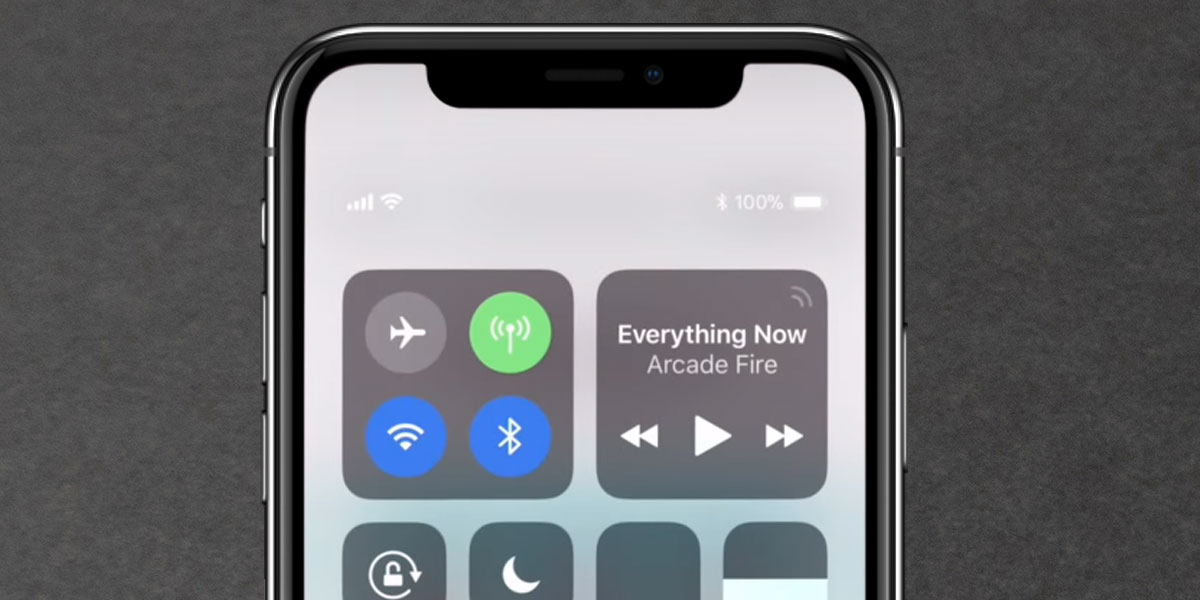
The Control Center is your iPhone’s shortcut panel. It gives you quick access to common tools and settings without making you dig through the Settings app like you are hunting for buried treasure. From here, you can adjust brightness, change volume, toggle Airplane Mode, use the flashlight, start a timer, access the camera, turn on Low Power Mode, and more.
Think of it as the iPhone’s utility belt. Batman had gadgets. Your iPhone X has screen brightness, Wi-Fi, and a flashlight for when you drop an earring under the couch.
How To Open the Control Center on iPhone X
The basic gesture is easy:
Step 1: Look at the Top-Right Corner of the Screen
On iPhone X, the Control Center opens from the top-right corner of the display. That means the area near the battery icon, not the center and not the left side.
Step 2: Swipe Down
Place your finger near the upper-right edge of the screen and swipe down. That is it. The Control Center should slide into view.
Step 3: Use the Controls
Once it opens, you can tap icons or press and hold certain controls to reveal more options. For example, long-pressing the connectivity box can show more wireless settings, and pressing on the brightness control can reveal extra display options.
How To Close the Control Center
To close it, either swipe up from the bottom of the screen or tap an empty area of the display. Quick in, quick out, no drama.
Why the Gesture Changed on iPhone X
The iPhone X introduced Apple’s all-screen design and removed the Home button. That was a big shift, and it changed several core gestures. Since swiping up from the bottom became the gesture for going Home and moving between apps, Apple relocated Control Center to the top-right corner.
In other words, the bottom edge got a promotion and became too busy for Control Center. Apple had to move the shortcuts somewhere else, and the upper-right corner became the new home.
This is also why many first-time iPhone X users open the wrong thing by mistake. Your hands may still remember older iPhone habits, while your iPhone X is trying to teach you new tricks.
Where People Usually Swipe Wrong
If Control Center is not opening, the problem is often not the phone. It is the gesture.
Swiping From the Top Center
If you swipe too close to the middle, you will likely open the Notification Center instead. That is one of the most common mistakes on iPhone X.
Swiping From the Left Side
The left or center area at the top is generally tied to notifications, not Control Center. Stay to the right.
Starting Too Low on the Screen
The swipe should begin near the very top-right edge. If you start too far down, the phone may ignore the gesture or do something else entirely.
Using an App That Changes Gesture Behavior
Some full-screen apps, especially games or video apps, can make gestures feel less responsive. In many cases, you may need to swipe more deliberately from the top-right corner.
Can You Open Control Center From the Lock Screen?
Yes, in many cases you can. iPhone X lets you access Control Center from the Lock Screen, which is handy when you want the flashlight, timer, or camera-related shortcuts fast.
That said, some users prefer to disable this for privacy or security reasons. If you do not want anyone to access Control Center while the phone is locked, you can change that setting.
How To Turn Off Lock Screen Access
Go to Settings > Face ID & Passcode, enter your passcode, then scroll to the section for lock screen access and turn off Control Center.
This is especially useful if you do not want someone else toggling settings from the Lock Screen. Convenience is great, but so is peace of mind.
What To Do If Control Center Will Not Open
If your swipe is correct and nothing happens, do not assume your iPhone X is broken. Start with the common fixes below.
1. Check Your Swipe Direction
Make sure you are swiping down from the top-right corner, not from the center or bottom.
2. Try on the Home Screen
If the gesture feels inconsistent inside an app, go back to the Home Screen and try again. This helps you rule out whether the issue is related to app behavior.
3. Enable Access Within Apps
If Control Center works on the Home Screen but not while using apps, check this setting: Settings > Control Center > Access Within Apps. If it is turned off, you will not be able to pull up Control Center inside apps.
4. Restart Your iPhone
Sometimes a basic restart solves weird gesture glitches. It is not glamorous, but it works often enough to deserve its place in the tech support hall of fame.
5. Check for Accessibility Alternatives
If swipe gestures are difficult for you, there is another option: AssistiveTouch. This creates an on-screen button you can customize, including using it for Control Center access.
How To Customize the Control Center on iPhone X
Opening Control Center is only half the fun. The other half is making it actually useful for your life.
Add or Remove Controls
Go to Settings > Control Center. From there, you can add or remove controls depending on the iOS version on your iPhone X. Common additions include Screen Recording, Low Power Mode, Notes, Wallet, Calculator, Timer, and Voice Memos.
Reorder Controls
On supported versions, you can also rearrange controls so your favorites are easier to reach. If you use the flashlight every night to avoid stepping on pet toys, it deserves prime real estate.
Turn Off Access Within Apps
If you keep accidentally opening Control Center while gaming or using swipe-heavy apps, turn off Access Within Apps. This can make the phone feel less twitchy and more cooperative.
Useful Things You Can Do From Control Center
If you only use Control Center to turn on the flashlight, you are leaving a lot of convenience on the table.
- Adjust screen brightness without opening Settings
- Change volume quickly
- Turn Wi-Fi, Bluetooth, or Airplane Mode on and off
- Launch the camera fast
- Start a timer while cooking, working, or pretending to bake
- Use Screen Recording for tutorials or bug reports
- Turn on Low Power Mode when your battery is living dangerously
- Access music playback controls
Once you begin using it intentionally, Control Center becomes one of the fastest parts of the iPhone experience.
How To Open Control Center One-Handed on iPhone X
Here is the awkward truth: the top-right corner can be a stretch, especially on the iPhone X if you are using the phone one-handed while walking, carrying groceries, or balancing a coffee that is way too full.
That is why some users find the gesture less comfortable than the old swipe-up method. If this sounds familiar, you have options.
Use AssistiveTouch
Go to Settings > Accessibility > Touch > AssistiveTouch. Once enabled, you can use the floating on-screen button as a shortcut hub. This can make Control Center much easier to reach, especially if top-corner swipes are frustrating or physically difficult.
Adjust Your Grip
Sometimes the simplest fix is the boring one: shift the phone slightly in your hand before swiping. Not elegant, but effective.
Use Two Hands When It Makes Sense
No one gets a medal for opening Control Center with one thumb while also carrying laundry and answering the door. Use two hands when needed. Your phone will not judge you. Probably.
iPhone X vs. Older iPhones: The Big Difference
If you are switching from an iPhone with a Home button, this is the main thing to remember:
- Older iPhones: swipe up from the bottom to open Control Center
- iPhone X: swipe down from the top-right corner
That single change causes a surprising amount of confusion at first. It is not because the gesture is hard. It is because your muscle memory is stubborn. Human thumbs are loyal to old habits.
Best Tips To Master the iPhone X Control Center Fast
Practice the Exact Starting Point
Aim near the battery icon area. That will train your hand faster than random swiping ever will.
Use It Every Day
Open Control Center for brightness, flashlight, timer, and music controls even when there are other ways to get there. Repetition turns “Where did it go?” into “Got it.”
Customize for Your Routine
Add tools you actually use. Remove what you do not. A cluttered Control Center is like a junk drawer with Wi-Fi.
Learn the Long-Press Shortcuts
Some controls reveal more options when you press and hold them. That is where Control Center goes from basic to genuinely useful.
Real-World Experiences With Opening the Control Center on iPhone X
Let’s talk about the part no manual really captures: what it actually feels like to live with this gesture.
For many people, the first few days with an iPhone X are a comedy of errors. You pick up the phone, instinctively swipe up from the bottom, and nothing happens except your pride taking a small hit. Then you try again. Still nothing. Then you remember, “Right, new gesture,” and swipe from the center top, only to summon notifications instead. At this point, the phone is technically winning the relationship.
That learning curve is normal. The iPhone X was a major shift away from the Home button era, so even simple actions felt different at first. Opening Control Center became less about logic and more about retraining your hand. Once the motion clicks, though, it clicks hard. After a week or two, most users stop thinking about it entirely.
One of the biggest real-life frustrations is one-handed use. If your hands are small, or your grip is not ideal, reaching the top-right corner can feel like a tiny yoga pose. This becomes especially noticeable when you want to do something quick, like lower brightness at night, turn on the flashlight in a parking lot, or silence the phone during a meeting while pretending you were definitely paying attention the whole time.
That is also why customization matters so much. The more useful your Control Center is, the more worth the gesture becomes. If you add tools like Screen Recording, Low Power Mode, Notes, or Voice Memos, you start to feel the benefit of that top-right swipe. It becomes less of a weird design choice and more of a shortcut you rely on constantly.
There is also a funny split between new users and longtime Apple users. Brand-new iPhone users often learn the gesture faster because they do not have the old swipe-up habit burned into muscle memory. People upgrading from older models usually know more, but their thumbs are haunted by history. It is the smartphone version of reaching for a light switch in a house you no longer live in.
In everyday life, Control Center on iPhone X shines when you need speed. It is great for changing brightness outside, opening the timer while cooking, controlling music in the car, or turning on the flashlight without digging through apps. But it can still feel slightly less convenient than the older bottom-up gesture, especially when you are using the phone with one hand. That is why accessibility tools like AssistiveTouch are more than just optional extras. For some people, they make the phone dramatically easier to use.
The honest verdict? At first, opening the Control Center on iPhone X feels mildly annoying. Then it feels normal. Then it feels fast. Eventually, you stop noticing it at all, which is probably the highest compliment any interface can get.
Final Thoughts
If you have been wondering how to open the Control Center on iPhone X, the answer is simple: swipe down from the top-right corner of the screen. That one gesture is the key difference between iPhone X and older iPhones with a Home button.
Once you learn where to start the swipe, the feature becomes second nature. From there, the real magic is in customizing Control Center so it works for your routine. Add the shortcuts you actually use, remove the ones you do not, and consider AssistiveTouch if reaching the top-right corner feels like a thumb workout.
The iPhone X changed a lot about how people interact with an iPhone, and Control Center is one of the clearest examples. It may feel unfamiliar at first, but once your muscle memory catches up, it is quick, useful, and surprisingly hard to live without.