Note: Menu names and shortcuts can vary slightly by Outlook version, keyboard layout, and operating system updates, but the methods below reflect the most reliable ways to insert symbols, special characters, accents, and emoji in modern email workflows.
Sometimes an email needs more than plain letters. A copyright symbol can make a legal line look professional. A degree symbol can save a weather update from looking like a typo. A check mark can turn a messy list into something that looks organized enough to belong in a project manager’s dream journal. Whether you are writing in Microsoft Outlook, composing through Outlook on the web, using Windows Mail, or sending messages from a Mac, knowing how to insert symbols in emails is a small skill that saves a surprising amount of time.
The good news: you do not need to memorize a secret alphabet carved into an ancient keyboard. Outlook, Windows, and macOS all include built-in tools for inserting symbols, emoji, accented letters, currency marks, math signs, arrows, bullets, and more. The trick is knowing which tool works best in which situation. This guide explains the easiest methods, practical shortcuts, common symbols, troubleshooting tips, and real-world advice for making special characters look clean and professional in email.
Why Symbols Matter in Email
Symbols are not just decoration. Used carefully, they make email clearer, faster to scan, and more visually structured. A check mark can show completed tasks. A bullet can break up a long paragraph. A trademark symbol can protect brand references. Currency symbols make international pricing easier to understand. Accented letters help you spell names correctly, which is one of the easiest ways to avoid looking careless.
However, symbols can also cause confusion when overused. A subject line packed with stars, arrows, and fireworks may feel less like business communication and more like a clearance sale for confetti. The goal is simple: insert symbols where they improve meaning, not where they shout for attention.
How to Insert Symbols in Outlook for Windows
Microsoft Outlook gives you several ways to add symbols, depending on whether you use classic Outlook, the new Outlook for Windows, or Outlook on the web.
Method 1: Use the Windows Emoji and Symbols Panel
The fastest option for most Outlook users is the Windows emoji and symbols panel. It works in Outlook, browser-based email, Word, Teams, and most text fields across Windows.
- Open a new email or reply in Outlook.
- Click where you want the symbol to appear.
- Press Windows key + . or Windows key + ;.
- Choose the symbols tab or browse categories such as punctuation, currency, math, Latin symbols, and geometric symbols.
- Click the symbol to insert it into your message.
This method is especially useful in the new Outlook for Windows because some traditional ribbon options may not appear the same way as they do in classic Outlook. The Windows panel is quick, searchable, and friendly to anyone who does not want to dig through menus.
Method 2: Use Insert Symbol in Classic Outlook
If you use classic Outlook for Windows, you may have access to the full Symbol dialog through the ribbon.
- Create or open an email message.
- Place your cursor where the symbol should go.
- Select the Insert tab.
- Choose Symbol, then select More Symbols if needed.
- Pick a font such as Segoe UI Symbol, Arial, or Times New Roman.
- Select the symbol and click Insert.
This is a strong choice for symbols like ©, ®, ™, ±, µ, €, £, arrows, fractions, and math signs. If you use the same symbols often, the recently used symbols area can save you a few clicks.
Method 3: Use AutoCorrect for Common Symbols
Outlook can automatically convert certain typed text into symbols. For example, typing (c) may become ©, (r) may become ®, and (tm) may become ™, depending on your AutoCorrect settings.
This is useful for business writing, but it can surprise you if you are typing technical notes or code-like text. If Outlook keeps changing something you do not want changed, check your AutoCorrect options and adjust the replacement rules.
How to Insert Symbols in Outlook on the Web
Outlook on the web works a little differently from desktop Outlook. Because it runs in a browser, the best symbol methods usually come from your operating system rather than a full Outlook ribbon.
On Windows
Click inside your Outlook web message and press Windows key + . to open the emoji and symbol picker. Choose the symbol you want, and it will appear where your cursor is placed.
On Mac
Click inside the message field and press Control + Command + Space to open the Character Viewer. On some modern Macs, you can also use the Fn or Globe key with the emoji and symbols shortcut, depending on your keyboard settings.
Because Outlook on the web is browser-based, copy and paste also works well. If you frequently use a symbol such as ✓, →, or °, you can keep it in a notes file and paste it when needed. That is not glamorous, but neither is hunting for a degree symbol five minutes before a deadline.
How to Insert Symbols in Windows Emails
Even outside Outlook, Windows offers several reliable ways to insert symbols into email apps, browsers, forms, and documents.
Use the Windows Emoji and Symbols Panel
This is the easiest all-purpose option:
- Click where you want the symbol.
- Press Windows key + . or Windows key + ;.
- Select the symbol category.
- Click the character you want.
The panel includes emoji, kaomoji, GIF options in some contexts, and useful symbols. For email, focus on practical characters such as bullets, arrows, currency signs, math symbols, and punctuation marks.
Use Character Map
Character Map is a classic Windows utility that still earns its keep. It lets you browse fonts, copy special characters, and paste them into almost any email program.
- Open the Start menu.
- Search for Character Map.
- Select a font.
- Click the character you want.
- Choose Select, then Copy.
- Paste the symbol into your email.
Character Map is helpful when you need a less common character, such as a Greek letter, fraction, accented letter, or technical symbol. It is not the fastest tool, but it is dependable.
Use Alt Codes
Windows Alt codes are keyboard shortcuts that insert symbols when you hold Alt and type a number on the numeric keypad. For example, Alt + 0169 can insert ©, and Alt + 0174 can insert ® in many Windows programs.
Alt codes work best on keyboards with a dedicated numeric keypad. On some laptops, you may need Num Lock, an embedded keypad, or another method. If your laptop refuses to cooperate, do not argue with it for twenty minutes. Use the Windows symbol panel or Character Map instead.
Use Unicode Shortcuts in Microsoft Apps
In many Microsoft Office apps, you can type a Unicode value and press Alt + X to convert it into a symbol. For example, typing 00A9 and pressing Alt + X can produce ©. This method is more advanced, but it is useful for people who regularly work with technical characters.
How to Insert Symbols in Emails on Mac
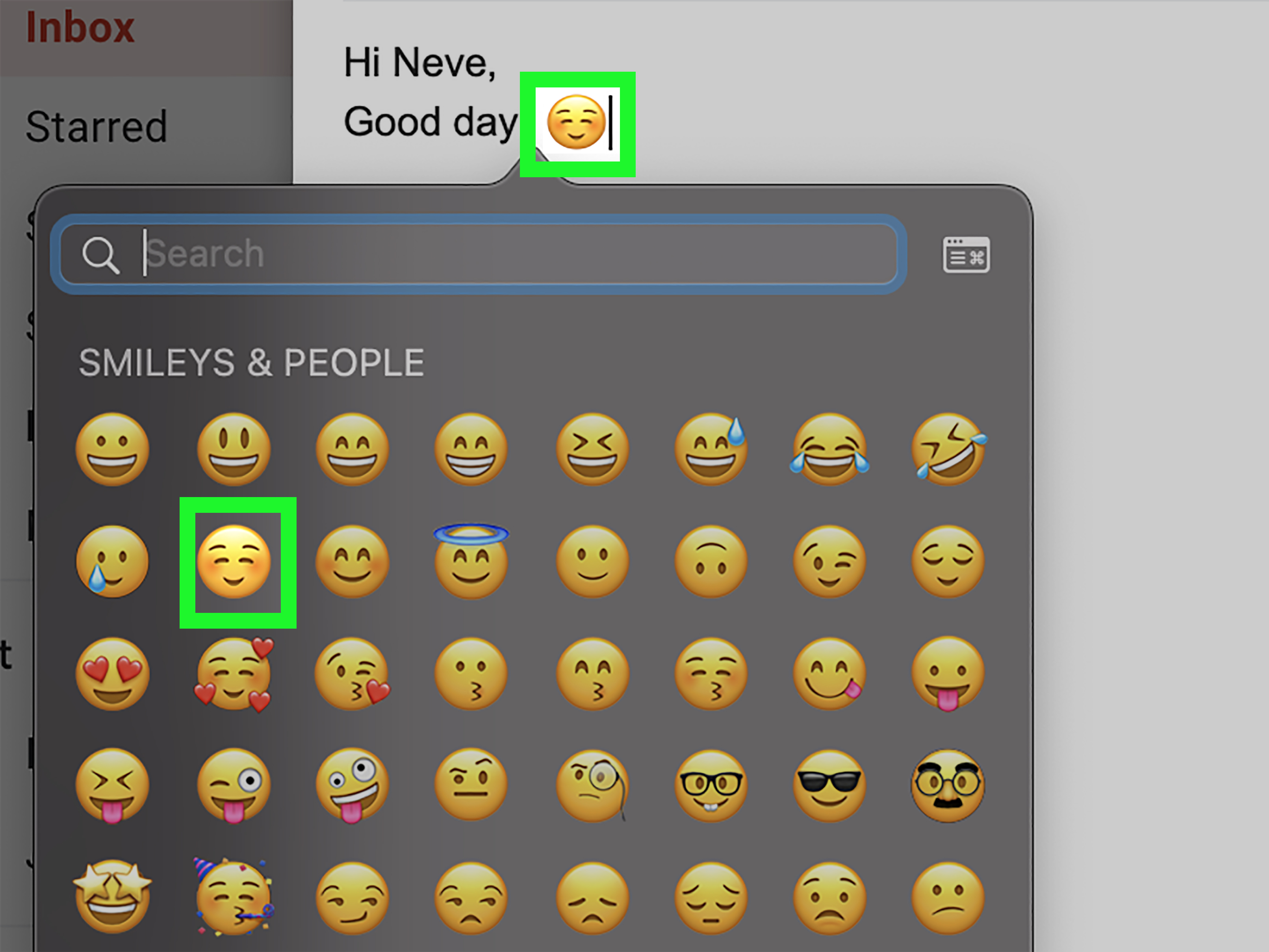
Mac users have one of the best built-in symbol tools: the Character Viewer. It works across Apple Mail, Outlook for Mac, Gmail in a browser, Pages, Notes, and many other apps.
Use the Mac Character Viewer
- Open your email message.
- Click where you want the symbol.
- Press Control + Command + Space.
- Search for a symbol, emoji, or character name.
- Click or double-click the character to insert it.
You can search for words like “copyright,” “degree,” “arrow,” “check,” “currency,” or “heart.” If the viewer opens in a compact form, expand it to browse more categories, including punctuation, math symbols, arrows, technical symbols, letterlike symbols, and accented characters.
Use the Fn or Globe Key Shortcut
On many modern Macs, pressing the Fn key or Globe key can open emoji and symbols, depending on your keyboard settings. Some Apple instructions also refer to Fn + E or the Globe key shortcut for emoji and symbols. If the shortcut does not work, use Control + Command + Space, which remains widely recognized and reliable.
Use Long Press for Accented Letters
For accented letters, macOS makes things simple. Hold down a letter key, such as e, a, o, or n, and a small accent menu may appear. Choose the number or click the accented character you want, such as é, è, ê, ñ, or ö.
This is excellent for names, locations, and multilingual communication. In email, spelling someone’s name correctly is more than a technical detail. It is a tiny courtesy with a surprisingly large impact.
Use Option Key Shortcuts
Mac also includes Option key combinations for many common symbols. For example, Option + 2 may produce ™ on U.S. keyboards, Option + G may produce ©, and Option + Shift + 8 may produce °. These shortcuts can vary by keyboard layout, so check the Keyboard Viewer if something does not match your setup.
Common Email Symbols and When to Use Them
| Symbol | Name | Best Email Use |
|---|---|---|
| © | Copyright | Legal notices, creative work, brand material |
| ® | Registered Trademark | Registered brand names |
| ™ | Trademark | Product names, slogans, brand references |
| ° | Degree | Weather, temperature, angles |
| ✓ | Check Mark | Completed tasks, confirmations, checklists |
| → | Right Arrow | Directions, process steps, transitions |
| • | Bullet | Lists and quick summaries |
| € | Euro | International pricing |
| £ | Pound | UK pricing |
| ± | Plus-Minus | Measurements, estimates, technical notes |
How to Insert Symbols in Email Subject Lines
You can insert symbols in subject lines the same way you insert them in the body of an email. On Windows, click the subject line and use Windows key + .. On Mac, click the subject line and use Control + Command + Space.
That said, be careful. A clean check mark in a subject line, such as “✓ Contract Approved,” may help the message stand out. But a subject line like “🔥✨🚀 HUGE UPDATE!!! 🚀✨🔥” can look spammy, especially in professional settings. Email providers, spam filters, and human readers all prefer clarity over circus energy.
Best Practices for Using Symbols in Professional Emails
Keep Symbols Purposeful
Use symbols to clarify meaning, not to decorate every sentence. A check mark beside a completed task is helpful. Six stars around a meeting reminder are not.
Test Important Emails
If you are sending a newsletter, proposal, contract note, or customer-facing campaign, send a test email first. Open it on desktop and mobile. Some symbols display differently depending on the device, email client, operating system, or font.
Use Standard Unicode Symbols
Common Unicode characters such as ©, ®, ™, °, €, £, →, and ✓ usually display well across modern email clients. Decorative symbols, rare glyphs, and unusual font-based icons are more likely to appear as empty boxes or question marks.
Do Not Rely on Symbols Alone
Accessibility matters. A symbol may not be read clearly by screen readers, and some recipients may not visually interpret it the same way. Instead of writing only “✓,” write “✓ Approved” or “Completed: approved.” This keeps the message understandable for more people.
Avoid Symbol Overload in Marketing Emails
A few symbols can improve scanability. Too many can reduce trust. For marketing emails, use symbols sparingly in subject lines, buttons, and bullet lists. The symbol should support the message, not do jazz hands in front of it.
Troubleshooting: Why Symbols Do Not Display Correctly
The Recipient Sees a Box or Question Mark
This usually means the recipient’s device, email app, or font does not support the character. Try replacing the symbol with a more common Unicode character or plain text.
The Symbol Looks Different on Another Device
Emoji and some symbols are rendered by the operating system. A smiley face on Windows may look different on iPhone, Android, or Mac. For professional email, avoid relying on exact emoji appearance.
Alt Codes Are Not Working
Alt codes often require a numeric keypad. If your laptop does not have one, use the Windows emoji and symbols panel or Character Map. Also check whether Num Lock is enabled.
Outlook Does Not Show the Insert Symbol Button
The new Outlook for Windows may not present the same Insert Symbol feature as classic Outlook. Use the Windows symbol panel with Windows key + ., copy from Character Map, or use a saved symbol snippet.
The Email Changes Formatting After Pasting
If pasted symbols bring unwanted font styling, paste as plain text when possible. You can also type the surrounding text first, insert the symbol, and then apply formatting afterward.
Practical Examples of Symbols in Emails
Project Update Email
Subject: ✓ Website Draft Ready for Review
Body example: “Hi Jordan, the homepage draft is ready. ✓ Copy has been edited, ✓ images are compressed, and → the next step is design review.”
Customer Service Email
Subject: Order Update: Refund Processed
Body example: “Your refund of $49.99 has been processed. Please allow 3–5 business days for it to appear on your statement.”
Technical Email
Body example: “The system temperature remained at 72°F ± 2°F during testing.”
In each example, the symbol makes the message clearer. It does not distract from the point. That is the sweet spot.
Experience-Based Tips for Inserting Symbols in Emails
After working with email content across business writing, newsletters, internal updates, and client communication, one lesson becomes obvious: the best symbol is the one nobody has to think about. If a symbol helps the reader understand the message faster, it earns its place. If it makes the reader pause and wonder what you meant, it probably needs to go.
For everyday Outlook users, the Windows symbol panel is the most practical habit to build. It is faster than opening a browser and searching “copyright symbol copy paste” for the hundredth time. Once you memorize Windows key + ., you can insert symbols into the subject line, email body, calendar invites, chat messages, and even file names. It becomes one of those tiny productivity tricks that feels almost too simple to brag about, although people will still be impressed when you produce an em dash on command like a keyboard wizard.
For Mac users, the Character Viewer is equally powerful. The search function is especially useful. Instead of scrolling through endless symbols, type what you want: “degree,” “check,” “arrow,” “copyright,” or “euro.” This is much easier than remembering Option-key shortcuts, especially if you switch between keyboards or use different language layouts. The long-press accent menu is also a lifesaver when writing names. A correctly typed José, Chloë, or François looks respectful and polished. A missing accent may not ruin the email, but adding it shows attention to detail.
In professional emails, I recommend creating a small personal symbol kit. Keep five to ten symbols you actually use in a notes app or text expander: ©, ®, ™, °, ✓, →, –, , €, and £. This prevents random symbol hunting and keeps your communication consistent. If you work in marketing, add approved brand symbols. If you work in technical documentation, add measurement signs, Greek letters, or math symbols you use often. If you work in operations, check marks, arrows, and bullets may become your quiet little army of order.
One common mistake is using emoji when a plain symbol would be better. Emoji can be friendly, but they are also more visually unpredictable. A simple check mark often looks cleaner than a colorful emoji check button. A plain arrow is usually better than a dramatic pointing hand. For formal email, legal notes, proposals, and executive updates, choose standard symbols over playful emoji. Save the party popper for team celebrations, not invoice reminders.
Another experience-based rule: test symbols in email templates before sending them at scale. A symbol that looks great in Outlook on your desktop may appear differently in Gmail on a phone. This matters in newsletters, sales campaigns, and automated sequences. Send test messages to multiple devices, especially if the symbol appears in the subject line, preview text, call-to-action button, or signature. Small display issues can make a polished email look oddly broken.
Finally, remember that symbols are seasoning, not the meal. The message still needs clear writing, a useful subject line, and a logical structure. Symbols can make an email easier to scan, but they cannot rescue a confusing paragraph. Use them with intention, and they will quietly make your emails sharper, cleaner, and more reader-friendly.
Conclusion
Learning how to insert symbols in emails is a simple skill with a big payoff. In Outlook, Windows, and Mac, you have built-in tools that make special characters easy to find and use. Windows users can rely on the emoji and symbols panel, Character Map, Alt codes, and Microsoft Unicode shortcuts. Mac users can use the Character Viewer, long-press accents, Fn or Globe key options, and Option-key shortcuts. Outlook users can combine these system tools with classic Insert Symbol features when available.
The smartest approach is to choose the method that fits your workflow. Use quick keyboard shortcuts for everyday symbols, Character Map or Character Viewer for harder-to-find characters, and plain text alternatives when compatibility matters. Add symbols thoughtfully, test important emails, and avoid turning your subject line into a fireworks display. Your readers will thank you, even if they never know why your emails suddenly feel easier to read.