Note: This guide is written for regular PC players who suddenly see “Failure: No licenses,” “No license found,” or a similar Steam launch error even though the game looks installed. The goal is simple: confirm ownership, refresh Steam’s account data, repair the client, and avoid wasting an entire evening yelling at a progress bar.
What Does the Steam “No Licenses” Error Mean?
The Steam “No Licenses” error usually means Steam cannot confirm that the account currently logged in has permission to launch the game. In plain English, Steam is saying, “I see the game files, but I do not see the right license attached to this account.” It is not always a purchase problem. Sometimes the issue is caused by the wrong account, a stuck login session, Steam Family sharing limits, corrupted local files, a firewall blocking Steam, an expired free weekend license, or a temporary Steam network hiccup.
This is why the error can feel so strange. The game may still sit proudly in your Steam library. The install folder may still be full of files. You may even have hours of playtime. But if Steam cannot match that game to an active license, it will refuse to launch it. Digital game ownership is handled through account licenses, not just local installation files. Your PC having the files is like owning a car-shaped object in your garage; Steam still wants to see the keys.
The good news: in most cases, this error is fixable without reinstalling Windows, sacrificing your keyboard, or writing an angry poem about DRM. Start with the simple account checks below, then move through the deeper troubleshooting steps only if needed.
Common Causes of the Steam “No Licenses” Error
The fastest way to fix the problem is to understand where it is coming from. The Steam no licenses error often appears because of one of these situations:
- You are logged into the wrong Steam account.
- The game was borrowed through Steam Families or older Family Sharing, and the shared license is unavailable.
- The game came from a free weekend, beta, demo, subscription, or temporary access period that has ended.
- The purchase, gift, or key activation did not complete correctly.
- Steam’s local cache is outdated and needs to sync with the account again.
- Steam is blocked by firewall, antivirus, VPN, proxy, or unstable network settings.
- The installed game files are damaged or Steam cannot detect the correct library folder.
- Steam servers are temporarily unavailable or too busy.
Do not start by deleting the whole game. That is the troubleshooting equivalent of burning the kitchen because the toaster made a weird noise. Work from the least destructive fixes to the more serious ones.
Fix 1: Make Sure You Are Logged Into the Correct Steam Account
This sounds obvious, but it is one of the most common causes. Many players have more than one Steam account: an old account, a shared family PC account, an account used for free games, or an account created years ago with an email address they barely remember. If you bought the game on Account A but are logged into Account B, Steam may show installed files while still refusing to launch the game.
How to check
- Open Steam.
- Click your profile name in the top-right corner.
- Confirm the username and email match the account that purchased or activated the game.
- Go to Account Details and review your purchase history.
- Search for the game in your purchase list or license list.
If the purchase is not there, you may be on the wrong account. Try signing out and logging into any other Steam account you have used before. For gifts, check whether the gift was accepted by this account or another account. For product keys, confirm the key was activated on the account you are using now.
Fix 2: Check Whether the Game Was Shared Through Steam Families
Steam Families lets eligible family members access shared games, but not every game can be shared. Some titles are excluded because of technical restrictions, third-party launchers, subscription requirements, anti-cheat rules, regional limits, or publisher decisions. If the game was never actually owned by your account, the “No Licenses” error may appear when the shared copy is unavailable.
Shared licenses can also be affected by family settings. If another family member owns only one copy of the game and the rules for that title prevent simultaneous access, you may need to wait, buy your own copy, or ask the owner to check the family configuration. If the game now says “Purchase” instead of “Play,” that is a strong hint that Steam no longer sees an accessible license for your account.
What to do
- Open Steam and go to Settings.
- Check the Family section.
- Confirm you are still part of the correct Steam Family.
- Ask the owner to confirm the game is still in their library.
- Check whether the specific game supports family sharing.
If the game is not shareable, there is no client-side magic trick that will make Steam treat it as yours. In that case, the clean solution is to purchase the game on your own account or use the owner’s account only where appropriate and allowed.
Fix 3: Restart Steam Completely
Sometimes Steam simply needs to refresh its session. Closing the window is not always enough because Steam may continue running in the background. A full restart forces the client to reconnect, reload account licenses, and rebuild some temporary state.
Steps
- Click Steam in the top-left corner.
- Select Exit.
- Open Task Manager and make sure steam.exe is not still running.
- Launch Steam again.
- Sign in and try the game.
If you are using a Steam Deck, gaming handheld, or remote streaming setup, also restart the device. A clean reboot can fix license checks that get stuck between online and offline states.
Fix 4: Sign Out and Sign Back Into Steam
If restarting does not work, sign out completely. This can refresh the account token Steam uses to confirm your licenses. It is especially useful if you recently bought the game, redeemed a code, accepted a gift, changed password, enabled Steam Guard, moved to another PC, or switched networks.
- Open Steam.
- Click your profile name.
- Select Sign out of account.
- Close Steam.
- Reopen Steam and sign in again.
After signing in, check the game page in your library. If the button changes from “Purchase” back to “Play,” the license has refreshed. If it still says “Purchase,” move to purchase verification.
Fix 5: Confirm the Purchase, Gift, or Product Key
A Steam game license comes from a completed store purchase, accepted gift, wallet transaction, retail key, bundle key, or another authorized source. If the payment failed, was refunded, was charged back, or was activated on another account, Steam may not grant launch permission.
Check purchase history
- Go to Account Details.
- Open Purchase History.
- Find the game or bundle.
- Confirm the transaction status is complete.
If the game was bought as part of a bundle, make sure the exact title is included. Some editions include DLC, soundtracks, test branches, or launchers that look similar in the library but do not grant access to the base game. Yes, the naming can be confusing. Game editions sometimes multiply like gremlins after midnight.
If the purchase is missing but you are certain you paid, search your email for Steam receipts. Use the receipt date, transaction ID, or payment method details when contacting Steam Support. If the game came from a key seller, confirm the key was legitimate and activated successfully on your account. Steam Support can help with Steam account issues, but it cannot turn a bad third-party key into a valid license.
Fix 6: Check If the Game Was Removed, Hidden, or Installed Under Another Library Folder
Sometimes the game is not truly gone; it is hidden, filtered, or installed in a library folder Steam is not currently detecting. If your library view is filtered to “Ready to Play,” “Installed locally,” or a custom collection, the game may appear missing or behave oddly.
Try this
- Open your Steam Library.
- Clear search and filters.
- Click View and check Hidden Games.
- Go to Settings > Storage.
- Confirm the drive containing your Steam library is listed.
If your installed games appear uninstalled, add the correct Steam library folder back in Storage settings. This does not directly create a missing license, but it can prevent Steam from launching the right files and may make the problem look like a license issue.
Fix 7: Verify Integrity of Game Files
If Steam confirms the license but the game still throws a “No Licenses” message at launch, verify the installed files. This process checks the local game installation and replaces missing or corrupted files. It is especially helpful after a failed update, sudden shutdown, antivirus quarantine, disk error, or interrupted download.
How to verify game files
- Open Steam Library.
- Right-click the game.
- Select Properties.
- Open Installed Files.
- Click Verify integrity of game files.
Let Steam finish before launching the game. If it finds broken files, it will download replacements. Do not panic if one or two files fail validation for certain games; some files are generated locally. But if Steam repairs a large chunk of the installation, that may have been the reason the launcher could not validate properly.
Fix 8: Clear the Steam Download Cache
The Steam download cache stores temporary data used for downloads and updates. When this cache gets stale, Steam may behave as if a game is half-installed, not updated, or not properly linked to your account. Clearing it is a safe step because it does not delete installed games, but it will require you to sign back in.
Steps
- Open Steam.
- Go to Settings.
- Open Downloads.
- Select Clear Download Cache.
- Restart Steam and sign in again.
After clearing the cache, try launching the game again. This is one of those fixes that feels too simple to work, but sometimes Steam just needs its digital junk drawer cleaned out.
Fix 9: Disable VPN, Proxy, or Unstable Network Routing Temporarily
Steam needs to talk to its servers to validate licenses, download updates, and sync account information. A VPN, proxy, strict DNS filter, school network, office network, hotel Wi-Fi, or overprotective router can interfere with that connection. If Steam cannot reliably reach the Steam network, license validation may fail.
What to test
- Turn off VPN temporarily.
- Disable proxy settings unless you specifically need them.
- Restart your router.
- Try a different network, such as a mobile hotspot.
- Switch from Wi-Fi to Ethernet if possible.
If the error disappears on another network, your original network is likely blocking or filtering Steam traffic. In that case, adjust router settings, remove aggressive DNS filtering, or use a normal home network connection for Steam updates and license checks.
Fix 10: Allow Steam Through Firewall and Security Software
Firewalls and antivirus tools are useful, but sometimes they get dramatic. If Windows Security, a third-party firewall, or antivirus software blocks Steam, the client may fail to contact the Steam network. That can cause login issues, update errors, and license validation problems.
Recommended approach
Do not permanently disable your firewall just to launch a game. A safer approach is to allow trusted Steam applications through the firewall. Check that Steam and the affected game are allowed on private networks. If you use third-party security software, add Steam’s installation folder and the game folder as trusted exceptions only if you are confident they are legitimate files.
Files commonly involved
- steam.exe
- steamwebhelper.exe
- The game’s main executable file
- Third-party launchers used by the game, such as publisher launchers
After changing security settings, restart Steam. If your antivirus quarantined a game executable, restore it only after confirming it is safe, then verify the game files through Steam.
Fix 11: Check Third-Party Launchers
Some Steam games rely on additional launchers from publishers. If that launcher cannot detect the Steam license, the game may produce a “No Licenses” style error even when Steam itself looks fine. This can happen with games that require separate accounts, online activation, platform linking, or launcher updates.
Open the publisher launcher directly and confirm you are signed into the correct linked account. Then close both Steam and the publisher launcher completely. Reopen Steam first, launch the game from Steam, and let Steam trigger the publisher launcher. This order matters because some launchers need Steam’s ownership token passed during startup.
If you recently changed your publisher account, unlinked accounts, moved regions, or accepted a new terms-of-service prompt, check the publisher’s account page. The problem may not be your Steam license; it may be the secondary launcher failing to recognize it.
Fix 12: Turn Off Steam Beta Participation or Update Steam
Steam client updates can fix bugs, but beta builds can sometimes introduce weird behavior. If you are in a Steam beta branch and the “No Licenses” error started after an update, switch back to the stable client.
How to leave Steam Beta
- Open Steam.
- Go to Settings > Interface.
- Find beta participation settings.
- Select the stable option or opt out.
- Restart Steam when prompted.
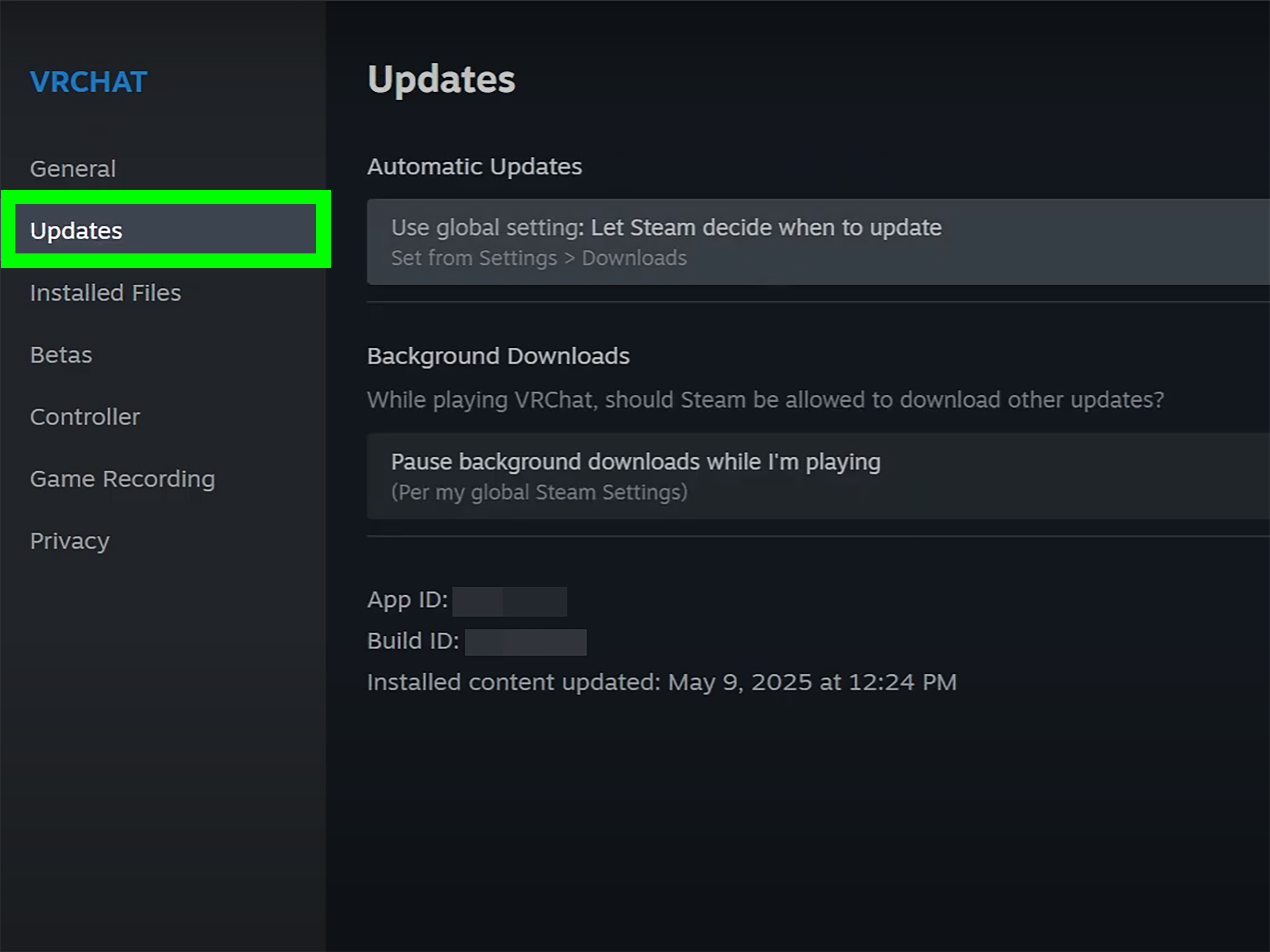
If you are not using beta, do the opposite: make sure Steam is fully updated. Click Steam > Check for Steam Client Updates. A stale client can behave badly with newer account, family, or license systems.
Fix 13: Avoid Offline Mode Until the License Works Online
Steam Offline Mode is useful for single-player games, travel, and unreliable connections. However, it depends on Steam already having the right account and license information stored locally. If Steam never validated the license properly while online, Offline Mode may not help.
For troubleshooting, go online first. Sign in, let Steam sync, launch the game successfully once, and only then use Offline Mode if the game supports it. If the title requires a constant online connection or a third-party launcher login, Offline Mode may not be supported no matter how much you glare at the screen.
Fix 14: Reinstall Steam Without Deleting Your Games
If nothing works, repair Steam itself. Before reinstalling, back up important folders and avoid deleting your game library by accident. Steam can often be reinstalled over itself, but cautious players should protect their steamapps folder first because that is where installed games usually live.
Safe reinstall idea
- Close Steam completely.
- Go to your Steam installation folder.
- Back up the steamapps folder.
- Uninstall Steam or reinstall the client.
- Restore or re-add your Steam library folder.
After reinstalling, sign in, check your purchase history, and test the game. This step should be near the end of the process, not the beginning. Reinstalling Steam is useful, but it is not a substitute for confirming that the license exists on the account.
Fix 15: Contact Steam Support With the Right Details
If the license is missing from your account but you have proof of purchase, contact Steam Support. Include the game title, purchase date, transaction ID if available, payment method, gift information, and screenshots of the error. If a product key was involved, mention where it came from and whether it was successfully activated.
Keep the message clear and calm. “Steam stole my game” may feel satisfying for three seconds, but “The game appears in my receipt history but now shows No Licenses on launch” is far more useful. Support teams solve mysteries faster when the clues are organized.
Quick Troubleshooting Checklist
- Confirm you are on the correct Steam account.
- Check purchase history and license activation.
- Look for hidden games or library filters.
- Verify whether the game is owned or shared through Steam Families.
- Restart Steam fully, then sign out and back in.
- Clear Steam download cache.
- Verify game files.
- Disable VPN or proxy temporarily.
- Allow Steam through firewall and antivirus tools.
- Update Steam or leave beta participation.
- Launch online before trying Offline Mode.
- Contact Steam Support if the license is missing despite a valid purchase.
Real-World Experience: What Usually Works First
In real troubleshooting, the Steam “No Licenses” error is rarely solved by one dramatic masterstroke. It is usually solved by noticing one small mismatch. The most common mismatch is account ownership. A player installs a game years ago, forgets which account bought it, logs into a newer account, and Steam politely ruins the evening. The files are there, the shortcut is there, but the license is not. Before touching files, always check the purchase history. It is boring, but boring fixes are often undefeated.
The second common situation is shared access. Steam Families is convenient, but shared games are not the same as owned games. If a game leaves the shared library, becomes unavailable for sharing, or requires an extra launcher account, the player can suddenly see a purchase button where a play button used to be. This feels like a bug, but it may be Steam enforcing license rules. The practical lesson is simple: if a game matters to you and you play it constantly, owning your own copy is more reliable than depending on shared access.
Another pattern appears after major updates. A game updates, Steam restarts, the publisher launcher updates, and then the whole chain forgets how to shake hands. In that case, the best fix is usually a clean sequence: exit Steam, close the publisher launcher, restart the PC, open Steam first, and launch the game from the Steam library. Do not launch from a desktop shortcut first. The shortcut may bypass the exact startup path the game needs to receive Steam’s license token.
Network-related cases are sneakier. A VPN can work beautifully for browsing but still make Steam license checks unreliable. Hotel Wi-Fi, school networks, and workplace firewalls can also block the background connections Steam needs. If you are troubleshooting on a restricted network, try a home network or mobile hotspot before reinstalling anything. A five-minute network test can save a fifty-gigabyte download. Your SSD will thank you, quietly but sincerely.
File verification is another high-value step, especially when the error appears after a crash, forced shutdown, or antivirus warning. Steam’s verification tool is not glamorous, but it is one of the safest repairs available. It checks the installed files and reacquires missing pieces without deleting your saves in most normal cases. Still, for games with local saves, it is smart to confirm Steam Cloud status or back up save folders before making major changes.
The biggest mistake is jumping straight to uninstalling the game. Reinstalling can help if the installation is damaged, but it will not fix a missing account license. If Steam says the account has no license, downloading the same files again is like photocopying a concert ticket you never bought. It creates more paper, not more permission. Confirm ownership first, repair files second, reinstall last.
For players who maintain several Steam libraries across multiple drives, storage settings matter too. If Steam loses track of a library folder, games can appear uninstalled or behave strangely. Re-adding the library folder through Steam’s Storage settings is cleaner than manually moving folders around. Manual folder surgery can work, but it is also how many people accidentally create a beautiful museum of broken shortcuts.
Finally, keep your support evidence organized. Save receipts, transaction IDs, screenshots, and dates. If you contact Steam Support, include the exact wording of the error and what you already tried. A good report might say: “I purchased this game on March 4, it appears in my purchase history, but launching it today shows ‘Failure: No licenses.’ I have restarted Steam, signed out and back in, and verified files.” That kind of message gives support a clear trail to follow.
The short version from experience: account first, sharing second, network third, files fourth, support last. Follow that order and the Steam “No Licenses” error becomes less of a monster and more of a checklist with a bad attitude.
Conclusion
The Steam “No Licenses” error can look scary, but it usually comes down to a license mismatch, a shared-library limitation, a stale Steam session, damaged files, or a blocked connection. Start with the basics: confirm the right account, check purchase history, review Steam Families access, restart Steam, and sign in again. Then move to cache clearing, file verification, firewall checks, VPN testing, and Steam client repair.
The most important rule is to troubleshoot in order. Do not reinstall a 120 GB game before checking whether the account owns it. Do not disable every security feature before testing a different network. Do not panic when Steam says “No Licenses”; Steam is not insulting your character, just failing to confirm permission. With a careful step-by-step approach, most players can get back to the important business of collecting achievements, ignoring backlogs, and promising themselves they will not buy another game until the next sale.