Your WhatsApp profile is tiny, but it works hard. It is your digital handshake, your “yes, this is really me” sign, and occasionally the place where you remind the world that you are “Busy” even though you are absolutely watching snack videos. Whether you want to change your profile picture, update your display name, or refresh your WhatsApp bio, the whole process is simple once you know where to tap.
This guide walks you through how to edit your profile in WhatsApp on iPhone, Android, WhatsApp Web, and desktop. You will also learn what each profile field does, how privacy settings affect who can see your information, what to do if your changes do not show up, and how to make your profile look polished without turning it into a billboard.
Quick Answer: How to Edit Your WhatsApp Profile
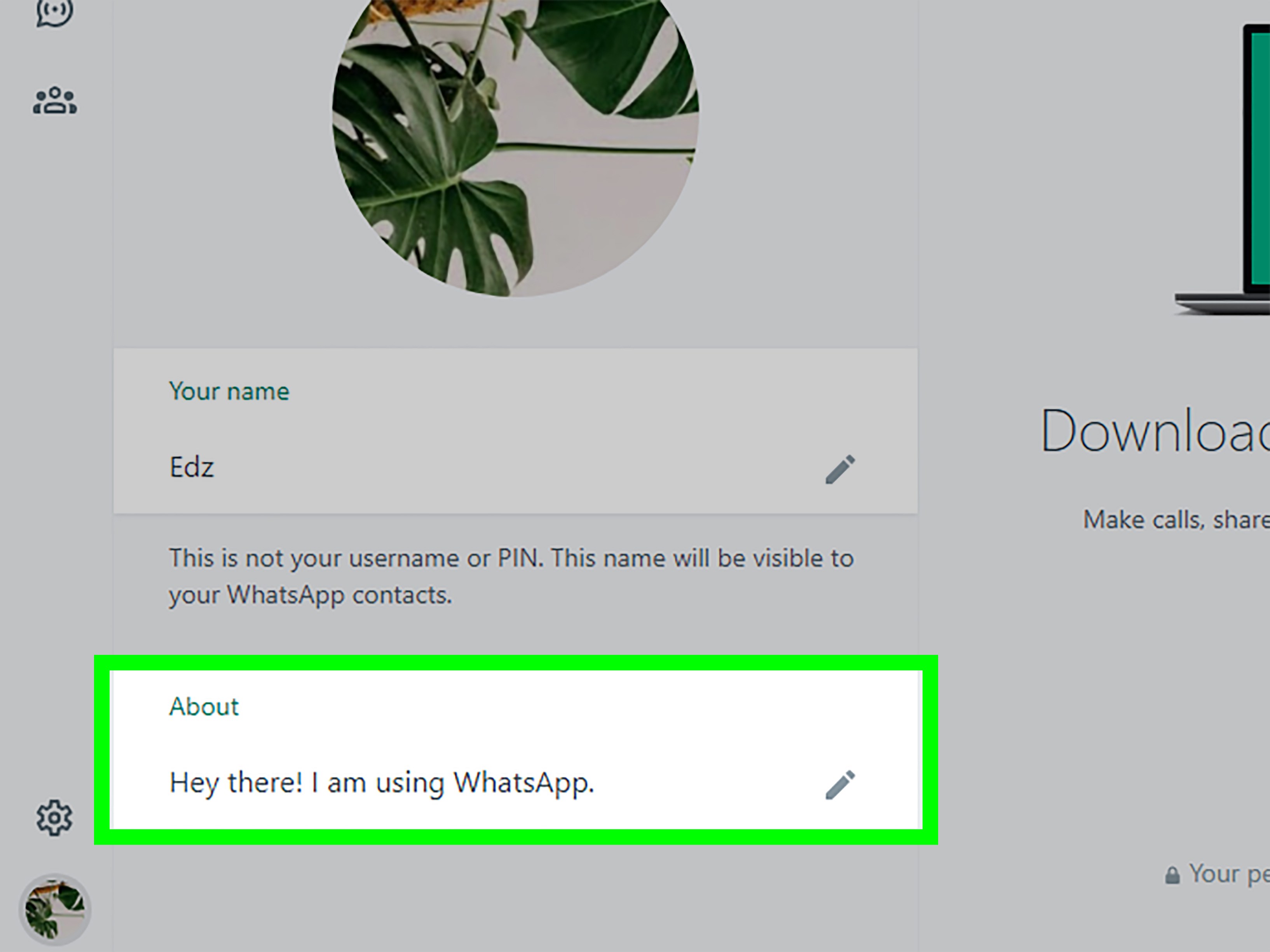
To edit your WhatsApp profile, open WhatsApp, go to Settings, tap your profile picture or name, and then update your photo, name, or About section. On Android, Settings usually lives behind the three-dot menu in the top-right corner. On iPhone, Settings is usually at the bottom-right of the app. On WhatsApp Web or desktop, click your profile photo to edit your profile details.
Your WhatsApp profile has three main public-facing pieces: your profile picture, your name, and your About message, often called a bio. Your name has a 25-character limit, and your About section allows a short message with emoji. In other words, WhatsApp gives you enough space to identify yourself, but not enough space to publish your memoir. Honestly, that is probably for the best.
What Your WhatsApp Profile Includes
1. Profile Picture
Your WhatsApp profile picture is the circular image people see when they open your chat, view your contact details, or see you in some group contexts. It can be a selfie, logo, pet photo, landscape, cartoon avatar, or that one vacation picture where the lighting did the work of three photographers.
2. Profile Name
Your WhatsApp name helps identify you, especially to people who have not saved your phone number in their contacts. For example, if you join a group chat and someone does not have your number saved, your profile name may help them understand who you are. Keep it recognizable, clear, and not too mysterious unless your goal is to be known only as “Moon Sandwich 47.”
3. About or Bio
The About section is WhatsApp’s short bio field. It can say something practical like “Available after 5 PM,” something classic like “Hey there! I am using WhatsApp,” or something more personal like “Coffee, deadlines, and dog photos.” It is small, but useful.
How to Change Your WhatsApp Profile Picture
Changing your WhatsApp profile picture is one of the fastest ways to make your account feel current. Maybe you got a new haircut. Maybe your old profile photo is from 2016 and your phone camera had the emotional range of a toaster. Either way, here is how to update it.
On iPhone
- Open WhatsApp.
- Tap Settings in the bottom-right corner.
- Tap your name or profile photo at the top.
- Tap Edit near your profile picture.
- Choose whether to take a new photo, select one from your photo library, use an avatar if available, or remove the current photo.
- Crop and position the image so it looks good inside the circle.
- Save the change.
On Android
- Open WhatsApp.
- Tap the three-dot menu in the top-right corner.
- Select Settings.
- Tap your profile picture or name.
- Tap the camera icon or edit option on your profile photo.
- Choose Camera, Gallery, Avatar, or Remove photo, depending on the options shown on your device.
- Adjust the crop and save your new profile picture.
On WhatsApp Web or Desktop
- Open WhatsApp Web or the WhatsApp desktop app.
- Click your profile picture or profile area.
- Click your current photo.
- Upload a new image from your computer, take a photo if supported, or remove the existing picture.
- Crop and confirm the update.
Tips for Choosing a Good WhatsApp Profile Picture
A good WhatsApp profile photo does not need to look like a magazine cover. It just needs to be clear, recognizable, and appropriate for the people who may see it. If you use WhatsApp for family and friends, a casual photo is fine. If you use it for work, freelance clients, or business contacts, choose something friendly and professional.
- Use a clear image: Avoid blurry, dark, or heavily filtered photos.
- Center your face or subject: WhatsApp crops profile photos into a circle, so important details near the corners may disappear.
- Avoid tiny text: Text in profile pictures usually becomes unreadable.
- Think about privacy: If you do not want strangers seeing your face, use an avatar, initials, logo, or neutral image.
- Keep it current: A photo from ten years ago may confuse people, especially if you use WhatsApp for networking.
How to Change Your WhatsApp Name
Your WhatsApp name is not the same as your phone number, and it does not automatically change the name other people saved for you in their contacts. If your friend saved you as “Mike Gym Guy,” your updated WhatsApp name will not magically rescue you from that label. However, your profile name can still help people identify you in group chats and when they do not already have your number saved.
On iPhone
- Open WhatsApp.
- Tap Settings.
- Tap your profile name or profile picture.
- Tap the Name field or edit icon.
- Enter your new name.
- Tap Done or Save.
On Android
- Open WhatsApp.
- Tap the three-dot menu.
- Go to Settings.
- Tap your profile area.
- Tap the edit icon next to Name.
- Type your new name.
- Tap Save.
Best WhatsApp Name Examples
For personal use, your first name and last initial often work well, such as “Sarah M.” or “Daniel Lee.” For work, use the name clients or colleagues recognize, such as “Maya Chen” instead of “Mayaaaaa.” For small businesses, use your brand name if you are using WhatsApp Business, such as “Bright Bloom Studio” or “Rivera Repairs.”
Because the WhatsApp name field is short, avoid cramming in slogans, phone numbers, job titles, and five emojis. A name should identify you quickly. Save the personality confetti for your About section.
How to Edit Your WhatsApp Bio or About Section
WhatsApp calls the bio field About. This short message appears on your profile and can help explain your availability, mood, role, or personality. It is small, but surprisingly useful. Think of it as the front porch sign of your WhatsApp account.
On iPhone
- Open WhatsApp.
- Tap Settings.
- Tap your profile name or photo.
- Tap About.
- Select a preset option or write your own custom message.
- Save the update.
On Android
- Open WhatsApp.
- Tap the three-dot menu.
- Choose Settings.
- Tap your profile area.
- Tap About or the edit icon beside it.
- Choose a preset About message or type your own.
- Tap Save.
WhatsApp Bio Ideas
If you want your WhatsApp bio to be useful, match it to how you use the app. Here are a few simple examples:
- Professional: “Available Mon-Fri, 9-5.”
- Friendly: “Coffee first, replies second.”
- Minimal: “Online when needed.”
- Travel: “Roaming. Replies may be slow.”
- Student: “Studying. Send snacks.”
- Business: “Orders open. Replying soon.”
- Privacy-focused: “Message before calling.”
The best WhatsApp bio is short, clear, and not trying too hard. A little personality is great. A seven-part philosophical statement about destiny may be better suited for a journal, a novel, or a dramatic balcony scene.
How to Control Who Can See Your WhatsApp Profile Picture and Bio
Editing your profile is only half the job. The other half is deciding who gets to see it. WhatsApp includes privacy controls for profile details such as your profile photo and About information. This matters because your profile picture might be personal, your About message might reveal your availability, and not every random number deserves a front-row seat to your life.
How to Change Profile Privacy Settings
- Open WhatsApp.
- Go to Settings.
- Tap Privacy.
- Choose Profile Photo, About, or another privacy category.
- Select who can see that information.
Depending on your app version and region, you may see options such as Everyone, My Contacts, My Contacts Except…, or Nobody. For most people, My Contacts is a sensible middle ground. If you use WhatsApp for public selling, community groups, or business inquiries, you may choose broader visibility. If you are privacy-focused, keep things tighter.
Common Problems When Editing a WhatsApp Profile
Your New Profile Picture Does Not Show Up
If your new profile picture does not update immediately, check your internet connection first. Then close and reopen WhatsApp. If that does not work, update the app from the App Store or Google Play. In some cases, contacts may not see your new picture because of your privacy settings, their app cache, or because they are not in your contact list.
WhatsApp Cannot Access Your Photos
If WhatsApp cannot open your photo gallery, your phone may be blocking photo permissions. On iPhone, go to your device Settings, find WhatsApp, and check Photos permission. On Android, go to your device Settings, open Apps, choose WhatsApp, and review Permissions. Once photo access is allowed, return to WhatsApp and try again.
Your Picture Looks Cropped Weirdly
WhatsApp displays profile pictures in a circular frame. If your image has important details near the edges, they may be cut off. Use a photo where the main subject is centered. If needed, edit the image first in your phone’s photo app by adding space around the subject.
Your Name Will Not Save
If your name does not save, check whether it is too long. WhatsApp limits profile names, so keep it concise. Also avoid unusual characters that may not display properly on every device.
Your About Message Feels Too Short
That is normal. WhatsApp’s About section is designed to be brief. Instead of writing a full biography, use it for a quick status, availability note, or personal phrase. Short bios are easier to read anyway. Nobody opens WhatsApp hoping to scroll through a tiny autobiography called “My Journey, Part One.”
WhatsApp Profile Editing for Business Users
If you use WhatsApp Business, your profile matters even more. Customers may check your profile before they message, order, book, or ask a question. A clean profile picture, accurate business name, and helpful bio can make your account look more trustworthy.
For a business profile picture, use a logo or a clear product-related image. For your name, use your real brand name, not a keyword-stuffed phrase like “Best Cheap Fast Amazing Cakes Near Me.” For your bio, explain what you do in plain language: “Custom cakes in Austin. Orders by appointment.” Simple beats noisy every time.
Business users should also make sure hours, catalog items, address, and greeting messages are updated where available. Your WhatsApp profile should answer basic questions before the customer has to ask them. That saves time, reduces confusion, and makes you look organized, which is basically business magic with fewer rabbits.
Security and Privacy Best Practices
Before you upload a profile photo or write a bio, think about what strangers could learn from it. A school logo, home address, workplace badge, license plate, or child’s face may reveal more than you intended. If you join large groups, community chats, marketplace groups, or international groups, your profile may be seen by people you do not know.
A safer approach is to use a neutral image, limit profile photo visibility to contacts, and keep your About message general. Instead of “Home alone until 10 PM,” write “Replies later.” Instead of listing your full workplace and schedule, use something simple like “Available during business hours.” The goal is not to be paranoid. The goal is to avoid handing out personal details like free samples at a grocery store.
Practical Experience: What Works Best When Updating a WhatsApp Profile
In everyday WhatsApp use, the best profiles are usually the simplest ones. People often think they need a perfect photo, a clever name, and a bio that sounds like it was written by a motivational calendar. They do not. What matters most is recognition. If your friends, clients, classmates, or relatives can quickly tell that the account belongs to you, your profile is doing its job.
A common experience is that people change their profile picture for a special event, then forget about it for months. A wedding photo, graduation photo, holiday picture, or vacation selfie can be great, but it may also become confusing later. If you use WhatsApp mostly with close friends, this is no big deal. If you use it with clients or work contacts, update your profile picture when your old one no longer represents how you want to appear.
Another practical lesson is that profile names should be boring in the best possible way. A clear name reduces awkward conversations. In group chats, especially school, neighborhood, travel, or work groups, people may not have your number saved. If your name is only an emoji, nickname, or inside joke, others may not know who is speaking. A simple “Alex Rivera” or “Nina P.” is more helpful than “The Chosen One,” although admittedly less dramatic.
The About section is where a little personality can shine. The most useful bios often explain response habits. For example, “Slow replies during work” is more helpful than leaving people wondering whether you ignored them, lost your phone, or joined a silent mountain retreat. A small message can reduce pressure and prevent misunderstandings. For students, something like “In class, reply later” works well. For freelancers, “Available Mon-Fri” sets expectations. For parents, “Text first, baby sleeping” may be the most powerful sentence ever written.
Privacy settings are another area where experience teaches quickly. Many users leave profile visibility open until an unknown number messages them, then suddenly privacy becomes very interesting. A smart setup is to let contacts see your profile photo and About, while limiting strangers. This keeps WhatsApp personal without making your profile invisible to the people who actually need to recognize you.
Finally, do not underestimate how often app menus change slightly. One phone may say “Edit,” another may show a pencil icon, and another may move the profile area under a redesigned tab. The path is usually the same idea: open WhatsApp, go to Settings, tap your profile, then edit the field you want. Once you understand that pattern, you can handle almost any version of the app without poking every button like you are defusing a digital bomb.
Conclusion
Editing your WhatsApp profile picture, name, and bio is quick, but the details matter. A clear profile photo helps people recognize you. A simple name avoids confusion in chats and groups. A smart About message gives people useful context without oversharing. Add privacy settings, and your profile becomes not just more attractive, but also safer and more intentional.
Whether you are refreshing your personal account, cleaning up your work identity, or setting up WhatsApp Business, the best rule is simple: make your profile recognizable, respectful, and easy to understand. Your WhatsApp profile does not need to be fancy. It just needs to say, “Yes, this is me,” without making people squint, guess, or question your relationship with twelve random emojis.
Note: WhatsApp menu labels and icons may vary slightly by device, app version, region, and whether you use WhatsApp Messenger, WhatsApp Business, WhatsApp Web, or the desktop app. If you do not see the exact label mentioned here, update WhatsApp and look for the closest profile, edit, camera, pencil, or privacy option.