If your controller refuses to connect, you are not alone. This is one of those modern tech moments that somehow feels both advanced and deeply silly. We can stream games across devices, yet one tiny gamepad can still bring an entire evening to a dramatic halt. The good news: connecting a controller to an Xbox Series X, Xbox Series S, or a Windows PC is usually quick once you know which method matches your setup.
Whether you are pairing a brand-new Xbox Wireless Controller, reconnecting one that wandered off to another device, or trying to get your PC to stop pretending it has never seen Bluetooth before, this guide walks you through it. We will cover wired and wireless methods, explain when Bluetooth works best, show when the Xbox Wireless Adapter is the smarter choice, and help you troubleshoot the usual connection gremlins before they ruin your gaming mood.
What You Need Before You Start
Before you mash buttons like you are entering a cheat code from 2007, make sure you have the basics covered. For an Xbox Series X or Series S, you will want a compatible Xbox controller or a licensed controller made for Xbox. For PC gaming, the easiest option is still an Xbox Wireless Controller, but a lot of wired controllers also work just fine on Windows.
For a smooth setup, gather these items first:
- A charged controller or fresh AA batteries
- A USB-C cable for newer Xbox controllers, or Micro-USB for older Xbox One models
- A Windows PC with Bluetooth, if you want a wireless Bluetooth setup
- An Xbox Wireless Adapter for Windows, if you want a more console-like wireless connection
- Patience, ideally the deluxe edition
One quick note that saves a surprising amount of frustration: not every older Xbox One controller supports Bluetooth. If you have an older model, it may still work perfectly on PC, but it might need a USB cable or the Xbox Wireless Adapter instead of regular Bluetooth.
How to Connect a Controller to an Xbox Series X or Series S
Connecting a controller to an Xbox Series X or Series S is usually the easy part. Microsoft made the process pretty painless, which is nice because the console already asks enough from your wallet.
Method 1: Pair Wirelessly Using the Console’s Pair Button
This is the standard method if you are using an Xbox Wireless Controller and want the classic untethered experience.
- Turn on your Xbox Series X or Series S.
- Press and hold the Xbox button on the controller to turn it on.
- Press the Pair button on the console. On Xbox Series X, it is above the front USB port. On Xbox Series S, it is near the front USB port.
- Within about 20 seconds, press and hold the Pair button on the top of the controller until the Xbox button begins flashing quickly.
- Wait a few seconds. When the Xbox button stops flashing and stays solid, the controller is connected.
That is it. No ritual chanting required. Once paired, the controller should reconnect to that console automatically the next time you turn both devices on, unless you have paired the controller to something else in the meantime.
Method 2: Connect with a USB Cable
If wireless pairing is being stubborn, a USB cable is the easiest backup plan. Plug the controller into the front USB port on the console, and the Xbox should recognize it automatically. In many cases, the cable connection also helps complete the pairing process for future wireless use.
This method is also great if your batteries are dead, your wireless connection is acting flaky, or you simply do not feel like troubleshooting when you could already be in the game.
Can You Use an Older Xbox One Controller on a Series X/S?
In many cases, yes. Xbox Series X and Series S are friendly with many Xbox One-era controllers. If you already own one, try pairing it the same way: power it on, hit the Pair button on the console, then hit the Pair button on the controller. If it is compatible, the console should pick it up without much drama.
How to Connect a Controller to a Windows PC
PC players have three main ways to connect an Xbox controller: USB, Bluetooth, and Xbox Wireless Adapter. The best choice depends on your hardware, your patience level, and how much you hate cables draped across your desk like techno spaghetti.
Method 1: Connect an Xbox Controller to PC with USB
If you want the fastest and least fussy method, use a cable. Plug the controller into your PC with a compatible USB cable, and Windows should detect it automatically. In most cases, drivers install on their own within seconds.
This is the best method if:
- You want the most reliable connection
- Your PC does not have Bluetooth
- Your controller is older and lacks Bluetooth support
- You want to avoid wireless interference or battery drain
For competitive gaming, wired is still a favorite because it is stable, simple, and refreshingly boring in all the right ways.
Method 2: Connect an Xbox Controller to PC via Bluetooth
Bluetooth is convenient, cable-free, and great when you want to lean back in your chair like a champion. It also works well for laptop gaming and living room PC setups. That said, it only works if both your controller and your PC support Bluetooth.
Here is how to pair it:
- Turn on Bluetooth on your Windows PC.
- Open Settings > Bluetooth & devices.
- Click Add device, then choose Bluetooth.
- Press the Xbox button on your controller to turn it on.
- Press and hold the controller’s Pair button for about three seconds until the Xbox button flashes rapidly.
- Select Xbox Wireless Controller from the list on your PC.
- Wait for Windows to confirm the pairing.
Once paired, your controller should reconnect automatically when Bluetooth is enabled and the controller is turned on. If it does not, remove the device from Bluetooth settings and pair it again from scratch.
How to Tell If Your Xbox Controller Supports Bluetooth
This detail trips up a lot of people. On Bluetooth-capable Xbox controllers, the plastic around the Xbox button is part of the main face of the controller. On older non-Bluetooth models, the area around the Xbox button is part of the separate top section near the bumpers.
If your controller is a newer Xbox Series X/S model, you are generally in good shape. If it is an older Xbox One controller, take a quick look before blaming your PC for everything.
Method 3: Use the Xbox Wireless Adapter for Windows
If you want a stronger wireless connection than standard Bluetooth, the Xbox Wireless Adapter is worth considering. It plugs into a USB port on your PC and uses Microsoft’s wireless protocol instead of regular Bluetooth.
To connect with the adapter:
- Plug the Xbox Wireless Adapter into a USB port on your PC.
- Turn on your controller.
- Press the Pair button on the adapter until its light starts blinking.
- Press and hold the Pair button on the controller until the Xbox button flashes rapidly.
- Wait until the light becomes steady, which means the controller is connected.
This method is a great fit for players who want fewer dropouts, better multi-device gaming flexibility, or a setup that feels closer to using the controller on an actual Xbox console.
When to Choose USB, Bluetooth, or Xbox Wireless
Still not sure which route to take? Here is the real-world breakdown:
Choose USB if…
- You want the simplest setup
- You care most about stability
- Your controller does not support Bluetooth
- You do not mind being attached to your desk like a gamer on a leash
Choose Bluetooth if…
- You want a cable-free setup
- Your PC already has Bluetooth built in
- You mostly play casually or from a couch setup
- You like fewer wires and more freedom
Choose Xbox Wireless Adapter if…
- You want wireless but do not fully trust Bluetooth
- You play often on PC and want a better long-term solution
- You use Xbox accessories regularly
- You believe your gaming setup deserves premium treatment
Common Controller Connection Problems and Fixes
Sometimes the setup is easy. Sometimes your controller acts like it has entered a complicated emotional phase. Here are the most common issues and what to do about them.
The Controller Will Not Turn On
Start with the obvious stuff. Replace the AA batteries, recharge the battery pack, or plug the controller in with USB. If nothing happens, try another cable. Some USB cables charge only and do not transfer data, which is the kind of detail technology loves to hide from us.
The Controller Is Not Showing Up on PC
Make sure Bluetooth is enabled on your PC. Then put the controller back into pairing mode. If it still does not appear, remove any old controller entries from your Bluetooth device list and try again. Restarting Bluetooth on Windows can also help.
The Controller Pairs but Does Not Work Properly
Open the game’s settings and confirm controller support is enabled. Some PC games default to mouse and keyboard or need controller input turned on manually. Steam users should also check controller settings inside Steam if inputs feel weird or buttons seem remapped.
The Connection Keeps Dropping
If you are on Bluetooth, move closer to the PC and reduce interference from other wireless devices. A low battery can also cause random disconnects. If the issue keeps happening, switch to USB or the Xbox Wireless Adapter. Sometimes the most elegant fix is simply giving up on the moody wireless method.
The Controller Needs an Update
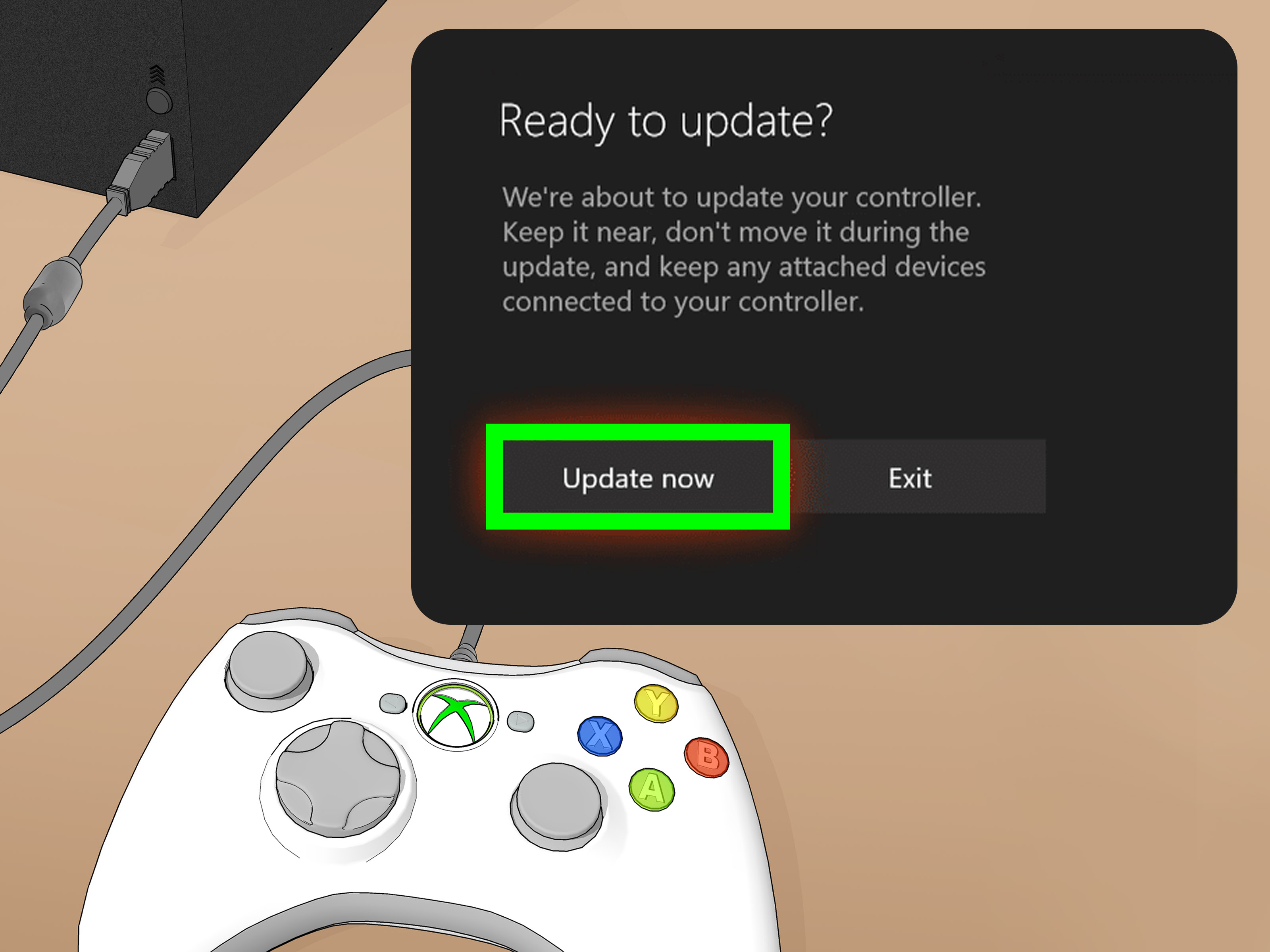
Firmware updates can improve compatibility and fix odd behavior. On PC, use the Xbox Accessories app. Plug the controller in, open the app, and follow the prompts if an update is available. On console, you can also check for controller updates through Xbox settings.
Extra Tips for a Better Gaming Experience
Once your controller is connected, a few small tweaks can make a big difference. If you are on PC, try the Xbox Accessories app for updates and customization. You can remap buttons, create profiles, and fine-tune how the controller feels. If you play through Steam, check Steam Input settings too, especially for older or unusual games.
Also, keep one good USB-C cable nearby even if you prefer wireless. It is the gaming equivalent of keeping jumper cables in your car: not glamorous, but absolutely heroic when things go wrong.
And if you switch between an Xbox console and a PC often, remember that a controller can sometimes try to reconnect to the last device it used. If it seems confused, turn off Bluetooth on the other device or reconnect it manually. Controllers are smart, but not “read your mind” smart. Yet.
Final Thoughts
Connecting a controller to an Xbox Series X/S or PC is not difficult once you pick the right method. For Xbox consoles, the Pair button and a quick sync usually do the trick. For PCs, USB is the easiest option, Bluetooth is the most convenient, and the Xbox Wireless Adapter is the premium middle ground for players who want strong wireless performance.
If your controller still refuses to cooperate, do not panic. Most problems come down to power, pairing mode, Bluetooth settings, or outdated firmware. Solve those first, and you will usually be back in the game before your snack break is over.
In other words, the controller is probably not broken. It is just being dramatic.
Real-World Experiences: What Connecting a Controller Actually Feels Like
In real life, connecting a controller is usually less about technical skill and more about matching the right method to the moment. On an Xbox Series X or Series S, the experience tends to feel almost instant. You tap the Pair button on the console, hold the Pair button on the controller, and within seconds the Xbox logo goes from flashing to solid. It is one of those rare tech tasks that feels like it was designed by someone who actually wanted users to be happy.
PC is where the experience gets more varied. If you use USB, it is almost boring in the best possible way. You plug it in, Windows recognizes it, and you move on with your life. For a lot of players, that ends up being the long-term favorite, especially if they game at a desk. There is no wondering whether the batteries are dying, no sudden Bluetooth mood swings, and no awkward moment where your controller decides it still belongs to the laptop you used last weekend.
Bluetooth, on the other hand, feels great when it works and mildly theatrical when it does not. The first successful Bluetooth pairing can feel like a tiny victory. You see “Xbox Wireless Controller” appear in Windows, click it, and suddenly your couch-gaming dream becomes reality. But plenty of players also run into the classic hiccups: the controller flashes forever, Windows sees it but refuses to connect, or the pad pairs once and then acts like it has never met your PC before. In those moments, the fix is often simple, but the path to discovering that fix can feel like a side quest nobody asked for.
The Xbox Wireless Adapter tends to be the “I am done experimenting” solution. People who have gone through Bluetooth annoyances often describe the adapter as the setup that finally makes PC gaming feel console-like. It is especially helpful in homes packed with wireless devices, where Bluetooth can get crowded and fussy. The experience is less flashy than it sounds: plug in the adapter, pair the controller, and enjoy the sweet silence of a connection that just works.
There is also the very relatable experience of using one controller across multiple devices. This is convenient, but it can create confusion when the controller tries to reconnect to the last thing it remembers. Many players think the controller is broken when it is really just being loyal to the wrong device. Turning off Bluetooth on the other machine, reconnecting with a cable, or re-pairing usually solves it.
Overall, most experiences with Xbox controllers on Xbox consoles and Windows PCs are positive once the right connection method is in place. The biggest lesson is simple: if you want zero fuss, use USB. If you want freedom, use Bluetooth. If you want wireless with fewer headaches, use the Xbox Wireless Adapter. And if your controller starts blinking like it is sending distress signals to space, take a breath. It is almost always fixable.