Research note: This original article synthesizes current Microsoft Support documentation and guidance from U.S. university writing centers and technology departments, including SIUE, UMW, WKU, Loyola University Maryland, UW Oshkosh, UNC Charlotte, Indiana University, UW–Madison, CUNY, Towson University, and Purdue University.
Footnotes are the quiet overachievers of document formatting. They let you cite a source, explain an unfamiliar term, or add a useful side comment without sending your main paragraph on a scenic detour. Microsoft Word also handles the numbering automatically, which means you do not have to spend your afternoon manually renumbering 47 tiny superscripts because you inserted one new source near the beginning.
This guide explains how to add a footnote to a Word document on Windows and Mac, use keyboard shortcuts, customize numbering, edit existing notes, convert footnotes to endnotes, and solve common formatting problems. The basic process takes only a few seconds, but understanding Word’s footnote tools can save hours when you are working on a research paper, legal document, business report, dissertation, or manuscript.
What Is a Footnote in Microsoft Word?
A footnote is a note placed at the bottom of the page where its reference appears. Word adds a small superscript number or symbol in the main text and creates a matching note area below the page’s body content. When you add, remove, or move an automatically numbered footnote, Word updates the numbering for you.
Footnotes can contain source citations, definitions, translations, qualifications, acknowledgments, copyright information, or supplementary discussion. They are especially common in history, law, theology, literature, and Chicago-style academic writing.
Footnotes vs. Endnotes
Footnotes appear at the bottom of individual pages. Endnotes are collected at the end of a document or section. Both use reference marks in the main text, but footnotes keep supporting information close to the relevant sentence. Endnotes produce cleaner-looking pages but require readers to flip or scroll elsewhere.
Neither tool is identical to Word’s citation manager. The citation manager creates parenthetical references and bibliographies from saved source records. Footnotes and endnotes are separate note fields, so inserting a source through References > Insert Citation does not automatically create a footnote.
How to Add a Footnote in Word for Windows
The steps below apply to current desktop editions of Microsoft Word, including Microsoft 365 and recent perpetual-license versions. The exact appearance of the ribbon may vary slightly, but the command remains in the References area.
-
Open your Word document.
Open an existing file or create a new document.
-
Place the cursor after the relevant text.
Click immediately after the word, phrase, quotation, or sentence that needs a note. In many academic styles, the reference number follows punctuation, although you should always follow the style guide required by your instructor, editor, or organization.
-
Open the References tab.
Select References on the Word ribbon at the top of the window.
-
Select Insert Footnote.
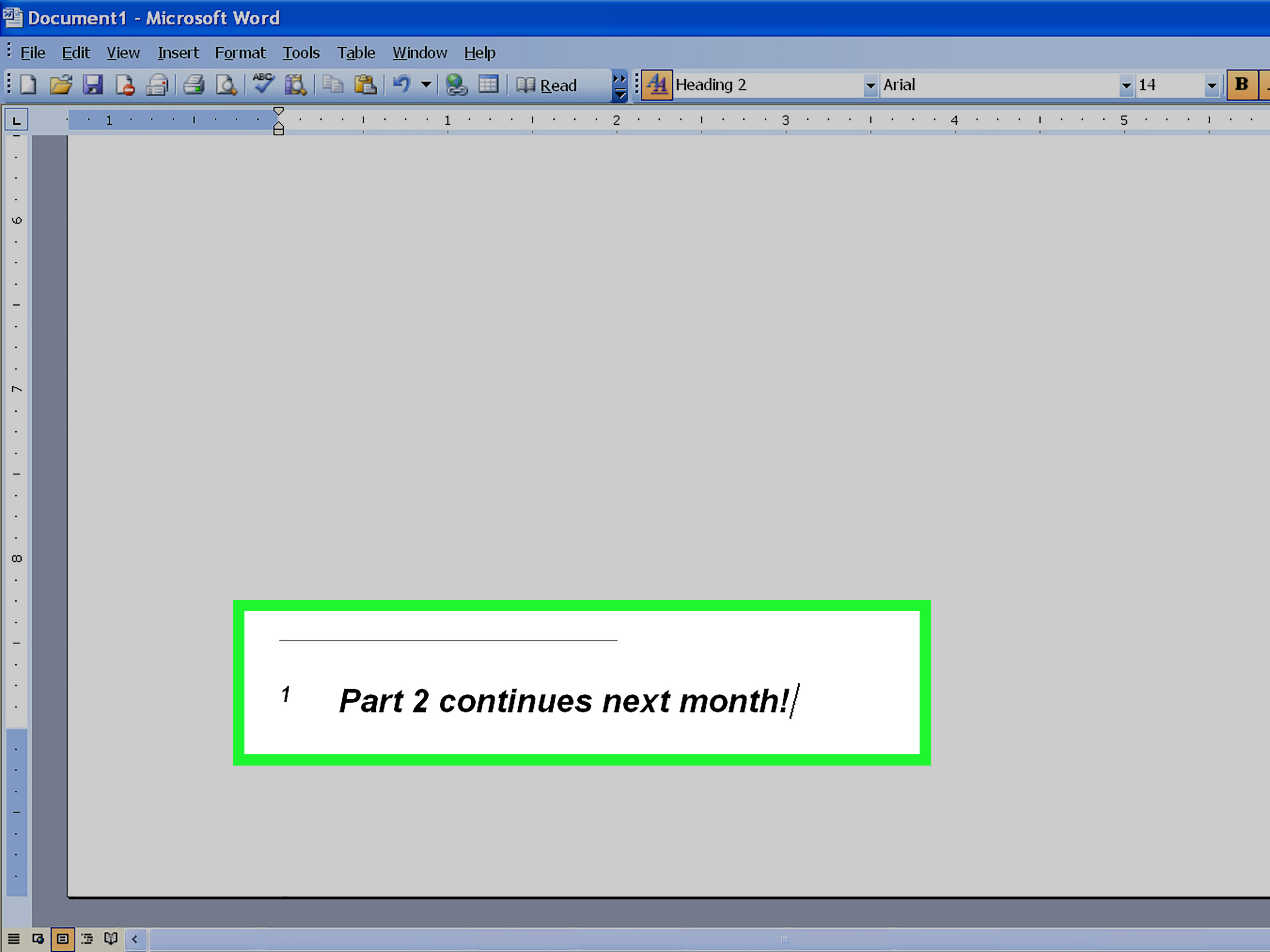
In the Footnotes group, click Insert Footnote. Word inserts a superscript reference number in the document and moves the cursor to the corresponding note at the bottom of the page.
-
Type the footnote text.
Enter your citation, explanation, or supplementary information beside the footnote number.
-
Return to the document body.
Click where you want to continue writing. You can also double-click the reference number to move between the note and its position in the main text.
Word automatically places the matching note at the bottom of the page and maintains the numbering as additional notes are inserted.
Windows Keyboard Shortcut
To insert a footnote without opening the ribbon, place the cursor in the correct location and press:
Ctrl + Alt + F
Word immediately creates the footnote and moves the insertion point to the bottom of the page. For an endnote, use Ctrl + Alt + D. These shortcuts are particularly helpful when you are citing several sources and would rather not make repeated mouse pilgrimages to the References tab.
How to Add a Footnote in Word for Mac
The Word for Mac process is almost identical to the Windows method, although the keyboard shortcut uses the Command and Option keys.
- Open the document in Word for Mac.
-
Click where the reference mark should appear.
Position the cursor after the statement, quotation, or term connected to the note.
-
Select References.
Open the References tab on the ribbon.
-
Click Insert Footnote.
Word adds a reference mark to the main text and creates the corresponding note at the bottom of the current page.
-
Enter the note.
Type the citation or explanation beside the newly created footnote number.
-
Return to your paragraph.
Click in the document body or double-click the reference mark to jump back to its original location.
Mac Keyboard Shortcut
To insert a footnote in Word for Mac, press:
Command + Option + F
To insert an endnote, press Command + Option + E. On some keyboards, the Command key is shown with the ⌘ symbol.
How to Add a Footnote in Word for the Web
Word for the web supports both footnotes and endnotes, although its advanced formatting controls may be more limited than those in the Windows and Mac desktop applications.
- Open the document in Word for the web.
- Place the cursor where the note reference should appear.
- Select References.
- Choose Insert Footnote.
- Type the note in the footnote area Word creates.
To review existing notes, select a reference mark or use the option to show footnotes. Word for the web also provides formatting controls for changing characteristics such as the font, size, and indentation of notes.
How to Edit an Existing Footnote
Editing a footnote is refreshingly uneventful. Scroll to the note at the bottom of the page, click inside its text, and make your changes just as you would edit a regular paragraph.
You can also double-click the superscript reference number in the main document to jump to the corresponding note. Double-clicking the note number usually returns you to the reference in the main text. This is useful in long documents where scrolling manually feels like searching for a particular grain of rice in a very scholarly rice field.
Do not type a new number over the automatically generated reference mark. Let Word control the sequence. When a note is moved, inserted, or deleted correctly, Word updates the remaining references automatically.
How to Customize Footnote Numbering and Placement
Word’s default footnote settings work for most documents, but academic departments, journals, publishers, and legal organizations may require a specific numbering system or placement.
Open the Footnote and Endnote Dialog Box
In Word for Windows, open the References tab and locate the Footnotes group. Click the small dialog box launcher in the lower-right corner of that group. Depending on the Word version and screen size, this control may appear as a tiny diagonal arrow.
In Word for Mac, open the References tab and look for the comparable Footnote and Endnote settings. Some Mac editions also expose these controls through the application’s top menu.
Available Footnote Settings
The Footnote and Endnote dialog box may let you change:
- Location: Place footnotes at the bottom of the page or directly below the text.
- Number format: Choose Arabic numbers, Roman numerals, letters, or other available formats.
- Start at: Select the number used for the first note.
- Numbering: Continue numbering throughout the document or restart it by page or section.
- Custom mark: Use a symbol instead of an automatically generated number.
- Apply changes to: Apply the settings to a selected section or the entire document.
Use section-based numbering carefully. A long report may intentionally restart notes in each chapter, while a journal article may require one continuous sequence from beginning to end. If the document contains multiple sections, confirm that the selected settings apply to the intended portion rather than only the section containing the cursor.
How to Format Footnote Text
Footnote text is controlled by Word styles, particularly the Footnote Text style. The small number in the main document uses a related reference style. Modifying the style is generally more reliable than selecting every note and formatting it manually.
- Open the Home tab.
- Open the Styles pane.
- Find Footnote Text. You may need to display all styles.
- Right-click the style on Windows or open its menu on Mac.
- Select Modify.
- Choose the font, size, spacing, indentation, and paragraph settings required for the document.
- Apply the updated style.
Changing the style updates notes consistently across the document. This is especially valuable in a thesis containing hundreds of references. Manual formatting may look acceptable until one overlooked footnote appears in 14-point Comic Sans and develops a suspicious amount of personality.
Should Footnotes Be Single-Spaced?
Many academic and publishing guidelines require single-spaced footnotes, sometimes with additional space between individual notes. Requirements differ, so consult the applicable style manual, submission guide, or instructor directions before changing Word’s defaults.
How to Convert Footnotes to Endnotes
You do not need to copy and paste every note when a publisher suddenly decides that endnotes are “cleaner.” Word can convert notes automatically.
- Open the References tab.
- Open the Footnote and Endnote dialog box.
- Select Convert.
- Choose one of the available options:
- Convert all footnotes to endnotes.
- Convert all endnotes to footnotes.
- Swap footnotes and endnotes.
- Select OK or Apply.
Word moves the note text and adjusts its references while preserving the connection between each note and the relevant passage.
How to Delete a Footnote Correctly
To remove one footnote, delete its superscript reference mark from the main documentnot merely the note text at the bottom of the page. Once the reference mark is removed, Word deletes the associated note and renumbers the remaining notes.
If you erase only the footnote’s wording, the reference number and an empty note may remain. The tiny number in the paragraph is the boss of the operation, even though it looks as if it could be defeated by a light breeze.
Delete All Footnotes at Once
For a document-wide cleanup, Word can locate special footnote marks through Find and Replace.
- In Word for Windows, press Ctrl + H. On Mac, open Find > Advanced Find and Replace.
- Open the Replace tab.
- Enter ^f in the Find what field.
- Leave the Replace with field empty.
- Select Replace All.
The code ^f represents a footnote mark. The code ^e represents an endnote mark. Save a backup copy before replacing all special marks, particularly in an important manuscript.
Common Footnote Problems and Solutions
The Insert Footnote Button Is Missing
Make sure the References tab is open. On a narrow window, Word may collapse ribbon groups into smaller menus. Maximize the application window, expand the ribbon, or use the keyboard shortcut. Also confirm that the file is open in an editable mode rather than Protected View or read-only mode.
The Footnote Appears on the Next Page
A long footnote may not fit in the space remaining beneath the main text. Word can move all or part of the note to the next page. Shortening the note, adjusting paragraph spacing, revising margins, or moving the reference to a more natural location may help. Avoid forcing the layout with repeated blank lines because later edits can rearrange the page again.
The Numbers Restart Unexpectedly
Open the Footnote and Endnote dialog box and inspect the numbering setting. It may be configured to restart on every page or in every section. Section breaks can also cause numbering behavior that is not obvious in Print Layout view.
The Footnote Formatting Does Not Match
Apply or modify the Footnote Text style rather than formatting individual notes. Pasted content may carry fonts, spacing, or indentation from another document. Using Word’s paste-text-only option before applying the proper style can remove unwanted formatting.
The Number Is Visible but the Note Is Not
Switch to Print Layout view and inspect the bottom of the page. If the document is being viewed in another layout, the note may appear in a separate pane. You can also use the References tab to display notes or double-click the reference mark.
Best Practices for Professional Footnotes
- Use Word’s automatic footnote tool. Do not manually type superscript numbers and build a fake note area with tabs or text boxes.
- Follow the required citation style. Chicago, legal, institutional, and publisher-specific systems may use different punctuation and source formats.
- Keep notes relevant. A footnote should support the discussion, not become a secret second article living beneath the first one.
- Use one numbering system consistently. Avoid mixing automatic references with manually entered symbols unless a style guide specifically requires it.
- Edit the Footnote Text style. Style-based formatting keeps fonts, indentation, and spacing consistent.
- Review notes before exporting. Inspect the PDF or printed layout for split notes, awkward page breaks, tiny text, and inconsistent spacing.
- Preserve a backup. Save a separate copy before converting, deleting, or globally reformatting a large collection of notes.
Practical Experiences When Adding Footnotes in Word
The most useful lesson from working with footnotes is simple: insert them properly from the beginning. In a short two-page document, manually typing a superscript “1” may seem harmless. In a 90-page thesis, that shortcut becomes a trap with excellent camouflage. Add a paragraph near the beginning, and every manually numbered reference may need attention. Word’s built-in footnote command prevents this problem because the references remain connected and renumber automatically.
Another practical lesson is to decide on document-wide formatting before the final editing stage. Writers often finish their content first and then discover that 120 footnotes use the wrong font, spacing, or indentation. Selecting every note individually is possible, in the same way that washing a driveway with a toothbrush is technically possible. Modifying the Footnote Text style is faster and creates a much more consistent result.
Long notes require restraint. A footnote can clarify an interesting exception without interrupting the main argument, but a half-page note can dominate the layout and push body text onto the next page. When a footnote grows into several paragraphs, consider whether the material belongs in the main discussion, an appendix, or an endnote. Readers appreciate useful context; they are less enthusiastic about discovering a basement apartment beneath every paragraph.
Cross-platform editing also deserves attention. A document may be drafted on a Windows computer, reviewed on a Mac, and opened in Word for the web by another collaborator. The note content and numbering usually travel well, but page layout can shift because of font availability, printer settings, software versions, or margin differences. Before submission, review the final file on the platform used to create the official PDF. Never assume that a page break admired on one computer will remain equally cooperative everywhere else.
Track Changes can make footnote editing more complicated in collaborative documents. Deleting a reference mark while revisions are being tracked may leave the note visible until the deletion is accepted. Reviewers should inspect both the body text and the note area when accepting changes. Otherwise, a disputed citation may continue haunting the document like a very well-formatted ghost.
It is also helpful to separate writing decisions from software decisions. Word can place, number, convert, and format a footnote, but it cannot decide whether a note is necessary or whether the citation follows the correct scholarly style. The software manages structure; the writer remains responsible for accuracy, clarity, and source details.
Finally, test the finished document rather than trusting the editing screen. Save it, close it, reopen it, and export a PDF. Check pages containing several notes, tables, images, or section breaks. Confirm that every reference leads to the correct note and that no note is stranded on an unexpected page. A five-minute review can catch problems that would otherwise survive all the way to a professor, client, editor, or judgenone of whom asked to participate in your footnote adventure.
Conclusion
To add a footnote in Microsoft Word, place the cursor after the relevant text, open the References tab, and select Insert Footnote. Windows users can press Ctrl + Alt + F, while Mac users can press Command + Option + F. Word creates the superscript reference, moves the cursor to the note area, and manages numbering automatically.
For longer or more formal documents, use the Footnote and Endnote dialog box to control numbering, placement, and conversion options. Format notes through Word styles, delete notes by removing their main-text reference marks, and review the exported document before publishing or submitting it. Once these habits are in place, footnotes become less of a formatting chore and more of a reliable tool for adding depth without cluttering the main discussion.