Printing an entire webpage sounds like it should be as simple as pressing a button and waiting for the printer to hum like a tiny office robot. Then reality arrives: ads multiply, sidebars invade, images disappear, page breaks land in the middle of sentences, and the “entire webpage” becomes three lonely paragraphs and half a cookie banner. Fun? Not exactly. Fixable? Absolutely.
Whether you want to print a recipe, receipt, research article, confirmation page, tutorial, travel itinerary, or long online guide, there are several reliable ways to capture the full page without losing important content. The best method depends on what you need: a paper copy, a clean PDF, a distraction-free article, or a full-page visual screenshot.
This guide explains four easy ways to print an entire webpage using common browsers and built-in tools. You will learn how to use the browser print command, save the page as a PDF, switch to reader mode for a cleaner result, and capture a full-page screenshot when normal printing refuses to behave. No wizard hat required.
Why Webpages Do Not Always Print Correctly
Before jumping into the methods, it helps to understand why printing webpages can be messy. A webpage is not built like a Word document. It is designed to scroll, resize, load interactive elements, show ads, display pop-ups, and adapt to different screens. Your printer, however, prefers predictable sheets of paper. When those two worlds meet, they occasionally argue.
Some websites use fixed headers that appear on every printed page. Others hide images during printing to save ink. Long pages may be split awkwardly. Background colors may not print unless you enable them. Some pages load content only after you scroll, so the lower half of the webpage may not appear in the print preview until the browser has fully loaded it.
The good news is that modern browsers such as Chrome, Microsoft Edge, Firefox, and Safari include helpful printing and PDF tools. In many cases, the solution is already sitting inside your browser, quietly waiting behind the keyboard shortcut Ctrl + P on Windows or Command + P on Mac.
Method 1: Use Your Browser’s Built-In Print Command
The simplest way to print an entire webpage is to use the browser’s built-in print feature. This is the best starting point for most pages, especially receipts, order confirmations, forms, blog posts, help pages, and standard articles.
How to Print an Entire Webpage in Chrome, Edge, Firefox, or Safari
- Open the webpage you want to print.
- Wait until the page fully loads. Scroll to the bottom if the page uses lazy-loaded images.
- Press Ctrl + P on Windows or Command + P on Mac.
- Choose your printer from the destination or printer menu.
- Set the page range to All.
- Check the print preview carefully.
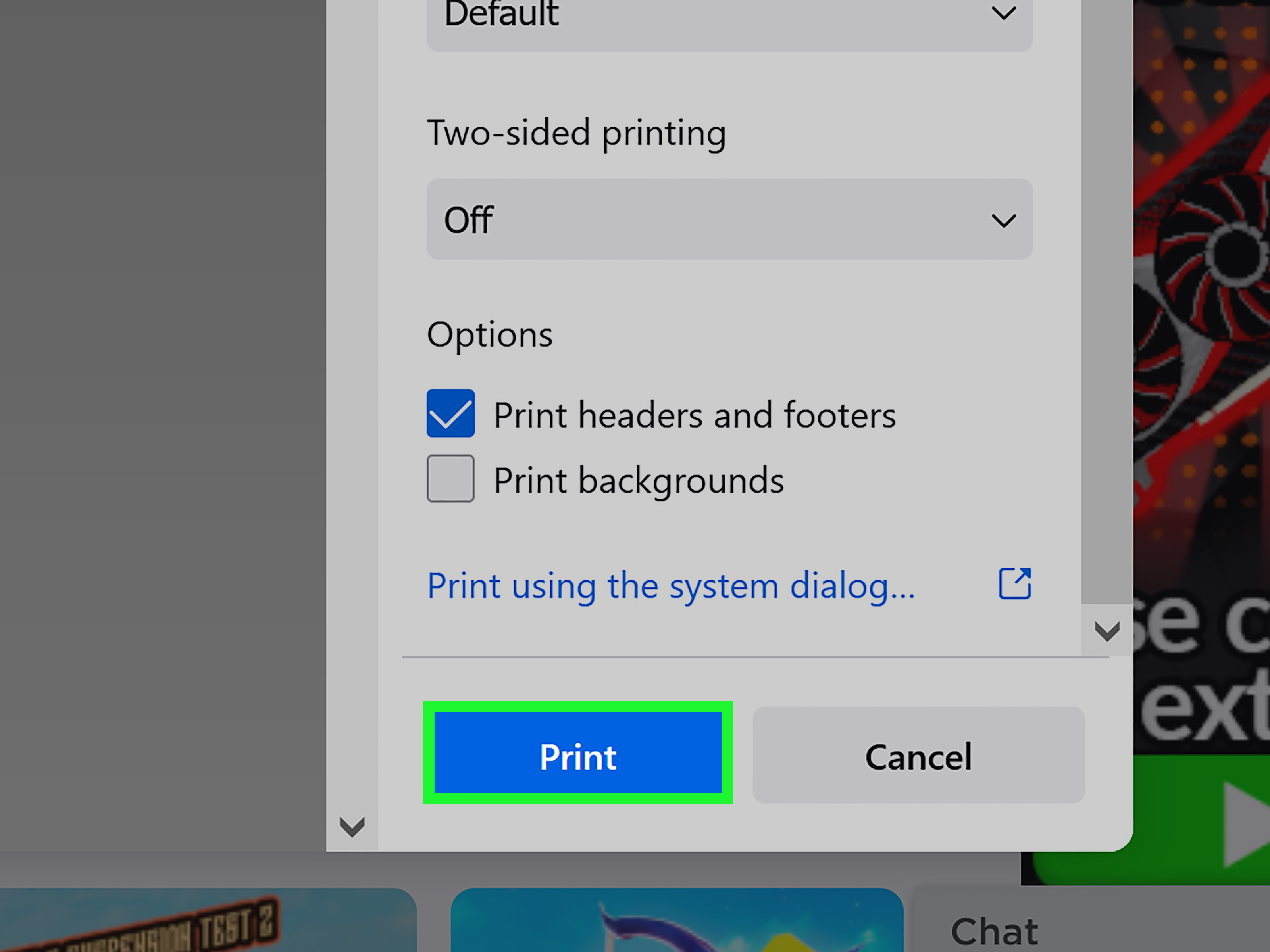
- Adjust layout, margins, scale, paper size, and background graphics if needed.
- Click Print.
This method works well when the webpage has a printer-friendly design. Many modern websites include print styles, which automatically remove navigation menus, shrink images, and organize content for paper. When a website is built nicely, printing feels smooth. When it is not, your printer may produce something that looks like a ransom note assembled by a raccoon.
Best Settings for Printing a Full Webpage
Always review the print preview before sending the job to your printer. The preview is your chance to catch missing images, oversized text, blank pages, awkward page breaks, and surprise advertisements. If the preview looks wrong, the printed version will not magically become better. Printers are talented, but they are not therapists.
Use Portrait layout for articles, recipes, emails, and standard pages. Use Landscape layout for wide tables, dashboards, maps, calendars, and comparison charts. If content is cut off on the right side, landscape mode often solves the problem.
Adjust the Scale option if the page looks too large or too small. A scale between 80% and 95% can help fit wide content onto the page without making the text unreadable. If you see a “Fit to printable area” option, try it for layouts that overflow.
Turn on Background graphics only when colors, charts, shaded boxes, or design elements are important. Leaving it off saves ink, but enabling it may be necessary for coupons, event tickets, color-coded instructions, or pages where visual formatting carries meaning.
Method 2: Save the Entire Webpage as a PDF First
If you want a reliable copy of a webpage, saving it as a PDF before printing is often the smartest move. A PDF gives you a stable file you can inspect, rename, store, email, and print later. It is especially useful for receipts, legal information, school research, invoices, travel confirmations, online tickets, and step-by-step tutorials.
Think of a PDF as a freeze-dried webpage. It may not taste better, but it lasts longer and travels well.
How to Save a Webpage as a PDF on Windows
- Open the webpage in Chrome, Edge, or Firefox.
- Press Ctrl + P.
- In the printer or destination menu, choose Save as PDF or Microsoft Print to PDF.
- Set pages to All.
- Adjust layout, margins, scale, and background graphics.
- Click Save or Print.
- Name the file and choose a folder.
After saving the PDF, open it before printing. This extra step helps you catch formatting issues without wasting paper. It also lets you print only certain pages if the PDF includes unnecessary sections. For example, a recipe page might become a 12-page PDF because the website includes comments, related posts, and a newsletter pitch trying very hard to be part of dinner.
How to Save a Webpage as a PDF on Mac
- Open the webpage in Safari, Chrome, Edge, or Firefox.
- Press Command + P.
- Click the PDF button or PDF menu in the print dialog.
- Select Save as PDF.
- Choose a file name and location.
- Open the PDF to review it before printing.
Mac users can save almost any printable document as a PDF from the print dialog. This makes it easy to archive webpages even when you do not want a paper copy right away. It is also handy when you want to combine several saved pages into one folder for a project.
How to Save a Webpage as a PDF on iPhone or iPad
On iPhone or iPad, Safari includes options for saving webpages as PDFs through the Share and Markup tools. Open the webpage, tap the Share button, choose Markup if available, then save the file to Files. For long pages, check the available page options before saving so you do not accidentally capture only the visible screen.
This method is useful when you need to keep a digital copy of a confirmation page, article, boarding pass, or instructions while away from your computer. Mobile printing can be convenient, but saving the webpage as a PDF first usually gives you more control.
Method 3: Use Reader Mode Before Printing
Reader mode is the secret weapon for printing articles without the digital confetti. It removes many distractions such as menus, pop-ups, buttons, sidebars, ads, and unrelated design elements. What remains is usually the main text and important images.
This method is ideal for blog posts, news stories, educational articles, tutorials, essays, and long-form content. It is not ideal for pages where the design itself matters, such as product pages, interactive charts, visual portfolios, maps, or dashboards.
How Reader Mode Helps Print an Entire Webpage
When you print directly from a cluttered page, the browser may include navigation bars, cookie notices, social sharing widgets, author boxes, comment sections, and ad spaces. Reader mode simplifies the page before printing, which often creates a shorter, cleaner, and more readable result.
In Microsoft Edge, Immersive Reader can simplify supported pages and focus on the main content. In Firefox, Reader View and simplified printing can remove clutter for better readability. In Safari, Reader can format supported articles with cleaner text and images. Availability depends on the website, so you may not see reader mode on every page.
Steps for Printing with Reader Mode
- Open the webpage you want to print.
- Look for the Reader, Immersive Reader, or simplified view icon in the address bar.
- Turn on reader mode if available.
- Adjust font size or text display if the browser allows it.
- Press Ctrl + P or Command + P.
- Review the print preview.
- Print the page or save it as a PDF.
Reader mode can reduce a 20-page printing disaster into a neat 5-page article. Your printer will appreciate the lighter workload. Your ink cartridge may even stop silently judging you.
When Not to Use Reader Mode
Reader mode is excellent for text-heavy content, but it may remove important interactive elements, product images, embedded videos, comparison tables, comments, forms, or design features. If you need the page exactly as it appears on screen, use the regular print command, save as PDF, or capture a full-page screenshot instead.
For recipes, reader mode can be wonderful if it keeps the ingredient list and instructions. However, always check the preview. Some recipe pages use special formatting that reader mode may simplify too aggressively. Nobody wants to print banana bread instructions and discover the oven temperature went into witness protection.
Method 4: Capture a Full-Page Screenshot and Print It
Sometimes the print dialog simply refuses to capture the whole webpage properly. Maybe the page has complex design, sticky headers, hidden sections, scrolling panels, interactive charts, or content that prints badly. In that case, a full-page screenshot can save the day.
A full-page screenshot captures the entire vertical webpage as an image, including the parts below the fold. You can then print the image or convert it to a PDF. This method is best when you need the visual appearance of the page, not just the text.
How to Capture a Full-Page Screenshot in Chrome
- Open the webpage in Chrome.
- Right-click the page and choose Inspect, or press Ctrl + Shift + I on Windows or Command + Option + I on Mac.
- Open the command menu with Ctrl + Shift + P on Windows or Command + Shift + P on Mac.
- Type screenshot.
- Select Capture full size screenshot.
- Chrome will save a PNG image of the entire page.
- Open the image and print it, or insert it into a document and export it as a PDF.
This technique is useful for designers, developers, marketers, students, and anyone who needs a visual record of a webpage. It works especially well for landing pages, portfolios, layout reviews, online receipts with design elements, and pages where the print version strips away too much.
How to Capture a Full Page in Microsoft Edge
Microsoft Edge includes web capture tools on many desktop versions. Open the page, use the browser menu or shortcut for web capture, and choose the option to capture the full page if available. After capturing, you can save, copy, mark up, or print the result.
Full-page screenshots are not always perfect. Sticky headers may repeat, animations may freeze strangely, and very long pages can create enormous image files. Still, when printing fails, screenshots are often the practical backup plan.
Should You Use Browser Extensions?
Browser extensions can help capture full webpages, clean pages before printing, remove ads, or save pages as PDFs. They can be useful, but install them carefully. Choose reputable extensions with strong reviews, clear privacy practices, and only the permissions they actually need. Avoid giving a random extension access to every page you visit unless you trust it. Your browser is not a snack table; not every extension deserves a plate.
Extra Tips for Better Webpage Printing
Load the Whole Page First
Many websites load images and sections only when you scroll. Before printing, scroll from top to bottom so the browser has a chance to load everything. Then return to the top and open the print preview. This small habit can prevent missing images and incomplete sections.
Remove Pop-Ups and Cookie Banners
Close cookie notices, newsletter pop-ups, chat widgets, and floating ads before printing. If they appear in the print preview, they may print on top of the content. A cookie banner across a recipe is annoying on screen; on paper, it becomes modern art no one asked for.
Check Page Breaks
Look through the preview page by page. If headings are separated from paragraphs or images are split awkwardly, try changing scale, margins, or layout. Saving as PDF first can make it easier to inspect the final result.
Print Only What You Need
Printing an entire webpage does not always mean printing every single page the browser generates. If the preview shows 18 pages and only pages 1 through 6 contain useful content, print that range. This saves paper, ink, time, and your future self from sorting through a stack of “related articles” you never wanted.
Use Print-Friendly Buttons When Available
Some websites offer a dedicated Print button, especially recipe sites, government pages, help centers, and documentation pages. These buttons may open a cleaner version of the page with unnecessary elements removed. If the website provides one, try it before using the browser print command.
Which Method Should You Choose?
Use the browser print command when the webpage is simple and the preview looks good. Use Save as PDF when you want a permanent digital copy or want to review the page before printing. Use reader mode when the page is an article filled with ads, menus, and distractions. Use a full-page screenshot when the page’s visual layout matters or normal printing does not capture the whole thing.
For most people, the best workflow is simple: open the page, press Ctrl + P or Command + P, check the preview, and save as PDF before printing. That gives you control and avoids wasting paper. If the result looks messy, switch to reader mode. If the browser still rebels, capture a full-page screenshot.
Common Problems and Quick Fixes
The Webpage Prints Only One Page
Try scrolling to the bottom before printing, refreshing the page, or saving as PDF first. If the site uses a scrollable frame, click inside the frame before opening the print dialog. Some complex pages print only the visible section unless the browser can detect the full content.
Images Are Missing
Wait for images to load, turn on background graphics, or try printing from a different browser. If the images are essential, a full-page screenshot may capture them more reliably than the print command.
Text Is Too Small
Increase scale in the print settings or use reader mode to create a cleaner layout. If a wide page forces tiny text, switch to landscape orientation.
Too Many Blank Pages Appear
Blank pages often come from ads, embedded elements, comments, or spacing issues. Try reader mode, choose a custom page range, reduce margins, or save as PDF and print only the useful pages.
Real-World Experiences: What Actually Works When Printing Entire Webpages
After printing enough webpages, you start to notice patterns. The pages that look easiest are not always the ones that print best. A plain article may suddenly turn into a 14-page paper buffet because the site adds author bios, recommendations, comments, and three different calls to subscribe. Meanwhile, a complicated receipt may print beautifully because the website has a proper print style. The lesson is simple: never trust the screen view alone. Always trust the preview.
One of the best habits is saving to PDF before using the printer. This creates a checkpoint. Instead of sending a mystery job directly to paper, you get a file you can open, inspect, and store. This is especially helpful for online purchases, appointment confirmations, hotel bookings, tax-related pages, school assignments, and work documentation. A saved PDF is also searchable, shareable, and easier to organize than a paper stack that slowly becomes a desk mountain.
Reader mode is another surprisingly powerful tool. It is not perfect, but when it works, it feels like turning on windshield wipers during a rainstorm. The clutter disappears, the article becomes readable, and the printout stops looking like it was attacked by banner ads. For long tutorials, health information, study materials, and blog guides, reader mode often produces the most pleasant printed version. The only warning is to compare the reader version with the original page before printing. Sometimes reader mode removes a chart, table, image caption, or step that matters.
Full-page screenshots are excellent when appearance matters. For example, if you need to save a landing page design, a visual portfolio, a social media layout, or a webpage before making changes, a screenshot may be better than a PDF printout. The downside is that screenshots are images, so text may not be selectable unless you use OCR later. They can also become very long files. Printing a full-page screenshot may require resizing or splitting across pages so the text remains readable.
Another practical experience: different browsers produce different results. If Chrome prints a page badly, try Edge, Firefox, or Safari. The page itself may be the same, but each browser interprets print styles slightly differently. This is not a character flaw. It is just web printing being web printing. A quick browser switch can solve missing images, bad spacing, or broken page breaks.
For recipes, look for the website’s own print button first. Recipe pages often include a print-friendly version that removes personal stories, ads, videos, and comments while keeping ingredients and instructions. For research articles, saving as PDF is usually best. For shopping receipts, the basic print command often works well. For pages with maps or dashboards, landscape orientation and screenshots are often more reliable.
The biggest mistake is printing too fast. Take ten seconds to close pop-ups, scroll through the page, check preview, and choose the right method. Those ten seconds can save ten pages of paper. That is a good trade, unless your hobby is feeding printers.
Conclusion
Learning how to print an entire webpage is mostly about choosing the right tool for the page in front of you. The built-in print command is fast and simple. Saving as PDF gives you control and a permanent copy. Reader mode creates clean, distraction-free printouts. Full-page screenshots preserve visual layouts when standard printing falls short.
The next time a webpage refuses to print properly, do not wrestle with it for twenty minutes. Check the preview, switch methods, and let the browser do the heavy lifting. With these four easy approaches, you can print full webpages more cleanly, save useful online content, and avoid turning your printer tray into a confetti factory.
Note: Browser menus and button names may vary slightly by version, device, and operating system. Always review the print preview before printing, especially when the webpage includes ads, lazy-loaded images, pop-ups, maps, tables, or interactive content.