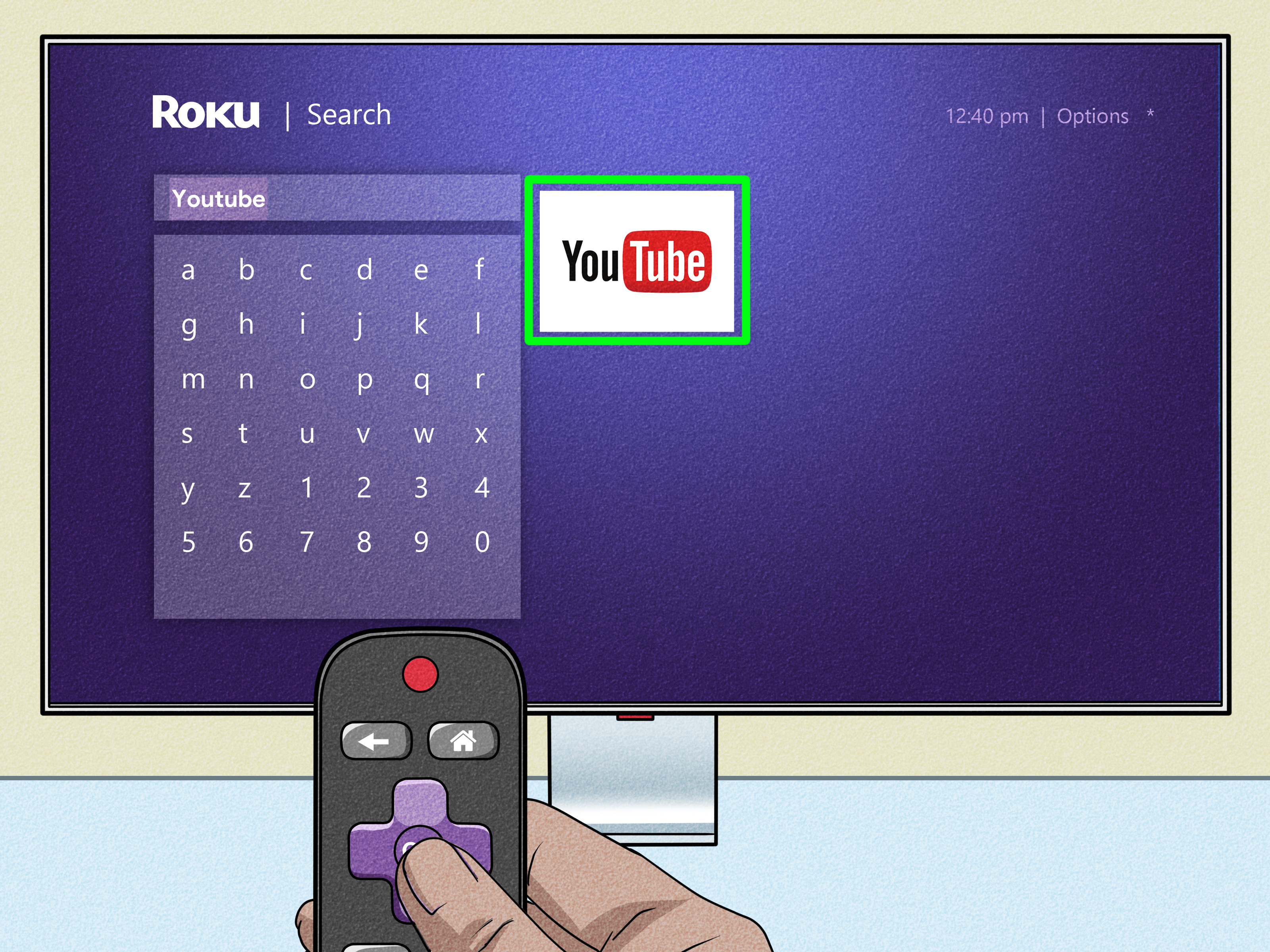
Want to use YouTube without creating yet another Gmail inbox you will check approximately twice and then forget exists? Good news: you canten treat as interchangeable: Gmail account, Google Account, and YouTube account. They are related, but they are not the same thing. You do not need an @gmail.com address to use YouTube with an account. You can create a Google Account using an existing third-party email address, such as Outlook, Yahoo, iCloud, or another email you already own. You can also watch many public YouTube videos without signing in at all.
There is one important catch: while a Gmail address is optional, a Google Account is required for signed-in YouTube features. That includes functions such as subscribing to channels, liking videos, managing watch history, and creating a YouTube channel.
This guide explains exactly how to use YouTube without a Gmail account, what you can do while signed out, how to register with an existing email address, and which limitations to expect.
Fact-checked against current Google Account and YouTube Help documentation. ou Use YouTube Without a Gmail Account?
Yes. There are two main ways to do it:
- Use YouTube without signing in. You can watch many publicly available videos without any account.
- Create a Google Account with your existing non-Gmail email address. This gives you access to signed-in YouTube features without creating a new Gmail address.
The second option is usually the best choice for people who want subscriptions, playlists, comments, viewing history, or their own YouTube channel while keeping their existing email provider.
Gmail and a Google Account Are Not the Same Thing
A Gmail account gives you an email address ending in @gmail.com. A Google Account is the identity used to sign in to Google services. Google allows you to create that identity with an existing third-party email address.
For example, suppose your email address is [email protected]. You can potentially register that address as the sign-in email for a Google Account. After verification, you can use that Google Account to sign in to YouTube. Your email remains hosted by your original provider; Google does not magically move your inbox into Gmail or replace your address with an @gmail.com address.
Think of Gmail as one apartment in the Google building. A Google Account is the key card that gets you through the front door. You can have the key card without renting the Gmail apartment.
Method 1: Watch YouTube Without Any Account
The simplest way to use YouTube without Gmail is to avoid signing in entirely.
Step 1: Open YouTube
Visit YouTube in a web browser or open the YouTube app. You do not have to create an account simply to browse much of the platform’s public content.
Step 2: Search for a Video
Use the search box to find a tutorial, music video, product review, news clip, cooking demonstration, or whatever else has sent you down today’s internet rabbit hole.
Step 3: Watch Publicly Available Content
Many public videos can be watched while signed out. You can also use ordinary browser features such as bookmarks to save video pages for later.
This approach works well when you use YouTube only occasionally and do not care about building a personalized library of subscriptions, playlists, and viewing history.
What You Lose When You Stay Signed Out
Using YouTube without signing in is convenient, but it is a limited experience. Signed-in features are tied to a Google Account. Depending on the feature, you may need both a Google Account and a YouTube channel.
Without signing in, you should not expect the full account experience, including features such as:
- Subscribing to channels as an account
- Liking videos
- Using account-based Watch Later features
- Managing saved watch history across signed-in devices
- Commenting on videos
- Uploading your own videos
- Creating and managing a public YouTube presence
- Using account-based purchases or subscription benefits
Age-restricted content is another significant limitation. YouTube states that age-restricted videos are not available to signed-out viewers. In other words, staying anonymous is simple until a video asks to see your digital ID at the door.
Signed-out and age-restriction limitations verified from YouTube Help. d 2: Create a Google Account Without Creating Gmail
This is the most useful method for anyone who wants the normal YouTube experience but does not want another email inbox.
You will still create a Google Account, because YouTube uses Google Accounts for sign-in. However, you will register it with an email address you already have.
Step 1: Go to the Google Account Sign-In Page
Open Google’s account sign-in or account-creation page in your browser. Choose the option to create an account and select the appropriate account type, such as personal use.
The exact wording and screen layout may change slightly over time or differ by device, so do not panic if your buttons are wearing different outfits.
Step 2: Enter Your Basic Information
Follow the on-screen instructions and provide the requested basic information. Google may ask for details such as your name, birthday, and other account information as part of the registration process.
Step 3: Choose the Existing Email Option
When Google presents email options, look for wording such as Use your existing email or a similar option that allows you to register with a third-party address instead of choosing a new Gmail address.
Enter an email address you already control. Examples might include:
- An Outlook or Hotmail address
- A Yahoo Mail address
- An iCloud email address
- An email address from another provider
- An eligible personal or organization-provided address
The availability of particular account options can vary for managed work or school environments, where an administrator may control access.
Step 4: Verify Your Existing Email Address
Google sends a verification code to the third-party email address used during registration. Open that inbox, locate the verification message, and enter the code when prompted.
This step proves that you actually own the email address. Without successful verification, the non-Gmail address cannot simply be claimed by someone who once saw it written on a business card.
Step 5: Create a Password and Complete Setup
Continue through the account-creation process and follow the on-screen instructions to finish setting up your Google Account.
Your Google Account now uses your existing email address as its identity. You have not created a Gmail inbox merely by choosing this method.
Non-Gmail Google Account creation and email verification steps. o Sign In to YouTube With Your Non-Gmail Email
Once the Google Account is ready, signing in is straightforward.
On a Desktop or Laptop
- Open YouTube.
- Select Sign in.
- Enter the non-Gmail email address connected to your Google Account.
- Enter your Google Account password and complete any security checks.
- Return to YouTube as a signed-in user.
The important detail is that you are entering the third-party email address as your Google Account sign-in. You are not trying to log in to YouTube using the password from your Yahoo, Outlook, or other email provider unless, by coincidence, you chose the same passwordwhich is not a security strategy worth celebrating.
On Android, iPhone, or iPad
Open the YouTube app, go to the profile or account area, and choose the option to sign in or add an account. Enter the non-Gmail email address registered with your Google Account and follow the authentication prompts.
Once signed in, the account can be used with YouTube much like a Google Account that happens to have a Gmail address.
What Can You Do on YouTube With a Non-Gmail Google Account?
For ordinary YouTube use, the fact that your sign-in email is not Gmail is generally not the important part. The key is that the address is associated with a valid Google Account.
After signing in, account-level features can include:
- Liking videos
- Subscribing to channels
- Using Watch Later
- Maintaining YouTube watch history
- Managing recommendations influenced by account activity and settings
- Reporting videos
Some activities require an additional step: creating a YouTube channel.
When Do You Need a YouTube Channel?
Signing in with a Google Account does not necessarily mean you immediately have a public YouTube presence. According to YouTube’s current help documentation, you can use a Google Account for activities such as watching, liking, and subscribing, while activities including uploading videos, commenting, and creating playlists require a YouTube channel.
Creating a channel gives you a YouTube identity, such as a channel name and handle. It does not mean you suddenly need to become an influencer, buy three ring lights, and begin every sentence with, “What’s up, guys?” You can create a channel simply because you want access to the features that require one.
Google Account versus YouTube channel capabilities. o Create a YouTube Channel Without a Gmail Address
Because your non-Gmail email is already connected to a Google Account, you can use that account to create a YouTube channel.
- Sign in to YouTube with your non-Gmail Google Account.
- Open your profile or settings area.
- Choose the option to create a channel.
- Select or enter your channel name, handle, and other requested details.
- Complete the setup.
Once the channel exists, you can access additional creator and participation features available to your account.
Remember that your YouTube channel identity and your sign-in email are different concepts. You do not have to use your email address as your public channel name.
Can You Use an Outlook, Yahoo, or iCloud Address for YouTube?
Yes, provided the address can be registered successfully as the email for a Google Account and you can complete Google’s verification process.
The basic structure looks like this:
Your existing email address → Google Account → YouTube sign-in
For example:
- You keep receiving email through Outlook.
- You register that Outlook address as a Google Account.
- You verify ownership of the address.
- You use the address and your Google Account credentials to sign in to YouTube.
Your Outlook inbox remains Outlook. Your Yahoo inbox remains Yahoo. Your iCloud email remains iCloud. The Google Account is an additional identity layer associated with the address.
Common Problems and How to Fix Them
You Cannot Find the “Use Your Existing Email” Option
Make sure you are creating a Google Account rather than accidentally entering a workflow specifically intended to create a new Gmail mailbox. Return to the Google Account creation process and look carefully for the option to use an existing third-party email.
Interface wording can change, and different devices may display the flow differently.
The Verification Email Never Arrives
First, confirm that the email address was entered correctly. Then check the spam or junk folder and allow a little time for delivery. If necessary, return to the registration flow and request another verification attempt if that option is available.
Do not repeatedly create nearly identical accounts in a panic. That tends to transform a simple login problem into an archaeological excavation.
You Already Have a Google Account Using That Email
An existing email address may already be associated with a Google Account created in the past. Instead of creating another account, try the standard Google Account recovery or sign-in process.
You Can Sign In but Cannot Comment or Upload
You may need to create a YouTube channel. A Google Account enables many signed-in features, but YouTube requires a channel for activities such as commenting, uploading videos, and creating playlists.
You Cannot Watch an Age-Restricted Video While Signed Out
This is expected behavior. YouTube does not make age-restricted videos available to signed-out viewers. An eligible signed-in account is required, and additional age verification requirements may apply in some circumstances or regions.
Privacy Tips When Using YouTube With a Non-Gmail Account
Using a non-Gmail email address does not automatically make your YouTube activity private. Your privacy depends on how you configure and use the Google Account and YouTube.
Review Your YouTube History Settings
YouTube provides controls for watch and search history. These settings can affect recommendations and other personalized experiences. You can review, pause, or delete certain activity through the relevant account controls.
If you are researching something you do not want influencing future recommendationsperhaps one video about fixing a dishwasher has caused YouTube to conclude that appliances are now your entire personalitytemporarily adjusting history settings can be useful.
Use Incognito or Signed-Out Viewing When Appropriate
On supported mobile experiences, YouTube’s Incognito mode allows a signed-in user to browse in a mode that behaves more like being signed out for that session. Ordinary browser private modes can also help prevent local browsing information from being retained in the usual way on a shared device, although private browsing should not be confused with complete internet anonymity.
Protect Your Google Account
Use a strong, unique password and review available security options. Because the Google Account can control your YouTube identity, subscriptions, history, channel, and potentially other Google services, protecting it is more important than protecting a throwaway account you created to download one coupon in 2014.
Privacy, history, personalization, and Incognito information. d You Use YouTube Without Signing In or Create a Non-Gmail Google Account?
The best choice depends on how you use YouTube.
Stay Signed Out If:
- You only watch occasional public videos.
- You do not need subscriptions or account-based history.
- You do not want to comment, upload, or build playlists.
- You prefer a simpler browsing experience.
Create a Google Account With Your Existing Email If:
- You want to subscribe to favorite channels.
- You want account-based Watch Later and history features.
- You want to like and interact with content.
- You plan to create a channel.
- You want to comment, upload videos, or create playlists.
- You want YouTube features without maintaining a Gmail inbox.
For most regular YouTube users who simply dislike the idea of creating another email address, the second option is the practical winner.
Frequently Asked Questions
Can I Have a YouTube Account Without Gmail?
Yes. You can create a Google Account using an existing non-Gmail email address and use that Google Account to sign in to YouTube.
Can I Use YouTube Without a Google Account?
Yes, for basic signed-out viewing of much public content. However, signed-in features require a Google Account.
Can I Subscribe to YouTube Channels Without Gmail?
Yes. You need a Google Account, but the Google Account does not have to use a Gmail address.
Can I Comment on YouTube Without Gmail?
You do not need a Gmail address, but you do need to sign in with a Google Account and have a YouTube channel to comment.
Can I Upload YouTube Videos Using a Yahoo or Outlook Email?
Yes, when that email address is associated with a Google Account. You must then create a YouTube channel before uploading videos.
Does Creating a Google Account Automatically Create Gmail?
Not when you deliberately choose the option to use an existing third-party email address during Google Account creation. Follow the account-creation screens carefully rather than selecting a new Gmail address.
Real-World Experience: What Using YouTube Without Gmail Actually Feels Like
The most surprising part of using YouTube without a Gmail address is how ordinary the experience becomes once the account is configured correctly. The setup sounds more complicated than it is because the words “Google” and “Gmail” are so closely associated that many people assume one cannot exist without the other.
Consider a typical user who has relied on an Outlook address for years. Every bank alert, family message, shopping receipt, and password reset already goes to that inbox. Creating a Gmail address solely to subscribe to YouTube channels feels unnecessary. It also introduces another inbox to secure, remember, and occasionally clean out.
The smoother solution is to use the existing Outlook address to create a Google Account. The user verifies the address, completes the setup, and signs in to YouTube. After that, the daily experience is remarkably normal. The same non-Gmail email appears at sign-in, subscriptions can be followed, videos can be liked, and a channel can be created when needed.
The biggest source of confusion usually appears during the first login. A person may enter an Outlook address and then instinctively type the password used for Outlook. That may not work because the password requested is the password for the Google Account associated with that email address. The email address may be the same, but the accounts remain separate. Once that mental distinction clicks, the process becomes much easier.
Another practical lesson is that signed-out YouTube works well until you start using the platform regularly. Watching a single repair tutorial or checking a movie trailer requires little commitment. But after repeatedly searching for the same creators, manually remembering channel names becomes tedious. At that point, subscriptions and Watch Later start looking less like optional luxuries and more like basic organization.
Privacy-minded users may also appreciate having choices. They can remain signed out for casual viewing, sign in when account features are useful, or adjust YouTube history controls when researching topics they do not want shaping recommendations. The important point is that avoiding Gmail does not require avoiding every Google Account feature.
There is also a useful psychological benefit: fewer unnecessary email accounts. Many people accumulate inboxes the way kitchen drawers accumulate mystery cables. One address was created for school, another for an old phone, one for shopping, and another because a website insisted on something new. Using an existing email for a Google Account can reduce that digital clutter.
In practice, the best approach is simple. Occasional viewers can stay signed out. Regular viewers who want subscriptions and history can create a Google Account with an email they already use. Aspiring creators can then add a YouTube channel without changing their email provider. Once you understand that Gmail is optional but a Google Account powers the signed-in experience, the whole system stops feeling like a maze and starts feeling like a fairly ordinary account setup.
Conclusion
Learning how to use YouTube without a Gmail account is mostly about understanding one important distinction: YouTube does not require you to own a Gmail address, but its signed-in features require a Google Account.
For basic viewing, you can stay signed out and watch much of YouTube’s public content. For subscriptions, likes, watch history, and other personalized features, create a Google Account using an existing third-party email address. Verify that address, sign in to YouTube, and create a YouTube channel only when you need features such as commenting, uploading, or playlist creation.
That means you can keep your Outlook, Yahoo, iCloud, or other existing email address and still enjoy a much fuller YouTube experience. No abandoned Gmail inbox required.
Note: Google and YouTube occasionally change interface labels and account-creation screens. The central distinction remains important: a Gmail address and a Google Account are not the same thing, and current Google documentation supports creating a Google Account with an existing non-Gmail email address. e>