Sending a Starbucks gift card by text is one of those tiny modern conveniences that feels almost suspiciously easy. No envelope. No stamp. No frantic stop at the grocery store while pretending you “totally remembered” your coworker’s birthday. With a few taps, you can send coffee money straight to someone’s phone, and suddenly you look thoughtful, organized, and possibly powered by espresso yourself.
The best part? You can send a Starbucks gift card via text on both iPhone and Android. The exact path depends on your device. On iPhone, you can use iMessage if the Starbucks app is installed. On iPhone or Android, you can also use the Starbucks app or Starbucks.com to buy an eGift and send the link through Messages, SMS, WhatsApp, Messenger, or another messaging app.
This guide walks through the easiest methods, common mistakes, troubleshooting tips, redemption advice, and a few real-world gifting experiences so your digital coffee present lands smoothly instead of disappearing into the technology fog where missing group texts and forgotten passwords live.
Can You Send a Starbucks Gift Card by Text?
Yes, you can send a Starbucks gift card by text. Starbucks offers digital gift cards, commonly called Starbucks eGifts, that can be sent through iMessage, the Starbucks app, the Starbucks website, email, text, or other messaging platforms depending on the method you choose.
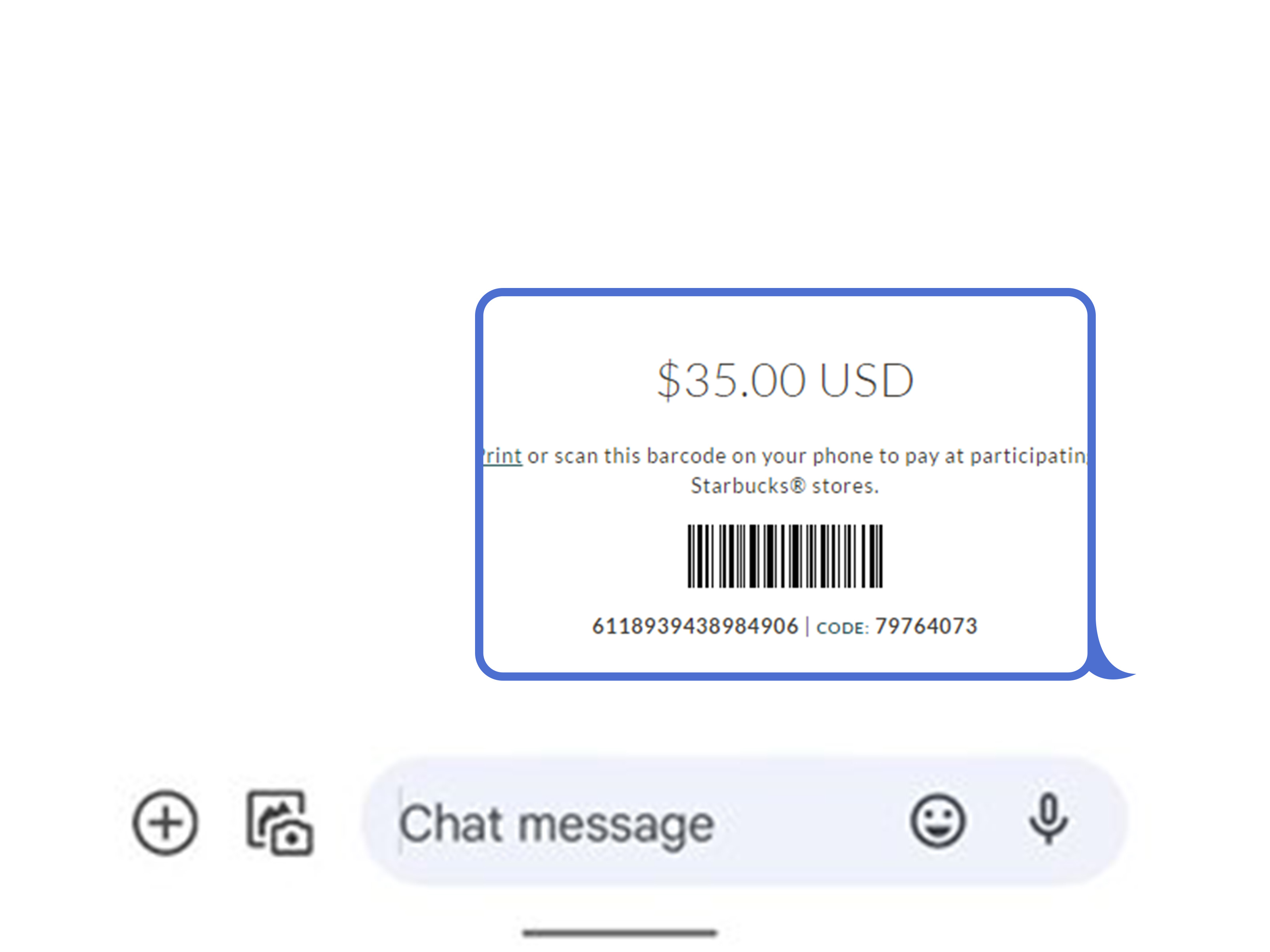
A Starbucks eGift works like a virtual Starbucks Card. The recipient receives a clickable card or link, opens it, and can use it at participating Starbucks stores. They may also add it to their Starbucks account or app for easier future use. In other words, you are not texting them a picture of coffee. You are texting them the legal tender of Monday morning survival.
Best Ways to Send a Starbucks Gift Card via Text
There are three main ways to send a Starbucks gift card through text:
- Send it through iMessage on iPhone using Starbucks Gifts.
- Send it from the Starbucks app on iPhone or Android.
- Buy an eGift on Starbucks.com and text the shareable link.
The iMessage method is the most seamless for iPhone-to-iPhone gifting. The Starbucks app method is more flexible because it works on iPhone and Android. The website method is useful if you do not want to install the app or if you are buying from a browser.
How to Send a Starbucks Gift Card via Text on iPhone Using iMessage
If you and the recipient use iMessage, sending a Starbucks gift card can be done directly from the Messages app. This is the smoothest option for iPhone users because the gift appears right inside the chat.
Step 1: Install or Update the Starbucks App
First, make sure the Starbucks app is installed on your iPhone. It is also smart to update the app before sending a gift. Digital gifting features depend on the app working properly, and nobody wants a birthday gift delayed by an app update that has been waiting since last Thanksgiving.
Step 2: Open Messages and Choose the Recipient
Open the Messages app on your iPhone and start a conversation with the person who should receive the gift card. You can also open an existing iMessage thread. Make sure you are sending to the correct person. Accidentally sending a $25 latte budget to your dentist instead of your best friend is memorable, but not ideal.
Step 3: Tap the Plus Button or App Drawer
In the message thread, tap the plus button or open the iMessage app drawer, depending on your iOS version. Scroll through the available iMessage apps until you find Starbucks Gifts. If it does not appear, check whether iMessage apps are enabled for Starbucks in your iPhone settings.
Step 4: Choose a Starbucks eGift Design
Starbucks usually offers multiple digital card designs for birthdays, thank-you notes, congratulations, holidays, encouragement, and everyday “you deserve caffeine” moments. Pick the one that fits the occasion. A cheerful design makes the gift feel more personal, even if the real emotional message is, “Please enjoy bean water on me.”
Step 5: Select the Gift Amount
Choose the amount you want to send. Common choices include small coffee-friendly amounts and larger values for meals, multiple drinks, or group gifts. Before you confirm, double-check the amount. A $10 gift and a $100 gift both say “I appreciate you,” but one says it with slightly more financial drama.
Step 6: Confirm Payment
Follow the prompts to complete the purchase. On newer iPhones, you may need to verify payment details and double-click the side button to approve the transaction. After the purchase is complete, the Starbucks eGift should appear as a clickable card in the iMessage conversation.
Step 7: Send the Message
Once the digital card appears in the message field, send it like a normal message. The recipient can tap the card to open it. They may use it directly, add it to their Starbucks account, or save it for later. You are now officially the person who made someone’s day better without leaving the couch.
How to Send a Starbucks Gift Card via Text on Android
Android users do not use iMessage, but they can still send a Starbucks gift card by text. The easiest method is to use the Starbucks app or Starbucks.com to create an eGift and share the link through a messaging app.
Step 1: Open the Starbucks App
Install or update the Starbucks app from Google Play, then sign in to your Starbucks account. The Starbucks app supports sending eGifts through email, text, or messaging apps, which makes it a flexible option for Android users.
Step 2: Find the Gift or eGift Section
Open the app and look for the gift card or eGift area. App layouts can change, but you will typically find gifting under a “Gift,” “Cards,” or similar section. If the app has recently updated, explore the bottom navigation and account menu.
Step 3: Pick a Card Design and Amount
Choose a digital gift card design and select the amount. For casual thank-you gifts, a smaller amount is usually enough for a drink or snack. For birthdays, holidays, teacher gifts, or “you survived the week” gestures, a higher amount may feel more generous.
Step 4: Choose How to Send It
Depending on the current app flow, you may be able to send the eGift by text, email, or another messaging app. If the app gives you a shareable link after purchase, copy it or choose your preferred messaging app, then send it to the recipient.
Step 5: Confirm the Gift Was Sent
After sending, check the message thread to make sure the link appears properly. It is also a good idea to send a quick note such as, “Coffee on me!” or “Use this when your inbox starts yelling.” A little context helps the recipient know the link is real and not a suspicious internet gremlin.
How to Send a Starbucks Gift Card from Starbucks.com
If you do not want to use the app, you can send a Starbucks gift card from the Starbucks website. This method works from iPhone, Android, tablet, or desktop browser.
Step 1: Go to the Starbucks Gift Card Page
Visit the Starbucks gift card section from your browser. Choose an eGift rather than a physical card if you want to send it through text.
Step 2: Choose a Design
Select a digital card design. Starbucks usually offers themes for birthdays, appreciation, work celebrations, holidays, friendship, encouragement, and everyday gifting.
Step 3: Enter the Gift Amount
Pick the amount you want to load onto the card. Remember that a Starbucks gift card is prepaid value, so once it is purchased, it should be treated like cash.
Step 4: Complete Checkout
Enter the required details and complete the payment. Depending on the option shown during checkout, you may send the eGift directly or receive a link that you can share after purchase.
Step 5: Text the eGift Link
If Starbucks gives you a shareable link, copy it and paste it into your text message. Add a personal note so the recipient knows it is from you. A simple message works perfectly: “Happy birthday! Your next Starbucks run is on me.”
Can the Recipient Use the Gift Card Without the Starbucks App?
In many cases, yes. Starbucks eGifts can be opened from the message or link, and the recipient may be able to use the barcode or card details at participating Starbucks stores. However, adding the eGift to the Starbucks app is usually more convenient. It keeps the balance in one place, makes scanning easier, and reduces the odds that the gift gets buried under 47 unread texts and one mysterious group chat named “Dinner???”
If the recipient already has a Starbucks account, they can add the eGift to their account or transfer the balance to an existing Starbucks Card. If they do not have the app, they may still be able to print the eGift or show it digitally, depending on the redemption instructions provided with the card.
How to Redeem a Starbucks Gift Card Received by Text
Redeeming a Starbucks gift card received by text is usually simple:
- Open the text message containing the Starbucks eGift or link.
- Tap the card or link.
- Follow the redemption instructions.
- Add it to the Starbucks app, save it, print it, or show the barcode in store.
- Use it at a participating Starbucks location.
The recipient should keep the gift card information private. A Starbucks eGift has a card number and security code, and those details should not be posted publicly, shared in screenshots, or sent to anyone other than the intended recipient.
Why Your Starbucks Gift Card Text May Not Work
Digital gifting is convenient, but technology occasionally behaves like it has not had coffee yet. Here are the most common problems and how to fix them.
The Starbucks Gifts Option Is Missing in iMessage
If Starbucks Gifts does not appear in iMessage, make sure the Starbucks app is installed and updated. Then check your iMessage app settings. On newer iOS versions, you can manage iMessage apps through the Messages settings area. You may need to turn Starbucks on, restart Messages, or reinstall the app.
The Gift Card Will Not Load
If the Starbucks gift interface shows a blank screen or will not load, check your internet connection, update the app, close and reopen Messages, or restart your phone. If the problem continues, use the Starbucks app or Starbucks.com instead of iMessage.
The Recipient Did Not Receive the Gift
First, confirm that you sent the gift to the correct phone number or message thread. Then check your email for a purchase confirmation. If you were charged but the recipient did not receive the eGift, use Starbucks eGift customer support or the gift card self-service tools to look up the order.
The Link Looks Suspicious
If the recipient is unsure whether the link is safe, tell them in a separate message that you sent it. Scammers often use fake gift card messages, so a quick “That Starbucks gift is really from me” can prevent confusion. The recipient should avoid entering personal information on suspicious pages and should only use official Starbucks channels.
Important Safety Tips Before You Send a Starbucks Gift Card
Gift cards are fun when they are actual gifts. They are not fun when a scammer is yelling “urgent payment” through a text message. A legitimate business or government agency will not demand payment through a gift card. If someone asks you to buy a Starbucks gift card to pay a debt, fine, tax bill, tech support fee, delivery charge, or emergency demand, treat it as a scam.
Only buy Starbucks eGifts through trusted sources such as Starbucks, the Starbucks app, or reputable app stores and retailers. Do not buy discounted Starbucks gift cards from random social media ads, auction sites, or strangers. A “$100 Starbucks card for $12” is not a deal; it is usually a trap wearing a tiny apron.
Also, never share the card number or security code with anyone except the intended recipient. Once someone has those details, they may be able to spend the balance.
How Much Should You Put on a Starbucks Gift Card?
The right amount depends on the occasion and your relationship with the recipient. For a casual thank-you, $5 to $10 can cover a drink or snack. For birthdays, holidays, teacher appreciation, or workplace gifts, $15 to $25 is common. For close friends, family, or group gifts, $25 to $50 may feel more substantial.
Think about what you want the gift to cover. A basic coffee costs less than a customized drink with extra shots, cold foam, oat milk, and enough personality to need its own calendar. If the recipient is a Starbucks regular, a higher value gives them more flexibility.
Best Occasions to Send a Starbucks Gift Card by Text
A Starbucks gift card sent by text works well because it is fast, practical, and easy to personalize. Here are a few perfect moments:
- Birthdays when you remembered at 9:43 p.m. but still want to look graceful.
- Thank-you gifts for teachers, coworkers, neighbors, clients, or friends.
- Congratulations for a promotion, graduation, new job, or finished project.
- Sympathy or encouragement when someone is having a hard week.
- Holiday gifts when shipping deadlines have already abandoned you.
- Remote team rewards for employees or freelancers.
- Small surprises for long-distance friends and family.
Because the gift arrives instantly or quickly, it is especially useful for last-minute gifting. It says, “I thought of you,” even if your calendar notification did most of the thinking.
iPhone vs. Android: Which Method Is Better?
For iPhone users, iMessage is the most elegant method because the Starbucks eGift appears inside the conversation. It feels native, quick, and polished. However, it depends on the Starbucks iMessage app working correctly and both users being comfortable with iMessage.
For Android users, the Starbucks app or website is the better route. It gives you more flexibility because you can share the gift through SMS, Google Messages, WhatsApp, Facebook Messenger, Instagram, email, or another app. This method also works well if the recipient has an iPhone but you do not.
For mixed-device gifting, the safest answer is simple: buy the eGift in the Starbucks app or on Starbucks.com, then text the shareable link through whatever messaging app you normally use.
Specific Examples of Gift Messages You Can Send
The gift card is useful, but the message makes it feel personal. Here are a few examples you can copy or adapt:
- “Happy birthday! Your next coffee is on me. Get something ridiculous with whipped cream.”
- “Thanks for your help today. Please accept this tiny cup-shaped bribe of appreciation.”
- “Congratulations on the new job! First-day caffeine sponsored by me.”
- “You’ve had a week. This is for coffee, a pastry, or emotional support in cup form.”
- “Teacher fuel! Thank you for everything you do.”
- “Because adulting is hard and cold brew helps.”
Keep it short. The recipient is not opening a novel; they are opening coffee money.
Common Mistakes to Avoid
The biggest mistake is sending the card to the wrong number or wrong chat. Before you tap send, check the recipient name carefully. Another mistake is assuming every Starbucks location accepts digital Starbucks Cards. Most participating Starbucks stores accept them, but certain licensed locations, such as some airport, grocery, bookstore, or specialty locations, may have different rules.
Do not send a screenshot of your own Starbucks Card unless you actually want to give away access to your balance. Send a proper eGift instead. Also avoid sending gift card codes through public or group chats where someone else might grab the information before the intended recipient does.
Real-World Experiences: What Sending Starbucks Gift Cards by Text Is Actually Like
The first time you send a Starbucks gift card by text, it feels almost too easy. You choose a card, pick an amount, approve the payment, and suddenly your friend has coffee money. There is no wrapping paper, no bow, and no dramatic search for a pen that works. It is gifting for people who have good intentions and a mildly chaotic schedule.
One of the best uses is the last-minute birthday rescue. Everyone has had that moment: you see a social media post, realize it is someone’s birthday, and your brain immediately opens six emotional tabs. A Starbucks eGift solves the problem in under five minutes. Add a warm message, choose a fun design, and the gift feels intentional instead of rushed. The trick is to write something personal. “Happy birthday, enjoy a latte!” is fine. “Happy birthday, get that caramel drink you pretend is not dessert!” is better.
Another great experience is sending a small thank-you after someone helps you. Maybe a coworker covered your meeting, a neighbor brought in your package, or a friend listened to your 18-minute voice note about one email. A $10 Starbucks gift card is not over the top, but it feels thoughtful. It is the digital equivalent of showing up with a coffee and saying, “You made my life easier.”
Text-based Starbucks gifts are also excellent for long-distance relationships. When your sibling, friend, partner, or former roommate lives in another state, you cannot always show up with their favorite drink. But you can send a gift card and a message like, “Pretend I’m there gossiping with you.” That tiny gesture can feel surprisingly personal, especially on stressful days.
Workplace gifting is another practical use. Managers can send Starbucks eGifts to remote employees after a big project, team members can thank each other after a deadline, and clients can receive a small appreciation gift without anyone needing mailing addresses. Just keep company policies in mind. Some workplaces have rules about gift values, especially for clients, vendors, or public-sector employees.
The most common frustration is when the iMessage gift option does not appear or gets stuck loading. In that case, do not wrestle your phone like it owes you rent. Switch to the Starbucks app or website, buy the eGift, and text the link. The recipient does not care which route the gift took. They care that the next drink costs them zero dollars.
The best habit is to send a separate human-sounding note with the gift. A bare link can look suspicious, especially because gift card scams are common. A message like “This is really from mecoffee for tomorrow!” makes the gift clearer and safer. It also makes the moment feel less transactional and more thoughtful.
Final Thoughts
Learning how to send a Starbucks gift card via text on iPhone or Android is simple once you know the available paths. iPhone users can send through iMessage with Starbucks Gifts. Android users can use the Starbucks app or website and share the eGift link by text or another messaging app. Both methods are fast, practical, and perfect for birthdays, thank-you notes, workplace rewards, and “you need caffeine more than advice” moments.
The safest approach is to use official Starbucks channels, double-check the recipient, add a personal message, and remind the recipient that the gift is really from you. Done right, a Starbucks eGift is more than a digital card. It is a tiny, drinkable act of kindness delivered at the speed of a text message.
Note: Starbucks app screens, labels, and checkout options may change over time. For the most reliable experience, use the latest version of the Starbucks app or the official Starbucks gift card page, and never buy or send gift cards in response to suspicious payment requests.