Changing a Chromebook password sounds like it should be a simple “click here, type there, celebrate with a snack” situation. And most of the time, it is. The catch is that a Chromebook is not like a traditional Windows laptop with one local password living quietly inside the machine. For most users, your Chromebook password is your Google Account password, which means changing it can affect Gmail, Google Drive, YouTube, Chrome sync, Android devices, and any other place where you use that same account.
That is great for convenience and security, but it can also create a tiny moment of panic when your Chromebook says your password is wrong, your brain says it is definitely right, and your coffee says, “I am not strong enough for this.” The good news is that there are several fast, legitimate ways to change or reset your Chromebook password depending on whether you can still sign in, forgot the password, use a school or work Chromebook, or only need to update your PIN.
This guide explains four quick ways to change or reset your Chromebook password, what each method actually does, and how to avoid losing access to local files. Whether you are helping a student, fixing a family Chromebook, or trying to rescue your own device before a meeting, these steps will help you get back in safely.
First: Know What “Chromebook Password” Really Means
Before changing anything, it helps to understand one important detail: on most Chromebooks, your login password is connected to your Google Account. If you change your Google Account password, you are also changing the password you use to sign in to your Chromebook. This is why there is no separate “Chromebook-only password” screen in many setups.
However, ChromeOS also allows faster sign-in options, such as a PIN on supported devices. A PIN can make unlocking your Chromebook easier, but it does not replace your Google Account password everywhere. You may still need the full password after restarting, after a security prompt, or when changing sensitive settings.
Also, if your Chromebook is managed by a school or workplace, your administrator may control password rules, recovery options, sign-in frequency, and whether you can reset the device. In that case, the fastest “method” may be contacting the admin instead of battling the login screen like it owes you money.
Quick Way 1: Change Your Chromebook Password from Google Account Settings
This is the best method if you know your current password and can still sign in. Since your Chromebook uses your Google Account for login, changing the Google password updates the password you use for the Chromebook too.
When to use this method
Use this option when you want to improve security, replace a weak password, change a password someone else may know, or update your login after a data breach warning.
Steps to change your password on a Chromebook
- Sign in to your Chromebook.
- Open Chrome.
- Select your profile picture or open your Google Account settings.
- Go to Security.
- Find the Password section under sign-in settings.
- Enter your current password when asked.
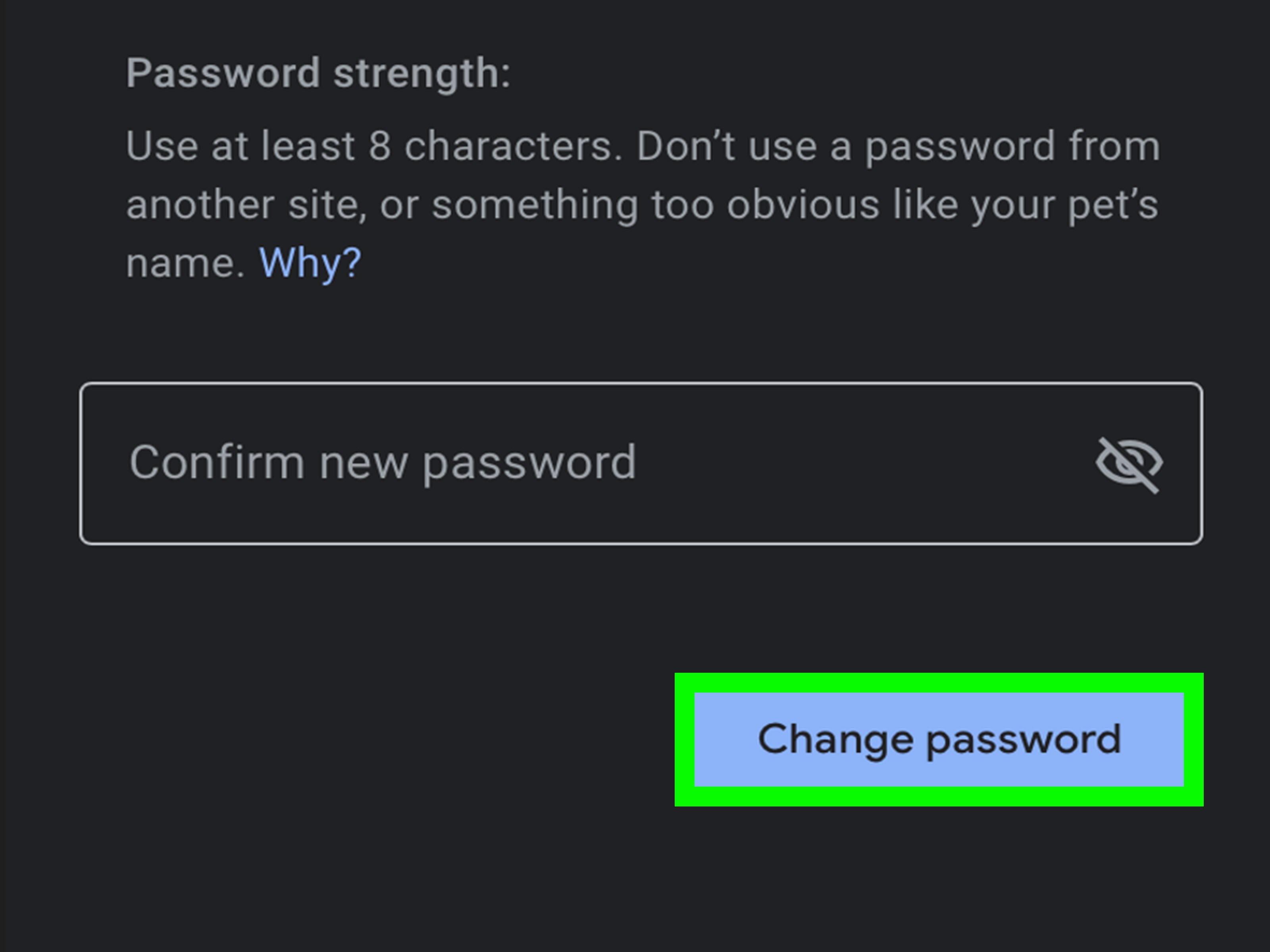
- Type your new password, confirm it, and save the change.
Once changed, your new password applies to your Google Account services. That means the next time you sign in to Gmail, Google Drive, YouTube, Chrome sync, or another Chromebook using that account, you will need the new password.
Pro tip: choose a password that is strong but not ridiculous
A good password should be long, unique, and hard to guess. A bad password is something like chromebook123, your dog’s name, or the word “password” wearing a fake mustache. Consider using a passphrase, such as a memorable sentence with numbers and symbols mixed in, or use a trusted password manager.
Example: instead of Bluebird2026, try something more like BlueBirdsEatTacos@7AM!. It is easier to remember, harder to crack, and gives your password a tiny personality.
Quick Way 2: Change the Password from Another Device
You do not have to use the Chromebook itself to change your Chromebook password. Because the password belongs to your Google Account, you can change it from another computer, phone, or tablet where you can access your Google Account.
When to use this method
This method is useful if your Chromebook is offline, the keyboard is acting strange, the screen is damaged, or you simply prefer using another device. It is also helpful when you are trying to secure your account quickly after losing your Chromebook.
Steps to change it from another device
- Open a browser on another computer, phone, or tablet.
- Go to your Google Account settings.
- Open the Security section.
- Select Password.
- Verify your identity.
- Create and confirm your new password.
After changing the password, return to your Chromebook and connect it to the internet. On the sign-in screen, enter the new password. If the Chromebook has not synced yet, it may ask for the old password first, especially if local encrypted data needs to be unlocked. This can surprise users, but it is part of how ChromeOS protects local files stored on the device.
What if the new password does not work immediately?
First, check the basics. Make sure Wi-Fi is connected on the sign-in screen. Confirm that Caps Lock is not causing chaos. If your password contains symbols, check that the keyboard layout is correct. A password typed on a U.S. keyboard layout may look very different on another layout, and yes, computers love this kind of tiny drama.
If you recently changed your password, try the previous password if ChromeOS asks for it. Once the device reconnects and verifies your account, the new password should become the one you use going forward.
Quick Way 3: Reset a Forgotten Chromebook Password with Google Account Recovery
If you forgot your Chromebook password, you need to recover your Google Account. There is no magic hidden Chromebook master password, and anyone promising one is probably about to introduce you to malware, scams, or both.
When to use this method
Use Google Account Recovery when you cannot remember your password, your password was changed without your permission, or you are locked out after too many failed attempts.
Steps to reset a forgotten password
- On the Chromebook sign-in screen, make sure the device is connected to the internet.
- If available, choose the password recovery option, or use another device.
- Open Google Account Recovery.
- Enter your Gmail address or the email used with the Chromebook.
- Follow the verification steps.
- Use your recovery phone, recovery email, security prompt, backup code, or other available method.
- Create a new password.
- Return to your Chromebook and sign in with the new password.
Google may ask questions to confirm that the account belongs to you. Answer as accurately as possible. Use a familiar device and location if you can. For example, recovering your account from your home Wi-Fi on a phone you regularly use is usually better than trying from a random airport kiosk, which is not exactly the picture of trust.
Important warning about local files
Resetting your Google Account password can restore access to your account, but it may not automatically restore local files stored only on the Chromebook. Files in Google Drive are cloud-based and should remain available after you sign in. Files saved only in the Downloads folder or local storage may be harder to recover if ChromeOS cannot unlock the old encrypted profile data.
This is why it is smart to keep important documents in Google Drive or another backup location. A Chromebook is wonderfully cloud-friendly, but the Downloads folder is not a magical vault. Treat it like a hotel drawer: useful, but not where you want to leave your passport forever.
Quick Way 4: Reset a PIN, Ask an Admin, or Powerwash as a Last Resort
Sometimes the problem is not the Google Account password itself. Maybe you forgot your Chromebook PIN. Maybe the device belongs to a school. Maybe the local profile is stuck after a password change. This fourth method covers the practical fixes for those situations.
Option A: Change or reset your Chromebook PIN
If you can sign in with your Google Account password but want to change the PIN, use ChromeOS settings.
- Select the time in the bottom-right corner.
- Open Settings.
- Go to Privacy and security.
- Select Lock screen and sign-in.
- Enter your Google Account password.
- Choose the option to set up or change your PIN.
- Create a PIN of at least six digits and confirm it.
A PIN is faster for everyday use, especially if your Google password is long and heroic. Still, keep the full password somewhere safe because ChromeOS may require it after a restart or during certain security checks.
Option B: Contact your school or workplace administrator
If the Chromebook is managed by a school, business, or organization, your administrator may need to reset your password. Managed devices can have rules that personal Chromebooks do not have, including forced password changes, sign-in restrictions, and blocked factory resets.
Do not try to bypass management controls. Besides being against policy, it usually wastes time. Contact the IT department, teacher, manager, or Google Workspace admin. They can reset your account password, require a new password at next sign-in, or help re-enroll the Chromebook if needed.
Option C: Powerwash the Chromebook only when necessary
Powerwash is ChromeOS factory reset. It can remove local user data and return the Chromebook to a fresh setup state. It may help if the device profile is broken, the owner account needs to change, or you cannot get past a local sign-in problem after recovery. However, it does not reset your Google Account password. You must still know or recover the Google password to sign in again.
Before using Powerwash, back up anything you can. Files stored in Google Drive or on an external drive are safer. Local files on the Chromebook may be erased.
Basic Powerwash steps
- Sign out of the Chromebook if possible.
- Press Ctrl + Alt + Shift + R.
- Select Restart.
- Choose Powerwash, then continue.
- Follow the setup steps and sign in with your Google Account.
If the device is managed by a school or workplace, you may not be allowed to Powerwash it yourself. In that case, contact the administrator.
What to Do After You Change or Reset Your Chromebook Password
Once you are back in, take a few minutes to secure the account properly. This is the digital equivalent of locking the door after finding your keys under the welcome mat.
Update your recovery options
Add or update your recovery phone number and recovery email. These are extremely useful if you forget your password later. Make sure they belong to you and are still active.
Turn on 2-Step Verification
Two-step verification adds another layer of protection. Even if someone gets your password, they still need the second step, such as a phone prompt, authenticator code, backup code, or security key.
Consider using a passkey
Passkeys can make sign-in easier and more resistant to phishing. Instead of typing a password, you verify with a device unlock method such as a fingerprint, face scan, or screen lock. This does not mean passwords vanish from every situation, but it can reduce how often you type them.
Back up local Chromebook files
Move important files from Downloads to Google Drive. If you use your Chromebook for school, writing, invoices, photos, or business documents, do not leave the only copy sitting locally. Password problems are stressful enough without adding “lost essay” or “missing tax document” to the playlist.
Common Chromebook Password Problems and Fast Fixes
“My new password is not working.”
Connect the Chromebook to Wi-Fi on the sign-in screen. If you changed your password recently, try the old password if ChromeOS asks for it. Check Caps Lock, keyboard language, and whether you are signing in to the correct Google Account.
“I forgot the email address too.”
Use Google’s account recovery options to recover the username. You may need your recovery phone number or recovery email, plus the name on the account.
“My Chromebook asks for the old password.”
This can happen because local Chromebook data is encrypted. If you remember the old password, enter it to unlock local data. If you do not, you may still regain account access, but local files may not be available unless local data recovery was enabled.
“Can I make a separate Chromebook password?”
Some ChromeOS versions and device setups may offer additional sign-in choices such as a PIN or custom sign-in option. Availability can vary by update, device model, and admin policy. For most personal users, the Google Account password remains the main identity password.
Real-World Experience: What Chromebook Password Resets Teach You
The first lesson from any Chromebook password adventure is that the device is only half the story. The other half is your Google Account. Many people sit in front of the Chromebook trying variations of the same old password, slowly negotiating with the keyboard as if the Enter key might eventually show mercy. But the real solution usually starts with the account itself: Can you access it? Is the recovery email correct? Do you still have the phone number connected to it? Did you change the password on another device and forget that the Chromebook may need to sync?
A common experience is changing the Google password on a phone, then opening the Chromebook and expecting the new password to work instantly. Sometimes it does. Other times, ChromeOS asks for the old password to unlock local data. This feels confusing, but it is a security feature, not the Chromebook being dramatic for sport. The device is trying to protect files that were encrypted under the previous sign-in credentials. If you remember the old password, you can usually move forward smoothly. If not, you may still access your Google Account, but local-only files may be at risk.
Another everyday lesson is that PINs are fantastic until people forget what they are. A PIN makes sign-in faster and keeps you from typing a long Google password in public. That is great in classrooms, coffee shops, airports, and anywhere someone might accidentally become an amateur shoulder-surfer. But a PIN should be treated as a convenience, not your only recovery plan. You still need your actual Google Account password for important settings and occasional sign-ins.
For families, the best practice is to set up recovery information the day the Chromebook is first used. Parents often discover this too late, usually five minutes before homework is due or a video call begins. Add a recovery email, verify a phone number, and write down backup codes if you use two-step verification. Store them somewhere safe, not on a sticky note attached to the Chromebook like a tiny invitation to chaos.
For schools and businesses, the experience is different. Users may not control their own password rules. An administrator can reset passwords, require a new password at next sign-in, and manage whether a device can be wiped or re-enrolled. In these cases, the fastest path is not guessing passwords repeatedly. It is contacting IT with the account name, device information, and a clear description of the error.
The biggest takeaway is simple: Chromebooks are easy to reset, but accounts are what matter. Keep your Google Account secure, keep recovery options updated, back up local files, and use a PIN or passkey where available. Do that, and the next password problem becomes a minor speed bump instead of a full emotional weather event.
Conclusion
Changing or resetting your Chromebook password is usually quick once you know where the password actually lives. For most users, the Chromebook login password is the Google Account password, so the main fix is changing or recovering that account. If you still know your password, update it through Google Account settings. If you cannot access the Chromebook, change it from another device. If you forgot it completely, use Google Account Recovery. If the device is managed, ask the administrator. And if local sign-in is broken, Powerwash can help as a last resort, but only after you understand that it can erase local data.
The smartest long-term move is prevention: keep recovery details current, turn on two-step verification, consider passkeys, and save important files to Google Drive. Your future self will thank you, probably while calmly signing in instead of whisper-yelling at a laptop before breakfast.