Downloading a map from Google Maps sounds like something that should take three seconds, two taps, and maybe one heroic coffee sip. In real life, it depends on what kind of “download” you mean. Do you want offline navigation on your phone? A saved city map for a road trip? A printable route for your glove box? Or a custom map file from Google My Maps that you can use for planning?
The good news: Google Maps gives you several practical ways to save map information before you lose service, board a plane, drive into the mountains, or discover that your “unlimited data” plan has emotional limits. The slightly less glamorous news: Google Maps does not let you download every type of map in every format. Offline maps are mainly designed for mobile use, especially driving navigation. Desktop options are better for printing, sharing, or exporting custom map data.
This guide explains the three most useful ways to download a map from Google Maps: downloading an offline area on iPhone or Android, downloading a destination map from a searched location, and saving map information from desktop tools such as Google My Maps or print-to-PDF. Each method has a different job, and choosing the right one can save you from wrong turns, dead zones, and the ancient travel ritual known as “asking a gas station cashier where the highway went.”
What “Download a Map from Google Maps” Really Means
Before choosing a method, it helps to understand the difference between saving a map for offline navigation and saving map information for reference. In the Google Maps mobile app, downloading a map usually means saving an offline area to your phone. That area can load without a data connection, and in many cases, it can still provide driving directions as long as your route stays inside the downloaded region.
On a computer, Google Maps works differently. You generally cannot download a full interactive Google Maps region to your desktop the same way you can on your phone. However, you can print directions, save a route as a PDF, share map links, or use Google My Maps to export custom map data as KML or KMZ files. That is perfect for trip planning, field work, delivery notes, school projects, travel itineraries, or simply keeping a backup when your phone decides to behave like a sleepy brick.
Also, offline maps are not magic. They do not include every live feature. When you are offline, Google Maps may not provide real-time traffic, live closures, transit directions, biking routes, walking directions, or alternate routes the way it does online. For most road trips, city visits, and “please get me back to the hotel” moments, offline maps are still extremely useful.
Way 1: Download an Offline Map Area on iPhone or Android
The most common way to download a map from Google Maps is to save an offline area in the mobile app. This works on both Android and iPhone, and it is the best option when you want to navigate without relying on mobile data.
Best For
This method is ideal for road trips, international travel, mountain drives, national parks, rural areas, camping weekends, and cities where you do not want to burn through mobile data. It is also useful if your carrier has suspiciously strong opinions about where signal should exist.
How to Download an Offline Map Area
- Open the Google Maps app on your iPhone or Android device.
- Make sure you are connected to the internet and signed in to your Google account.
- Tap your profile picture or initial in the top-right corner.
- Select Offline maps.
- Tap Select your own map.
- Move and zoom the map box until it covers the area you want to save.
- Tap Download.
Google Maps will show an estimated file size before the download begins. A small downtown area may take relatively little storage, while a large region with multiple cities can take much more. If your phone is already begging for mercy because it has 12,000 photos of your dog, be selective. Download the area you actually need, not half the continent.
How to Use the Downloaded Map
Once the offline map is downloaded, you can use Google Maps as usual. Search for places, view roads, and get driving directions within the saved area. Your phone’s GPS can still locate you even without mobile data, which is why offline maps are so useful in low-signal areas.
The catch is that offline navigation works best for driving. If you need public transit, cycling, or walking directions, you should plan those routes while you still have internet access. Offline mode also will not give you live traffic updates, so a route that looks peaceful may still contain a surprise traffic jam doing its best impression of a parking lot.
Tips for Better Offline Map Downloads
Download maps over Wi-Fi whenever possible. Offline maps can be large, and using mobile data for big downloads may be slow or expensive depending on your plan. If you are on Android and your phone supports expandable storage, you may be able to save offline maps to an SD card through the Offline maps settings. This is a great option for travelers who need several regions saved at once.
It is also smart to turn on automatic updates for offline maps. Roads change, businesses move, and construction crews appear overnight like mushrooms after rain. Auto-updates help keep your saved areas fresh when your phone is connected to Wi-Fi.
Way 2: Download a Map from a Specific Destination Search
The second method is faster when you already know where you are going. Instead of manually drawing a rectangle around a region, you can search for a city, town, neighborhood, or destination and download the surrounding map area from the place panel.
Best For
This method is perfect when you are visiting a specific city, staying near one hotel, attending an event, or planning a simple trip to one destination. For example, if you are going to Denver, Savannah, Las Vegas, or a small beach town with unreliable signal, you can search the place and download the map around it.
How to Download a Destination Map
- Open the Google Maps app.
- Search for your destination, such as “Chicago,” “Yosemite Valley,” or “Miami Beach.”
- Tap the place name or address at the bottom of the screen.
- Tap the three-dot menu or swipe through the available options.
- Select Download offline map.
- Adjust the map area if needed.
- Tap Download.
This approach is wonderfully simple because Google Maps starts with the place you searched. You can still zoom out if you need nearby suburbs, airports, or connecting highways. For example, if you are downloading a map of San Francisco, you may want to include Oakland, the airport, and the roads leading to your hotel. A map that ends two blocks before your destination is not a map; it is a tiny digital prank.
Example: Downloading a Map for a Weekend Trip
Imagine you are spending a weekend in Asheville, North Carolina. You search “Asheville” in Google Maps, open the place panel, choose Download offline map, and adjust the area to include your hotel, downtown, the Blue Ridge Parkway entrances, and a few nearby towns. Now, even if your signal disappears in the mountains, you still have the roads and driving navigation for the downloaded area.
This is also useful for international travel. Before leaving your hotel Wi-Fi, download the city or region you will explore that day. You can reduce roaming data use and still find your way back when your mobile signal plays hide-and-seek in a language you do not speak.
What to Check Before You Go Offline
Open your Offline maps menu and confirm that the downloaded area appears in your list. Rename it if needed, especially if you are saving several places. Names like “Trip Day 1,” “Airport to Hotel,” or “Grand Canyon South Rim” are much more helpful than a random city label you will forget after lunch.
You should also test the map before leaving reliable internet. Put your phone briefly into airplane mode, open Google Maps, and check whether the downloaded area loads. Do not wait until you are standing beside a rental car in a dark parking lot to discover that your map never finished downloading. That is not adventure. That is avoidable character development.
Way 3: Download, Export, or Print Map Information on Desktop
If you are using a computer, downloading a map from Google Maps usually means saving map information rather than downloading a full offline navigation map. The two most useful desktop options are printing directions from Google Maps and exporting custom map data from Google My Maps.
Option A: Print Google Maps Directions or Save Them as a PDF
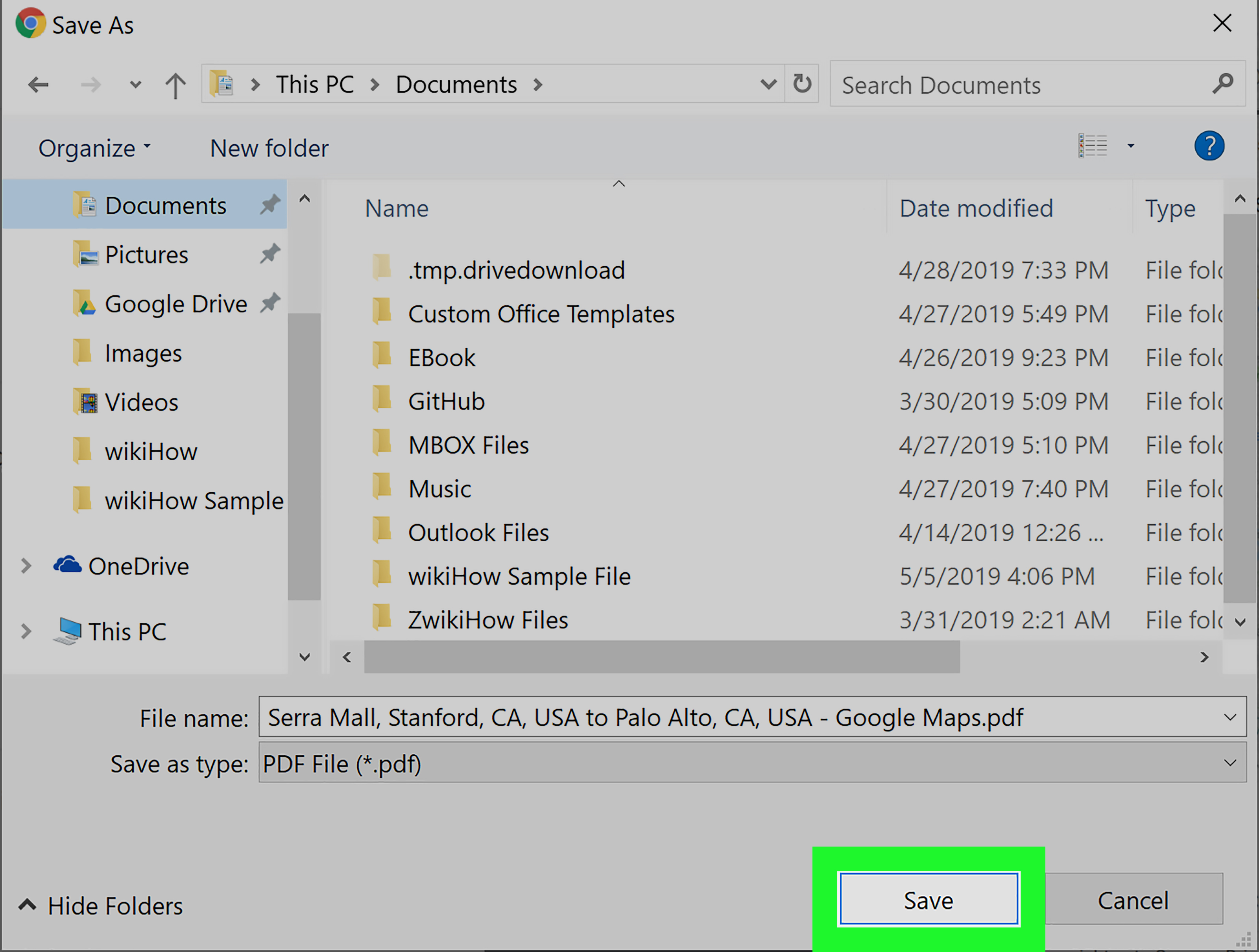
Google Maps on desktop allows you to print directions. Depending on your computer and browser, you can also use the print window to save those directions as a PDF. This is a practical backup for road trips, moving days, delivery routes, school projects, or travel plans you want to share with someone who does not enjoy squinting at a phone screen.
- Open Google Maps on your computer.
- Click Directions.
- Enter your starting point and destination.
- Choose your preferred route.
- Click the print icon or open the print option.
- Select Print including maps or Print text only.
- Print the route or choose Save as PDF if your system supports it.
This does not create an interactive offline Google Map, but it gives you a stable reference. A PDF route can be stored on your phone, emailed, printed, or added to a travel folder. If your battery dies, a paper copy suddenly looks less old-fashioned and more like a genius survival tool.
Option B: Export a Custom Map from Google My Maps
Google My Maps is a separate Google tool for creating custom maps with pins, routes, layers, notes, and saved places. If you have built a custom travel map, client route, real estate tour, hiking plan, or food crawl, you can export map information as a KML or KMZ file.
- Open Google My Maps on your computer.
- Sign in with the Google account that owns the custom map.
- Open the map you want to export.
- Click the menu in the left panel.
- Select Export to KML/KMZ.
- Follow the on-screen instructions to download the file.
KML and KMZ files are commonly used to store geographic data such as points, lines, and shapes. This is helpful if you need to move custom map information into another mapping tool, archive your map, or share structured location data. However, exporting from My Maps is not the same as downloading all Google Maps road data, satellite imagery, live navigation, or business listings. Think of it as exporting your custom map layer, not putting the entire Google Maps universe into your backpack.
When Desktop Download Options Make More Sense
Use desktop printing when you need a human-readable route. Use My Maps export when you need custom location data. Use mobile offline maps when you need turn-by-turn driving navigation without internet. These tools overlap a little, but they are not interchangeable.
For example, a wedding planner might use My Maps to export venue pins and hotel locations. A family road-tripper might print directions from home to a cabin. A traveler driving through a low-signal desert area should download an offline map on their phone. Same broad goal, three different tools, three different levels of “please don’t let us get lost.”
Common Problems When Downloading Google Maps
The Download Button Is Missing
If you do not see the download option, check that you are using the Google Maps mobile app, not just a browser. Some features vary by region, device, and account. Also, very large areas or certain map regions may not be available for offline download.
The File Is Too Large
Zoom in and select a smaller area. Downloading only what you need saves storage and speeds up updates. For a road trip, consider saving several smaller maps along your route instead of one giant map that includes oceans, empty land, and your phone’s last remaining dignity.
Offline Directions Are Not Working
Make sure the entire route is inside the downloaded map area. If your start point or destination falls outside the saved region, Google Maps may need an internet connection to calculate the route. Also remember that offline mode is mainly useful for driving directions, not transit, biking, or walking routes.
The Map Looks Outdated
Open Offline maps and update the saved area. Turning on auto-update is the easiest fix, especially if you travel often. Offline maps need refreshing because roads, businesses, addresses, and traffic patterns change over time.
Best Practices Before Traveling with Offline Google Maps
First, download your map before you leave stable Wi-Fi. Airport Wi-Fi, hotel Wi-Fi, and coffee shop Wi-Fi can be unpredictable, so do not wait until the final five minutes before boarding. Second, charge your phone and consider carrying a power bank. Offline maps are helpful, but GPS still uses battery.
Third, save important places in advance. Mark your hotel, parking garage, airport terminal, trailhead, meeting point, and backup gas station. Saved places can make offline navigation much less stressful. Fourth, take screenshots of critical details such as hotel addresses, reservation pages, or parking instructions. Screenshots are not elegant, but neither is wandering around a new city muttering, “I swear it was right here.”
Finally, keep a second backup for important trips. That might be a printed route, a PDF, an Apple Maps offline download, a dedicated GPS device, or a simple written address. Google Maps is excellent, but travel rewards people who prepare for tiny disasters with boring little backups.
Real-World Experience: What I Learned from Using Offline Google Maps
The biggest lesson from using offline Google Maps is that the best time to download a map is when you do not need it yet. Offline maps are like umbrellas, spare chargers, and snacks in the car: slightly boring until the exact moment they become heroic. If you wait until your signal drops to one bar on a winding road, you are already late to the party.
One practical habit is to download maps by “travel zones” instead of only by cities. For example, if you are driving from Los Angeles to Joshua Tree, do not download only Joshua Tree. Save the route corridor, the town where you are sleeping, nearby gas stations, and the roads around the park entrance. A destination-only map can be too narrow, especially when you take a wrong turn or decide to stop for food. Offline maps should cover how real people travel, which is rarely a perfect straight line from Point A to Point B.
Another useful habit is naming maps clearly. When several offline areas are saved, vague labels can become confusing. A name like “Phoenix trip,” “Seattle airport hotel,” or “Utah parks route” is easier to recognize than a default region name. This matters more than it sounds, especially when you are tired, hungry, and trying to choose the right map while someone in the passenger seat is helpfully asking, “Are we lost?” every 14 seconds.
Storage management also matters. Offline maps can take up a surprising amount of space, particularly for dense cities or large travel regions. Before a long trip, delete old offline maps you no longer need. That New York map from three years ago may be emotionally meaningful, but your phone needs room for the map you will actually use tomorrow. If you use Android and have SD card support, saving maps externally can be a nice advantage.
For international travel, offline maps are even more valuable. Download the airport area, hotel neighborhood, and main sightseeing zones before leaving home or while connected to hotel Wi-Fi. Even when you have roaming data, offline maps reduce stress because you are not completely dependent on a connection. They also make it easier to navigate when buildings, subway stations, or crowded tourist areas weaken your signal.
Still, offline Google Maps should not be your only planning tool. If you need walking routes through a city, public transportation schedules, live traffic, or real-time closures, check those details while online. I like to start important routes before leaving Wi-Fi, save addresses, and keep a simple backup note with the destination name and street address. It feels old-school, but it works. Technology is wonderful; technology with a backup plan is better.
The final experience-based tip is simple: test your offline map. After downloading, open the Offline maps section and confirm it appears. Zoom into the area and make sure roads load. If you are serious, briefly switch to airplane mode and see whether the map still works. This tiny test can prevent a huge headache later. Offline maps are not exciting, but neither are seatbelts. Both are easy to appreciate when things stop going perfectly.
Conclusion
There are three smart ways to download a map from Google Maps, and each one solves a different problem. For offline driving navigation, use the Google Maps mobile app and download an offline area. For a specific trip destination, search the city or place and download the surrounding map. For desktop planning, print directions, save a PDF, or export custom map information from Google My Maps.
The best method depends on your goal. Travelers should download offline maps before leaving Wi-Fi. Planners should use Google My Maps for custom pins and exports. Drivers who like backup plans should print or save important routes. Put them together, and you get a navigation setup that works even when cell service disappears, batteries get nervous, and the road ahead looks suspiciously unfamiliar.
Note: Google Maps features can vary slightly by device, country, app version, and account settings. Always update the app and confirm your offline maps before traveling.