Typing with your mouse may sound like something you would only do after your keyboard has dramatically retired, preferably during an important email. But mouse-based typing is not just a backup plan for a broken keyboard. It is a practical accessibility tool, a useful workaround for touchscreen devices, a lifesaver when one hand is unavailable, and sometimes the easiest way to enter special characters, handwriting, or short bits of text without touching a physical keyboard.
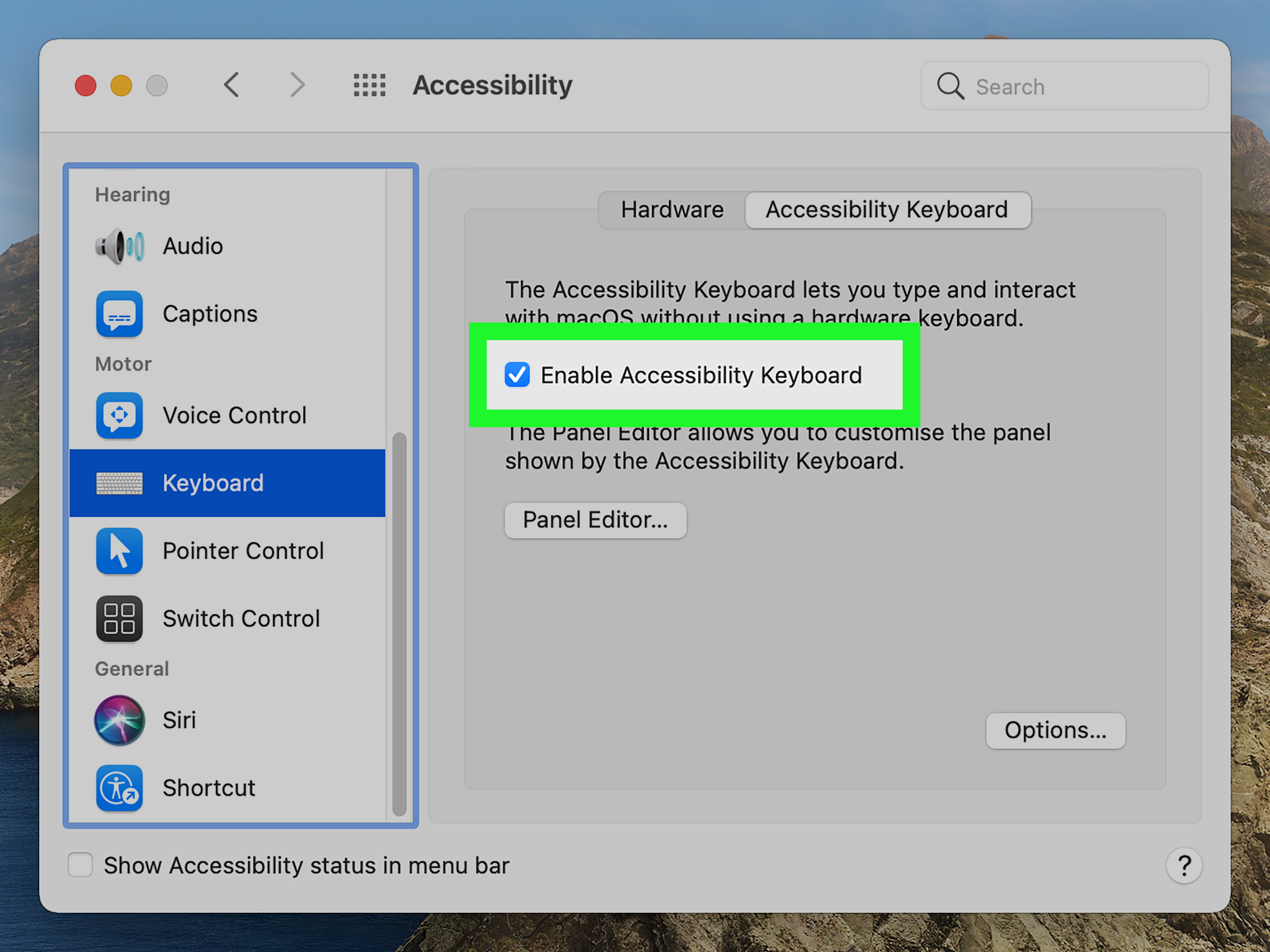
Modern operating systems have quietly turned the humble mouse into a surprisingly capable text input tool. Windows includes an On-Screen Keyboard and touch keyboard layouts. macOS offers an Accessibility Keyboard with typing suggestions and Dwell Control. Chromebooks include an on-screen keyboard, handwriting, voice input, clipboard tools, and glide typing. Google Input Tools can even let you draw characters with a mouse or trackpad. In short, your mouse can do more than click “Remind me tomorrow” on software updates.
This guide explains four practical ways to type with your mouse, when each method works best, and how to make the experience faster, less awkward, and more comfortable. Whether you need accessibility support, temporary keyboard replacement, multilingual input, or just a clever workaround, these methods can help you keep writing without wrestling with hardware.
Why Would Anyone Type With a Mouse?
Before we get into the methods, let’s answer the obvious question: why would you type with a mouse when a keyboard exists? For many people, the answer is necessity. A physical keyboard may be broken, unavailable, uncomfortable, or difficult to use because of injury, fatigue, mobility limitations, tremors, arthritis, or a temporary situation such as a bandaged hand. For others, mouse typing is about convenience. You might be using a tablet-style laptop, entering accented letters, working on a public kiosk, or typing in a language that is easier to write by hand than to locate on a QWERTY layout.
Mouse-based typing is usually slower than using a regular keyboard, but speed is not always the point. Reliability, comfort, and access matter. If clicking one letter at a time lets you finish a form, send a message, or search the web, that is not “slow typing.” That is problem-solving with a cursor.
1. Use an On-Screen Keyboard
The most straightforward way to type with your mouse is to use an on-screen keyboard. This is a visual keyboard displayed on your screen. Instead of pressing physical keys, you click the letters, numbers, symbols, and commands with your mouse pointer.
How It Works
An on-screen keyboard looks like a regular keyboard, but it floats on your desktop or appears near a text field. You click inside the place where you want to type, then click the on-screen keys. The letters appear exactly as if you had pressed them on a hardware keyboard.
On Windows, the built-in On-Screen Keyboard is designed for use with a mouse or other pointing device. It includes standard keys and can remain visible until you close it. Windows also offers a touch keyboard with multiple layouts, including traditional, small, split, and handwriting options depending on your device and language settings.
On a Chromebook, you can turn on the on-screen keyboard through Accessibility settings. Once enabled, it can be used in documents, emails, search boxes, and other text fields. Chromebooks also allow the keyboard to float, dock, or resize, which is useful when the keyboard blocks half of your masterpieceor your grocery list, which is also important literature.
Best Uses
The on-screen keyboard is best for short messages, passwords, searches, form fields, troubleshooting, accessibility support, and emergency typing when your physical keyboard is unavailable. It is also helpful on shared or kiosk-style computers where a physical keyboard may not be practical.
Tips to Make It Faster
Use word prediction if your system offers it. Predicted words can reduce the number of clicks needed to complete a sentence. Move the keyboard to a comfortable spot so your mouse travels less distance. If the layout is too small, resize it. If it covers your writing area, dock or float it somewhere less annoying. The goal is to avoid turning every sentence into a cross-screen expedition.
For longer typing sessions, try increasing pointer speed slightly and using a mouse with comfortable buttons. A trackball can also help because your hand stays in one place while your thumb or fingers move the pointer.
2. Use Accessibility Keyboard Features and Dwell Typing
Clicking each key works, but what if clicking itself is difficult? That is where accessibility keyboard features come in. Some systems allow you to type by hovering over keys, using dwell actions, or selecting items with adaptive input devices.
How Dwell Typing Works
Dwell typing means you place the pointer over an on-screen key and hold it there for a set amount of time. After the dwell time passes, the system treats that hover as a click. This can reduce the need for repeated pressing, which is useful for people who can move a pointer but find clicking painful, tiring, or inconsistent.
On macOS, the Accessibility Keyboard can work with Dwell Control. Apple’s system allows users to perform actions such as left click, right click, double click, drag, and drop by resting the pointer on an item for a chosen period. The Accessibility Keyboard also includes typing suggestions, which can make mouse-based typing less tedious.
Windows offers several accessibility approaches as well. Its On-Screen Keyboard supports different input modes, including clicking, hovering, and scanning. Hover mode can be useful when pressing a mouse button repeatedly is uncomfortable. Scanning mode can cycle through groups of keys and allow selection with a switch, button, or other input device.
Best Uses
Dwell typing is especially helpful for users with motor disabilities, repetitive strain issues, limited hand strength, or conditions that make clicking difficult. It can also help during recovery from an injury. For example, if your index finger has decided to go on medical leave, dwell typing may let the rest of your hand keep working.
Practical Setup Advice
Start with a dwell time that feels slightly slow rather than too fast. If the delay is too short, you may accidentally type letters just by passing over them. That can produce sentences like “hellooooooqqqq,” which is expressive but not usually professional. If the delay is too long, typing becomes frustrating. Adjust until the pointer feels deliberate but not sluggish.
Use typing suggestions whenever possible. Also consider creating custom panels or shortcuts if your system supports them. For example, buttons for your email address, common phrases, or frequent commands can save dozens of clicks each day.
3. Handwrite Text With a Mouse or Trackpad
Typing with a mouse does not always mean clicking letters. Another option is handwriting input. Instead of selecting keys, you draw letters, words, or characters in a handwriting panel. The system recognizes your writing and converts it into typed text.
How Handwriting Input Works
Handwriting input gives you a blank writing area. You press and hold the mouse button, move the pointer to draw letters or characters, and then choose from the suggested results. This method is common on touch devices with a pen or finger, but some tools also work with a mouse or trackpad.
Windows includes a handwriting panel as part of its touch keyboard experience. Depending on the device and settings, users can write with a pen or fingertip, and some configurations allow related handwriting input workflows. Chromebooks also support handwriting from the on-screen keyboard, especially on touchscreen models. Google Input Tools specifically supports handwriting with a mouse or trackpad and works across supported Google products and languages.
Best Uses
Handwriting input is excellent for languages with characters that are difficult to type on a standard keyboard, such as Chinese, Japanese, or other scripts where drawing a character may be faster than finding it. It is also useful for math symbols, names with accents, and situations where you know what a word looks like but do not know how to type it. This is the digital equivalent of “I know it when I scribble it.”
Tips for Better Recognition
Write slowly and clearly at first. Handwriting recognition is smart, but it is not a mind reader. If your mouse handwriting looks like a spider fell into an ink bottle, the software may struggle. Use larger strokes, leave enough space between words, and check the suggested candidates before inserting text.
A trackpad can feel more natural than a mouse for some users because it mimics finger drawing. A pen-enabled device is usually best, but a regular mouse can still work for short entries and character selection. For long paragraphs, handwriting with a mouse can become tiring, so treat it as a specialized tool rather than your new novel-writing setup.
4. Use Mouse-Started Dictation, Voice Typing, and Text Shortcuts
The fourth method is a hybrid: use your mouse to place the cursor, open a microphone button, trigger dictation, or select saved text snippets. Strictly speaking, voice typing uses your voice rather than your mouse to create the words. But in real workflows, your mouse often starts the process, positions the cursor, chooses suggestions, edits mistakes, and inserts reusable phrases.
How Mouse-Assisted Dictation Works
Windows voice typing lets users enter text by speaking, and it can be started from the microphone button on the touch keyboard. Microsoft also offers Voice Access in Windows 11 for controlling the PC and authoring text with voice commands. On macOS, Dictation can enter text in apps and supports punctuation, emoji, new lines, and other spoken commands. Chromebooks include Dictation and voice input tools that allow users to speak into text fields.
Here is the mouse-friendly workflow: click in the text box, open the on-screen or touch keyboard, click the microphone icon, speak your sentence, then use the mouse to correct anything weird. And yes, voice recognition may occasionally turn “send the invoice” into “send the in-laws.” Always proofread before clicking Send unless you enjoy surprise family logistics.
Add Text Expansion for Common Phrases
Text expansion tools can make mouse-based typing much faster. Instead of clicking every letter of your email address, shipping address, standard reply, or signature, you create a short shortcut that expands into a longer phrase. Some systems and apps include personal suggestions, clipboard tools, saved phrases, or replacement features. Browser extensions and productivity apps can also insert reusable text blocks.
This is especially helpful if you often type the same things: “Thank you for your message,” “Please see the attached file,” “Best regards,” or “No, I did not mean to schedule that meeting for 6 a.m.” With mouse typing, every saved phrase is a tiny vacation for your hand.
Best Uses
Mouse-started dictation is ideal for longer paragraphs, brainstorming, emails, notes, and messages. Text shortcuts are best for repeated information, customer support replies, addresses, usernames, templates, and standard business communication. Together, they turn mouse typing from a slow click-by-click process into a more efficient input system.
Choosing the Best Method
The best way to type with your mouse depends on your device, your body, your typing goal, and your patience level. For quick searches or passwords, use an on-screen keyboard. For accessibility needs and reduced clicking, use dwell typing or scanning. For foreign characters and visual writing, use handwriting input. For longer text, use dictation and text shortcuts.
For Windows Users
Start with the On-Screen Keyboard if you need a dependable backup. Try the touch keyboard if you are on a tablet-style device or want layouts such as handwriting or traditional keys. Explore voice typing if you need to enter longer text. If typing by clicking becomes uncomfortable, look into hover mode, scanning mode, or adaptive devices.
For Mac Users
Start with the Accessibility Keyboard. Turn on typing suggestions to reduce clicks. If repeated clicking is difficult, test Dwell Control and adjust the dwell time until it feels comfortable. For longer writing, combine Dictation with mouse-based editing.
For Chromebook Users
Enable the on-screen keyboard in Accessibility settings. Try floating or resizing the keyboard if it blocks your work. Use handwriting for supported input fields and languages. Use Dictation when you need to enter longer text quickly.
Common Problems and Simple Fixes
The Keyboard Covers the Text Box
Move, dock, undock, float, or resize the on-screen keyboard. If your system offers a compact layout, try it. The best keyboard position is the one that does not hide the exact sentence you are trying to fix.
Typing Is Too Slow
Turn on word prediction, autocomplete, or personal suggestions. Save common phrases. Use dictation for longer passages. Consider a mouse with adjustable sensitivity or a trackball if long pointer movement is tiring.
Accidental Letters Keep Appearing
If you use hover or dwell typing, increase the dwell time. If your pointer is shaky, reduce pointer speed slightly or use a larger keyboard layout. Accuracy is more important than speed at the beginning.
Handwriting Recognition Gets Words Wrong
Write larger, slow down, and separate characters more clearly. Select from suggested candidates before inserting text. If recognition still struggles, switch to the on-screen keyboard for that word.
Dictation Makes Funny Mistakes
Use a better microphone, move to a quieter room, speak naturally, and proofread carefully. Dictation is powerful, but it is not immune to chaos. The phrase “public meeting notes” deserves special attention before it becomes “puppy eating oats.”
Experience Notes: What It Is Actually Like to Type With Your Mouse
The first thing you notice when typing with a mouse is that it changes your sense of speed. A keyboard lets your hands fly, sometimes faster than your thoughts deserve. A mouse asks you to slow down and become intentional. At first, that can feel frustrating. You click “T,” then “h,” then “e,” and suddenly the word “the” feels like assembling furniture with instructions printed in invisible ink.
But after a little practice, the experience becomes more natural. You start learning efficient routes across the on-screen keyboard. You stop dragging the pointer all the way from one corner to another when a smaller layout would help. You begin using suggestions, shortcuts, and copy-paste like a civilized digital citizen. The mouse does not become as fast as a physical keyboard, but it becomes dependable.
One useful lesson is that comfort matters more than raw speed. If the on-screen keyboard is too small, your hand works harder. If it is too far from the text box, your wrist travels too much. If dwell timing is too short, accidental clicks pile up. If it is too long, every letter feels like waiting for a microwave burrito to cool. Small adjustments make a huge difference.
Another lesson is that mouse typing works best when you do not force one method to do everything. Clicking letters is fine for short text. Dictation is better for full paragraphs. Handwriting is excellent for special characters or languages where drawing is easier than typing. Text snippets are perfect for repeated phrases. The smart workflow is not “mouse versus keyboard.” It is “use whatever input method gets the job done with the least friction.”
For people dealing with pain, injury, fatigue, or disability, mouse typing can also feel empowering. It provides another route into the computer. That matters. Sending an email, filling out a form, writing a note, or searching for information may seem ordinary, but ordinary tasks become important when access is interrupted. A mouse-based typing setup can restore independence in small but meaningful ways.
There is also a learning curve with proofreading. Mouse typing often produces fewer accidental keystrokes than a shaky keyboard session, but dictation and handwriting recognition can introduce strange substitutions. The best habit is to pause after each sentence and scan it before moving on. Think of it as quality control, not paranoia. The computer is helpful, but it occasionally has the confidence of a raccoon operating a vending machine.
Over time, the most effective setup usually becomes personal. One user may prefer a large Windows On-Screen Keyboard with prediction. Another may rely on a Mac Accessibility Keyboard with Dwell Control. A Chromebook user may combine on-screen typing, voice input, and clipboard history. Someone who writes in multiple languages may keep Google Input Tools available for handwriting. The right setup is the one that feels sustainable after ten minutes, not just impressive after ten seconds.
If you are trying mouse typing for the first time, start with a small goal. Type a search query. Then type a sentence. Then try a short email. Add shortcuts only after you know what phrases you repeat. Adjust the layout only after you see what gets in your way. Do not expect instant speed. Expect gradual comfort. The mouse may not replace your keyboard for every task, but it can absolutely carry you through moments when the keyboard is missing, painful, broken, awkward, or simply not the best tool for the job.
Conclusion
Typing with your mouse is more useful than it sounds. It can be a temporary workaround, an accessibility solution, a multilingual input method, or a practical way to enter text when a physical keyboard is not available. The four best approaches are clicking an on-screen keyboard, using accessibility keyboard features such as dwell typing, handwriting text with a mouse or trackpad, and combining mouse-started dictation with text shortcuts.
The secret is to match the method to the task. Click short entries. Dictate long ones. Handwrite tricky characters. Save repeated phrases. Adjust keyboard size, pointer speed, dwell timing, and prediction settings until the process feels less like a punishment invented by office equipment and more like a normal part of your workflow.
A mouse may not be the fastest typing tool in the world, but it is flexible, accessible, and surprisingly capable. And when your keyboard fails, your hand hurts, or you need another way to get words onto the screen, that little pointer can do more than point. It can help you keep communicating.