Note: Body-only HTML for direct web publishing
Snapchat loves to act like every photo was captured in a dramatic burst of real-life spontaneity, preferably while you were laughing, running, or pretending not to care what angle your face was making. But real life is messier than that. Sometimes the photo you want to share is already sitting in your Camera Roll, looking polished, well-lit, and emotionally ready for its big yellow-ghost debut.
The good news is that uploading a picture on Snapchat is absolutely possible. In fact, there are a few different ways to do it depending on what you want: send a saved photo to a friend, post it to your Story, or import it into Memories so it is ready for later. Once you know where Snapchat hides these options, the whole thing feels much less like a scavenger hunt designed by a chaotic raccoon.
In this guide, you will learn the three best ways to upload a picture on Snapchat, when to use each method, what can go wrong, and how to make your uploads look intentional instead of “I panicked and pressed random buttons.”
Why People Upload Pictures on Snapchat Instead of Taking a New Snap
There are plenty of normal reasons to upload a saved image instead of snapping something live. Maybe you edited a photo in another app and want to send the final version. Maybe you forgot to post a birthday dinner picture last night. Maybe you took a great shot on your phone’s camera and the in-app Snapchat camera simply did not do it justice. Honestly, smartphone cameras outside social apps are often the overachievers of the group.
Uploading a picture to Snapchat is also useful for throwbacks, event flyers, travel photos, memes, screenshots, product images, before-and-after photos, and group-chat chaos. Whether you are sharing a polished selfie, a saved family picture, or a meme that deserves immediate deployment, Snapchat gives you more than one path to get that image into the app.
Before You Start: A Few Smart Checks
Make Sure Snapchat Can Access Your Photos
If Snapchat does not have permission to view your pictures, your upload journey ends before it starts. Open Snapchat settings and check the app permissions for Photos or Camera Roll access. On both iPhone and Android, Snapchat gives you a permissions section inside the app that helps you review what is enabled.
Know Your Destination
Not every upload behaves the same way. A picture sent to a friend in Chat is different from a picture posted to My Story. A photo imported into Memories is different again, because it is more about organizing and saving content for later use. Think of Snapchat like a small house with too many doors. You can get in, but choosing the right entrance saves time.
Do Not Use Sketchy Third-Party Upload Apps
If some random app promises to “fake live snaps” or bypass Snapchat’s normal tools, run away like your phone just started hissing. Third-party upload apps have a long reputation for creating security risks and causing account headaches. Use Snapchat’s built-in Camera Roll and Memories features instead. They are safer, cleaner, and far less likely to turn your login into a cautionary tale.
Method 1: Upload a Picture from Camera Roll and Send It to a Friend
This is the easiest method when your goal is simple: you want to send a saved photo to one person or a group chat. You are not trying to build a grand public narrative. You just want to share the picture and move on with your life.
- Open Snapchat and go to the camera screen.
- Swipe up to open Memories.
- Tap the Camera Roll tab or find the image under the Home section.
- Press and hold the photo you want to share.
- Choose the option to send or share it.
- Add text, stickers, drawings, or other edits if you want.
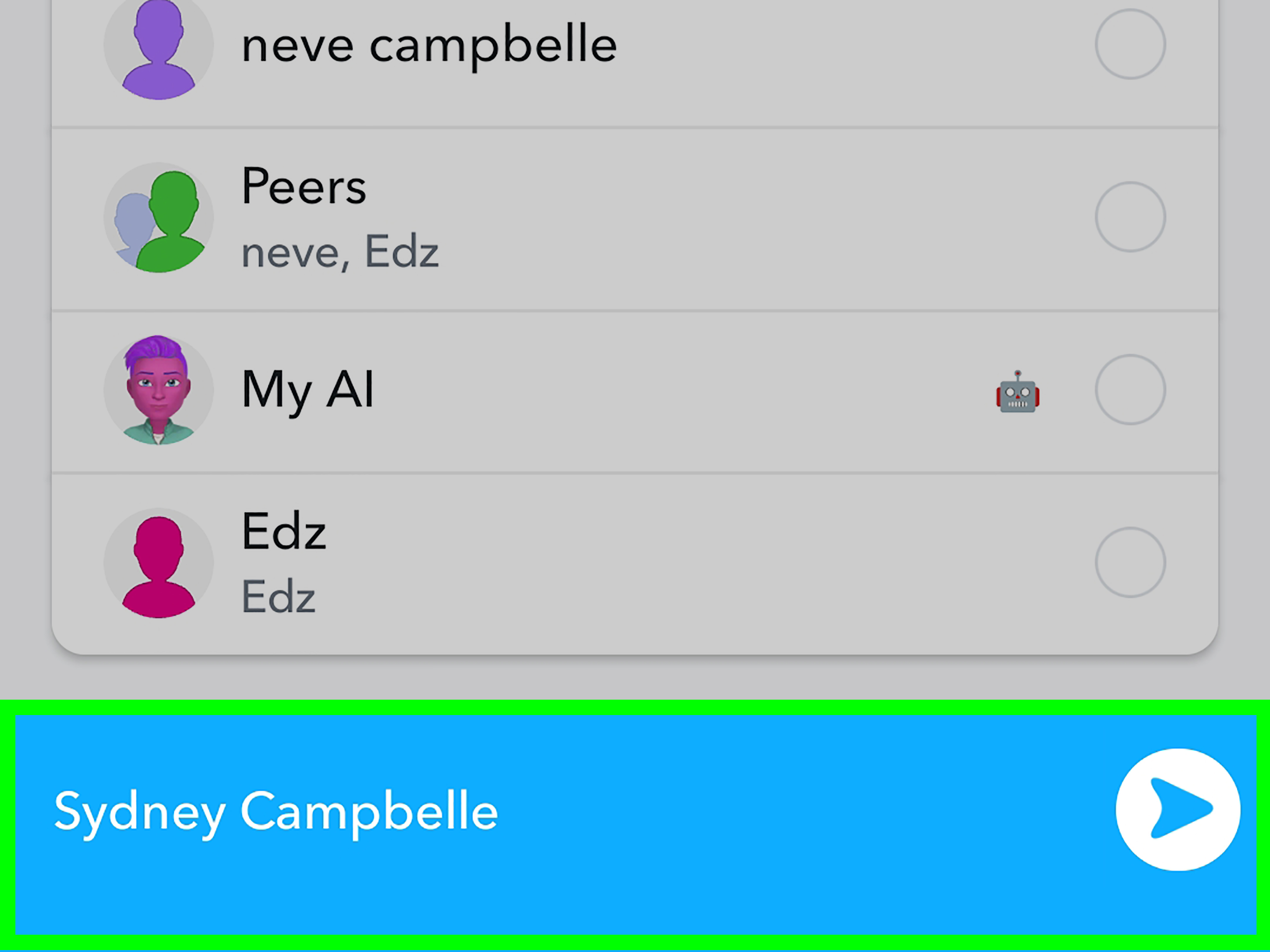
- Select the friend, friends, or group chat you want to send it to.
- Tap the send arrow.
That is it. No ritual. No sacrifice. Just a saved picture making its entrance.
When This Method Works Best
This method is perfect when you want to send a vacation picture to one friend, drop a funny screenshot into a group chat, share a concert photo with someone who missed the event, or send a polished image you edited in another app first. It is also great for private sharing because you are not posting it publicly to your Story.
Why People Like It
The biggest advantage is speed. You do not need to import the picture into Memories settings first, and you do not need to post it anywhere public. You grab the image, add your caption, and send it directly. For casual Snapchat use, this is often the most practical option.
A Small Tip That Helps
If the photo feels a little lifeless, add context before sending it. A quick caption like “Found this from last weekend,” “Tell me this is not the best burger ever,” or “You had to be there” makes the upload feel more natural inside Snapchat’s conversational style.
Method 2: Upload a Picture to Your Snapchat Story
This is the right move when you want more than a one-on-one message. Maybe the photo belongs in your daily Story, your Private Story, or a custom Story for a specific audience. Snapchat lets you post saved images from your Camera Roll to Story, and on iPhone there is even an official shortcut that can send a photo straight to My Story from the share sheet.
- Open Snapchat.
- Swipe up from the camera screen to open Memories.
- Open Camera Roll and select the picture you want.
- Edit the image with text, emojis, stickers, drawings, or filters if available.
- Tap the blue send arrow.
- Select My Story, a Private Story, or another story option available on your account.
- Post the image.
If you are using an iPhone, there may be an even faster path. From your phone’s Photos app, tap the Share button and choose Snapchat’s My Story share option when it appears. That shortcut is handy when you already know the image is Story material and do not want to wander around inside the app first.
When This Method Makes Sense
Story uploads work well for throwback moments, birthday posts, travel highlights, event recaps, food photos, pet updates, and photos you want multiple friends to see without sending the same thing again and again like a digital pigeon carrying duplicates.
How to Make Story Uploads Feel Natural
Saved pictures can still work beautifully on Snapchat if they feel native to the platform. Add a short caption, use stickers sparingly, and keep the mood casual. A polished DSLR-style photo can look a little too serious if you drop it onto Snapchat without any personality. Give it a sentence, a timestamp-style joke, or a tiny bit of commentary so it feels alive.
One More Good Idea
If the picture is older, own it. A caption like “From last Friday but still thinking about this dessert” makes the upload feel intentional. Confidence solves many social-media problems.
Method 3: Import a Picture into Memories for Later Use
This is the organizational method. You are not necessarily sending or posting the image right this second. Instead, you want the photo inside Snapchat’s own storage area so you can work with it later, reuse it in Stories, or keep everything in one place.
- Open Snapchat and tap your profile icon.
- Tap the settings icon.
- Scroll to the app section and open Memories.
- Tap Import Snaps from Camera Roll.
- Select the pictures you want to import.
- Return to Memories and use those imported images when you are ready.
This option is especially useful if you want to build a Snapchat-ready library of older images, event photos, or reusable visual content. Once the images are in Memories, they are much easier to find and turn into Stories or share in conversation.
Why This Method Is Underrated
Importing into Memories is great for people who plan their content instead of posting everything at once. If you run a creator account, manage a public profile, love making themed Stories, or just want a clean archive of your favorite Snap-worthy photos, this method gives you structure. It is the difference between tossing papers into a drawer and actually using folders like a responsible adult.
What About My Eyes Only?
If a picture is private, you can move selected photos and videos from Camera Roll or Memories into My Eyes Only. That gives them an extra layer of protection behind a passcode. It is useful for personal images you do not want sitting in open view. Just remember the important catch: if you forget that passcode and reset it, Snapchat says it cannot recover the old content for you. In other words, choose a passcode your future self will not betray.
Bonus: Upload a Picture on Snapchat for Web
If you use Snapchat on your computer, there is now another practical route for image sharing. Snapchat for Web supports image sharing in chat, including common formats like PNG, JPG, JPEG, and GIF. You can drag and drop an image into a conversation, use the picture icon, or even copy and paste supported image files.
This is not the main method most people think of first, but it is surprisingly helpful when you are already on desktop, working with screenshots, or sending images from a laptop during a conversation. It is a nice reminder that Snapchat is no longer only the app you poke while standing in line for coffee.
Why Snapchat Sometimes Refuses to Cooperate
Your Photo Permission Is Turned Off
If Snapchat cannot see your gallery, it cannot upload anything from it. Check permissions first before blaming the app, the phone, the moon, or your ex.
Your App Is Out of Date
Snapchat changes often, and older app versions can behave strangely. If a Camera Roll upload option seems missing, update the app and restart it.
Your Network Is Acting Up
Uploads can fail when your connection is weak. If something seems stuck, switch between Wi-Fi and mobile data, then try again.
You Confused Camera Roll with Memories Backup
This one matters. Snapchat backs up Memories, but your phone’s Camera Roll media is not automatically backed up into Memories unless you save or import it there. If you want important uploaded content preserved inside Snapchat, make sure it actually lives in Memories and that backup is complete.
Best Practices for Better Snapchat Photo Uploads
- Use vertical photos when possible: They fit Snapchat’s layout better and usually look less awkward.
- Add context: A caption, sticker, or doodle helps the image feel more like a Snap and less like a random file attachment.
- Keep Stories selective: Just because you can upload twelve saved brunch photos does not mean the world needs twelve saved brunch photos.
- Protect private content: Use My Eyes Only for sensitive images, and do not forget the passcode.
- Save wisely: If you want future access, review your save settings for Memories, Camera Roll, or both.
Common Experiences People Have When Uploading Pictures on Snapchat
One of the most common experiences is discovering the upload option only after missing the perfect moment. Someone takes a gorgeous picture during a birthday dinner using the regular phone camera because it looks sharper, brighter, and less likely to turn everyone into vaguely orange ghosts. Later, they open Snapchat and realize they still want to share that image with friends. That is usually when they find the Camera Roll tab and feel equal parts relieved and mildly offended that the feature was not more obvious in the first place.
Another very real experience happens with throwback content. People often want to post a travel photo, a graduation picture, or a random summer memory that still deserves attention, even if it was not taken five seconds ago. Snapchat is built around live moments, but real social behavior is not always that neat. Many users end up uploading saved pictures because memories do not run on a strict 24-hour publishing schedule. The trick is presentation. A saved image with a simple caption like “Still not over this view” or “Forgot to post this one” usually lands much better than pretending it was snapped live. Audiences can tell when something is staged, but they also appreciate honesty.
There is also the group-chat use case, which is honestly one of the funniest. A lot of people upload pictures to Snapchat not for art, not for branding, not for storytelling, but because they found a screenshot that absolutely must be shared in the next twelve seconds. Maybe it is a bizarre autocorrect fail, a cursed online product listing, or a meme so specific it only makes sense to three people and one emotionally invested roommate. In those moments, sending directly from Camera Roll to chat feels less like a feature and more like a public service.
Then there are the practical users: small creators, students, club organizers, and side-hustle humans who use Snapchat to share event graphics, promo images, menu updates, product previews, or saved snapshots from other apps. These users often care less about spontaneity and more about control. They want the clean image, the right crop, readable text, and maybe a sticker or two that does not make the whole thing look like a sticker explosion at a kindergarten birthday party. For them, importing photos into Memories or posting carefully selected Story images is a workflow, not just a one-time trick.
Privacy concerns show up too. Some people discover My Eyes Only after realizing they have personal images in Memories that they would rather keep behind an extra lock. Others learn the hard way that forgetting the My Eyes Only passcode is a terrible plot twist. And a lot of users are surprised to learn that Camera Roll content is not the same as Snapchat-backed Memories content. That difference matters if you switch phones, clear storage, or assume everything inside your Snapchat universe is automatically safe forever. It is not. A little organization goes a long way.
Finally, there is the classic experience of trying to upload a picture in a hurry while Snapchat suddenly decides to become dramatic. Permissions are off. The app needs an update. The connection is weak. The right tab is missing because the interface moved again. Almost everyone who uses Snapchat long enough runs into some version of that moment. The upside is that once you understand the three main upload methods, the confusion drops fast. After that, Snapchat feels less like a maze and more like a tool you can actually steer.
Final Thoughts
If you want the simplest answer, here it is: the three best ways to upload a picture on Snapchat are sending it from Camera Roll in Memories, posting it to your Story, or importing it into Memories for later use. Each method fits a different goal, and once you know which one matches your situation, the app becomes much easier to navigate.
So go ahead and post the throwback, send the meme, save the good photo, and keep the private stuff protected. Snapchat may still worship the idea of the instant moment, but thankfully it also makes room for the pictures that were worth keeping.