Making a Google spreadsheet is one of those tiny digital skills that feels ordinary until the moment you need it. Suddenly, you are tracking a budget, organizing a vacation, comparing job applications, planning a school fundraiser, or trying to remember who promised to bring chips to the cookout. That is when Google Sheets quietly walks into the room, wearing sensible shoes, and saves the day.
Google Sheets is Google’s online spreadsheet tool. It lets you create, edit, organize, calculate, share, and collaborate on spreadsheets from a desktop browser or from the Google Sheets mobile app. Your files are stored in Google Drive, automatically saved as you work, and available across devices when you are signed in to your Google Account. In plain English: you can start a spreadsheet on your laptop, tweak it from your phone in line at the grocery store, and open it again later without emailing yourself seventeen versions named “final_FINAL_reallyfinal.xlsx.”
This guide explains how to make a Google spreadsheet on desktop, Android, iPhone, and iPad. It also covers templates, formatting, sharing, formulas, mobile editing tips, offline access, and practical examples so you can build a spreadsheet that does more than sit there looking like a checkerboard.
What Is a Google Spreadsheet?
A Google spreadsheet is a file created in Google Sheets. Like other spreadsheet tools, it uses rows, columns, and cells to organize information. You can use it for simple lists, budgets, schedules, project trackers, inventory records, data analysis, charts, forms responses, and team collaboration.
The biggest advantage is convenience. Google Sheets runs in a web browser on desktop and in the Google Sheets app on mobile devices. Because files are saved in Google Drive, you do not need to manually save every few minutes. That does not mean you should ignore good file names, of course. “Untitled spreadsheet” is not a productivity system; it is a cry for help from your future self.
What You Need Before You Start
Before creating a Google spreadsheet, make sure you have a few basics ready:
- A Google Account
- An internet connection for creating and syncing files
- A desktop browser such as Chrome, Edge, Safari, or Firefox, or the Google Sheets mobile app
- Google Drive access if you want to organize files into folders
You do not need a paid Google Workspace subscription to create a basic Google spreadsheet. A personal Google Account is enough for everyday use. Workspace accounts may include extra business, education, admin, storage, security, and AI-related features depending on the plan.
How to Make a Google Spreadsheet on Desktop
Creating a Google spreadsheet on a desktop or laptop is the fastest method for most people. You get the full-size keyboard, a roomy screen, and the satisfying feeling of being briefly in control of your digital life.
Method 1: Create a Spreadsheet from Google Sheets
- Open your web browser.
- Go to Google Sheets.
- Sign in with your Google Account if prompted.
- Click the blank spreadsheet option, usually shown with a plus sign.
- A new spreadsheet will open automatically.
- Click the title area at the top left and rename the file.
Once the sheet opens, you can begin typing directly into cells. For example, you might label cell A1 as “Item,” B1 as “Cost,” and C1 as “Paid?” That simple structure can become a personal budget, a shopping comparison, or a team expense tracker.
Method 2: Create a Spreadsheet from Google Drive
You can also create a spreadsheet from Google Drive, which is especially useful if you like keeping documents organized in folders.
- Open Google Drive in your browser.
- Go to the folder where you want to store the spreadsheet.
- Click the “New” button.
- Select “Google Sheets.”
- Choose a blank spreadsheet or, if available, a template option.
- Rename the file so it is easy to find later.
This method is great for project folders. For instance, if you have a folder named “2026 Home Renovation,” you can create a spreadsheet inside it called “Renovation Budget.” Later, you can store estimates, invoices, paint colors, appliance models, and the emotional damage caused by tile prices all in one place.
Method 3: Use the Sheets Shortcut
Here is a handy shortcut: type sheets.new into your browser’s address bar and press Enter. If you are signed in to your Google Account, Google will open a new blank spreadsheet.
This shortcut is perfect when you want to create a sheet quickly without clicking through menus. It is also dangerously addictive. One minute you are making a grocery list; the next minute you have built a color-coded system for ranking every sandwich you have eaten since 2018.
How to Make a Google Spreadsheet on Android
Creating a Google spreadsheet on Android is straightforward once the Google Sheets app is installed.
Step-by-Step Instructions for Android
- Open the Google Play Store.
- Search for “Google Sheets.”
- Install the app if it is not already on your device.
- Open the Google Sheets app.
- Sign in with your Google Account.
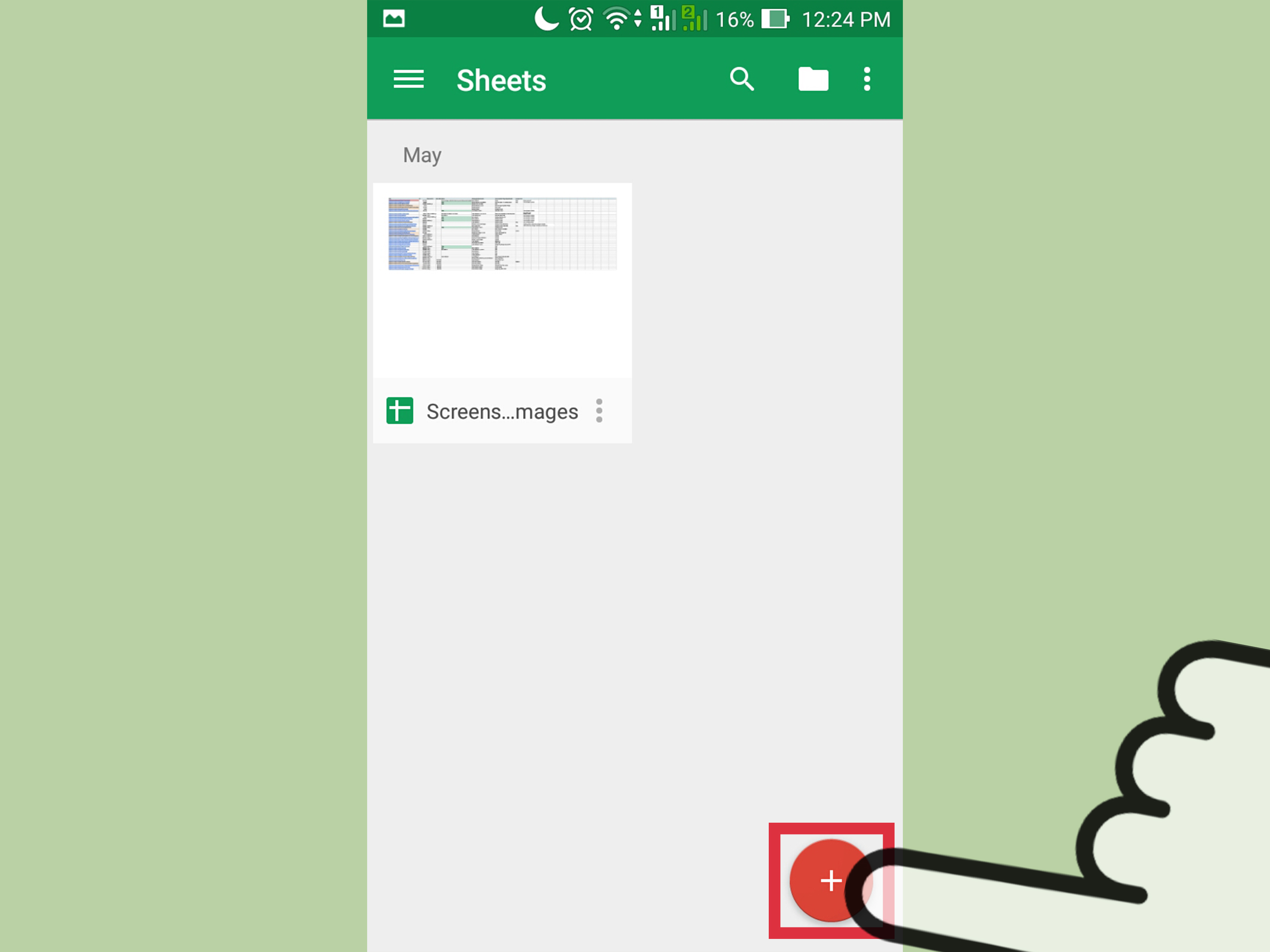
- Tap the plus button.
- Choose “New spreadsheet” or select a template if templates are shown.
- Enter a file name.
- Start adding your data.
On Android, the app is useful for quick edits, collecting information while away from your computer, checking shared team files, or updating a tracker in real time. The screen is smaller, so it helps to keep your sheet simple. Use short column names, freeze important header rows when possible, and avoid making 40-column monsters unless you enjoy horizontal scrolling as a lifestyle.
How to Make a Google Spreadsheet on iPhone or iPad
The process on iPhone and iPad is very similar to Android. The main difference is that you download the app from the App Store instead of Google Play.
Step-by-Step Instructions for iPhone and iPad
- Open the App Store.
- Search for “Google Sheets.”
- Tap “Get” to download the app.
- Open Google Sheets.
- Sign in with your Google Account.
- Tap the plus button.
- Select a blank spreadsheet or a template.
- Name your spreadsheet.
- Begin entering information into cells.
An iPad gives you more room to work than a phone, especially if you pair it with a keyboard. On an iPhone, the Sheets app is best for quick updates, reviewing data, sharing access, or entering simple information. You can absolutely build a full spreadsheet on a phone, but after a while your thumbs may file a formal complaint.
How to Name and Organize Your Google Spreadsheet
A good spreadsheet name should be clear, specific, and easy to search. Instead of “New Sheet,” use names like:
- Monthly Budget 2026
- Client Content Calendar
- Wedding Guest List
- Team Task Tracker
- Inventory Count May 2026
If your spreadsheet belongs to a larger project, store it in a relevant Google Drive folder. For example, a small business owner might create folders for “Accounting,” “Marketing,” “Inventory,” and “Client Reports.” A student might use folders for each class. A family might use folders for “Home,” “Travel,” and “Shared Plans.” Organization is not glamorous, but neither is searching through 93 untitled files while muttering at your laptop.
How to Add Data to Your Google Spreadsheet
To add data, click or tap a cell and start typing. Cells are identified by column letters and row numbers. For example, A1 is the first cell in column A and row 1.
Example: Simple Monthly Budget
You can create a basic budget with these headers:
| Category | Planned Amount | Actual Amount | Difference |
|---|---|---|---|
| Rent | $1,500 | $1,500 | $0 |
| Groceries | $450 | $510 | -$60 |
| Utilities | $180 | $165 | $15 |
In the Difference column, you can use a formula to subtract the actual amount from the planned amount. That way, the spreadsheet does the math while you focus on the important question: how did “just picking up a few groceries” become $510?
How to Format a Google Spreadsheet
Formatting makes your spreadsheet easier to read. A plain sheet can work, but a cleanly formatted sheet helps people understand the data faster.
Useful Formatting Options
- Bold headers: Make the first row stand out.
- Freeze rows: Keep headers visible while scrolling.
- Resize columns: Make long text easier to read.
- Format numbers: Display currency, percentages, dates, or plain numbers.
- Use borders: Separate sections visually.
- Wrap text: Keep long notes visible inside cells.
- Apply filters: Sort or narrow down data quickly.
On desktop, most formatting tools appear in the toolbar above the sheet. On mobile, tap a cell or range, then look for formatting options in the app menus. Mobile formatting may require a few extra taps, but it gets the job done.
How to Use Formulas in Google Sheets
Formulas are where Google Sheets becomes more than a digital notebook. A formula starts with an equal sign. For example, typing =SUM(B2:B10) adds the numbers from B2 through B10.
Common Beginner Formulas
- =SUM(A1:A10) adds values in a range.
- =AVERAGE(A1:A10) finds the average.
- =MIN(A1:A10) finds the smallest value.
- =MAX(A1:A10) finds the largest value.
- =COUNT(A1:A10) counts numeric entries.
- =IF(A2=”Yes”,”Done”,”Pending”) returns different results based on a condition.
On desktop, click a cell, type the formula, and press Enter. Google Sheets may suggest formulas based on nearby data. On mobile, tap a cell and enter the formula manually, or use the function option to browse available functions. Start small. You do not need to become a spreadsheet wizard overnight. Even wizards probably began with “Wait, why is my formula broken?”
How to Share a Google Spreadsheet
One of the best reasons to use Google Sheets is collaboration. You can share a spreadsheet with specific people or create a link with controlled access.
Sharing on Desktop
- Open your spreadsheet.
- Click the “Share” button.
- Enter the email addresses of the people you want to invite.
- Choose their permission level: Viewer, Commenter, or Editor.
- Add a message if helpful.
- Click Send.
Sharing on Mobile
- Open the spreadsheet in the Google Sheets app.
- Tap the share icon or open the file options menu.
- Add people by email address or adjust link access.
- Choose whether they can view, comment, or edit.
- Send the invitation.
Use Editor access carefully. If someone only needs to review data, Viewer or Commenter access is safer. Giving everyone editing access can turn your beautiful project tracker into a digital food fight.
How to Make a Google Spreadsheet from a Template
Templates save time by giving you a pre-built structure. Google Sheets may offer templates for budgets, calendars, schedules, invoices, project tracking, and more.
Using Templates on Desktop
- Open Google Sheets.
- Look for the template gallery.
- Choose a template that fits your task.
- Rename the new spreadsheet.
- Customize the headers, colors, categories, and formulas as needed.
Templates are helpful, but do not treat them as sacred tablets delivered from Mount Productivity. Change them. Delete columns you do not need. Add sections that match your actual life or business. The best spreadsheet is the one you will keep using.
How to Import an Excel File into Google Sheets
If you already have a Microsoft Excel file, you can open or import it into Google Sheets. On desktop, open Google Drive, upload the Excel file, then open it with Google Sheets. You can also use the File menu inside Sheets to import data into a new or existing spreadsheet.
This is useful when someone sends you an .xlsx file and you want to collaborate online. Most common formatting and formulas work well, though complex Excel features may not always convert perfectly. After importing, check formulas, charts, merged cells, and formatting before sharing the sheet with others.
How to Work Offline with Google Sheets
Google Sheets is cloud-based, but offline access is possible when set up ahead of time. On desktop, offline access usually works through Google Drive settings and a supported browser. On mobile, you can make individual files available offline from the Google Sheets or Google Drive app.
The key phrase is “ahead of time.” You generally need to prepare offline access while you still have an internet connection. Waiting until your Wi-Fi disappears at the airport is not a strategy; it is a suspense film.
Desktop vs. Mobile: Which Is Better?
Both desktop and mobile can create Google spreadsheets, but they shine in different situations.
Use Desktop When You Need To:
- Create a detailed spreadsheet from scratch
- Enter lots of data quickly
- Use advanced formulas
- Build charts and dashboards
- Format large tables
- Import or clean up Excel files
Use Mobile When You Need To:
- Make quick edits
- Update a shared tracker on the go
- Review numbers before a meeting
- Add notes, comments, or small data entries
- Create a simple sheet when your computer is not nearby
For serious setup work, desktop is easier. For quick updates, mobile is excellent. Together, they make Google Sheets flexible enough for work, school, personal planning, and those moments when you suddenly decide your pantry needs an inventory system.
Tips for Creating a Better Google Spreadsheet
Start with a Clear Purpose
Before entering data, decide what the spreadsheet should accomplish. Is it tracking money, tasks, inventory, attendance, content, or dates? A clear goal helps you choose better column headers and avoid clutter.
Use One Type of Data per Column
Keep names in one column, dates in another, prices in another, and notes in another. Mixing data types makes sorting, filtering, and formulas harder later.
Avoid Over-Merging Cells
Merged cells may look nice, but they can cause headaches with sorting, filtering, copying, and formulas. Use them sparingly.
Freeze the Header Row
If your sheet has many rows, freeze the top row so your column labels stay visible while you scroll. This small trick prevents the classic spreadsheet mystery: “What does column G mean again?”
Use Filters for Larger Lists
Filters let you sort data or show only rows that match certain conditions. They are useful for contact lists, product inventories, content calendars, sales trackers, and research databases.
Add Data Validation
Data validation can create dropdown menus and limit what people enter into a cell. For example, a task tracker might use dropdowns for “Not Started,” “In Progress,” and “Complete.” This keeps entries consistent and prevents five versions of the same status, including “done-ish.”
Common Mistakes to Avoid
Leaving the File Untitled
Rename your spreadsheet immediately. A useful file name saves time later and makes collaboration smoother.
Giving Too Many People Edit Access
Only give editing permission to people who truly need it. Use Viewer or Commenter access for everyone else.
Building Too Much at Once
Start with the essential columns. You can always add more later. Overcomplicated spreadsheets often collapse under their own ambition, like a filing cabinet made of pancakes.
Ignoring Mobile Layout
If people will use the sheet on phones, keep it simple. Short headers, fewer columns, and clean formatting make mobile editing much easier.
Forgetting to Check Imported Files
When importing Excel files, always review formulas and formatting. Most basic files transfer smoothly, but it is better to catch issues before your team starts using the sheet.
Practical Examples of Google Spreadsheets You Can Make
Personal Budget
Create columns for income, expenses, categories, due dates, and payment status. Add formulas to calculate totals and remaining balances.
Content Calendar
Use columns for topic, keyword, author, draft deadline, publish date, status, editor notes, and URL. This is especially helpful for bloggers, SEO teams, and small businesses.
Travel Planner
Track flights, hotels, reservations, daily activities, costs, confirmation numbers, and packing lists. Share it with your travel group so nobody can claim they “didn’t know” the museum opened at 9 a.m.
Project Tracker
Create columns for task name, owner, priority, status, deadline, and notes. Add dropdowns for status and filters by owner or due date.
Inventory List
Track item names, quantities, suppliers, reorder levels, purchase dates, and costs. Small businesses, classrooms, and home offices can all benefit from a simple inventory sheet.
Experience-Based Advice: What Actually Helps When Making a Google Spreadsheet
The easiest way to make a useful Google spreadsheet is to build it around real behavior, not fantasy behavior. Many people create spreadsheets as if they are designing software for a team of extremely patient robots. They add too many columns, too many colors, too many formulas, and too many tabs. Then, a week later, nobody uses it because updating the sheet feels like filing taxes in a broom closet.
A better approach is to start with the question: “What decision will this spreadsheet help me make?” If it is a budget, the decision might be whether you can afford a purchase. If it is a task tracker, the decision might be what needs attention today. If it is a content calendar, the decision might be which article should move from draft to editing. When the purpose is clear, the spreadsheet becomes simpler and more useful.
Another lesson: the first row matters more than people think. Good headers are the map of your spreadsheet. Instead of vague labels like “Info” or “Stuff,” use specific headers like “Client Name,” “Invoice Due Date,” “Payment Status,” or “Target Keyword.” Clear headers make formulas, filters, sorting, and collaboration much easier. They also reduce the number of messages from teammates asking, “What goes in this column?” which is a small but meaningful gift to society.
For desktop users, the best experience usually comes from setting up the sheet fully before sharing it. Add the main headers, freeze the header row, format currency and dates, create dropdowns if needed, and test one or two sample rows. Then share it. A half-built spreadsheet shared too early can confuse collaborators. People may enter data in the wrong places, create their own columns, or accidentally invent a new filing system based on vibes.
For mobile users, the trick is to design for small-screen survival. If you know a spreadsheet will be updated from phones, keep the first few columns as the most important ones. Avoid wide sheets with dozens of columns. Put notes toward the right side, use short dropdown options, and freeze headers. A sheet that works beautifully on a 27-inch monitor may feel like a maze on a phone. Mobile-friendly spreadsheets are usually simpler, cleaner, and more focused.
It also helps to use comments instead of stuffing every thought into cells. If a number needs explanation, add a comment. If a task is blocked, leave a short note. If someone needs to review a row, tag them when appropriate. This keeps the main data clean while still preserving context. Think of comments as sticky notes, not as a second spreadsheet hiding inside the first one.
One practical habit is to create a “Notes” or “Instructions” tab for shared spreadsheets. This tab can explain what each column means, who should update the sheet, how often it should be updated, and what not to change. It does not need to be long. Even five clear instructions can prevent confusion. For example: “Do not edit formula columns,” “Use the status dropdown,” and “Add new tasks at the bottom.” Simple rules prevent spreadsheet chaos from putting on a cape.
Finally, review the spreadsheet after people use it for a few days. The first version is rarely perfect. Maybe a column is missing. Maybe nobody uses one of the tabs. Maybe the formula works, but the label is confusing. Adjust it. Google Sheets is flexible, and that flexibility is the point. A good spreadsheet grows with the work instead of pretending the first draft was carved into stone.
Conclusion
Learning how to make a Google spreadsheet on desktop or mobile is a practical skill that pays off quickly. On desktop, you can create a new spreadsheet through Google Sheets, Google Drive, or the sheets.new shortcut. On Android, iPhone, and iPad, you can use the Google Sheets app to create, edit, format, and share spreadsheets wherever you are.
The best Google spreadsheets are clear, organized, and built for real use. Start with a purpose, name the file well, use helpful headers, format important data, and share permissions carefully. Add formulas when they save time, use filters when lists get long, and keep mobile users in mind if people will update the sheet on phones.
Whether you are planning a budget, managing a project, organizing content, tracking inventory, or coordinating a family event, Google Sheets gives you a simple way to turn scattered information into something useful. And if your first spreadsheet is not perfect, congratulations: you are officially normal. Rename it, clean it up, and keep going.
SEO Tags
Note: This article is based on current, real-world Google Sheets desktop and mobile workflows, including creating, editing, formatting, sharing, importing, and organizing spreadsheets for everyday use.