Trying to access the Office 365 Admin Center can feel a little like looking for the control room of a spaceship: you know it exists, you know it is important, and you are fairly sure pressing the wrong button could cause someone’s email to disappear into the digital couch cushions. The good news is that opening the admin center on a PC or Mac is simple once you know where to go, what account to use, and what to do if Microsoft politely tells you, “Nope, you do not have permission.”
The Office 365 Admin Center, now more commonly called the Microsoft 365 admin center, is the web-based dashboard where administrators manage users, licenses, billing, domains, groups, service health, security settings, and access to other admin portals such as Exchange, Teams, SharePoint, Microsoft Entra, Intune, and Purview. Whether you are the official IT person, the “accidental admin” at a small business, or the brave soul who got handed the company login because you once fixed the printer, this guide will walk you through the process in five clear steps.
This tutorial works for both Windows PCs and Macs because the Microsoft 365 admin center runs in a browser. You do not need to install a special desktop app. You just need an internet connection, a supported browser, and an account with the right administrator role.
What Is the Office 365 Admin Center?
The Office 365 Admin Center is the main management portal for business and enterprise Microsoft 365 subscriptions. It is where administrators can control the behind-the-scenes parts of Microsoft 365 that regular users never see. Think of it as the building manager’s office for your digital workplace. Everyone else uses Word, Excel, Outlook, Teams, and OneDrive. Admins manage who gets keys, who gets licenses, what doors exist, and whether the lights are still on.
From the admin center, you can add employees, reset passwords, assign Microsoft 365 licenses, manage domains, review billing, monitor service health, open support requests, and jump into specialized admin centers. For example, email settings are often handled through Exchange admin center, Teams policies through Teams admin center, and identity controls through Microsoft Entra admin center.
The admin center also offers different views. Smaller organizations may see or use a simplified view for common tasks, while more advanced users can work in the dashboard view for deeper configuration. In plain English: Microsoft gives you a beginner-friendly steering wheel and a more advanced cockpit. Use the one that fits your comfort level.
Before You Begin: What You Need
Before you try to sign in, make sure you have three things ready. First, you need a Microsoft 365 business, school, nonprofit, government, or enterprise account. Personal Microsoft accounts, such as a regular Outlook.com account, do not open the business admin center.
Second, you need an admin role. The most powerful role is Global Administrator, but not every person needs that level of access. Microsoft recommends assigning the least permissive role needed for the task. For example, a Helpdesk Administrator can reset passwords, while a Billing Administrator can manage subscriptions and billing. This keeps the organization safer and prevents every routine task from requiring the digital equivalent of a master key.
Third, use a modern browser such as Microsoft Edge, Google Chrome, Safari, or Firefox. On a PC, Edge and Chrome are common choices. On a Mac, Safari and Chrome both work well. If one browser misbehaves, try another before blaming the computer, the Wi-Fi, or Mercury retrograde.
How to Access Office 365 Admin Center on PC or Mac: 5 Steps
Step 1: Open Your Web Browser
On your PC or Mac, open your preferred web browser. Since the Microsoft 365 admin center is web-based, the process is nearly identical on Windows and macOS. You do not need to download anything from the App Store or install a separate Office admin program.
For best results, use a private or incognito window if you manage multiple Microsoft accounts. This is especially helpful if you are signed in to a personal Microsoft account, a school account, and a work account at the same time. Microsoft account switching is convenient until it becomes a game of “Which identity am I today?”
Step 2: Go to the Microsoft 365 Admin Center Website
In the address bar, type admin.microsoft.com and press Enter. You may also reach the admin portal through Microsoft’s newer admin cloud address, but admin.microsoft.com remains the familiar and widely used route for many administrators.
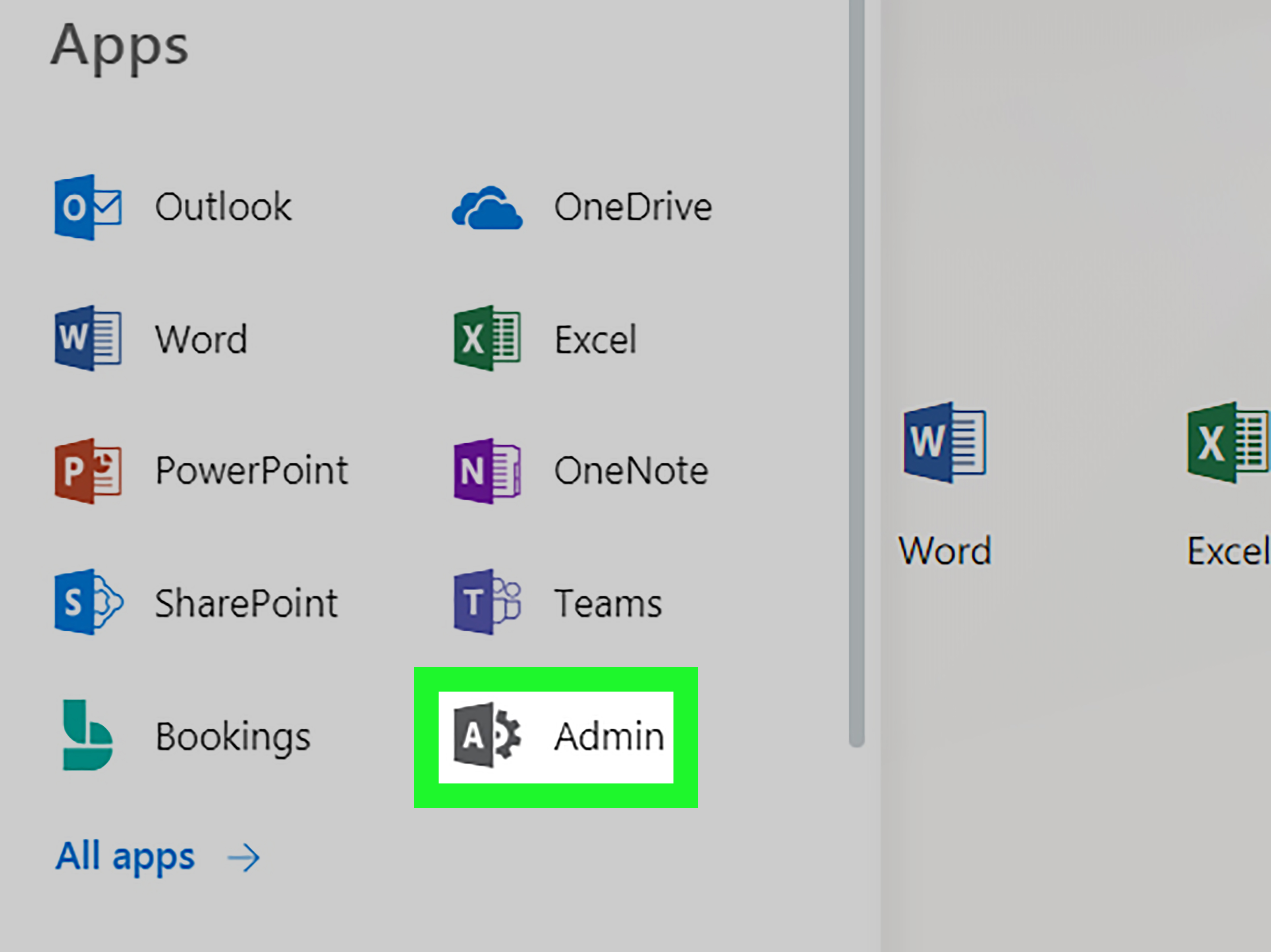
You can also start from Microsoft 365 on the web. Sign in to Microsoft 365, select the app launcher, and look for the Admin app. However, typing the admin center address directly is usually faster. It is the admin version of taking the express elevator instead of wandering through every floor.
Step 3: Sign In with an Administrator Account
Enter your work or school email address and password. This should be the account assigned an administrator role in your organization. If your organization uses multifactor authentication, approve the sign-in using your authenticator app, text message, security key, or other configured method.
If you see a message saying you do not have permission to access the page, your account probably does not have the required admin role. This does not necessarily mean something is broken. It usually means Microsoft is doing exactly what it is supposed to do: keeping non-admin users out of admin-only settings. Ask a Global Administrator in your organization to review your role if you believe you should have access.
Step 4: Choose the Correct Admin Center View
After signing in, you may see either a simplified view or a dashboard view. The simplified view focuses on common tasks such as managing users, teams, and billing. The dashboard view includes broader tools, more navigation options, and access to advanced settings.
If you are new to Microsoft 365 administration, start with the simplified view if it appears. It is easier to understand and less likely to make you feel like you accidentally opened the control panel for a nuclear submarine. If you need advanced options, switch to dashboard view using the control near the top of the admin center.
Step 5: Use the Left Menu to Find What You Need
Once inside the admin center, use the left navigation menu to access key areas. Common sections include Users, Teams & groups, Billing, Setup, Settings, Health, Reports, and Support.
For everyday tasks, you will likely spend time in Active users, Licenses, Domains, Service health, and Help & support. If you need deeper configuration, look for links to specialized admin centers, such as Exchange, SharePoint, Teams, Microsoft Entra, Intune, or Purview.
What You Can Do Inside the Microsoft 365 Admin Center
After you access the Office 365 Admin Center, the real work begins. Here are the most common tasks administrators perform.
Manage Users
The Users section lets you add new employees, edit user details, reset passwords, block sign-ins, delete accounts, and restore recently deleted users. For small businesses, this is often the most frequently used part of the admin center.
For example, when a new employee joins the company, you can create the account, assign a license, set a temporary password, and make sure they have access to the right apps. When someone leaves, you can block sign-in, preserve data, and remove licenses so the organization is not paying for unused seats.
Assign Licenses
Microsoft 365 licenses determine which apps and services a user can access. A user with no assigned license may have an account but not access to expected services such as Outlook, Teams, OneDrive, or desktop Office apps.
License management is important because it affects both productivity and cost. Giving everyone the most expensive plan may seem easy, but it can turn the monthly bill into a jump-scare. A better approach is to assign licenses based on actual job needs.
Manage Groups and Teams
The admin center helps manage Microsoft 365 groups, distribution lists, shared mailboxes, and Teams-related structures. Groups are useful for collaboration, permissions, email distribution, and file access.
For example, a marketing team might need a Microsoft 365 group that includes a shared mailbox, SharePoint files, and a Team for chat. A finance department may need stricter access and fewer external sharing options. Good group management keeps collaboration smooth without turning your tenant into a junk drawer.
Check Service Health
The Health section lets administrators check whether Microsoft 365 services are experiencing known issues. If users suddenly report that Outlook is not loading or Teams meetings are acting weird, check service health before spending an hour rebooting everything in sight.
Service health messages can show incidents, advisories, affected services, and Microsoft’s progress toward resolution. This is especially useful for communicating with employees. Instead of saying, “We have no idea what is happening,” you can say, “Microsoft has confirmed an Exchange Online incident and is working on mitigation.” Much more professional. Same panic, better wording.
Open Support Requests
Administrators can use Help & support to contact Microsoft support, search support resources, and create service requests. This is helpful for billing problems, technical issues, account access questions, and service-specific problems.
When opening a support ticket, include clear details: the affected user, error message, browser used, time the issue started, troubleshooting already attempted, and whether the issue affects one person or the entire organization. Support teams love specifics. “It broke” is honest, but not very diagnostic.
Common Problems When Accessing the Office 365 Admin Center
You Are Signed Into the Wrong Account
This is the classic admin center problem. You open the portal, sign in, and Microsoft says you do not have access. Before assuming disaster, check whether you are using the correct work or school account. Many people have personal Microsoft accounts, old school accounts, client accounts, and work accounts saved in the same browser.
Fix it by signing out, opening a private browser window, and signing in with the correct administrator account.
Your Account Does Not Have an Admin Role
Not every Microsoft 365 user can access the admin center. Your account must be assigned a role such as Global Administrator, User Administrator, Helpdesk Administrator, Billing Administrator, or another relevant role. The exact role determines what you can see and change.
If you need access, ask an existing Global Administrator to assign the correct role. Avoid requesting Global Administrator unless you truly need it. In security terms, “just give me everything” is rarely the best opening line.
Multifactor Authentication Is Blocking Access
If your organization requires multifactor authentication and your phone is unavailable, your authenticator app was reset, or your security method changed, you may not be able to complete sign-in. Contact another administrator or your internal IT support team to reset your authentication methods.
Admins should always maintain emergency access planning. A business should not depend on one person’s phone battery to keep the entire Microsoft 365 tenant manageable.
The Admin Center Is Loading Slowly or Not at All
If the page spins forever, try clearing your browser cache, disabling extensions, switching browsers, or testing another network. Some browser extensions, VPNs, strict privacy settings, or outdated cookies can interfere with Microsoft 365 portals.
You should also check Microsoft 365 service health if you can access it from another account or device. Occasionally, the issue is not your browser. It is the cloud having a cloudy day.
Security Tips for Microsoft 365 Admin Access
Accessing the admin center is easy, but securing it is serious business. Administrator accounts are high-value targets because they can change settings, reset passwords, assign roles, and access sensitive business controls.
Use multifactor authentication for every admin account. Create separate admin accounts instead of using everyday email accounts for administrative tasks. Review admin roles regularly and remove access from users who no longer need it. Follow least privilege principles so each admin has only the permissions required for their job.
It is also smart to keep at least two trusted Global Administrators. One admin is risky because vacations, job changes, lost phones, and forgotten passwords happen. Two or more properly secured admins reduce the chance of getting locked out of your own tenant.
PC vs. Mac: Is There Any Difference?
For accessing the Office 365 Admin Center, there is almost no difference between PC and Mac. The admin center runs in a web browser, so the steps are the same: open browser, visit admin.microsoft.com, sign in, and manage your tenant.
The main differences are browser habits and saved credentials. Windows users may already be signed into Microsoft Edge with a work account. Mac users may use Safari with iCloud Keychain or Chrome with Google Password Manager. Either setup works, but stored credentials can sometimes sign you into the wrong account. A private window is the easiest way to start clean.
Practical Example: Adding a New Employee
Imagine your company hires a new sales coordinator named Jamie. After accessing the Microsoft 365 admin center, you go to Users, choose Active users, and add Jamie’s account. You enter the name, username, location, and password settings. Then you assign the correct Microsoft 365 license so Jamie can use Outlook, Teams, OneDrive, and Office apps.
Next, you add Jamie to the Sales group so they receive department emails and access shared files. Finally, you send the sign-in details through your secure onboarding process. In a few minutes, Jamie has the digital tools needed to start working, and you look like an IT wizard. Please resist the urge to buy a cape.
Practical Example: Checking an Outlook Problem
Now imagine several employees report that Outlook is not sending messages. Instead of troubleshooting each computer one by one, you access the admin center and open Service health. If Microsoft reports an Exchange Online incident, you know the issue is service-wide and not caused by each user’s laptop.
You can then communicate clearly: “Microsoft is investigating an Exchange Online issue. We are monitoring service health and will update the team when the issue is resolved.” That beats asking everyone whether they tried turning it off and on again, although that classic line still has its place in history.
Best Practices After You Log In
Once you have access, do not click around randomly. The Microsoft 365 admin center contains powerful settings. Review what you need to do before making changes. When possible, document important actions such as role assignments, domain changes, license adjustments, and security policy updates.
For larger organizations, use change management procedures. For small businesses, even a simple shared admin log can help. Write down what changed, who changed it, and why. Future-you will be grateful, especially when someone asks, “Why did we change this setting six months ago?” and past-you actually left a clue.
Extra Experience-Based Tips for Accessing the Office 365 Admin Center
After working with Microsoft 365 environments, one lesson becomes clear fast: accessing the admin center is rarely the hard part. The hard part is knowing which account you are using, what role it has, and whether the setting you want lives in the main admin center or one of the specialized portals. Microsoft 365 is powerful, but it has more doors than a hotel hallway.
A good habit is to bookmark the admin center in a dedicated browser profile. For example, create one browser profile called “Microsoft 365 Admin” and sign in only with your administrator account there. This avoids the common problem of accidentally managing the wrong tenant or signing in with a personal Microsoft account. If you manage more than one company, browser profiles are not just convenient; they are sanity insurance.
Another useful practice is to verify the tenant name after signing in. Many administrators work with multiple organizations, especially consultants, managed service providers, and freelancers. Before changing licenses or resetting passwords, pause for two seconds and confirm that you are in the right organization. Those two seconds can prevent an awkward email that starts with, “Funny story…”
When troubleshooting access problems, always test from a private browser window before doing anything dramatic. Cached credentials and old cookies cause many sign-in headaches. A private window gives you a cleaner session and helps confirm whether the issue is account-related, browser-related, or service-related. If the portal works in a private window, your normal browser profile probably needs cache cleanup or account sign-out.
For small businesses, it is also important to avoid having only one administrator. The person who originally bought the Microsoft 365 subscription often becomes the first Global Administrator automatically. That is fine at the start, but businesses grow, people change roles, and sometimes the original admin is unavailable. Add at least one other trusted admin, secure both accounts with multifactor authentication, and store recovery procedures in a safe place.
One real-world mistake is giving too many people Global Administrator access because it feels easier. It is easier, in the same way leaving every office door unlocked is easier. Instead, assign roles based on the job. A person who only handles billing does not need full control over identity and security. A helpdesk employee who resets passwords does not need access to every compliance setting. Least privilege keeps your environment cleaner and safer.
Finally, do not ignore the Service health section. When Microsoft 365 has an issue, users often blame Wi-Fi, laptops, Outlook profiles, or the nearest innocent printer. Service health gives administrators a better starting point. Check it early when multiple users report the same problem. If Microsoft has already identified an incident, you can save time and communicate confidently.
The more you use the Microsoft 365 admin center, the less intimidating it becomes. At first, it may look like a maze of menus, panels, and admin portals. Over time, you will learn the regular paths: Users for accounts, Billing for subscriptions, Health for incidents, Settings for organization-wide options, and specialized admin centers for deeper service controls. Once those paths become familiar, accessing and using the admin center becomes routine instead of nerve-racking.
Conclusion
Accessing the Office 365 Admin Center on a PC or Mac is straightforward: open a browser, go to admin.microsoft.com, sign in with an administrator account, choose the right view, and use the navigation menu to manage your Microsoft 365 environment. The process takes only a few steps, but the portal itself is powerful. It controls users, licenses, billing, domains, service health, support, and connections to advanced admin centers.
The key is using the right account with the right permissions. If you cannot access the admin center, check your account, admin role, browser session, multifactor authentication, and Microsoft service status. For safer administration, use multifactor authentication, assign least-privilege roles, maintain more than one trusted admin, and document major changes.
Once you understand the basics, the Microsoft 365 admin center becomes less mysterious and much more useful. It is not just a login page for IT people. It is the command center for keeping your organization’s Microsoft 365 services organized, secure, licensed, and running smoothly. And unlike a real command center, you can access it from your couch, coffee shop, or kitchen tableas long as your browser, password, and permissions are all behaving.
Note: This article uses the current Microsoft 365 naming convention while also referencing “Office 365 Admin Center,” since many users still search for and recognize the older term.