Most people use a web browser every day, yet a surprising number never touch the settings menu unless something catches fire, a pop-up multiplies like rabbits, or the homepage suddenly becomes a mystery casino website. That is a shame, because a few smart browser settings can make your online life faster, safer, cleaner, and far less annoying.
If you have ever wondered why one laptop feels calm and organized while another feels like it is being run by digital squirrels, the answer is often hidden in the browser settings. Whether you use Chrome, Edge, Firefox, or Safari, the basics are similar: control what opens when you launch the browser, choose how much tracking to allow, decide which sites can access your camera and location, manage saved passwords, and clear out junk when things get weird.
In this guide, we will walk through five practical ways to adjust browser settings that actually matter. No techno-babble. No “click seventeen tiny dots under a moonlit menu.” Just real improvements that help your browser behave like a useful tool instead of a chaotic roommate.
1. Change Your Startup Page, Homepage, and Search Engine
One of the easiest browser settings to adjust is what you see when the browser opens. It sounds small, but it changes the rhythm of your day. If your browser launches to a cluttered page you never use, or if the address bar keeps defaulting to a search engine you did not choose, that friction adds up.
Most modern browsers let you control three related things:
- the startup page that appears when the browser opens
- the home button page, if your browser uses one
- the default search engine used in the address bar
This is the place to set your browser up for how you actually work. If you check email first thing, open your mail service on startup. If you rely on a project dashboard, make that your launch page. If you are loyal to Google, Bing, DuckDuckGo, or another search engine, make it your default instead of wrestling with whatever the browser picked for you.
Why this setting matters
Changing startup and search settings improves speed, consistency, and focus. You waste less time closing tabs you did not ask for, and you reduce the chance of accidentally using a search tool you do not trust or like. It also helps you spot problems. If your homepage or default search engine changes on its own, that can be a clue that an extension or unwanted software is meddling with your browser.
Simple example
Say you work from home and open the same three sites every morning: Gmail, Slack, and your calendar. Instead of opening them one by one like you are punching a time clock from 2007, you can set your browser to open those pages automatically. It is a tiny tweak, but it feels oddly luxurious.
For users who care about privacy, switching the default search engine is also a meaningful move. Search settings are not just cosmetic. They shape how queries are handled, what suggestions appear, and how much information may be tied to your browsing habits.
2. Tighten Privacy and Tracking Controls
If startup settings are about convenience, privacy settings are about boundaries. Browsers now include more built-in privacy controls than ever, but many people leave them at the default and hope for the best. Hope is not a browser setting.
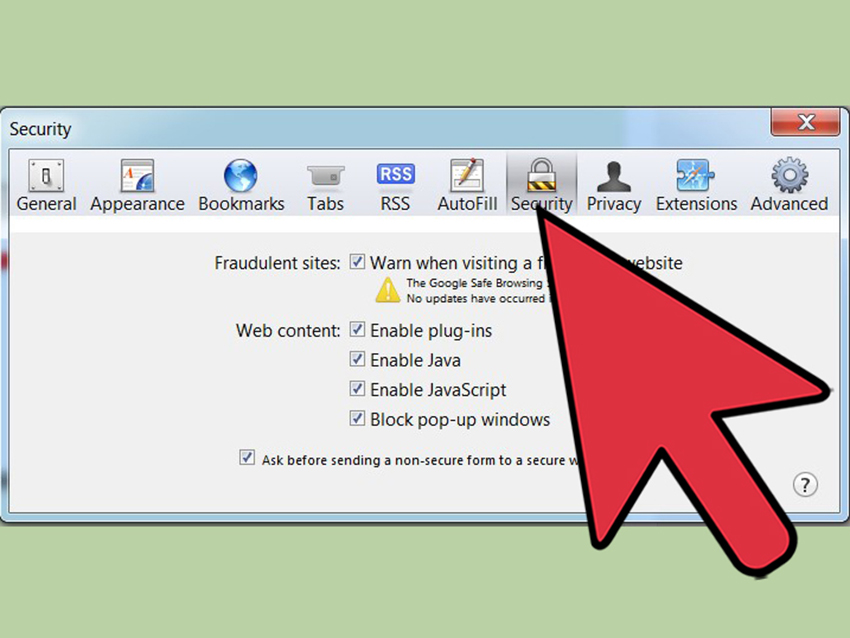
In your browser’s privacy section, you can usually manage cookies, cross-site tracking, browsing protections, phishing and fraud warnings, and private browsing behavior. Some browsers also let you choose stricter tracking prevention levels or block third-party cookies more aggressively.
This matters because websites, advertisers, and embedded services can collect a lot of information about how you browse. Browser privacy settings give you at least some say in that process. They do not make you invisible online, but they can reduce how much data is casually gathered as you move around the web.
What to look for
- tracking prevention or enhanced tracking protection
- cookie controls, especially third-party cookie settings
- fraudulent website or phishing protection
- private browsing options
- HTTPS-first or secure connection preferences, when available
A useful rule of thumb is to start with stronger privacy settings and relax them only if a trusted site breaks. That is usually better than allowing everything and cleaning up later. Think of it like locking your front door first and then deciding whom to let in, not the other way around.
A common misunderstanding
Private browsing is helpful, but it is not a magic invisibility cloak. It usually prevents your browser from keeping local history after the session ends, but it does not stop websites, internet providers, employers, or schools from potentially seeing traffic in other ways. So yes, private mode is useful. No, it does not turn you into a digital ghost with jazz music playing in the background.
If you shop online, read health information, or do a lot of searching on shared devices, adjusting privacy settings is one of the smartest browser upgrades you can make.
3. Review Site Permissions for Camera, Microphone, Location, Notifications, and Pop-Ups
Have you ever visited one recipe blog and suddenly your browser wants to know whether “grandmashimmeringlasagna.biz” can send notifications forever? That is exactly why site permissions matter.
Browsers let websites request access to specific tools and data, including your camera, microphone, location, notifications, clipboard, and pop-up behavior. These settings are useful when handled carefully. They are annoying when handled like free candy.
You do not need every website to know where you are, speak through your microphone, or buzz your desktop every five minutes. In fact, most websites need far less access than they ask for.
Best way to handle permissions
Review permissions regularly and keep them tight by default. Allow access only for sites you trust and only when the feature makes sense. A video meeting site may need camera and microphone access. A weather site may benefit from location access. A random coupon page definitely does not need permission to shout at you through notifications all afternoon.
Most browsers let you manage permissions in two ways:
- globally, by deciding what websites can request in general
- individually, by allowing or blocking specific sites
Pop-up controls are part of this conversation too. While some pop-ups are legitimate, many are disruptive, misleading, or designed to trick you into clicking something silly. Keeping pop-up blocking turned on is usually the safe move, and you can create exceptions for trusted sites that genuinely need them.
Specific example
Imagine you once allowed a website to send notifications because you thought it would alert you when a package shipped. Fast-forward three months, and now it sends breathless “BREAKING NEWS” about celebrity breakups and miracle blenders. That is your sign to revisit notification permissions and reclaim your peace.
Site permissions are one of the most overlooked browser settings, but they have a direct effect on privacy, distraction, and device security.
4. Clean Up Password, Autofill, and Sign-In Settings
Your browser probably knows a lot about you. It may store passwords, payment methods, addresses, passkeys, or form details so you can sign in faster and fill out forms with less typing. That convenience is great until it becomes sloppy.
Password and autofill settings deserve attention because they shape both security and everyday usability. When these settings are dialed in properly, your browser can help you save strong credentials, spot compromised passwords, and avoid repetitive typing. When they are ignored, you may end up with stale logins, duplicate autofill entries, or old information that keeps appearing in forms like an ex who still has your Netflix password.
What to review
- whether the browser offers to save passwords
- whether autofill is enabled for addresses and payment info
- whether password checkup or breach alerts are turned on
- whether sign-in and sync features are set the way you want
- whether unused or outdated saved entries should be deleted
For many people, the sweet spot is to keep password saving enabled only if the device is private, protected with a strong login, and used by one person. On a shared or public device, saved passwords are much riskier. In that case, it is better to avoid browser password storage or use a more controlled setup.
Why it improves browsing
Adjusting password and autofill settings can speed up checkout, reduce typo-filled logins, and help you catch weak or exposed passwords before they become a bigger problem. If you have ever typed the wrong shipping address because autofill insisted on using information from three apartments ago, you already know these settings are not trivial.
Also, sync settings matter. Some browsers can sync bookmarks, passwords, history, and open tabs across devices. That can be wonderfully convenient, but it should be a conscious choice. If you use both work and personal devices, separating sync settings can prevent a lot of digital clutter.
5. Clear Browsing Data, Manage Extensions, and Reset Settings When Necessary
Sometimes the best browser adjustment is not glamorous. It is cleanup.
When a browser becomes slow, glitchy, or oddly stubborn, the cause is often buried in cached files, cookies, extensions, or changed settings. Clearing browsing data and reviewing extensions can solve a surprising number of problems without requiring a full-scale tech meltdown.
Clear the clutter
Most browsers let you remove browsing history, cookies, cached images and files, and sometimes site-specific stored data. This can help when websites load the wrong version, login sessions behave strangely, or pages refuse to update properly.
Be thoughtful here. Clearing everything can sign you out of sites and wipe convenient preferences. If you are solving a specific problem, start small. Remove data for one site or clear cached files first, then escalate if needed.
Audit your extensions
Extensions can be useful, but they can also cause performance problems, conflicts, or privacy headaches. If you do not recognize an extension, do not use it anymore, or cannot explain what it does, that is a great candidate for disabling or uninstalling. A browser with twelve forgotten add-ons is basically a kitchen drawer full of mystery chargers.
Good browser hygiene means keeping only the extensions you actually need. Fewer moving parts usually means fewer surprises.
Know when to reset
If your homepage keeps changing, searches are redirected, tabs crash constantly, or settings feel cursed, a browser reset may be the cleanest fix. Most browsers now offer a reset or refresh feature that restores many settings to default while preserving at least some personal data such as bookmarks or passwords, depending on the browser.
This is not step one. It is more like step five and a half. But when a browser has been mangled by bad extensions, corrupted settings, or accidental changes, resetting can save you hours of frustration.
Why These Browser Settings Matter More Than People Think
Browser settings are not just a dusty control panel for tech enthusiasts. They shape how you search, shop, work, communicate, and protect your information. A few minutes in the settings menu can reduce distractions, improve page performance, cut down on tracking, and make your browser feel like it belongs to you again.
That is the real goal here: not perfection, but intention. You do not need to tweak every hidden feature. You just need to make a few smart decisions about how your browser behaves.
If you only remember one thing, make it this: browser defaults are a starting point, not a life sentence.
Experience: What It Feels Like to Finally Tune Your Browser Properly
The funny thing about adjusting browser settings is that nobody expects it to feel dramatic. It is not like buying a new laptop or upgrading your phone. There is no shiny unboxing moment. No heroic soundtrack. You open Settings, flip a few controls, remove some junk, and move on. But in daily life, the difference can feel bigger than people expect.
For one thing, browsing starts to feel calmer. Pages open where you want them to open. Search results come from the engine you actually chose. Notifications stop popping up like a game show buzzer. The browser becomes less noisy. That calm adds up, especially if you spend hours online for work, school, shopping, banking, or research.
There is also a weirdly satisfying feeling that comes from taking back control. A lot of people use the internet with a vague sense that websites, ads, pop-ups, and permissions are just things that happen to them. Once you start adjusting browser settings, that feeling changes. You realize you can say no to random notifications. You can block pop-ups. You can remove sketchy extensions. You can tell a browser to stop filling in an address you have not used since the era of mismatched furniture and ramen dinners.
Another common experience is discovering how many little annoyances were self-inflicted by default settings. Maybe a browser kept reopening old tabs that stressed you out. Maybe every website asked for location access. Maybe saved passwords were a mess, and autofill kept guessing wrong. These are small paper cuts, but enough of them can make the web feel exhausting. Adjusting browser settings is often less about gaining new features and more about removing friction you did not realize had become normal.
People also tend to notice a stronger sense of trust after cleaning things up. When you review privacy options, tighten permissions, and trim down extensions, your browser feels less mysterious. You know what it is doing. You know which sites can use your camera. You know whether passwords are being saved. You know where your searches are going. In a digital world full of vague consent buttons and suspicious prompts, that clarity is refreshing.
And then there is the productivity angle. A tuned browser wastes less time. You launch it and get right to work. Fewer broken pages. Fewer distracting alerts. Fewer sign-in problems. Fewer moments spent muttering, “Why is it doing that?” at a glowing rectangle. Over weeks and months, those saved seconds turn into real mental energy.
For families, the experience can be even more important. Parents may adjust browser settings to make shared devices safer, reduce tracking, or block unnecessary permissions. Students may change startup pages so school resources are front and center. Older adults may simplify the browsing experience by removing clutter and reducing confusing prompts. In each case, the settings are not just technical options. They are quality-of-life tools.
So yes, adjusting browser settings sounds humble. It does not have the flash of a new app or the bragging rights of building a custom PC. But it delivers something better: a web experience that feels more secure, more efficient, and more personal. That is not boring. That is smart.
Conclusion
If your browser has been running on autopilot, now is a good time to step in and make a few deliberate changes. Start with the five big areas that matter most: startup and search settings, privacy controls, site permissions, password and autofill tools, and cleanup features like browsing data and extensions. You do not need to overhaul everything in one sitting. Even one or two changes can make your browser faster, quieter, and easier to trust.
The best browser settings are the ones that match how you actually use the web. Once you make those adjustments, the internet feels a little less chaotic and a lot more like your space.