AirPlay and Amazon Fire TV do not always behave like best friends. They are more like neighbors who politely wave but refuse to share a lawn mower. Apple designed AirPlay for Apple TV and compatible smart TVs, while many Fire TV Stick models rely on different wireless-display technology. Fortunately, you can still stream videos, show photos, mirror presentations, and put your iPhone, iPad, or Mac on the big screen without replacing your television.
This guide covers three reliable approaches: native AirPlay on compatible Fire TV televisions, an AirPlay receiver app for Fire TV Stick, and the right streaming mode for smoother playback.
Can You AirPlay to a Fire Stick or Fire TV?
Yes, but the method depends on your hardware. Some televisions with Fire TV built in include native AirPlay and HomeKit support. On those models, your iPhone, iPad, or Mac can connect directly after AirPlay is enabled in the television’s settings.
A Fire TV Stick is different. Most Fire TV Stick models do not function as native AirPlay receivers. Fire TV’s built-in screen-mirroring feature usually uses Miracast, which is designed primarily for compatible Windows and Android devices. An iPhone or Mac will not normally appear just because you selected Enable Display Mirroring on the Fire TV.
The workaround is simple: install an AirPlay receiver app from the Amazon Appstore. The app listens for an AirPlay connection and makes the Fire TV Stick appear in the Apple device’s Screen Mirroring menu.
Before starting, connect both devices to the same Wi-Fi network and install available software updates. A guest network may isolate devices even when both can access the internet, acting like a tiny bouncer between your phone and television.
Trick 1: Use Built-In AirPlay on a Compatible Fire TV Smart TV
This is the cleanest method because it does not require a third-party receiver app. It applies to supported smart televisions that run Fire TV, not automatically to every Fire TV Stick plugged into a television.
Check Whether Your Fire TV Has Native AirPlay
- Open Settings from the Fire TV home screen.
- Select Display & Sounds.
- Look for AirPlay & HomeKit.
- Open it and follow the onscreen setup instructions.
If the AirPlay and HomeKit menu is missing, your particular television or software version may not support native AirPlay. Do not spend 20 minutes repeatedly opening the same menu in the hope that Apple will emerge from behind the Dolby Audio setting. Move to Trick 2 instead.
AirPlay from an iPhone or iPad
- Connect the iPhone or iPad and Fire TV to the same Wi-Fi network.
- Open the video, photo, music track, or app you want to share.
- Tap the AirPlay icon when the app provides one.
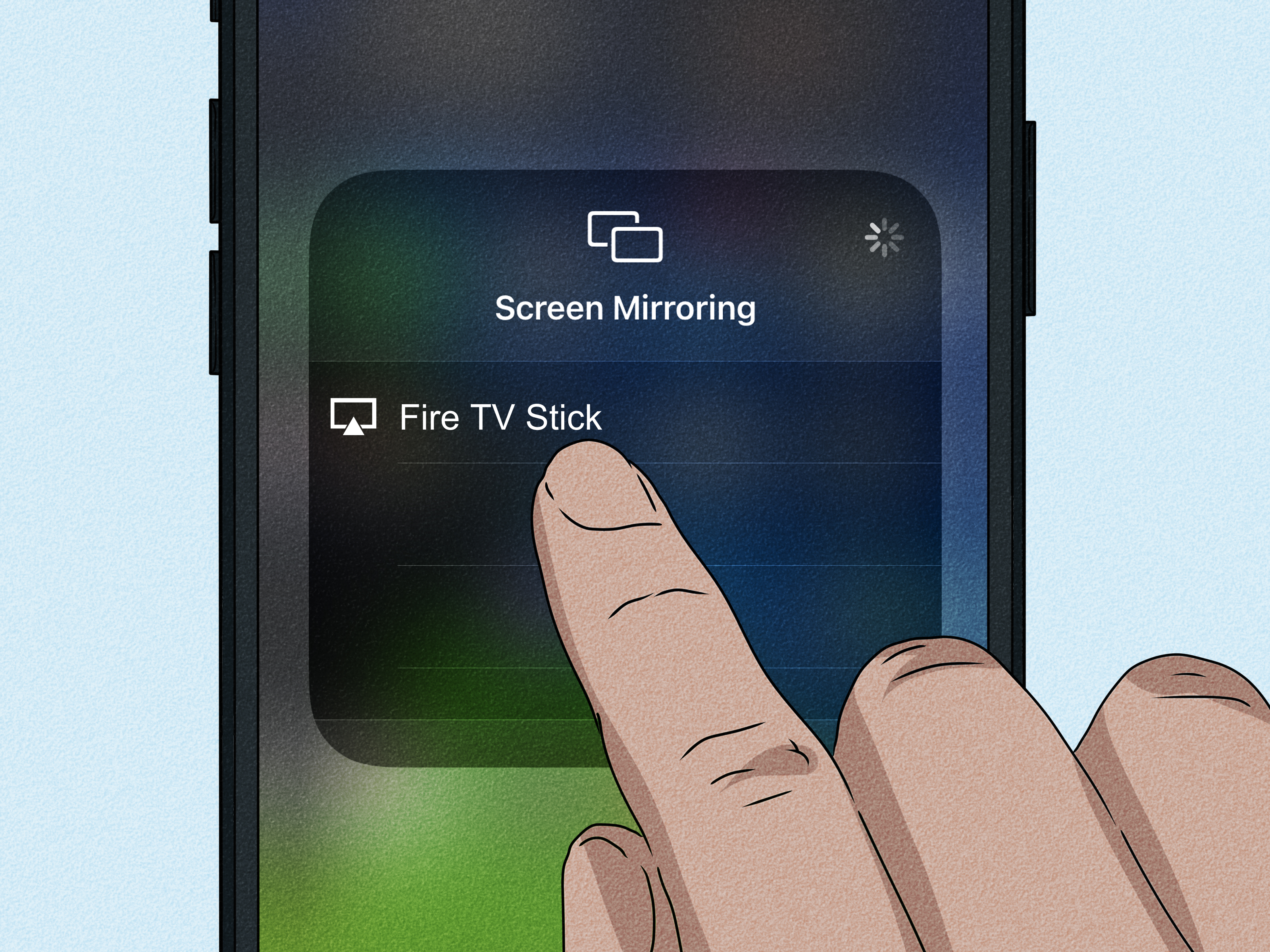
- For full-screen mirroring, open Control Center and tap Screen Mirroring.
- Select the name of your Fire TV.
- Enter the code shown on the television if prompted.
On newer iPhones and iPads, open Control Center by swiping down from the upper-right corner. On older iPhones with a Home button, swipe up from the bottom edge.
AirPlay from a Mac
- Make sure the Mac and Fire TV are on the same Wi-Fi network.
- Open Control Center from the macOS menu bar.
- Select Screen Mirroring.
- Choose the Fire TV from the device list.
- Choose whether to mirror the Mac display or use the television as another display when that option is available.
Native AirPlay is usually the best choice for family photos, Keynote presentations, Safari pages, music, and compatible video apps. It also avoids the advertisements or time limits that may appear in free receiver apps.
Trick 2: Turn a Fire TV Stick into an AirPlay Receiver with AirScreen
When a Fire TV Stick does not support AirPlay natively, AirScreen is one of the most widely used workarounds available through the Amazon Appstore. It acts as a receiver for AirPlay and may also support other casting protocols, depending on the current app version and device.
Install AirScreen on the Fire TV Stick
- Go to the Fire TV home screen.
- Select Find or the search icon.
- Search for AirScreen.
- Select the official app listing and choose Get or Download.
- Open AirScreen after installation.
- Complete its initial setup and allow the app to begin receiving connections.
The setup screens may change with app updates. Confirm that AirPlay reception is enabled and note the receiver name shown on the television.
Connect an iPhone or iPad to AirScreen
- Leave AirScreen open on the television.
- Open Control Center on the iPhone or iPad.
- Tap Screen Mirroring.
- Select the AirScreen receiver name shown on the TV.
- Enter a passcode if one appears.
Your Apple device’s display should appear on the television. Rotate the phone to landscape mode for wide videos, and disable orientation lock if the mirrored image stubbornly remains vertical like a 12-foot social-media story.
Connect a Mac to AirScreen
- Keep AirScreen running on the Fire TV Stick.
- On the Mac, open Control Center.
- Choose Screen Mirroring.
- Select the AirScreen device name.
This method is useful for browser tabs, slides, local photos, short videos, and demonstrations. Expect a small delay because the Mac encodes the display, sends it over Wi-Fi, and the Fire TV decodes it. That delay is usually fine for a slideshow and less charming for fast gaming or rhythm-based apps.
Free receiver apps may include ads, session limits, or upgrade prompts. Install them from the Amazon Appstore, review permissions, and avoid mystery APK files from websites that look as though they were designed during a thunderstorm.
Trick 3: Stream the Media Directly Instead of Mirroring Everything
Full-screen mirroring is convenient, but it is not always the best way to watch video. When an app provides its own AirPlay button, direct media streaming generally produces smoother playback than duplicating every pixel on the phone’s display. Your Apple device sends the media session to the receiver rather than continuously transmitting the entire interface.
Use the In-App AirPlay Button First
- Open the video, photo, or music app on the Apple device.
- Start the item you want to play.
- Look for the AirPlay icon or open the app’s sharing or output menu.
- Select the Fire TV receiver.
If direct streaming works, you can often continue using the phone for basic playback control without displaying notifications, battery percentage, or the message your friend sends at exactly the wrong moment.
Use Screen Mirroring Only When Necessary
Choose Screen Mirroring for content that does not include an AirPlay button, such as a web page, photo-editing demonstration, document, or app tutorial. Keep the Apple device in landscape orientation and close unneeded apps to reduce processing load.
Know When to Use the Native Fire TV App
Some subscription video services restrict AirPlay, block third-party receivers, or display a black screen during mirroring because of digital-rights protections. This does not necessarily mean the Fire TV, iPhone, or Wi-Fi is broken. Install the service’s official Fire TV app, sign in, and play the title directly on the Fire TV instead.
The Apple TV app is also available on many Fire TV devices. If the goal is simply to watch Apple TV+ programming, purchased movies, or supported Apple content, opening the Apple TV app on the Fire TV is usually easier and more reliable than mirroring an iPhone.
How to Fix AirPlay to Fire TV Problems
The Fire TV Does Not Appear
Verify that both devices use the same Wi-Fi network, reopen the receiver app, and confirm that AirPlay reception is enabled. Guest Wi-Fi, VPNs, or router isolation can prevent discovery.
Video Stutters or the Connection Drops
Restart the Fire TV, Apple device, and router. Move the router closer, pause large downloads, and try a strong 5 GHz connection when the devices are nearby. Wireless mirroring needs consistent local bandwidth.
You See a Black Screen or No Sound
Test with a photo. If photos work but a streaming movie turns black, content protection is probably blocking mirroring; use the official Fire TV app. For missing audio, check volume and Bluetooth output on the Apple device, TV, and soundbar.
The Picture Is Sideways or Too Small
Disable orientation lock and rotate the Apple device to landscape. A vertical source naturally leaves empty space on a widescreen television.
If AirPlay worked previously, update Fire TV, iOS, iPadOS, macOS, and the receiver app, then restart both devices before changing advanced network settings.
Real-World AirPlay Experiences: What Usually Happens in the Living Room
A typical setup begins with confidence. The iPhone is connected to Wi-Fi, the Fire TV Stick is showing its home screen, and the user opens Control Center expecting the television to appear immediately. It does not. This is the first practical lesson: a Fire TV Stick and a Fire TV smart television may share a name, interface, and remote, but they do not necessarily share native AirPlay support.
Once a receiver app is installed, the process becomes much easier. AirScreen is opened on the Fire TV, a receiver name appears, and the iPhone discovers it through Screen Mirroring. Family photos usually look good, slides remain readable, and short home videos play acceptably. The small delay is barely noticeable when everyone is watching vacation pictures. It becomes obvious when someone tries to play a fast mobile game and discovers that the television is reacting a fraction of a second behind the phone. Wireless mirroring is excellent for viewing and less ideal for precision control.
Another common experience involves vertical video. The connection works, but the television displays a tall, narrow image surrounded by empty space. Nothing is malfunctioning. The Fire TV is faithfully showing the iPhone’s portrait-shaped screen. Rotating the phone and disabling orientation lock usually improves the result. However, a vertical clip recorded for social media will remain vertical unless it is edited or played through an app that handles the aspect ratio differently.
Streaming services create a different surprise. A user can mirror the iPhone home screen, open Photos, and display a picture without trouble. The moment a protected movie starts, the television turns black while audio continues or playback stops. That pattern points to rights management rather than weak Wi-Fi. The practical solution is not to restart the router seven times. It is to install the streaming service’s official Fire TV app and play the movie there.
Wi-Fi quality also changes the experience dramatically. In a small room with the router nearby, mirroring may feel smooth enough for casual video. In a crowded home where the Fire TV sits behind a television, several walls from an older router, buffering and dropped connections become more likely. Moving the router, using a less congested band, or reducing other network traffic can make a bigger difference than changing three obscure settings inside the receiver app.
Mac users often have the best experience with presentations, browser demonstrations, and photo libraries. Text remains clear when the network is stable, and the TV becomes a convenient second display for a meeting or family project. Audio-video synchronization may be less predictable with browser-based video, especially when the receiver app is doing the AirPlay translation. In those cases, opening the video’s native Fire TV appor using direct AirPlay instead of full-screen mirroringusually gives a cleaner result.
The most useful real-world habit is to match the method to the content. Use mirroring for interfaces, photos, documents, and demonstrations. Use direct AirPlay for compatible media. Use native Fire TV apps for subscription movies and long viewing sessions. This simple decision prevents most of the frustration people mistakenly blame on AirPlay itself.
Final Thoughts
AirPlaying to a Fire Stick or Fire TV is entirely possible once you identify which type of Fire TV device you own. A compatible Fire TV smart television may work directly through its AirPlay and HomeKit settings. A Fire TV Stick usually needs an AirPlay receiver app such as AirScreen. For the smoothest video, use an app’s direct AirPlay control when available and switch to the official Fire TV app when protected content refuses to mirror.
The winning formula is pleasantly unglamorous: same Wi-Fi, current software, the correct receiving method, and realistic expectations about wireless delay. Follow those basics, and the big screen should stop acting like an exclusive club for non-Apple devices.